Connect PandaDoc to Kula
Last updated: September 25, 2026
Connecting PandaDoc lets you send offer letters for signature from inside Kula and see the signed document come back on the candidate's profile. PandaDoc connects with an API key rather than a sign-in.
Who can do this: Super Admin, Admin
Where to find it: Settings → Organization → Organization integrations → E-signature
How to Connect PandaDoc with Kula
Go to Settings → Organization → Organization integrations.
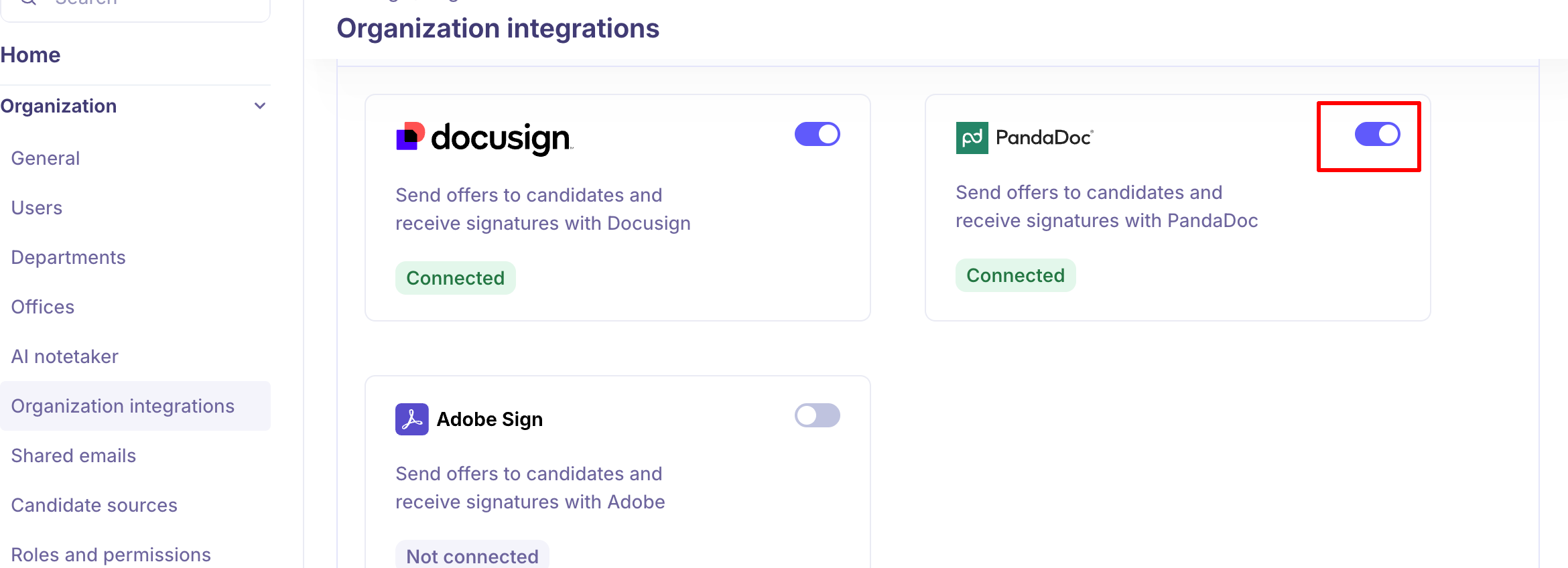
Find the PandaDoc card under E-signature.
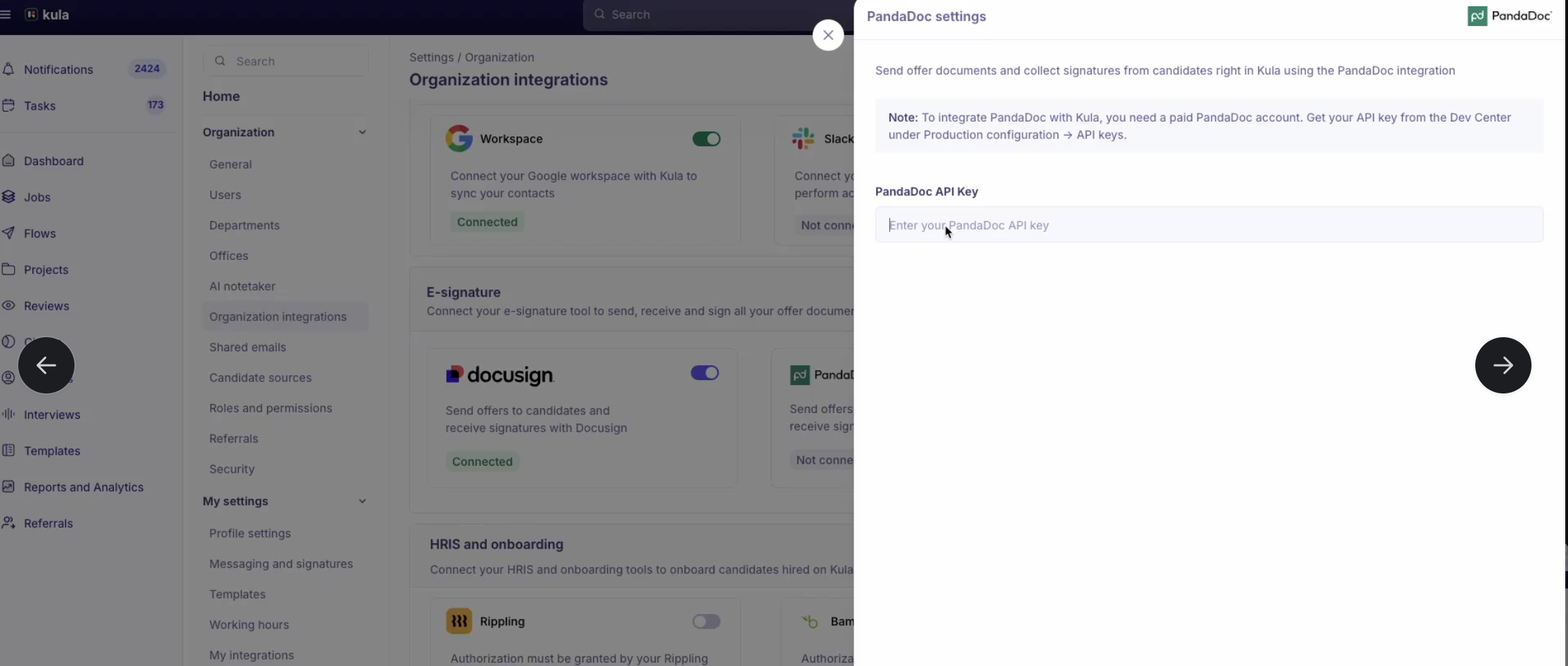
Turn the toggle on. The connection panel opens.
Paste your key into PandaDoc API Key.
Connect.
If the key is not accepted you will see "PandaDoc integration failed. Verify your API key and try again."
Once connected, the PandaDoc card will show a Connected status and the integration toggle will be enabled.
You need a paid PandaDoc account. Get your API key from the PandaDoc Dev Center, under Production configuration → API keys.
The key must be exactly 40 characters and contain only hexadecimal characters (0–9 and A–F). Kula validates this before it tries to connect, so a truncated or mistyped key is rejected straight away.
Set your signing defaults
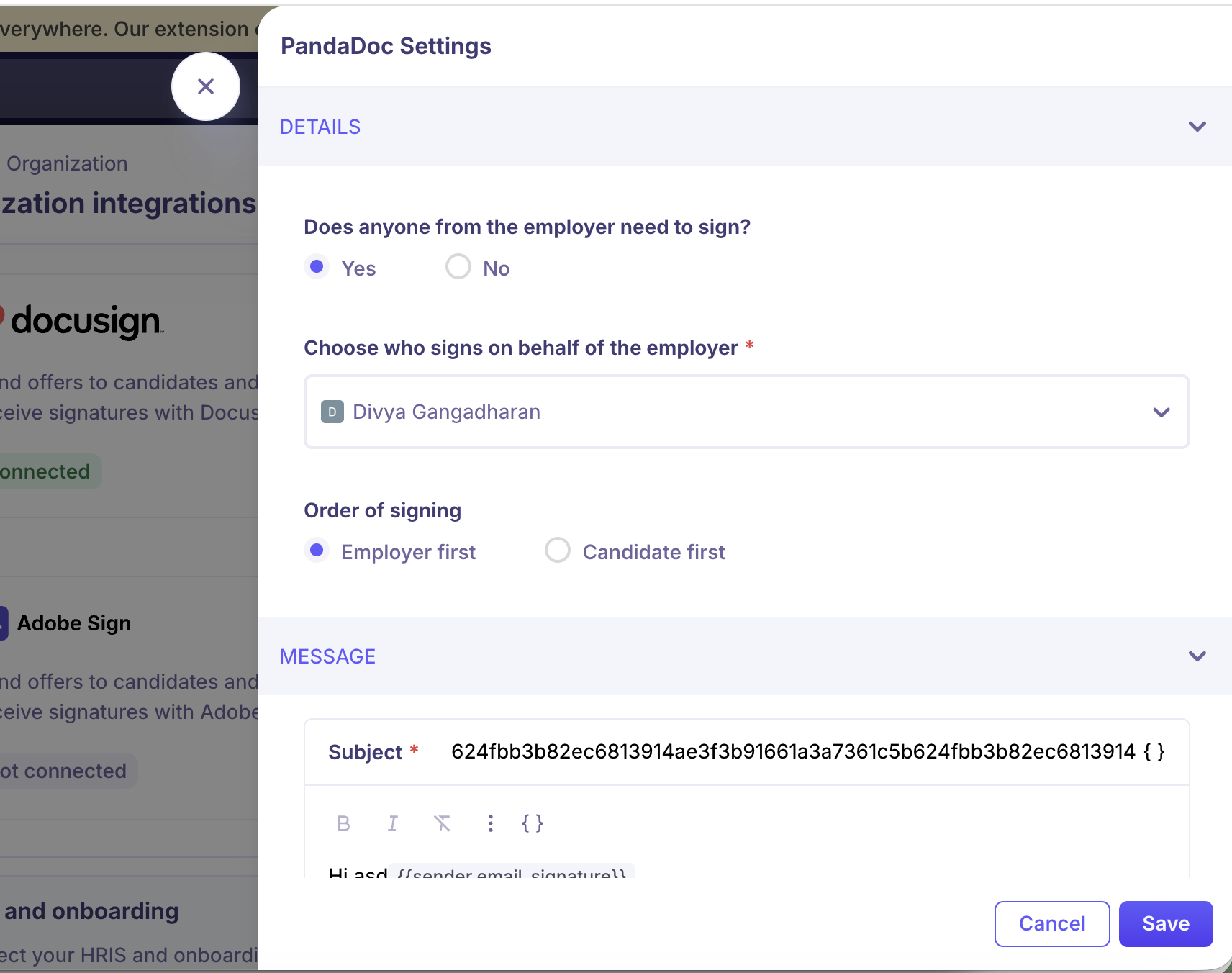
Hover over the connected card and click Edit to open the PandaDoc settings.
Setting | What it controls |
|---|---|
Does anyone from the employer need to sign? | Whether a company signer is added at all. Admins only. |
Choose who signs on behalf of the employer | Which Kula user countersigns. |
Order of signing | Employer first or Candidate first. Only applies when a company signer is required. |
Message | The subject and body of the email that goes to the candidate. The subject is limited to 150 characters. |
Supported signing workflows
Company signer → Candidate
Candidate → Company signer
Candidate only
The candidate's accept or decline status comes back to Kula in real time over webhooks, and the final signed document is saved automatically in both the Files section and the Offer stage.
For the full flow, see Setting up e-signature.
Good to know
The API key must be exactly 40 hexadecimal characters. This is enforced before Kula contacts PandaDoc, so a rejected key at this stage is a formatting problem, not an account problem.
A free PandaDoc account will not work — the integration requires a paid plan on the PandaDoc side.
Unlike Docusign, the PandaDoc message editor does not support links or images in the candidate email.
The subject line limit is 150 characters, compared with 100 for Docusign.
FAQ
Kula rejected my PandaDoc API key before it even tried to connect — why? Kula checks the format first: the key has to be exactly 40 characters and hexadecimal only (0–9, A–F). Copy it again from Dev Center → Production configuration → API keys and check nothing was truncated.
Can we send an offer that only the candidate signs, with nobody countersigning? Yes. Set Does anyone from the employer need to sign? to No in the PandaDoc settings and the offer goes to the candidate alone.
Need help? If you have questions or need assistance, reach out to us at support@kula.ai or use the in-app chat.