Assigning Reviewers to Applications
Last updated: April 16, 2026
In Kula, you can assign team members as reviewers on candidate applications at the Prospect or Application Review stage. This is done by adding a Review activity to the stage in the interview plan. Reviewers receive a notification and can submit structured feedback — helping the recruiter make a more informed move or reject decision without needing to open or manage each application themselves.
How Reviewer Assignment Works
Reviewers are not assigned per individual candidate — they are configured at the stage activity level in the job's interview plan. When you add a Review activity to a stage, anyone assigned as a reviewer on that activity will automatically be notified when candidates reach that stage.
This means:
You set reviewers once at the job level, not application by application.
All candidates in that stage trigger the same reviewer notifications.
Reviewers submit feedback via a scorecard, which the recruiter can then view before deciding.
Step 1: Add a Review Activity to a Stage
Open the job and go to Settings → Interview plan.
Expand the Prospect stages or Application review stages section.
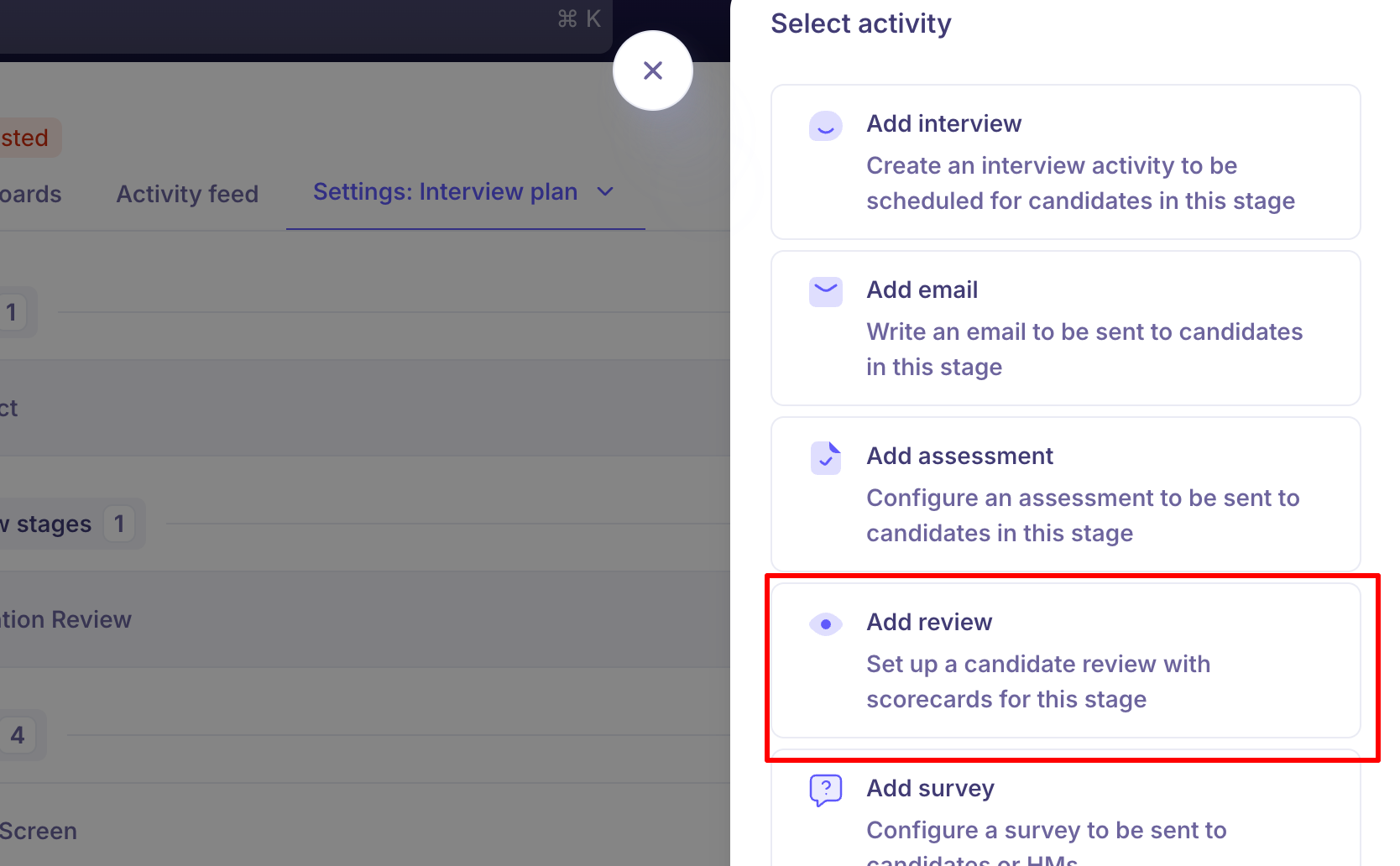
Click + Activity on the relevant stage.
Select Add Review from the activity options.
Step 2: Configure the Review
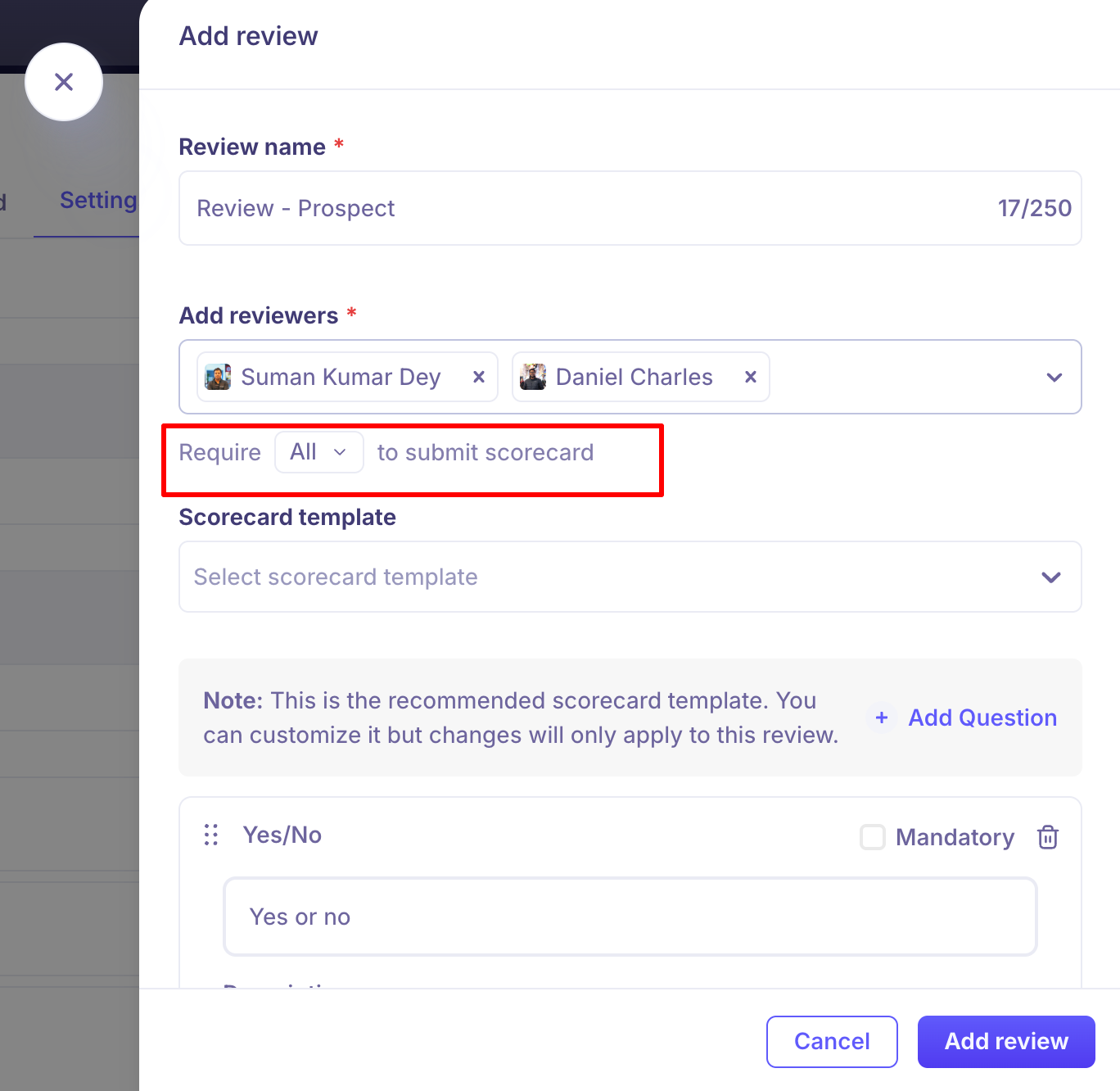
In the Add review panel:
Review name (required) Give the review a clear name — e.g. "Application Screening Review" or "Review - Prospect". Maximum 250 characters.
Add reviewers (required) Search for and select the team members you want to assign. You can add multiple reviewers. Reviewers must be active users in your Kula account.
You can choose whether all reviewers (in case of multiple reviewers) are required to submit the scorecard, or if submission by any one reviewer is sufficient.
Scorecard template (optional) Select an existing scorecard template to give reviewers a structured set of questions to answer. If you customise the template here, changes apply only to this review — they do not affect the global template.
You can also add custom questions directly using + Add Question. Available question types include:
Yes/No
Rating
Short text
Click Add review to save.
What Reviewers See and Do
Once the Review activity is active on the stage:
Assigned reviewers receive a notification when a candidate enters the stage.
Reviewers can open the candidate's profile and submit their scorecard feedback directly from within Kula.
Reviewers do not need access to the full pipeline — they only see what's relevant to their review task.
The candidate's status updates to Awaiting feedback until all reviewers have responded.
Once feedback is submitted, the status updates to Needs decision, prompting the recruiter to move the candidate forward or reject them.
Viewing Reviewer Feedback
The recruiter can view all reviewer scorecard responses from within the candidate's application:
Open the candidate's application.
Click the Scorecards tab.
All submitted reviews are listed here with the reviewer's name, response, and any written notes.
Sending a Review to a Specific Candidate (Ad-hoc)
If you need to send a review to a reviewer for one specific candidate without it being tied to the interview plan, you can do this ad-hoc:
Open the candidate's application.
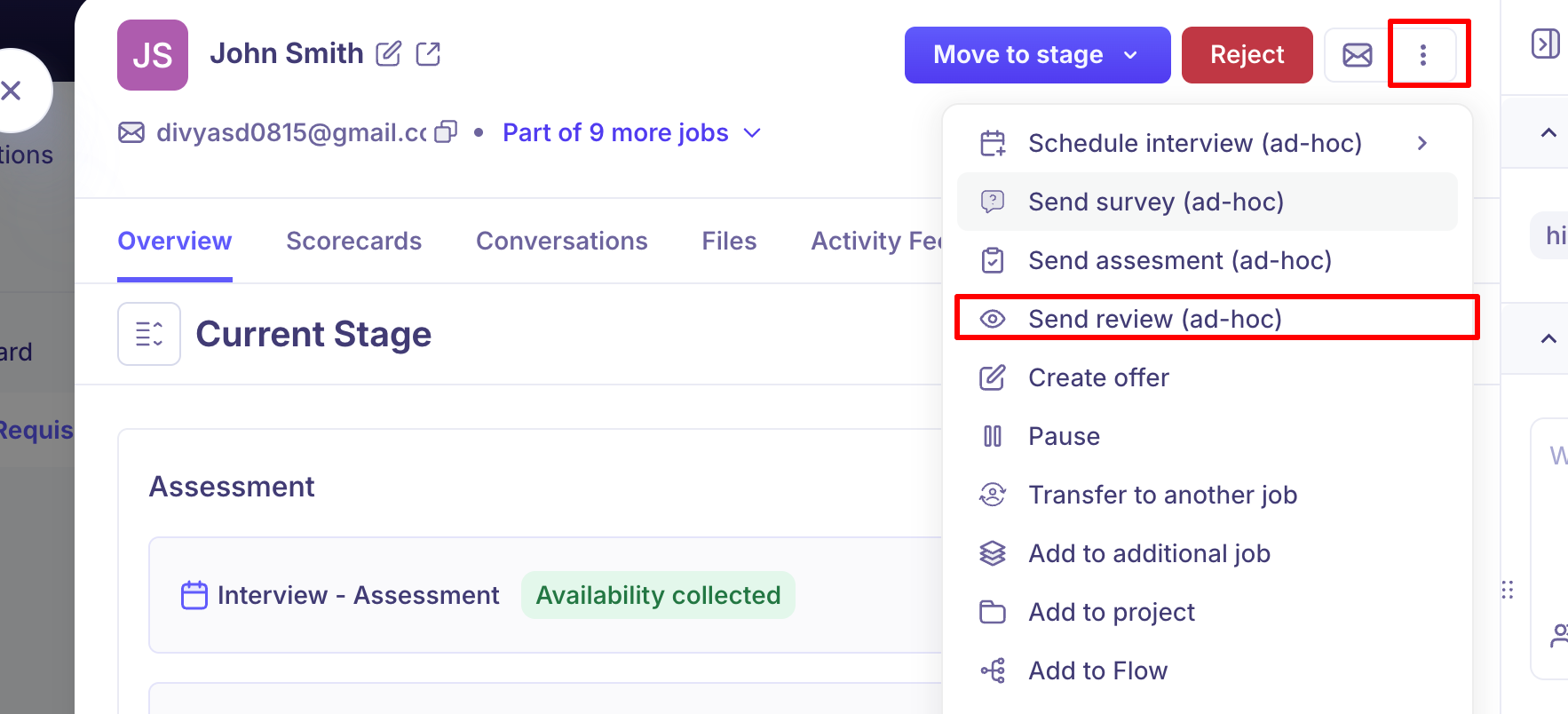
Click the ⋯ (more options) menu.
Select Send review (ad-hoc).
Choose the reviewer(s) and configure the review details.
Click Send.
This is useful when you want a second opinion on an individual candidate outside of the standard review workflow.
FAQs
Q: Can I assign different reviewers to different candidates in the same stage?
No. Reviewers are set at the stage activity level and apply to all candidates who pass through that stage. For individual candidate reviews, use the Send review (ad-hoc) option from the candidate's ⋯ menu.
Q: Do reviewers need a specific role or permission to submit feedback?
Reviewers must be active users in your Kula account. They do not need to be the Recruiter or Hiring Manager on the job — any team member can be assigned as a reviewer.
Q: What happens to candidates if no reviewer has submitted feedback yet?
The candidate's status shows as Awaiting feedback. The recruiter can still choose to move the candidate forward or reject them regardless — reviewer feedback is informational, not a blocker.
Q: Can I customise the scorecard questions for a specific review without changing the global template?
Yes. When adding a Review activity, you can customise the selected scorecard template. A note in the panel confirms that changes apply only to this review and do not affect the global template.
Q: Can I add a Review activity to later interview stages, not just Prospect and Application Review?
Yes. Review activities can be added to any stage in the interview plan, not just the early stages. However, they are most commonly used at Prospect and Application Review for early-stage screening before interviews begin.
Need Help?
If you have questions or need assistance with setup, feel free to reach out to us at support@kula.ai or use the in-app chat for assistance.