Bulk Review and Bulk Actions
Last updated: April 16, 2026
When you have a large number of candidates in Application Review, Kula gives you two powerful ways to work through them efficiently at scale: Quick Review (bulk review mode) and Bulk actions (checkbox-based multi-select). This article explains both and when to use each.
Quick Review (Bulk Review Mode)
Quick Review lets you move through candidates one at a time in a focused panel — making a move or reject decision for each without opening individual profiles. It is the recommended approach when you need to review each candidate's profile and application responses before deciding.
How to start Quick Review
Open the job → Candidates tab → Application Review stage.
Click the Quick review banner at the top of the list.
Click Review now.
The first candidate in the queue opens in the review panel.
What you see
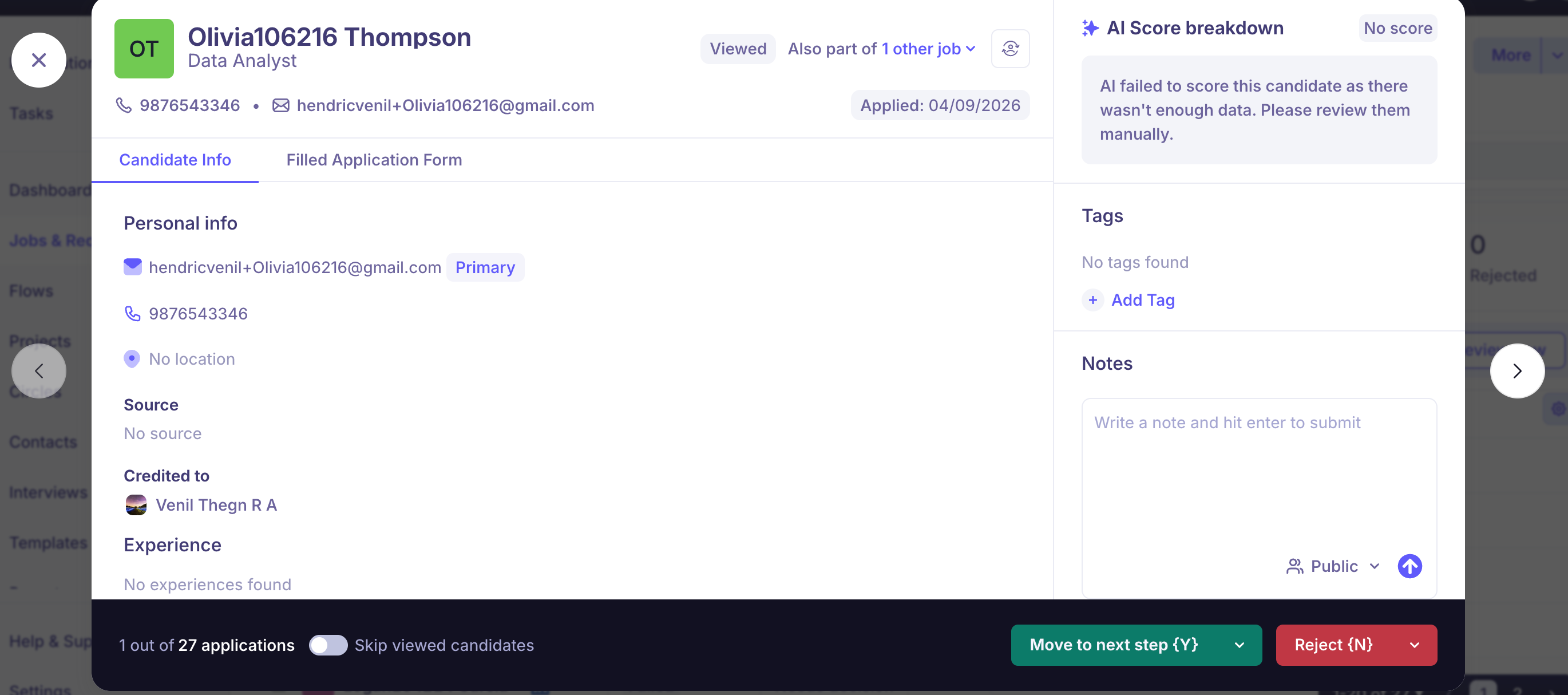
For each candidate the panel shows:
Candidate details, contact info, and experience
Application form responses
AI Score and full breakdown (reasoning + citations per attribute)
Applied date
Other jobs the candidate is currently part of in your pipeline
Actions in Quick Review
Move forward: Click Move to stage and select the destination stage.
Enable Remember this selection for next applicant to automatically apply the same stage to every subsequent candidate — eliminating repeated clicks during high-volume reviews.
Reject: Click Reject, select a rejection reason, and optionally send a rejection email.
Enable Remember this selection for next applicant to apply the same rejection reason and email preference to every subsequent candidate.
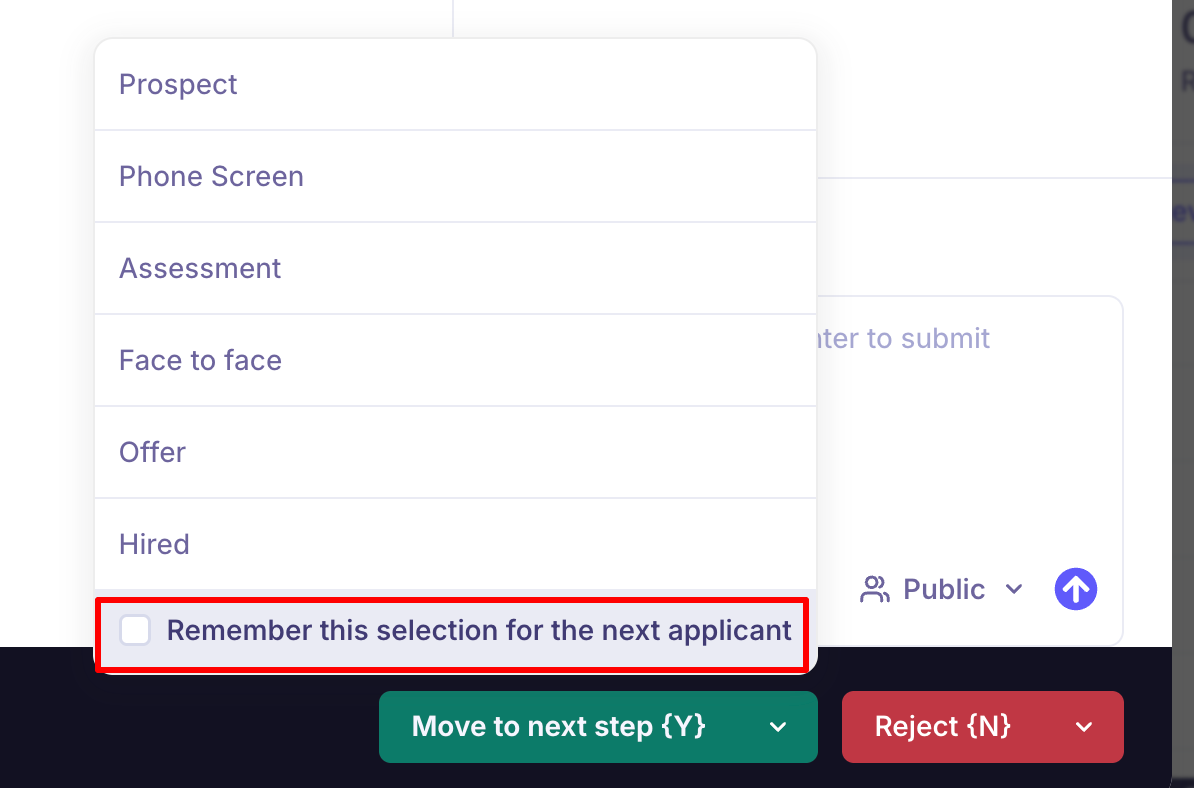
Even when "Remember this selection" is enabled, you can still change the rejection reason for a specific candidate by clicking the dropdown next to the Reject button before confirming. If you exit the Quick Review session and return, the system will prompt you to select a rejection reason again.
Recommendation: If you expect to use different rejection reasons across candidates, do not enable "Remember this selection" — this way you'll be prompted each time and can choose the appropriate reason per candidate.
Notes and tags: Add a note, @mention a team member, and apply tags without leaving the review panel. Notes can be set to Public (visible to the candidate) or Private (internal only).
Navigate: Use the arrow controls to move between candidates. Keyboard shortcuts: Y = move to next stage, N = reject.
Skip Viewed Candidates
Toggle Skip viewed candidates to skip anyone you have already actioned in the current session. The system automatically advances to the next unreviewed candidate — useful when resuming a partial review session.
Bulk Actions (Checkbox Multi-Select)
Bulk actions let you take the same action on multiple candidates simultaneously — without reviewing each one individually. This is best for decisions you can make from the list view, such as moving a filtered group of candidates forward or rejecting a clear batch of unqualified applicants.
How to use bulk actions
Open the job → Candidates tab → select a stage.
Tick the checkboxes to the left of candidate names to select them.
To select all visible candidates, tick the checkbox in the column header.
An action bar appears at the bottom of the screen.
Available bulk actions
Action | What it does |
Move to another stage | Moves all selected candidates to a chosen pipeline stage at once |
Reject all | Rejects all selected candidates — prompts for a rejection reason and optional email |
Send email | Sends an email to all selected candidates |
Send self-schedule link | Sends all selected candidates a link to book their own interview slot |
Add tags | Applies one or more tags to all selected candidates |
Transfer to another job | Moves selected candidates to a different job, removing them from this one |
Add to additional job | Adds selected candidates to another job without removing them from this one |
Add to Project | Shortlists all selected candidates to a project for further review or future outreach |
Add to Flow | Enrolls selected candidates into an outreach flow |
Export as CSV | Downloads selected candidates' details as a CSV file |
Bulk actions vs. Quick Review — which to use?
Quick Review | Bulk Actions | |
Best for | Reviewing each candidate's profile before deciding | Taking the same action on a pre-selected group |
Decision basis | Profile, form responses, AI Score per candidate | List-level — you select candidates first, then act |
Speed | One candidate at a time, fast navigation | Instant — one click applies to all selected |
Supports different outcomes per candidate? | Yes — each candidate can be moved or rejected individually | No — all selected candidates get the same action |
FAQs
Q: Is there a limit to how many candidates I can bulk-action at once?
Bulk actions apply to all candidates you have selected via checkboxes. The page displays candidates in groups — select all visible candidates using the header checkbox, or scroll and select across the list. There is no fixed cap on the number you can action at once.
Q: I enabled "Remember this selection" in Quick Review but I can't change the rejection reason for a specific candidate. How do I override it?
Click the dropdown next to the Reject button before confirming the rejection. This lets you change the reason for that specific candidate without disabling the remembered setting globally. If overriding consistently, consider turning off "Remember this selection" so you are prompted each time.
Q: Can I bulk-reject candidates and send them all a rejection email?
Yes. When using Reject all from the bulk action bar, you will be prompted to select a rejection reason and optionally send a rejection email to all selected candidates.
Q: Can I add rejected candidates to a project in bulk?
From bulk actions, you can add selected candidates to a Project before rejecting. Alternatively, in Quick Review, the reject flow lets you add each candidate to an existing or new project at the time of rejection — useful for keeping strong candidates in a talent pool.
Q: How do I quickly process a large volume of very clearly unqualified applicants?
Use the Sort by AI Score (low to high) view to surface the weakest matches first, select them in bulk using checkboxes, then use Reject all. This clears the bottom of your queue quickly without needing to open each profile.
Need Help?
If you have questions or need assistance with setup, feel free to reach out to us at support@kula.ai or use the in-app chat for assistance.