Reviewing New Applications
Last updated: April 16, 2026
When new applications come in, Kula gives you several ways to work through them — browsing the candidate list, using focused Quick Review mode, sending a Review activity to team members for structured feedback, or taking bulk actions on multiple candidates at once.
This article covers all approaches.
Where to Start
Go to Jobs and open the job you want to review.
Click the Candidates tab.
Click Application Review in the stage bar at the top.
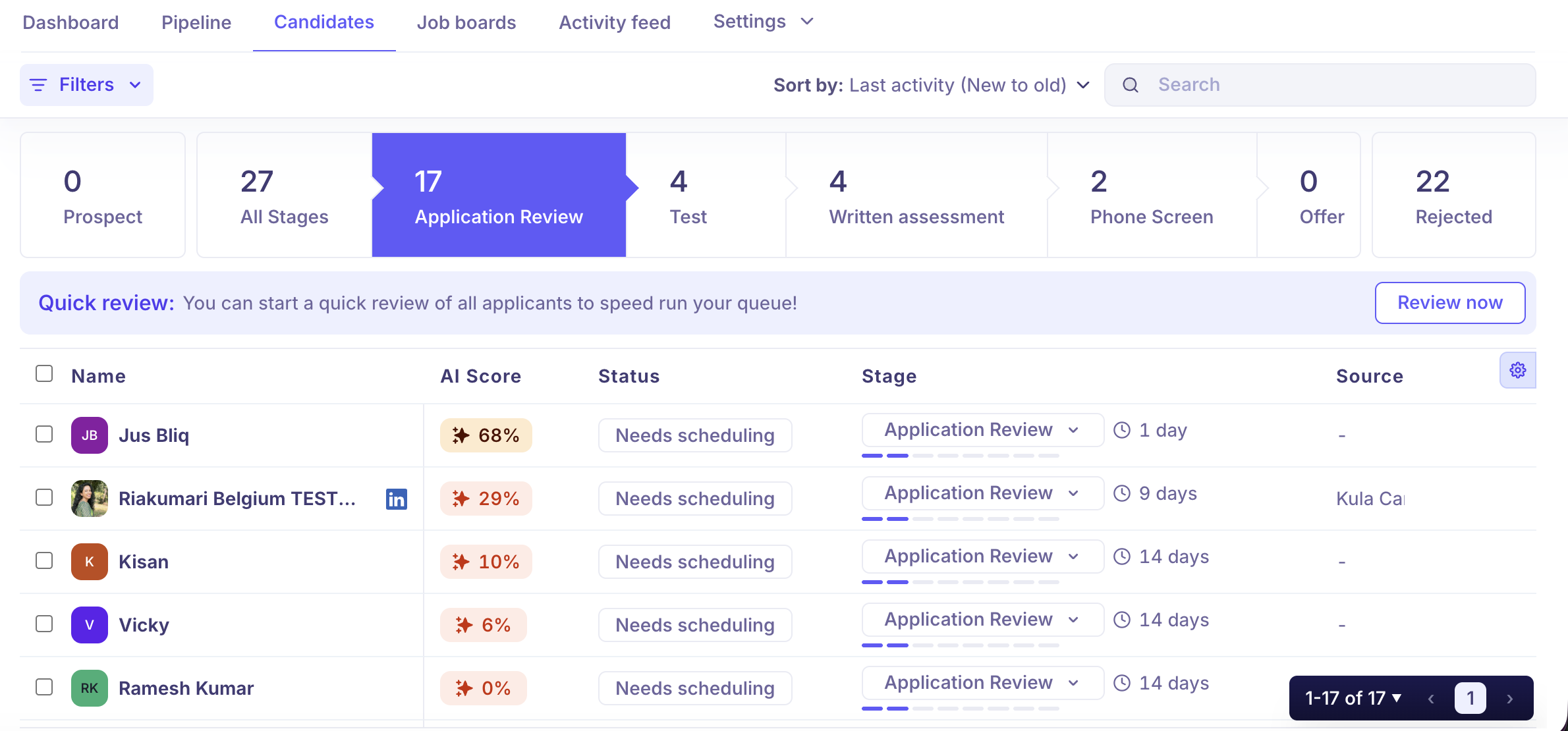
You will see all candidates in the Application Review stage alongside their AI Score (if configured), status, time in stage, and source.
Option 1: Review from the Candidate List
You can review and action candidates directly from the list view without entering Quick Review.
To review a candidate: Click their name to open their full application — profile, form responses, AI Score breakdown, notes, and activity history.
To move a candidate forward: Click Move to stage and select the next stage.
To reject a candidate: Click the red Reject button, select a rejection reason, and optionally send a rejection email.
To sort candidates: Use the Sort by dropdown to order by AI Score (high to low), Last activity, or Applied date. Sorting by AI Score is the fastest way to prioritise your strongest matches.
To search: Use the Search bar to find a candidate by name within the current stage view.
Option 2: Send a Review Activity
A Review is a structured activity you can add to the Prospect or Application Review stage in your interview plan. It lets you send candidate profiles to specific team members for their input — useful when you want a hiring manager or another recruiter to weigh in before deciding who to move forward.
How to add a Review activity to a stage
Reviews are configured in the job's Settings → Interview Plan:
Open the job and go to Settings → Interview plan.
Expand the Prospect or Application Review stage.
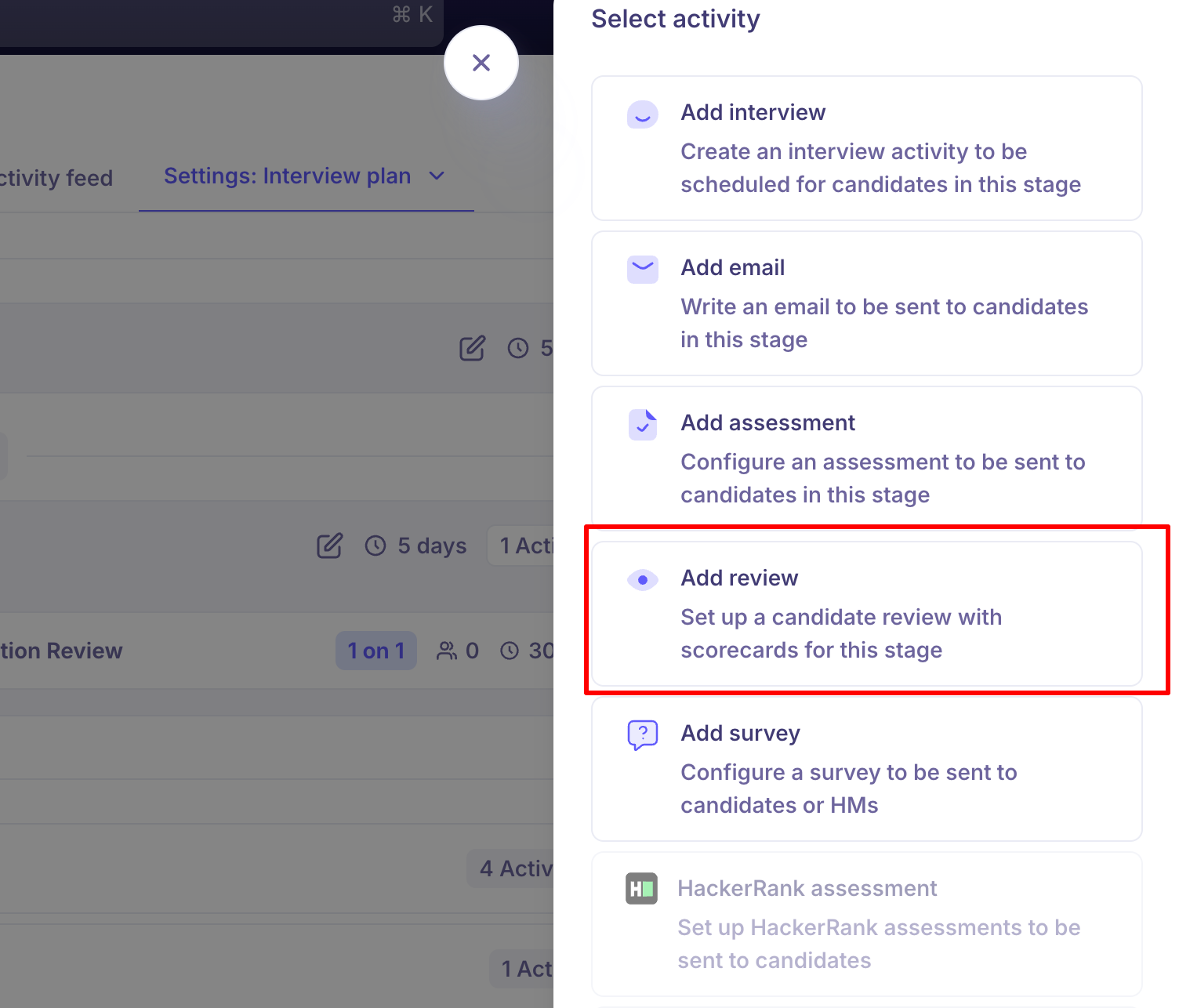
Click + Activity and select Add Review.
In the Add review panel:
Enter a Review name (e.g., "Review - Prospect" or "Application Screening Review")
Select one or more Reviewers from your team
Optionally attach a Scorecard template for structured feedback
Customise scorecard questions (Yes/No, ratings, open text) or add new ones using + Add Question
Click Add review.
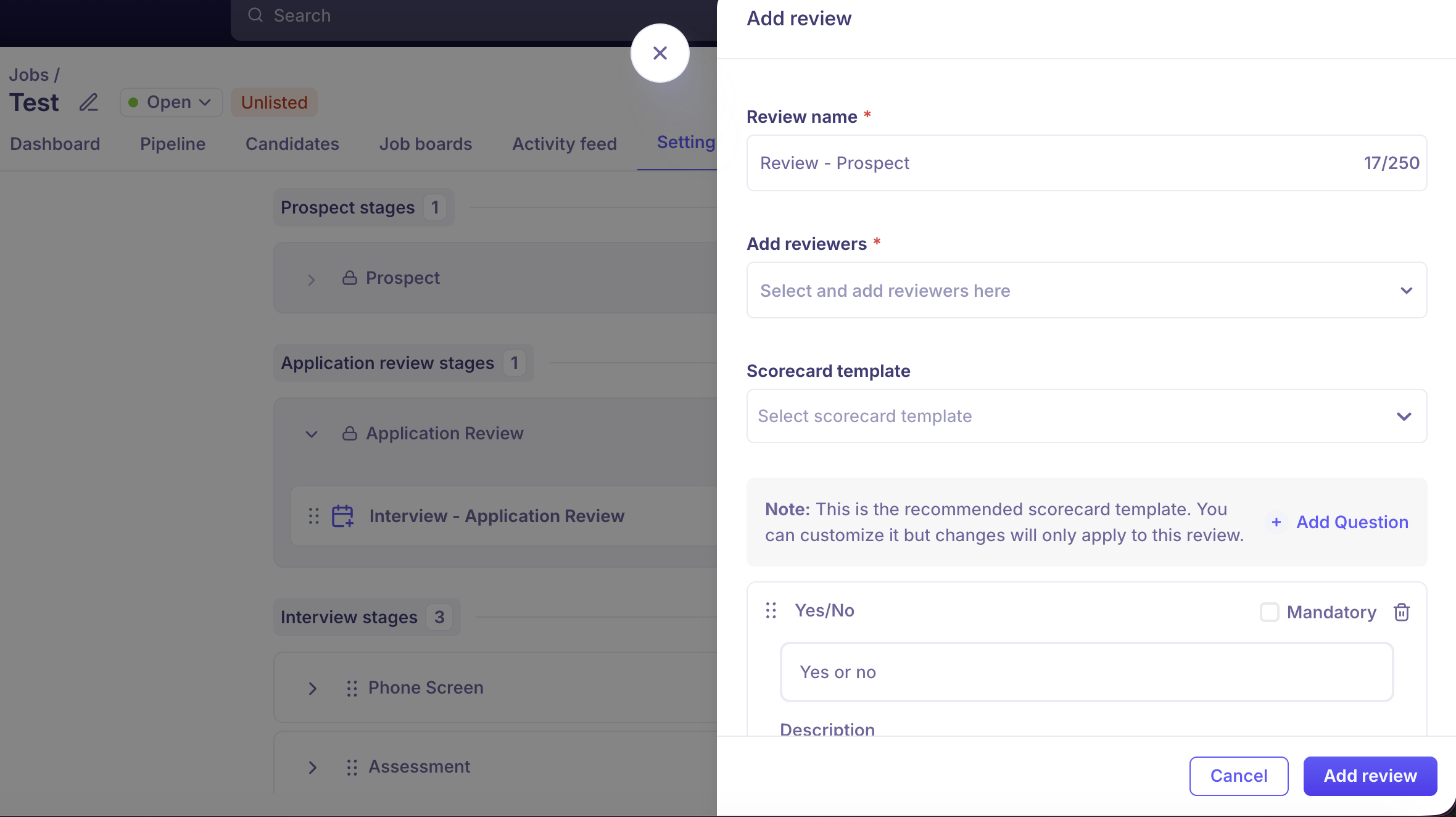
Changes to the scorecard template at this point apply only to this review — they do not affect the global template.
How the Review works
Once added as a stage activity, the review task is assigned automatically when candidates are in that stage. Assigned reviewers receive a notification and can submit their scorecard feedback directly from within Kula without needing access to the full pipeline.
The recruiter can see when reviewers have submitted feedback and use it to inform move/reject decisions.
Option 3: Quick Review
Quick Review is a focused, one-at-a-time mode designed for working through large applicant queues efficiently. It opens directly from the Application Review stage.
How to start Quick Review
Go to Jobs → open the job → Candidates tab → Application Review stage.
Click the Quick review banner at the top of the candidate list.
Click Review now.
A panel opens with the first candidate in the queue.
What you can see in Quick Review
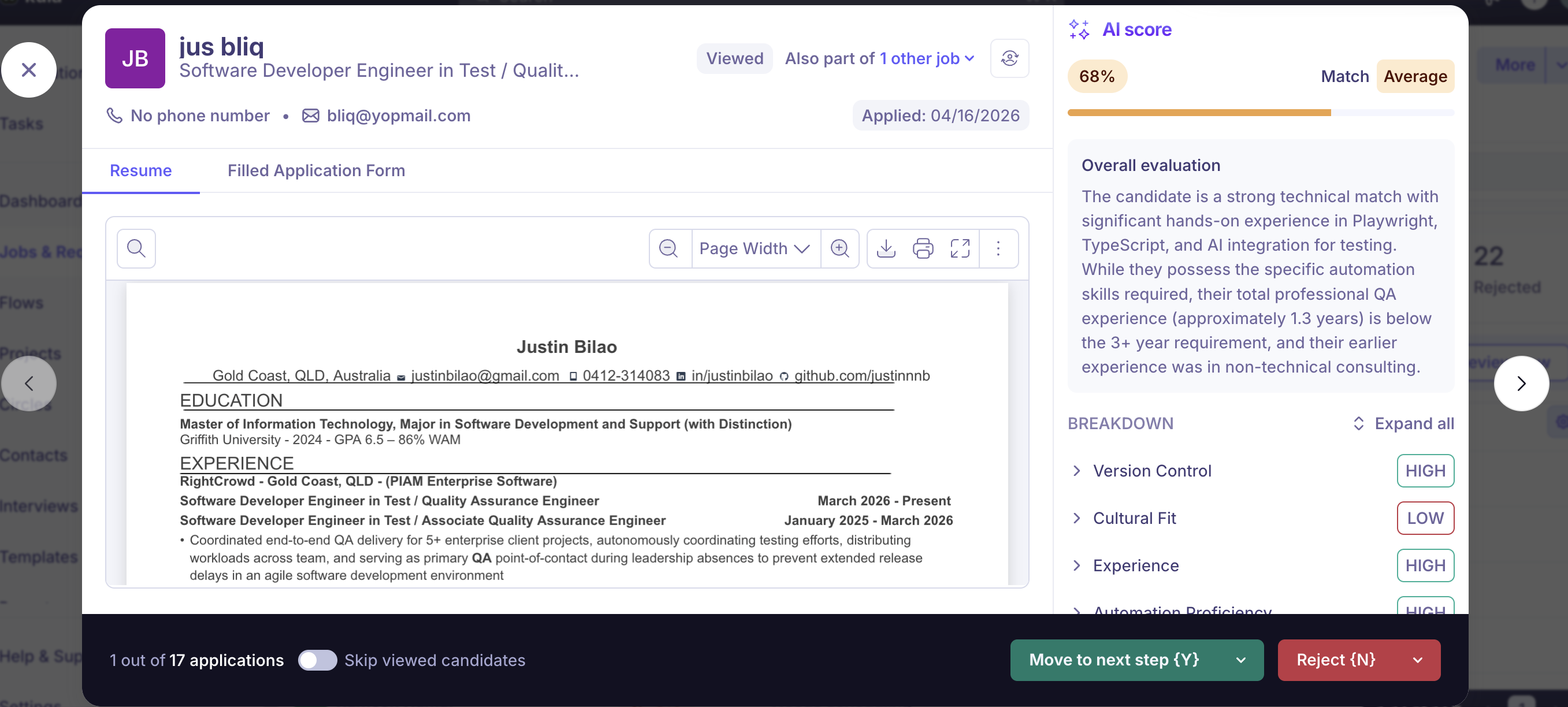
Candidate details — Name, contact info, current employer, experience
Application form responses — All answers submitted during the application
AI Score and breakdown — The score and reasoning behind each attribute
Applied date — When the candidate submitted their application
Other jobs — Any other jobs in your pipeline this candidate is currently part of
Actions in Quick Review
Move forward: Click Move to stage and select the destination stage.
Enable Remember this selection for next applicant to apply the same stage automatically across the queue.
Reject: Click Reject and select a rejection reason.
Optionally send a rejection email.
Optionally add the candidate to a project (new or existing) — useful for keeping strong candidates in a talent pool for future roles.
Enable Remember this selection for next applicant to apply the same rejection settings to subsequent candidates.
Add notes: Write a note directly from the review panel.
Tag a team member with @mention to notify them.
Set visibility to Public (visible to the candidate) or Private (internal only).
Add tags: Apply tags to the candidate without leaving the review panel.
Navigate between candidates: Use the arrow controls to move between candidates.
Keyboard shortcuts: Press Y to move to the next stage, N to reject.
Skip Already-Reviewed Candidates
Toggle Skip viewed candidates to avoid re-reviewing anyone you have already actioned in the current session. The system advances automatically to the next unreviewed candidate.
FAQs
Q: What is the difference between a Review activity and a scorecard?
A Review activity is a structured feedback task you assign to specific team members at the Prospect or Application Review stage — before interviewing begins. A scorecard is the feedback form interviewers complete after a formal interview. Reviews are for early-stage evaluation; scorecards are for post-interview feedback.
Q: Can I send a Review activity to someone who isn't on the hiring team?
Reviewers must be added as users in your Kula account. You can assign any user as a reviewer — they don't need to be the Hiring Manager or Recruiter on the job.
Q: How do I avoid re-reviewing candidates I have already actioned?
Enable Skip viewed candidates in Quick Review. This skips anyone you have already moved or rejected in the current session.
Q: Can I see the AI Score reasoning — not just the number?
Yes. In Quick Review, click the AI Score to see the full breakdown: each attribute scored, the reasoning used, and citations from the candidate's profile.
Q: An AI Score looks inflated for a candidate who doesn't meet the minimum experience requirement. What should I do?
This may be a result of the older AI scoring model. Updating your AI scoring attributes will retrigger scoring using the improved model. Contact support if you need help.
Q: Can I add a candidate to a project when rejecting them?
Yes. The Quick Review rejection flow lets you add the candidate to an existing project or create a new one — useful for keeping strong candidates for future openings.
Q: What's the difference between Prospect and Application Review?
Prospect is for sourced candidates who haven't entered formal evaluation. Application Review is where inbound applicants land and where active review begins. Candidates in Prospect do not appear in Quick Review or AI scoring until moved to Application Review.
Need Help?
If you have questions or need assistance with setup, feel free to reach out to us at support@kula.ai or use the in-app chat for assistance.