Application Review Stage Overview
Last updated: April 16, 2026
The Application Review stage is the first active evaluation stage in your hiring pipeline. It sits right after the Prospect stage.
The goal of this stage is to triage your applicant pool: identify who to move forward, and reject those who are not a fit.
How Candidates Enter Application Review
Candidates arrive in Application Review through any of these routes:
Being added manually by a recruiter using Add candidates → Add existing candidates, with Interview Stage set to Application Review
Being imported via CSV with Application Review as the target stage
Being referred by an employee through the Referrals portal
Being moved from Prospect once a recruiter decides to formally evaluate them
When adding candidates manually, you can place them directly into Application Review — bypassing Prospect entirely — if they are already ready to be evaluated.
Navigating to Application Review
Open the job from the Jobs list.
Click the Candidates tab.
Click Application Review in the stage bar at the top.
The count on the tile shows how many candidates are currently in this stage. The stage bar runs from Prospect on the far left through all interview stages to Rejected on the far right.
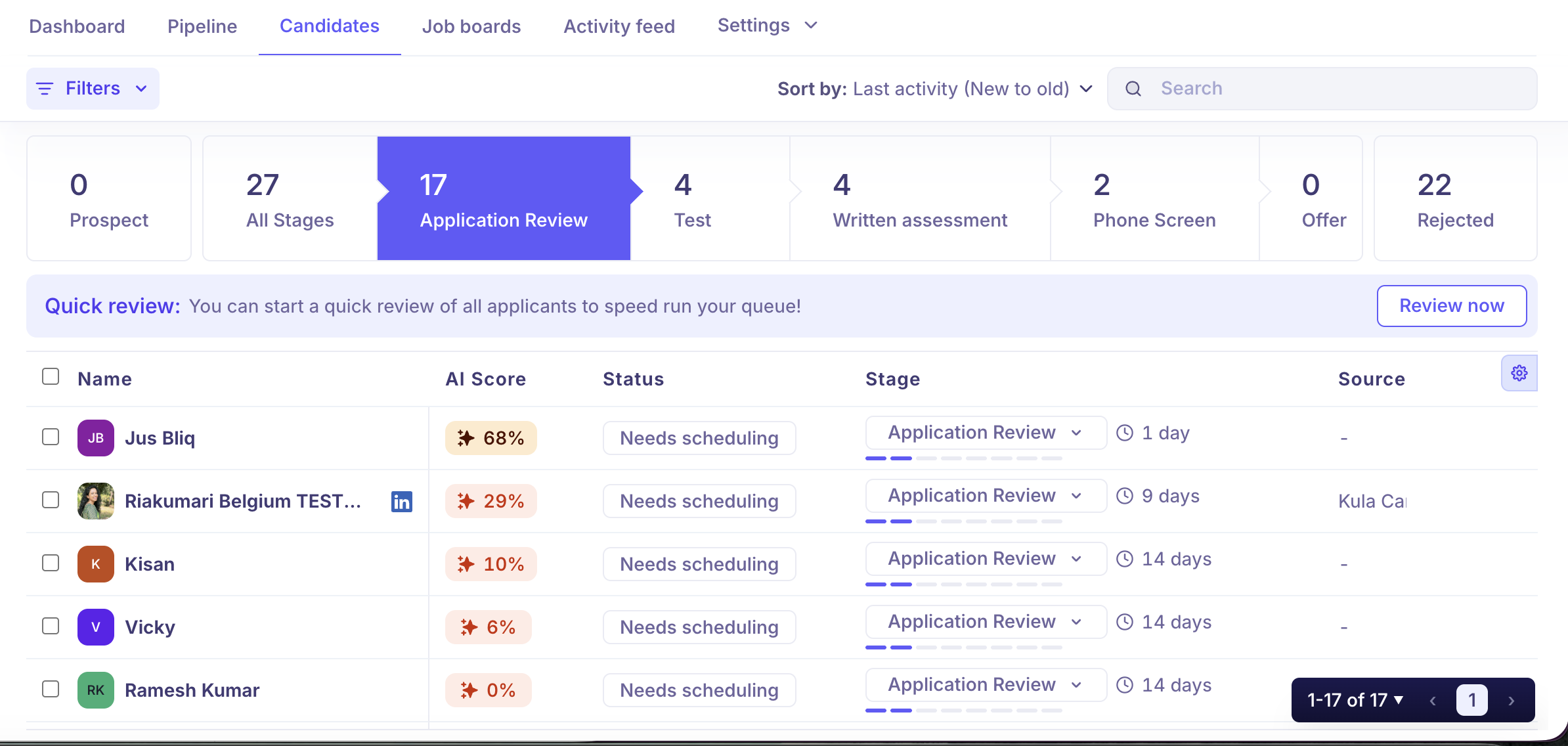
What You See in Application Review
Each row in the candidate list shows:
Column | What it shows |
Name | The candidate's full name |
Status | Current activity status (see full list below) |
Stage | Confirms Application Review with time in stage |
Source | How they entered Kula (Career page, LinkedIn, referral, etc.) |
AI Score | Percentage match based on your job's AI scoring criteria (if configured) |
You can also toggle additional columns using the ⚙ settings icon at the top right of the table: Skills, Current employer, Institution, and Tags.
The AI Score column appears specifically in Application Review to help you triage quickly. A higher score indicates a stronger match against the criteria you've defined. If the AI could not score a candidate due to insufficient profile data, it shows as Failed — you can still review them manually.
To set up AI scoring for your jobs, see How to set up Advanced AI Scoring.
Candidate Statuses
Each candidate displays an activity status that updates automatically based on pipeline activity. This tells you exactly what needs to happen next for each person.
Status | What it means |
Needs scheduling | The candidate needs a meeting to be scheduled. This takes priority over all other statuses. |
Needs action | An assignment, email, or review needs to be sent to this candidate. |
Meeting scheduled | All interviews for the candidate have been scheduled. |
Email scheduled | The candidate has a scheduled email queued. |
Assessment sent | An assessment has been sent and is pending completion. |
Awaiting feedback | Waiting on feedback from an interview, review, or assessment. |
Needs offer | The candidate is ready and needs an offer to be created. |
Needs offer approval | An offer has been created and is pending approval. |
Waiting on offer acceptance | The offer has been sent and is awaiting the candidate's response. |
Offer accepted | The candidate has accepted the offer. |
Hired | The candidate has been moved to the Hired stage. |
Rejected | The candidate has been moved to the Rejected stage. |
Needs decision | All activities for this stage are complete and the candidate is waiting for a move or rejection decision. |
Not all statuses are relevant to Application Review specifically — statuses like Needs offer, Needs offer approval, and Waiting on offer acceptance typically appear in later stages. In Application Review, you will most commonly see Needs decision, Needs action, Awaiting feedback, Assessment sent, and Email scheduled.
Actions You Can Take
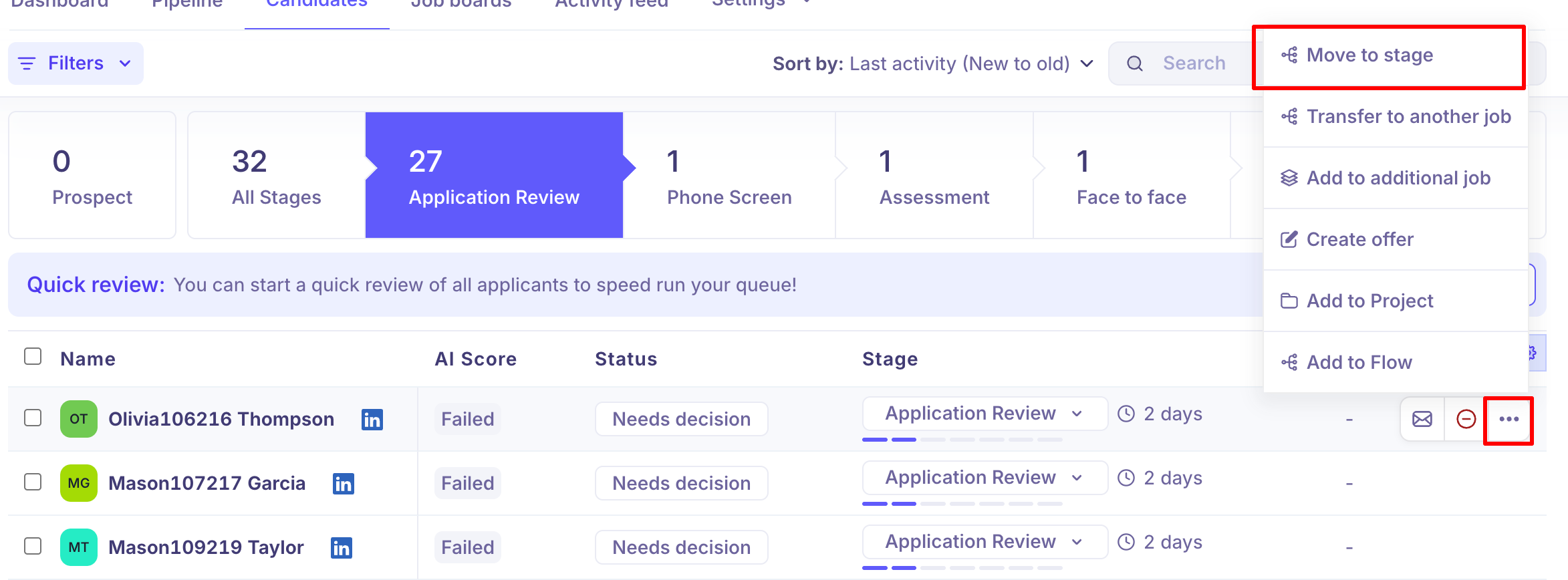
On an individual candidate
Move to stage — Move them to the next stage in your pipeline
Transfer to another job
Add to flow
In bulk
Select multiple candidates using the checkboxes to reveal the bulk action bar at the bottom:
Action | What it does |
Move to another stage | Move all selected candidates forward |
Reject all | Reject all selected candidates at once |
Send email | Send a message to all selected candidates |
Send self-schedule link | Send candidates a link to book their own interview slot |
Add tags | Apply tags to the selected group |
Transfer to another job | Move candidates to a different job (removes from this one) |
Add to additional job | Add to another job without removing from this one |
Add to Project | Shortlist for further review or outreach |
Add to Flow | Enroll in an outreach sequence |
Export as CSV | Download candidate details |
Sorting and Searching
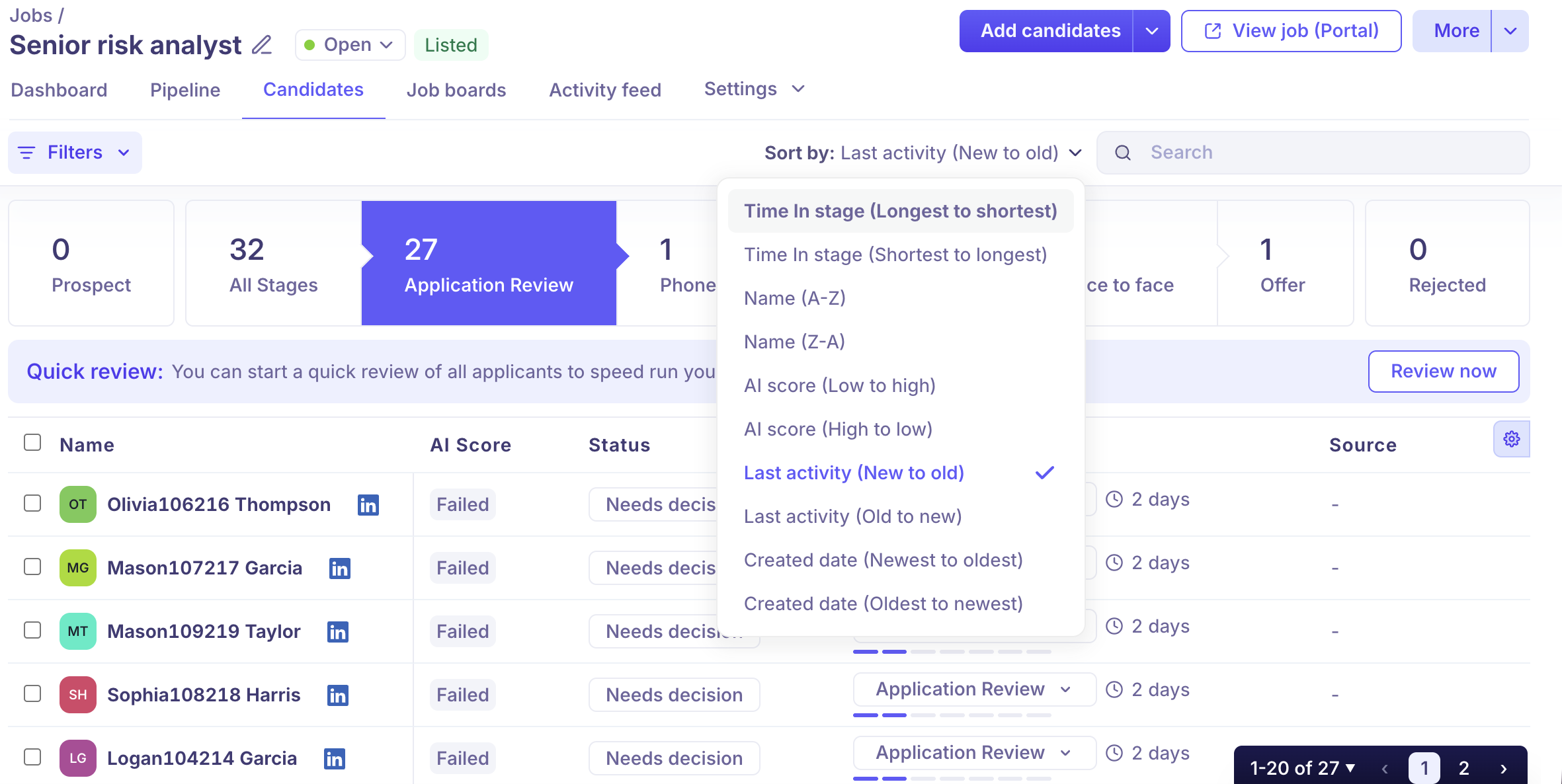
Use the Sort by dropdown to order candidates by Last activity, AI Score (high to low), Applied date, and more. Sorting by AI Score lets you prioritise your strongest matches first.
Use the Search bar to find a candidate by name within the current stage.
Quick Review
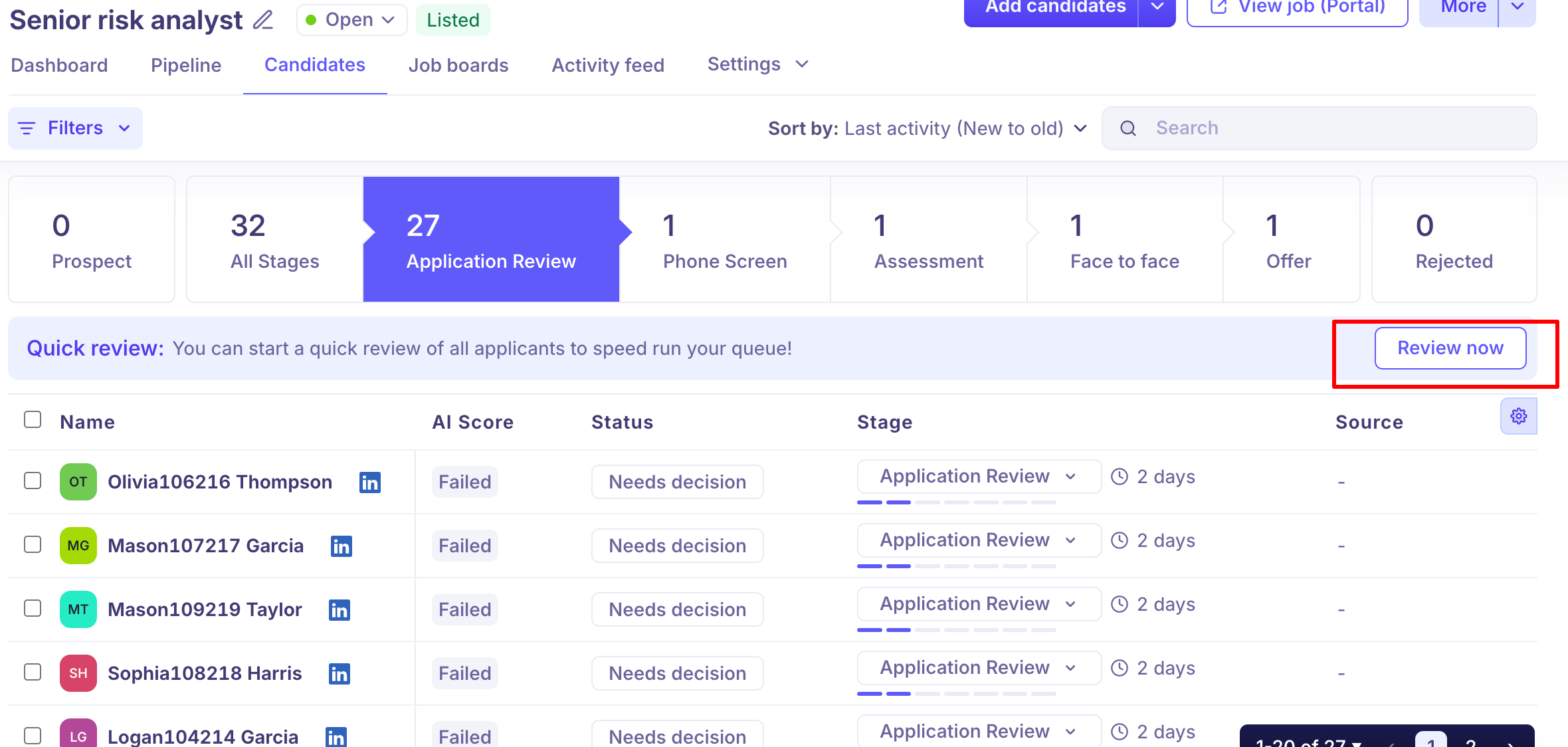
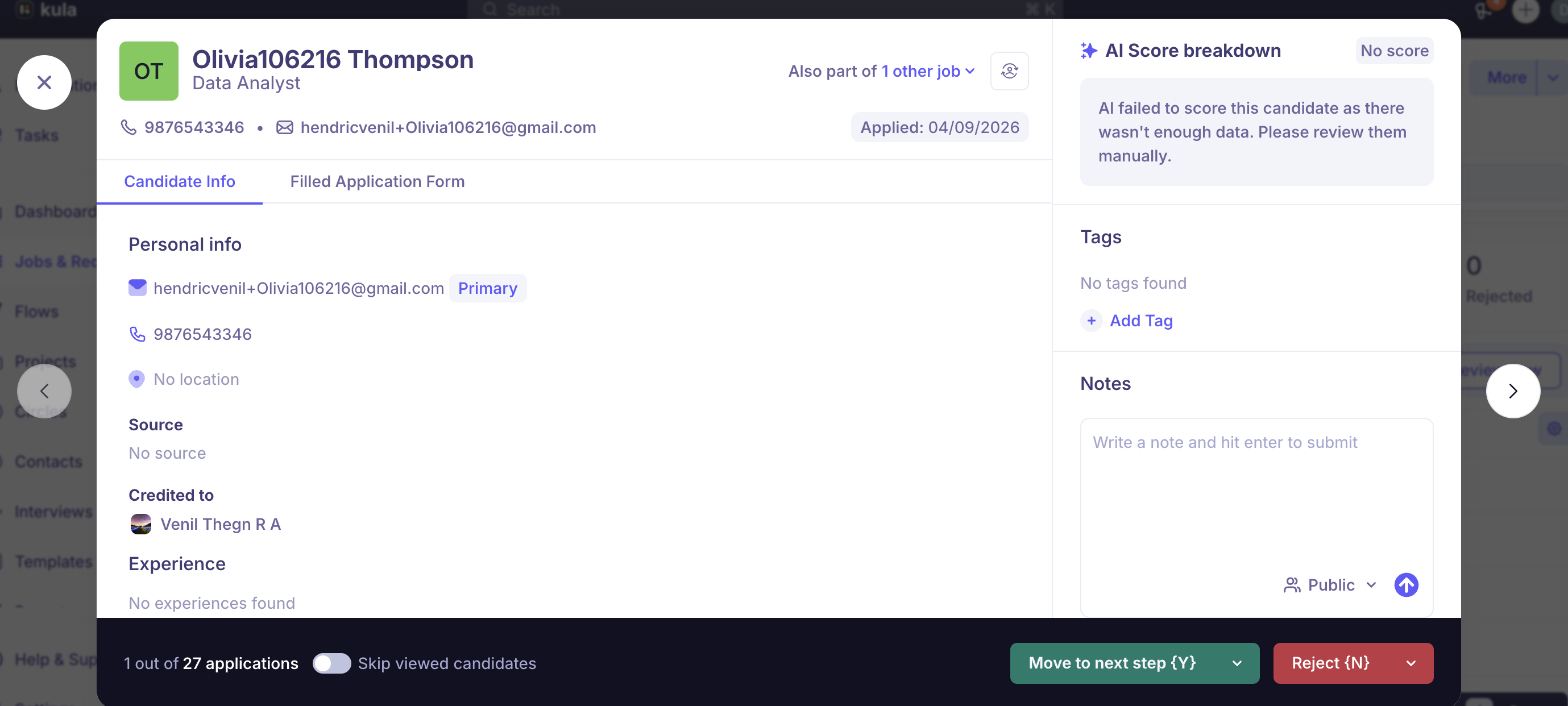
When viewing Application Review, a Quick review banner appears at the top of the candidate list. Click Review now to open candidates one by one in a focused panel — so you can work through your entire queue without opening each profile separately.
FAQs
Q: What's the difference between Prospect and Application Review?
Prospect is for sourced candidates who haven't entered formal evaluation yet. Application Review is the first active evaluation stage — where you review, score, and decide on candidates. Inbound applicants from the career page always land in Application Review, not Prospect.
Q: Why can't an external recruiter see all the candidates in Application Review?
External recruiters can only see and manage candidates they personally added to the job. To give an external recruiter full pipeline visibility, add them with the Recruiter or Hiring Manager role instead.
Q: A candidate has an AI Score that seems too high for their experience level. Why?
This may indicate your scoring attributes were configured with the older AI model. Updating your AI scoring attributes will retrigger scoring using the improved model, which better respects minimum experience requirements. Contact support for help.
Q: Can I sort Application Review candidates by AI Score?
Yes. Use the Sort by dropdown and select AI Score (high to low) to prioritise your strongest matches first.
Q: I can only see the first 100 candidates and page 2 shows the same results. What should I do?
This was a known pagination bug that has been fixed. Refresh the page. If the issue persists, contact support.
Need Help?
If you have questions or need assistance with setup, feel free to reach out to us at support@kula.ai or use the in-app chat for assistance.