How to Post Jobs to Job Boards in Kula
Last updated: March 25, 2026
Use the Job boards tab to distribute a specific job to external job boards your organisation has connected in Settings. You can create campaigns, track live postings, and manage drafts—all from within the job.
Prerequisites
Job boards must be connected in Settings > Career page and Job Boards > Job boards.
You must have permission to manage the job you want to post.
Create Campaigns
The Create campaigns section lists all job boards your organization has enabled. Each card shows the board name, a brief description, and a toggle to activate a campaign.
To enable a job board for a job:
Open the job you want to post.
Click Job boards in the job's top navigation bar.
Click Create campaigns in the left panel.
Find the job board you want to post to and click its toggle.
In the confirmation dialog, click Enable.
Kula will create a campaign for that job board. The toggle turns on, and the job is queued for distribution.
You can enable multiple job boards for the same job by turning on each toggle separately.
To disable a job board for a job:
Click Job boards in the job's top navigation bar.
Click Create campaigns in the left panel.
Find the active job board and turn off its toggle.
Confirm in the dialog.
Turning off the toggle ends the campaign on that board. The job remains open in Kula but is no longer distributed externally.
Live Campaigns
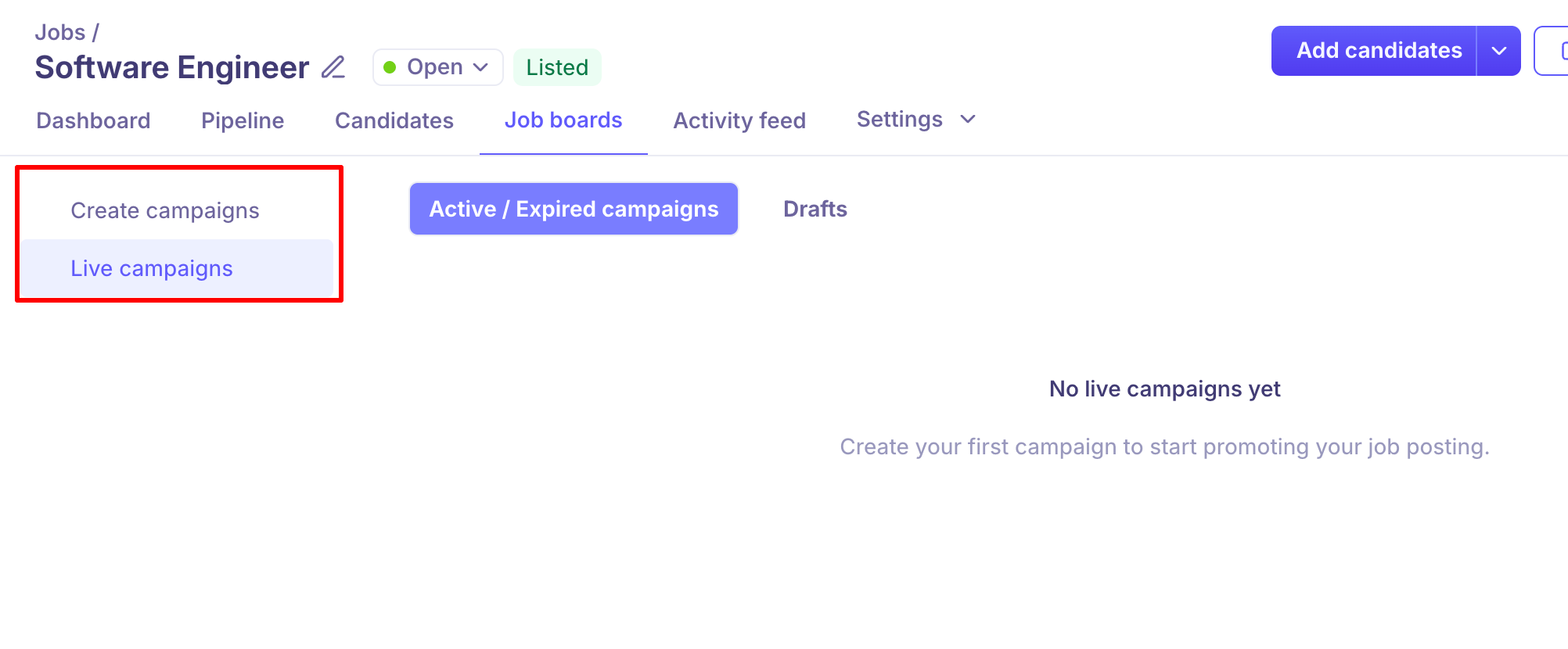
The Live campaigns section shows the status of all campaigns for this job. It has two sub-tabs: Active / Expired campaigns and Drafts.
Active / Expired campaigns
This sub-tab lists all campaigns currently running or that have ended. You can see the job board, current status, and any performance data provided.
To view active or expired campaigns:
Click Job boards in the job's top navigation bar.
Click Live campaigns in the left panel.
If no campaigns exist, the view shows No live campaigns yet. Go to Create campaigns to post the job.
Drafts
Draft campaigns are started but not yet published. They appear here so you can review, complete, and publish them.
To view draft campaigns:
Click Job boards in the job's top navigation bar.
Click Live campaigns in the left panel.
Click the Drafts sub-tab.
Select a draft to finish setup and publish it.
Once published, campaigns move from Drafts to the Active / Expired campaigns sub-tab.