Create an outreach sequence with Kula Flows
Last updated: September 7, 2026
Kula Flows let you reach out to candidates automatically across email and LinkedIn, with multiple steps sent on a schedule you control.
This article covers how to build a Flow from scratch, how candidates get added to it, and what to expect once it's running.
Who can do this: Any Kula user with access to Flows — typically Recruiters, Hiring Managers, Admins, and Super Admins.
Where to find it: Flows in the side navigation bar.
How to configure your flow:
Step 1: Navigate to the Flows page
Log in to your Kula account and click Flows in the side navigation bar.
Step 2: Select "New Kula Flow"
On the Flows page, click New Kula Flow in the top right corner.
Step 3: Start from scratch
In the New Kula Flow window, click Start from Scratch (top right).
Step 4: Set up your steps
Kula's multichannel outreach covers Email, LinkedIn InMail, and LinkedIn Connection Request.
For each step in your Flow:
Select a communication channel — Email, LinkedIn InMail, or LinkedIn Connection Request, based on your outreach strategy.
Set "Send After" timing — determine when the step should go out after a candidate is added to the flow.
Choose the sender — pick the user sending the communication, such as the hiring manager. Personalizing the sender can meaningfully affect response rates.
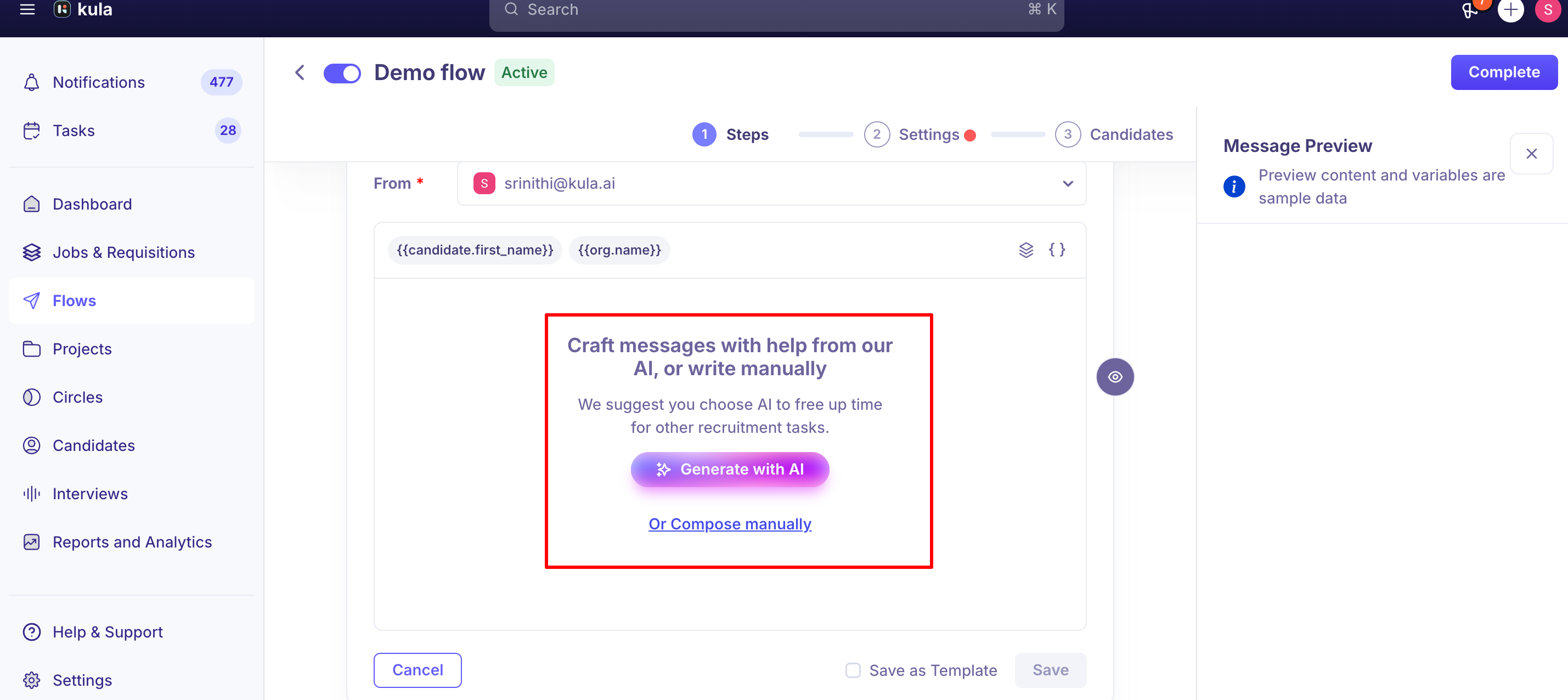
Enter subject and message content — write a concise subject line and compose your message, using custom variables to personalize it for each candidate. Kula can also help generate message content for you if you'd rather start from a draft than a blank page.
Preview the message — use the Message Preview panel on the right to check formatting and content before finalizing the step.
Step 5: Launch your flow
Once you've reviewed all the steps, click Launch to set your Flow in motion.
Adding steps: email, LinkedIn, task:
Every step you add to a Kula Flow uses one of two channels — Email or LinkedIn — but they don't run the same way behind the scenes.
Email steps
Email steps are sent automatically by Kula's servers once a step is due — there's nothing you need to manually trigger.
Each email step goes out as its own separate email/thread rather than being grouped into one ongoing conversation; if a candidate replies, you can see and continue that exchange under their Conversation tab.
LinkedIn steps (InMail and Connection Request)
LinkedIn steps work differently from email steps in one important way: Kula's servers can't send LinkedIn messages directly.
Each LinkedIn step (InMail or Connection Request) becomes a task that has to be manually triggered through the Kula Everywhere Chrome extension, with a pinned browser tab open at the time the task is due.
If the extension tab isn't open when a LinkedIn task comes due, it's simply missed for that window — it doesn't retry on its own.
Using AI drafting
Kula flows include an AI drafting feature usually referred to internally as the "Dynamic AI Block" (also called the AI personalisation block), available when you're building or personalizing a flow step's email or LinkedIn message.
Instead of writing the message from scratch, you can trigger it to generate a personalized draft — it pulls in candidate and job context, notably scraping details from the candidate's LinkedIn profile URL, to produce something more tailored than a generic template. It doesn't send automatically, though: a step with an AI-drafted message goes into a "Pending AI Review" state, and you have to open the "Action Required" section and review (and edit if needed) the AI's draft before the step will actually send — so there's a human-in-the-loop check built in.
You can also remove the AI block from a step entirely if you'd rather write it manually.
Adding candidates to your flow
Creating a Flow doesn't enroll anyone in it automatically — you still need to add candidates. There are two ways to do this:
From LinkedIn, once your Flow is active: open a candidate's LinkedIn profile with the Kula Everywhere Chrome extension installed, and use the extension panel to add them to your Flow directly.
From a candidate's Contacts page, using the option to add them to an existing Flow.
By uploading a CSV. Kula supports bulk candidate import via CSV — you can upload a CSV of candidates directly to a flow, or import them into a job first and then bulk-select them to add to the flow as a second step. Use Kula's standard CSV template: candidate name and email are required fields, and column headers need to match Kula's expected naming for a clean import.
A few mechanics worth knowing:
Only one pinned extension tab should be open at a time. Multiple open tabs compete with each other and can end up blocking all execution rather than speeding it up.
Overdue tasks can be run manually. If a LinkedIn task was missed, open the extension tab and click Run task to send it immediately.
Tasks can be skipped. If you've already reached out to a candidate manually (outside the flow), you can skip their pending task — Kula automatically moves them to the next step in the flow. Tasks can be selected in bulk and skipped together.
InMail sending can be set to manual or automatic for a given flow — worth checking this setting if InMails you expected to go out automatically haven't.
InMail-specific limits
LinkedIn limits you to 2 InMails per candidate. This is LinkedIn's own platform restriction, not something Kula can lift. A recommended structure once those are used up is a LinkedIn Profile View touch, then two InMails, then a Connection Request, then an Email as a fallback — Kula automatically skips the Email step for candidates without a valid address.
Kula also applies its own daily task limit (a pacing control, not extra credits) to how many InMail tasks surface in the sidebar each day, so you don't burn through your LinkedIn limits too quickly. This can be increased if needed.
InMail replies land in your LinkedIn Recruiter inbox first. If your Gmail or Outlook is connected to Kula, Kula also picks up the reply automatically and adds it to the candidate's timeline with an in-app notification — but Connection Request replies aren't tracked by Kula at all.
Good to know
A reply automatically stops the flow. Once a candidate responds to an email or InMail step, Kula detects the reply and stops sending further steps to that candidate. You (or another recruiter) still need to manually mark them as Interested or Not Interested — Kula doesn't do this automatically based on reply content.
Connection request replies aren't tracked. Kula tracks replies for email and InMail steps, but not for LinkedIn connection requests — so a flow won't auto-stop based on a connection being accepted alone.
A candidate can typically be active in one flow at a time. Requests to have a candidate active in multiple flows simultaneously haven't been built. If you need to move someone to a different flow, you'll generally need to stop or complete their current one first.
Each email step sends as a separate thread, not grouped into one ongoing conversation. If a candidate replies to any step, you can see and continue that specific exchange under the candidate's Conversation tab.
"Send After" can be set well below the default suggestion. The interface may default to showing something like 10 minutes as the earliest option, but shorter delays (down to about a minute) are configurable if you need a step to go out almost immediately.
Email steps send automatically; LinkedIn steps don't. If an email step didn't go out, that's worth investigating as an error. If a LinkedIn step didn't go out, check first whether your extension's pinned tab was open at the scheduled time.
A missed LinkedIn task doesn't disappear — it sits as overdue until you manually run it or skip it.
There's no standalone "Task" step for generic reminders or action items (for example, "call the candidate on Friday") unrelated to email or LinkedIn sending. That's a different, requested-but-not-built feature — don't confuse it with the task queue behind LinkedIn steps.
The 2-InMail-per-candidate cap is LinkedIn's limit, not Kula's — it applies no matter how your flow is structured.
FAQ
Can a candidate be in more than one flow at the same time? Generally, no — a candidate is typically active in one flow at a time today. Multi-flow enrollment has been requested but isn't currently supported.
What happens after a candidate replies to a flow step? Kula automatically stops sending further steps to that candidate. You'll still need to manually mark them Interested or Not Interested based on their reply — that classification isn't automatic.
Do all the emails in a flow show up as one conversation thread? No — each email step is sent as its own separate email/thread. Any reply from the candidate is tracked and viewable under their Conversation tab.
How soon can the first step in my flow go out? You can typically schedule it for as little as about a minute after a candidate is added, even if the interface suggests a longer default like 10 minutes.
Does Kula track replies to LinkedIn connection requests the same way as emails? No — replies are tracked for email and InMail steps, but not connection requests.
Need help?
If you have questions or need assistance, reach out to us at support@kula.ai or use the in-app chat.