Email sync and tracking
Last updated: August 5, 2026
Connecting your Gmail or Outlook mailbox to Kula lets you send candidate emails as yourself and keeps replies visible inside Kula instead of buried in your own inbox. This article covers how to connect your mailbox, what syncing actually does (and doesn't do), how reply tracking works, and what to do if your connection drops.
Who can do this: Any user can connect their own mailbox — it isn't gated by a special permission. Enabling or disabling a specific provider (Gmail or Outlook) account-wide is an admin-level request handled by Kula support.
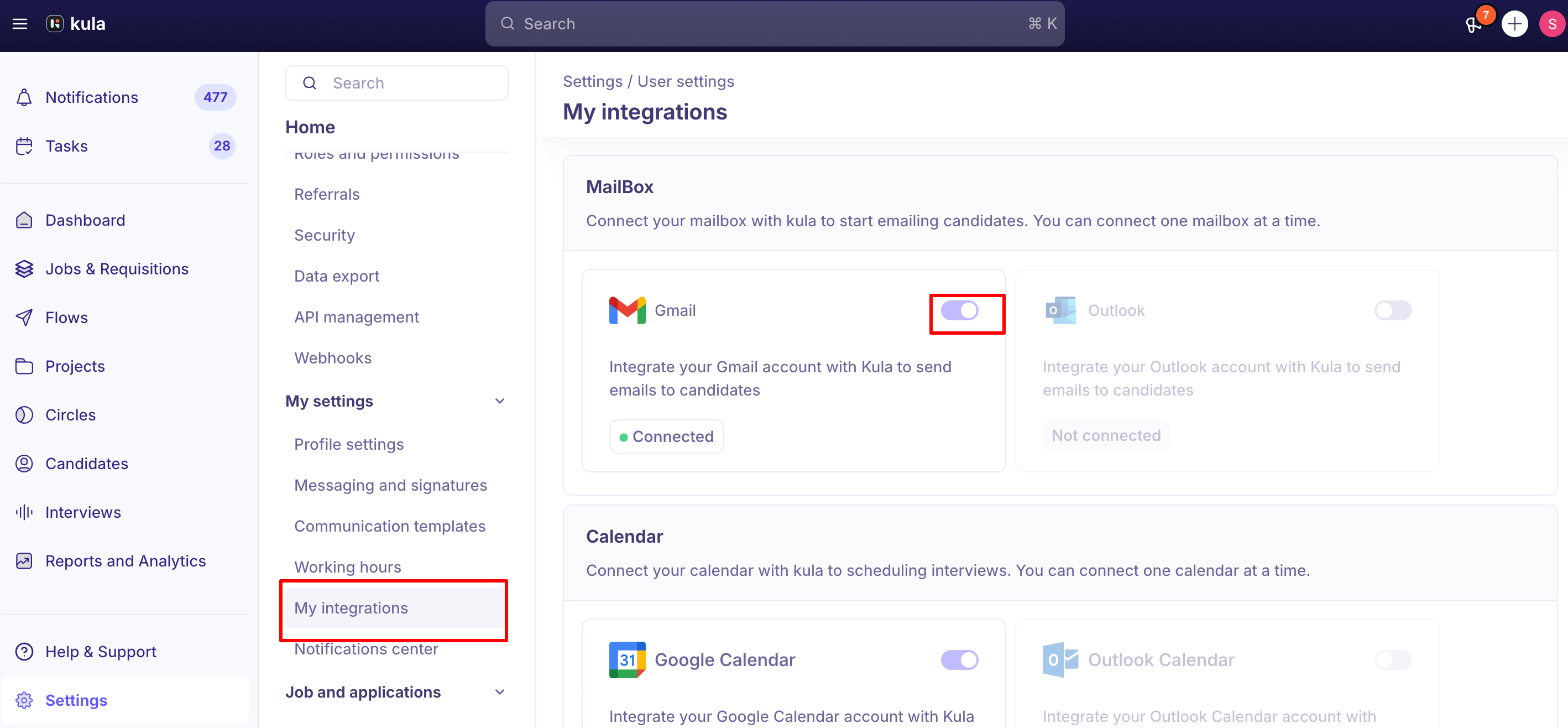
Where to find it: Settings → Mailbox Integration (also referred to as My Integrations in some support guidance) → Connect Gmail or Connect Outlook.
Connecting your mailbox
Go to Settings → My Integration, choose Gmail or Outlook, and follow the authorization prompts.
Once connected, your name and email address become available as a "From" option when sending candidate emails, interview invites, and other communications through Kula — without connecting, you won't show up in that dropdown at all.
What syncing does and doesn't cover
Connecting your mailbox enables:
Sending as yourself — your name appears in the "From" field for candidate-facing emails, instead of only Kula's default sender.
Reply tracking on threads you send through Kula — when a candidate replies to an email you sent from Kula, that reply is tracked back into the conversation, both for Gmail and Outlook accounts.
What it isn't: a full passive inbox monitor.
If a candidate emails you directly, outside of anything sent through Kula, don't assume it'll automatically show up in Kula the way it would in a dedicated CRM — sync is built around emails sent and tracked through Kula's own flows, not scanning your entire mailbox for anything candidate-related.
Reply tracking
Once your mailbox is connected, replies to emails you've sent through Kula generally flow back into the relevant conversation thread. For the fuller picture of where replies show up and which email types are covered, see Sending an email to a candidate
Getting notified about a reply
Whether you get notified when a candidate replies depends on how the email was sent:
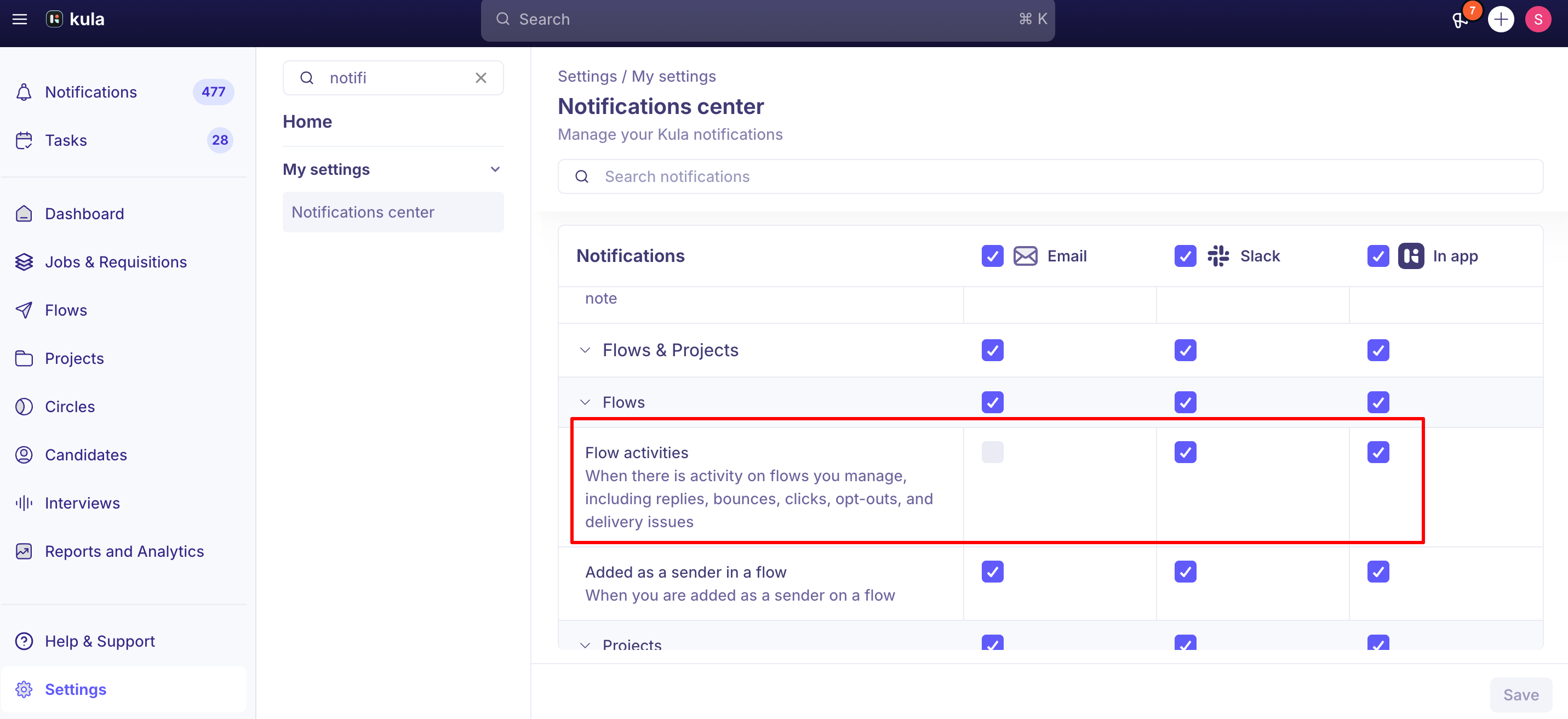
If the candidate is part of a Flow (outreach sequence), go to Settings → Notifications → Outreach → Flows and turn on Flow Activities to get notified of replies, bounces, clicks, and other flow events. Note that even though the settings page shows email as a notification option, these are currently only delivered as Slack or in-app notifications, not email, regardless of what you select.
If the email was a one-off, outside of a Flow, there's currently no dedicated notification for a candidate's reply.
As a workaround, if you sent it from your own connected Gmail or Outlook (rather than a shared mailbox), the reply also lands directly in your own inbox, so you'll see it there even without a Kula notification.
If your mailbox gets disconnected
Mailboxes can disconnect for a few reasons: your access token expiring (a normal security behavior from Gmail/Outlook), a password or security policy change (like enabling 2FA), provider-side rate limits, or a temporary outage on the provider's end.
When this happens, you'll see a banner prompting you to reauthenticate, and Kula sends an email notification to reconnect. The fix is the same either way — go back to Settings → Mailbox Integration and reconnect.
One current gap: if a teammate's mailbox is disconnected (or was never connected), there's no in-app nudge alerting a recruiter or admin to it — the person just won't appear in the "From" dropdown, with no tooltip currently explaining why. If someone on your team is missing from a "From" list, connecting (or reconnecting) their own mailbox is the most common fix.
If your organization migrates email providers, a few things are worth knowing:
Calendar events, email tracking (reply tracking, outreach reply scanning, inbox sync), and workspace flows (user provisioning, directory sync, sign-in) all shift over to whichever provider is active.
Existing data from the old provider remains visible but isn't retroactively tracked — for example, Gmail data already in Kula stays accessible, but new emails won't be tracked under Gmail once you've switched to Outlook.
Each user needs to individually authenticate with the new provider — an admin can disable the old provider account-wide from the backend, but activating the new one requires each person to connect their own mailbox.
Good to know
You won't appear in the "From" dropdown until your mailbox is connected — this is one of the most common reasons a user (especially a Hiring Manager or Interviewer) can't send from their own name.
Sync isn't full inbox monitoring. Emails you send and receive through Kula are tracked; emails a candidate sends you directly, outside Kula, generally aren't picked up automatically.
Reply notifications for Flow-based conversations are Slack/in-app only today, even though the settings page shows an email toggle — don't expect an email alert for flow replies.
One-off (non-Flow) email replies have no dedicated notification — if you need to know the moment a candidate replies to a one-off email, sending from your own connected mailbox (rather than a shared one) means you'll also see it land in your regular inbox.
A disconnected mailbox is usually just an expired token or a security change on your end — reconnecting from Settings resolves it in most cases.
FAQ
Why can't I select my own name in the "From" field when sending a candidate email? Your mailbox likely isn't connected yet. Go to Settings → Mailbox Integration, connect Gmail or Outlook, and you'll appear as a From option going forward.
I connected Gmail, but candidate emails they send me directly aren't showing up in Kula — is something broken? Not necessarily. Sync tracks emails sent and received through Kula's own flows, not your entire inbox — a candidate emailing you outside of Kula generally won't sync automatically.
How do I get notified when a candidate replies to my message? Depends on how it was sent. For Flow (outreach sequence) messages, turn on Flow Activities under Settings → Notifications → Outreach → Flows (delivered via Slack/in-app, not email). For one-off emails, there's no dedicated notification yet — sending from your own connected mailbox means you'll still see the reply in your regular inbox.
Why does my mailbox keep disconnecting? Usually an expired access token, a password or security policy change (like new 2FA), a provider rate limit, or a temporary outage — reconnect from Settings → Mailbox Integration when you see the reauthentication prompt.
We're switching from Google to Microsoft org-wide — what happens to our existing email/calendar data? Existing data from the old provider stays visible but stops being actively tracked once you switch. Each user needs to individually connect and authenticate their new provider account; an admin can disable the old one account-wide from the backend.
Need help?
If you have questions or need assistance, reach out to us at support@kula.ai or use the in-app chat.