Managing candidate sources
Last updated: September 24, 2026
Candidate sources record where each person came from. Set them up once and Kula uses them everywhere it reports on hiring — candidate records, filters, and every source-based report.
Who can do this: Anyone with the Manage candidate sources permission, which Super Admin and Admin have by default
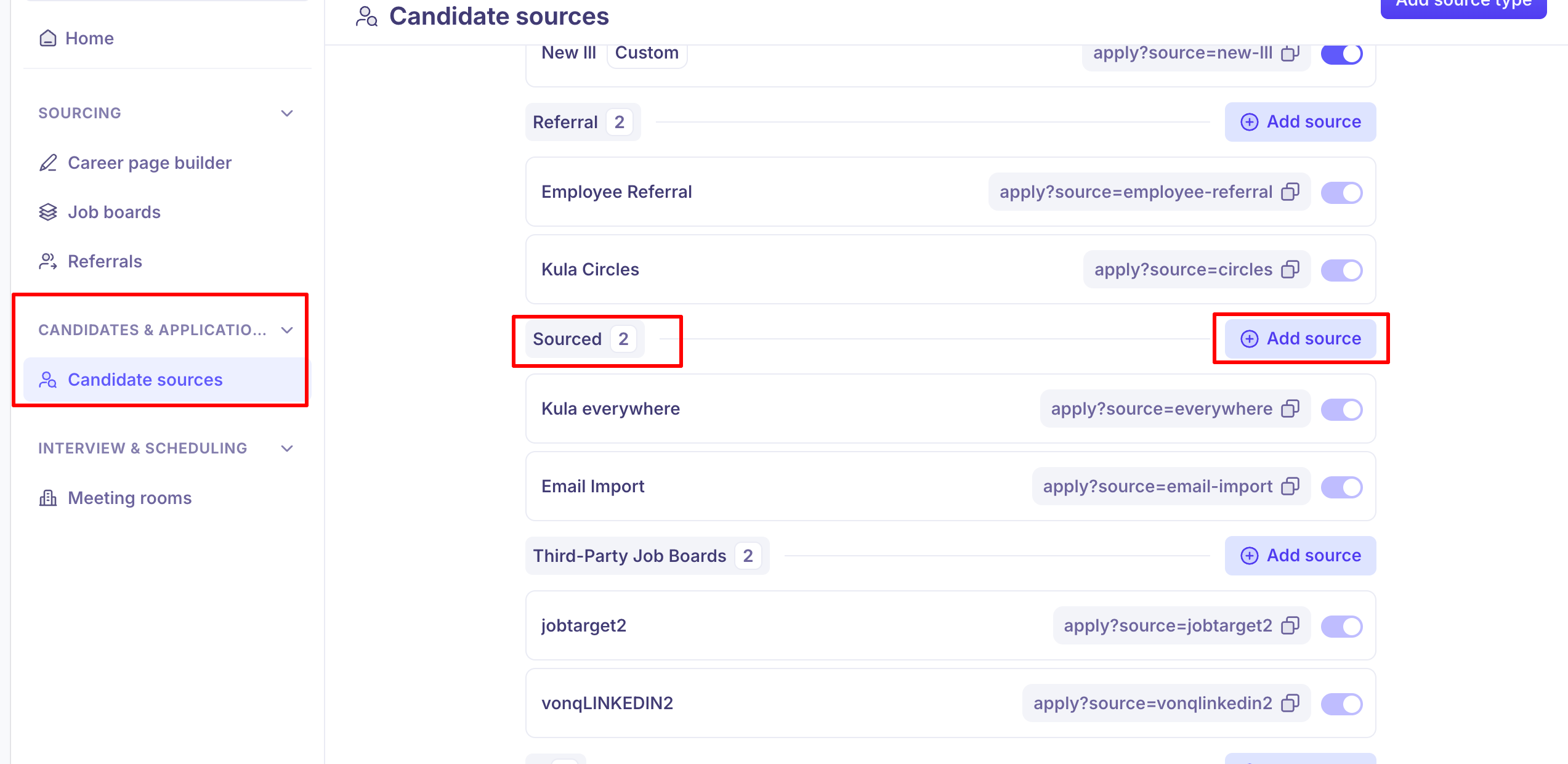
Where to find it: Settings → Candidates & Applications → Candidate sources
How sources are organised
Sources sit in two levels, and only two:
A source type is the group — Inbound, Referral, Sourced, Third-Party Job Boards.
A source is the actual channel inside it — Indeed, Employee Referral, Kula Flows.
You cannot nest a source inside another source. Candidates are tagged with a source, never with a source type.
What Kula gives you out of the box
Every account starts with four source types and the sources inside them.
Source type | Sources it starts with |
|---|---|
Inbound | Indeed, Linkedin, Kula Career Portal, Internal Job Board |
Referral | Employee Referral, Kula Circles |
Sourced | Kula everywhere, Email Import, Kula Flows |
Third-Party Job Boards | Empty at first. Kula adds sources here automatically when you post through a job board partner. |
Accounts set up some time ago may show a different set, and anything your team has added appears alongside these.
Add a source type
Click Add source type at the top right.
Enter a Source type name. It can be up to 255 characters.
Click Add.
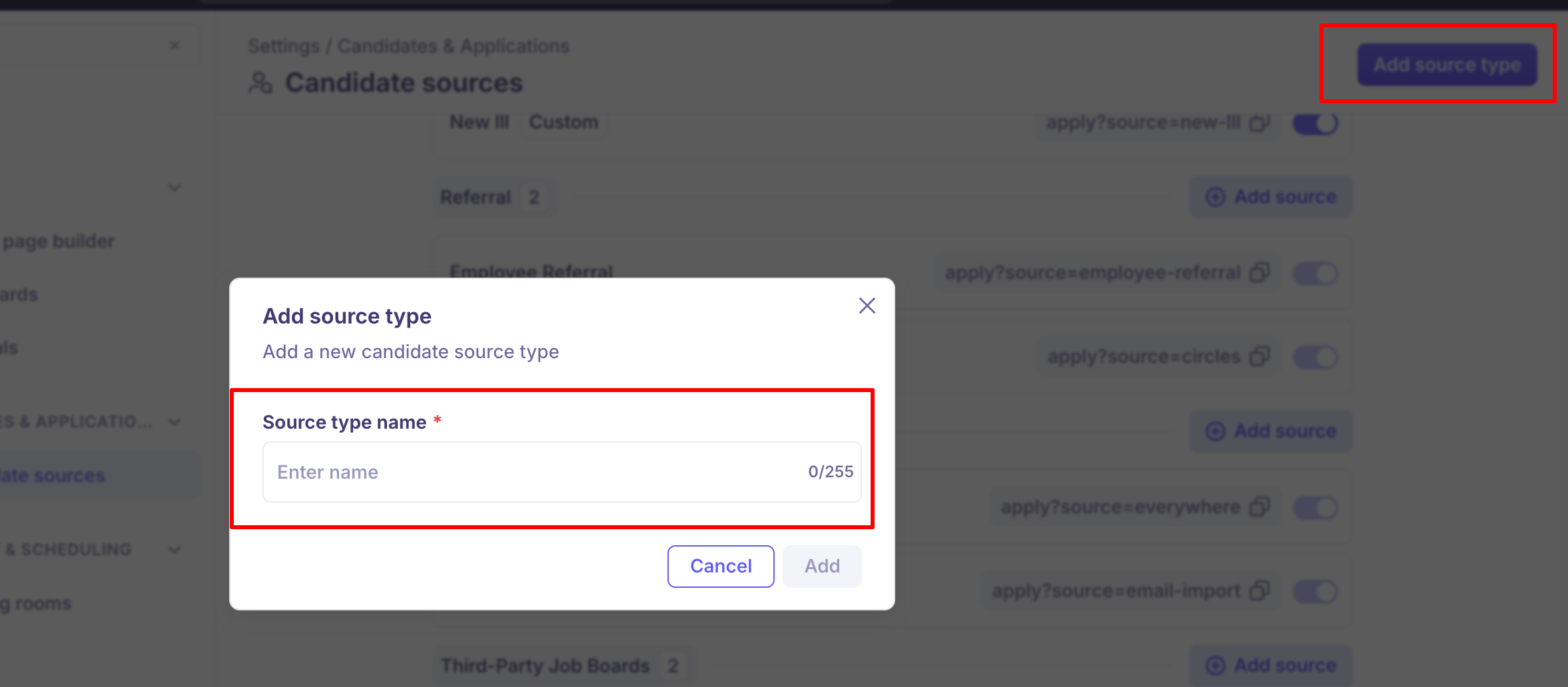
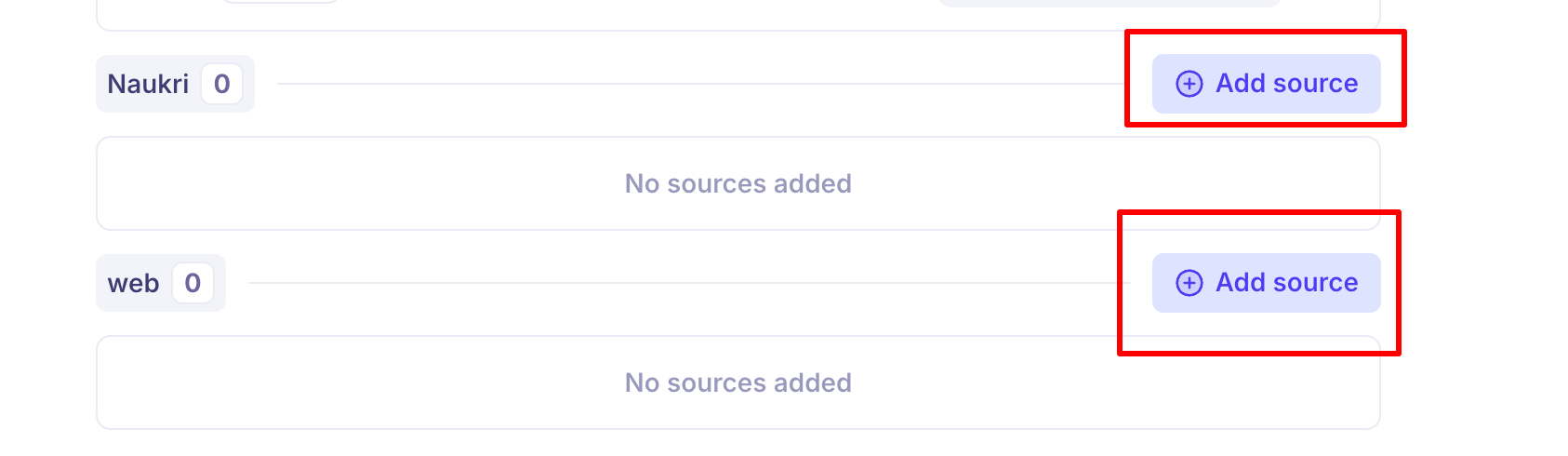
The new group appears at the bottom of the page with no sources in it.
Add a source
Find the source type you want to add to.
Click Add source on that group's row.
Enter a Source name.
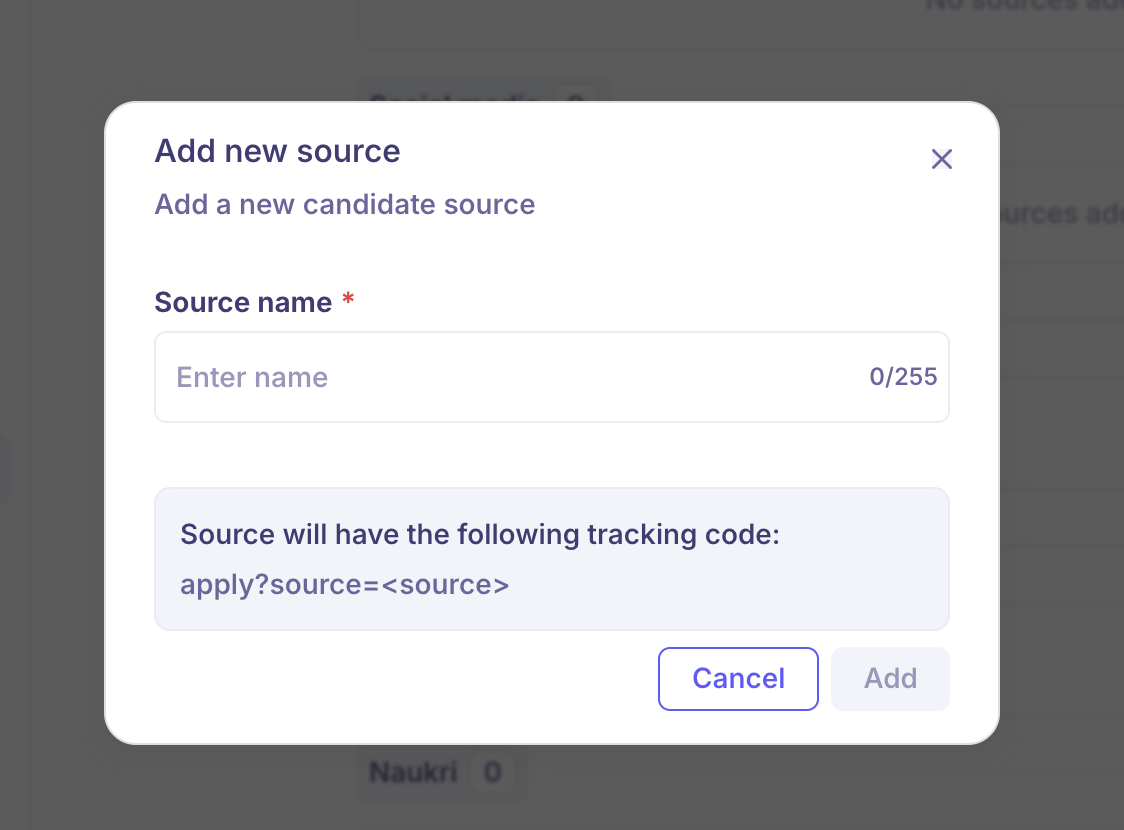
Check the tracking code shown underneath — Kula builds it from the name as you type.
Click Add.
Use the tracking code to attribute applicants
Every source has a tracking code, shown beside it as apply?source=indeed. Add it to a job link before you share that link outside Kula, and everyone who applies through it is tagged with that source automatically.
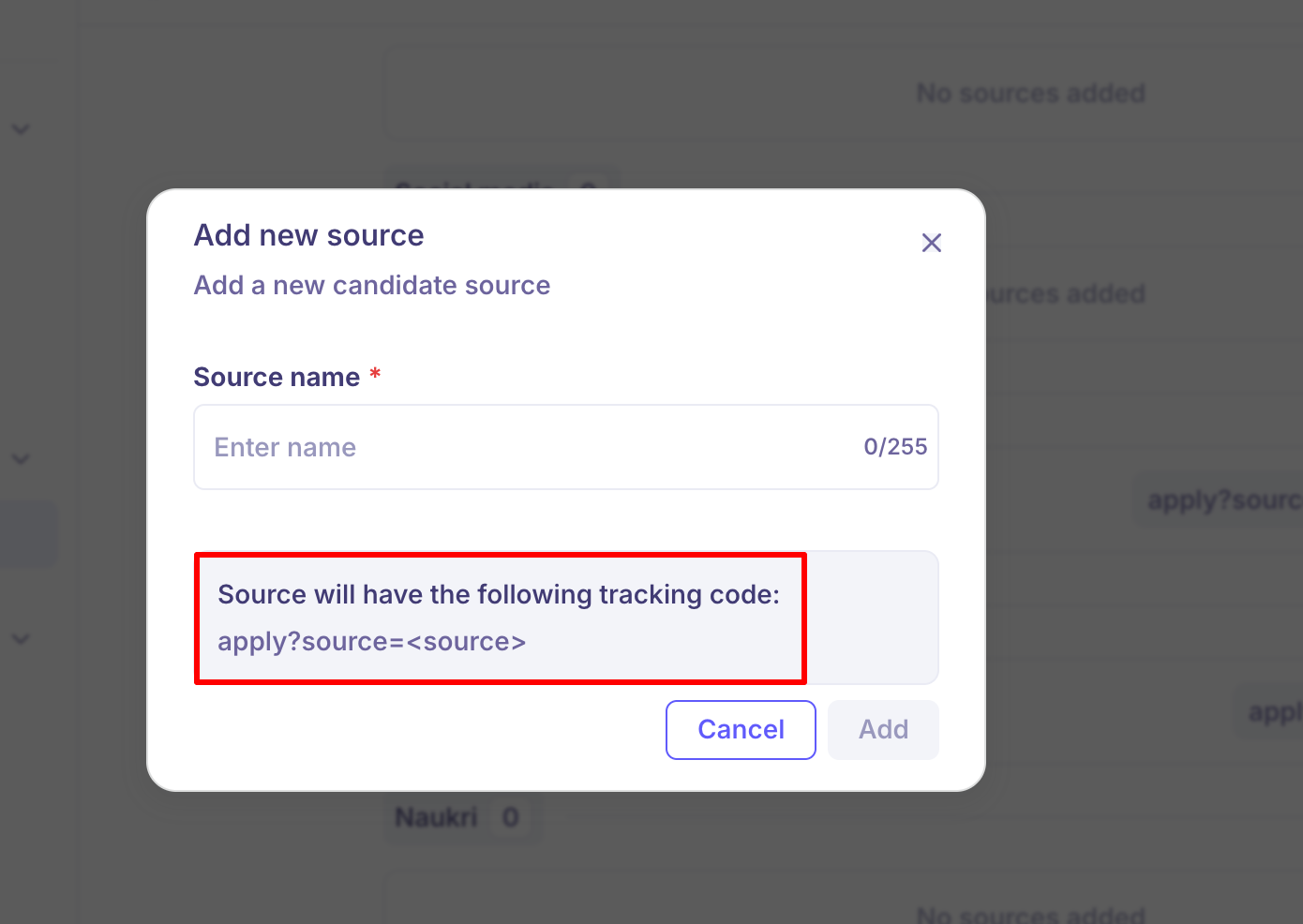
Without it, everyone who applies through your careers site is recorded as Kula Career Portal, however they actually found the job.
Copy the code and build the link
Hover over the source and click the copy icon beside its tracking code.
Paste it onto the end of your job link.
Share that link on the job board, landing page, newsletter or wherever the role is going.
Paste only the source=... part. The chip reads apply?source=indeed because that is how the code arrives on the apply page, but apply? is not part of what you append. Adding the whole string produces a broken link.
Worked examples
Say your job link is https://careers.example.com/jobs/senior-backend-engineer.
Source | Code shown in settings | Link to share |
|---|---|---|
Indeed |
|
|
Careers Fair 2026 |
|
|
|
|
If the link already has a ? in it, join with & instead. A link that already carries something else — say https://careers.example.com/jobs/senior-backend-engineer?utm_campaign=spring — becomes:
https://careers.example.com/jobs/senior-backend-engineer?utm_campaign=spring&source=indeed
Only the first parameter in a URL uses ?. Every one after it uses &.
You can put the code on the job page link or the apply page link. Kula carries it across when the candidate opens the application form, so the ordinary job link is the one to share.
How Kula builds the code
Kula generates the code from the source name when you create the source: lower case, spaces and hyphens become hyphens, and anything that is not a letter, number or hyphen is dropped.
Source name | Code |
|---|---|
Indeed |
|
Careers Fair 2026 |
|
Women in Tech (EMEA) |
|
If that code is already taken, Kula adds a number — a second source named "Inbound" gets inbound-1, a third gets inbound-2.
When a link does not attribute
Kula only tags the applicant when the code matches a source that is switched on and not deleted. In every other case the application still comes through — it is just recorded as Kula Career Portal instead:
The code does not match any source, usually a typo or a renamed source.
The source is switched off.
The source has been deleted.
There is no warning when this happens, so test a new link once before you publish it: open it, apply as a test candidate, and check the source on the resulting application.
Change or remove a source
Hover over a source row and three icons appear to the left of its tracking code.
Icon | What it does |
|---|---|
Move | Moves the source to a different source type. Pick the destination and click Move source. |
Edit | Renames the source. |
Delete | Removes the source. You confirm by typing |
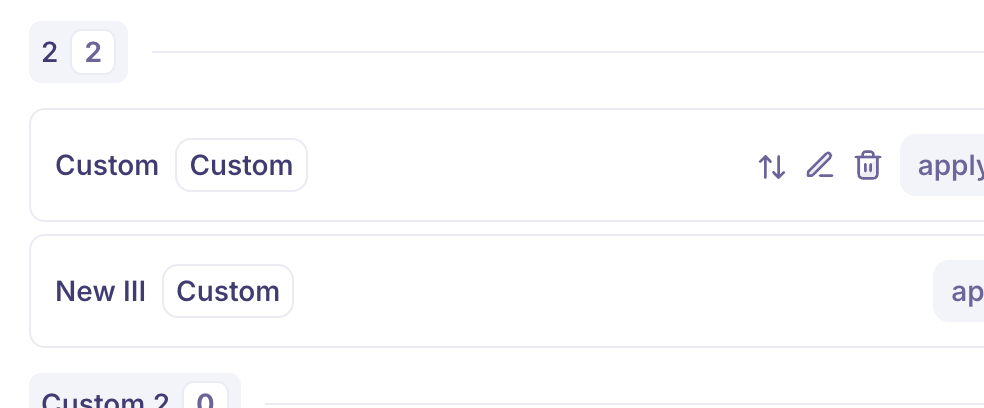
These appear only on sources your team created. Sources Kula ships with have none of them.
Turn off a source
A source that is switched off stays in your settings and on the candidates already tagged with it, but nobody can pick it for a new candidate. You can only switch off sources your team created — the switch is locked on the sources Kula ships with.
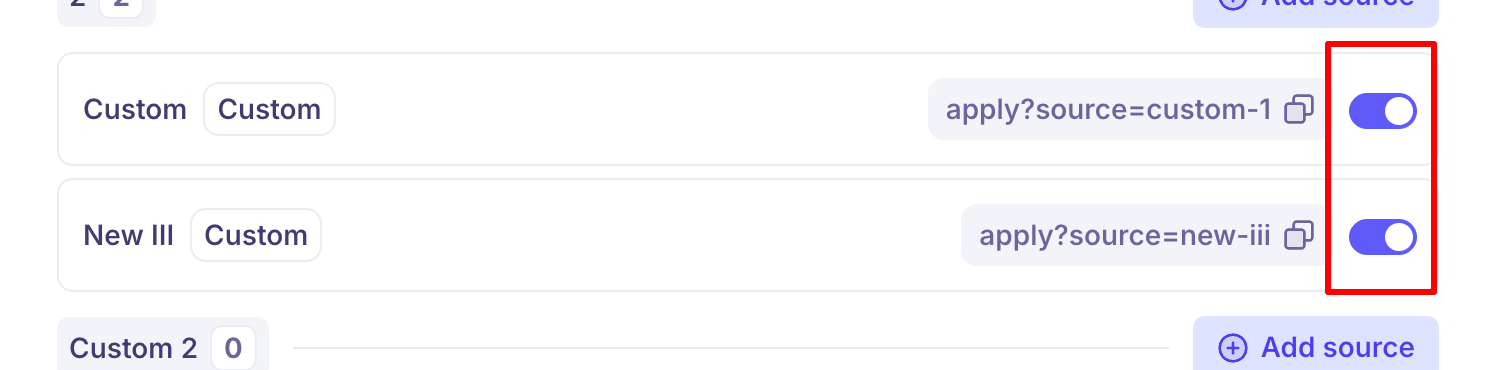
Good to know
Renaming a source does not change its tracking code. The code is set when the source is created and never regenerated, so a source renamed from "Careers Fair" to "Campus Hiring" keeps
apply?source=careers-fair. Any links already using it keep working — but the code will not match the new name.A candidate who already exists keeps the source they came in with. Kula only sets a source on a candidate that does not have one, so if someone applied last year through Indeed and applies again through a tracked careers-fair link, their profile keeps Indeed. The new application carries the new source, but the candidate record does not change.
Source types cannot be renamed or deleted here. The page only lets you add them. Deleting a source type is not offered in the interface at all.
Names must be unique within their level, ignoring capitalisation. Two source types cannot share a name and neither can two sources, but a source type and a source can — which is why an account can have both an "Inbound" group and an "Inbound" source.
Changing the source on a job application does not update the candidate's overall source. The edit stays on that one application, so the candidate's profile keeps whatever source it had — often none. There is no workaround; set the source when the candidate is first added.
FAQ
Why is every applicant showing as Kula Career Portal?
Applicants who come through your careers site without a tracking code are recorded as Kula Career Portal. The same happens when the code doesn't match a source, or the source is switched off or deleted. Add the source's tracking code to the job link you share — see Use the tracking code to attribute applicants above.
Can I rename or delete a source type?
No. The page only lets you add source types. You can rename, move or delete sources your team created.
Why can't I edit or delete a default source?
The Move, Edit and Delete icons appear only on sources your team created. Sources Kula ships with have none of them, and their on/off switch is locked. Sources your team created are marked Custom.
I changed the source on an application. Why didn't the candidate's source change?
The change stays on that one application. The candidate's profile keeps the source it already had, so set the source when the candidate is first added.
Need help?
If you have questions or need assistance, reach out to us at or use the in-app chat.