Reviewing applications
Last updated: September 26, 2026
New applicants land in the Application Review stage, the first stage where you evaluate candidates. Here you decide who moves forward and who doesn't, using their application form, resume and AI score. Quick review lets you work through the queue one candidate at a time
Who can do this: Super Admins and Admins on any job; the job's creator; and Recruiters, Hiring Managers and Coordinators on its hiring team. External recruiters can act only on candidates credited to them.
Where to find it: open a job → Pipeline tab → Application Review column, or the Candidates tab → Application Review in the stage bar
How Candidates Enter Application Review
Candidates arrive in Application Review through any of these routes:
Being added manually by a recruiter using Add candidates → Add existing candidates, with Interview Stage set to Application Review
Being imported via CSV with Application Review as the target stage
Being referred by an employee through the Referrals portal
Being moved from Prospect once a recruiter decides to formally evaluate them
When adding candidates manually, you can place them directly into Application Review — bypassing Prospect entirely — if they are already ready to be evaluated.
Navigating to Application Review
Open the job from the Jobs list.
Click the Candidates tab.
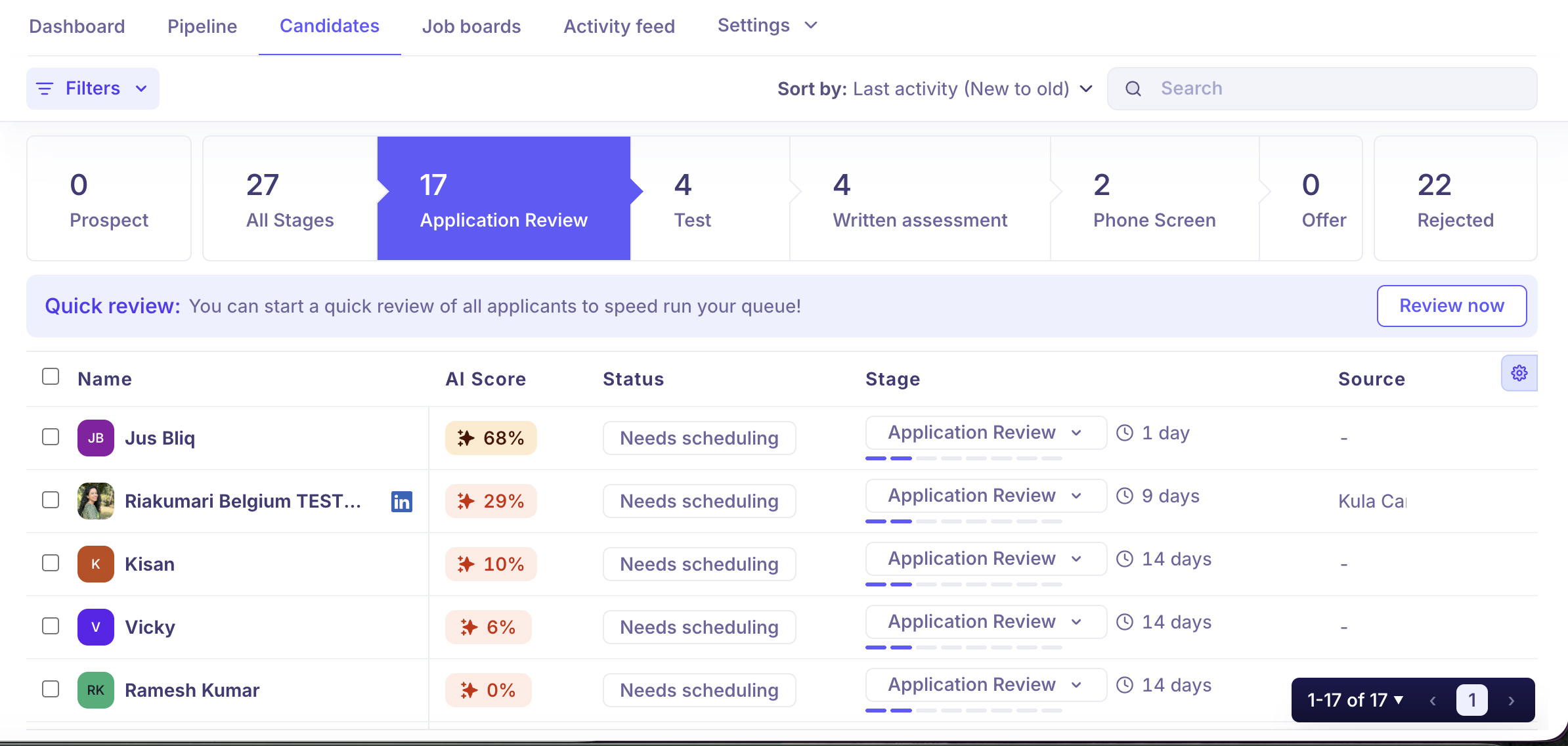
Click Application Review in the stage bar at the top.
The count on the tile shows how many candidates are currently in this stage. The stage bar runs from Prospect on the far left through all interview stages to Rejected on the far right.
What You See in Application Review
Each row in the candidate list shows:
Name: The candidate's full name.
Status: Where they are in the review workflow — see the table below.
Stage: Confirms Application Review, plus time spent in the stage.
Source: How they entered (career page, LinkedIn, referral, and so on).
AI Score: Percentage match against your job's AI scoring criteria.
You can also toggle additional columns using the settings icon at the top right of the table: Skills, Current employer, Institution, and Tags.
The AI Score column appears specifically in Application Review to help you triage quickly. A higher score indicates a stronger match against the criteria you've defined. If the AI could not score a candidate due to insufficient profile data, it shows as Failed — you can still review them manually.
To set up AI scoring for your jobs, see How to set up Advanced AI Scoring.
Review with Quick review
Open the job's Pipeline tab and find the Application Review column, or start from your Dashboard by clicking a job's Application Review count.
In the Quick review banner, click Review now.

For each candidate, read their resume and application on the left and the AI score breakdown on the right, where each criterion is rated High, Average or Low.
Optionally, add a note or tag.
Decide:
- Click Move to next step to move them on. Use its dropdown to send them to a different stage instead.
- Click Reject, choose a rejection reason and, if you want, send a rejection email.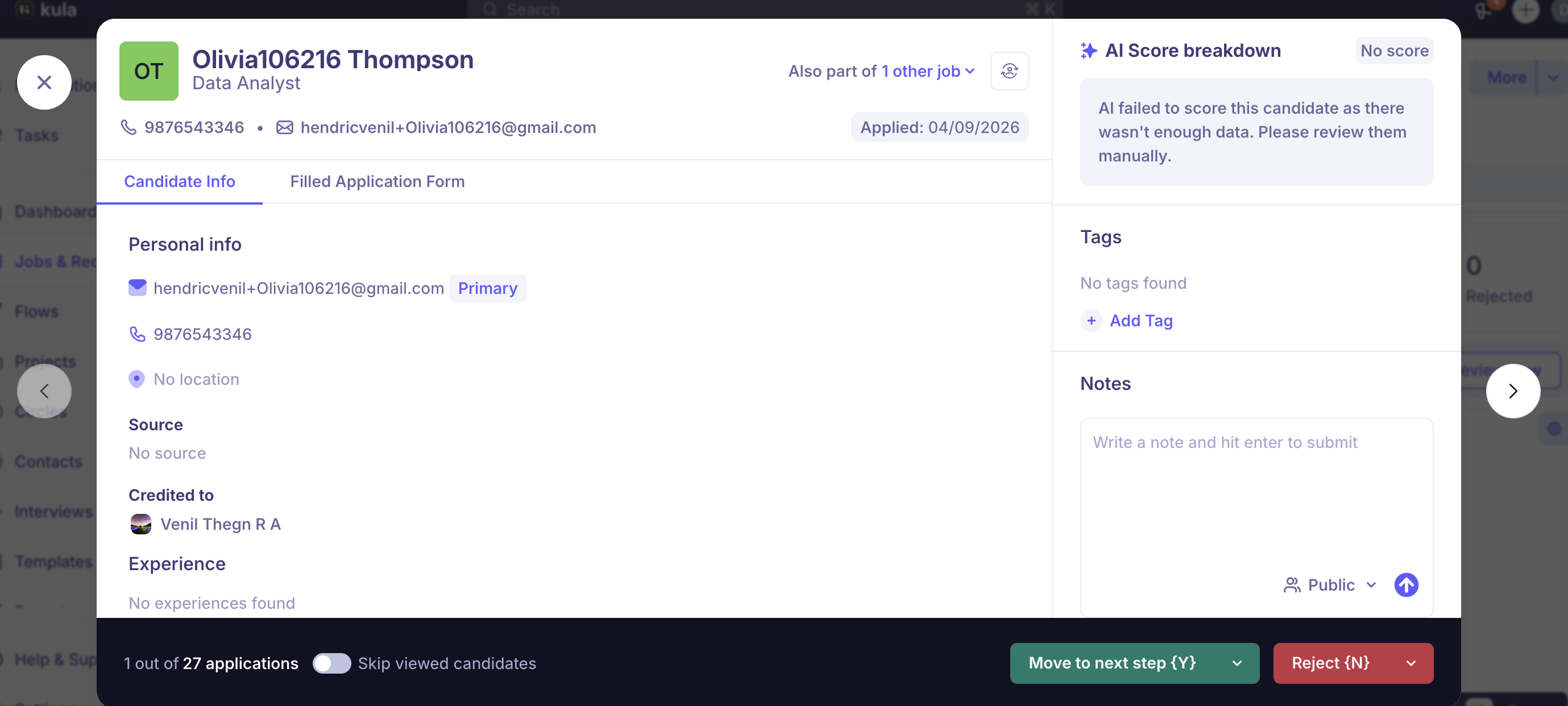
Quick review moves to the next candidate automatically. Keyboard shortcuts make it faster:
Key | Does |
|---|---|
Y | Move to next step |
N | Reject |
U | Undo your last decision |
← / → | Previous or next candidate, without deciding |
To save time on a big queue, tick Remember this selection for the next applicant in the Move to next step dropdown, or Remember this combination for the next applicant when rejecting. Kula then reuses that stage, or that reason and email, until you change it. Turn on Skip viewed candidates to skip ones you've already opened. The shortcuts work only inside Quick review; see Keyboard shortcut reference.
To do the same thing to many candidates at once, such as move, reject, email, tag, transfer or export, tick them in the list and use the bulk action bar. See Bulk actions on candidates.
Automatic rejections
Some applicants may already be rejected when you open the queue:
Knockout questions reject candidates the moment they apply, based on their answers. See Auto-rejection rules and knockout questions.
AI auto-rejection rejects candidates whose AI score falls below the job's threshold, if it's turned on for the job.
If someone was rejected by mistake, use Reactivate to bring them back into the pipeline
Actions You Can Take
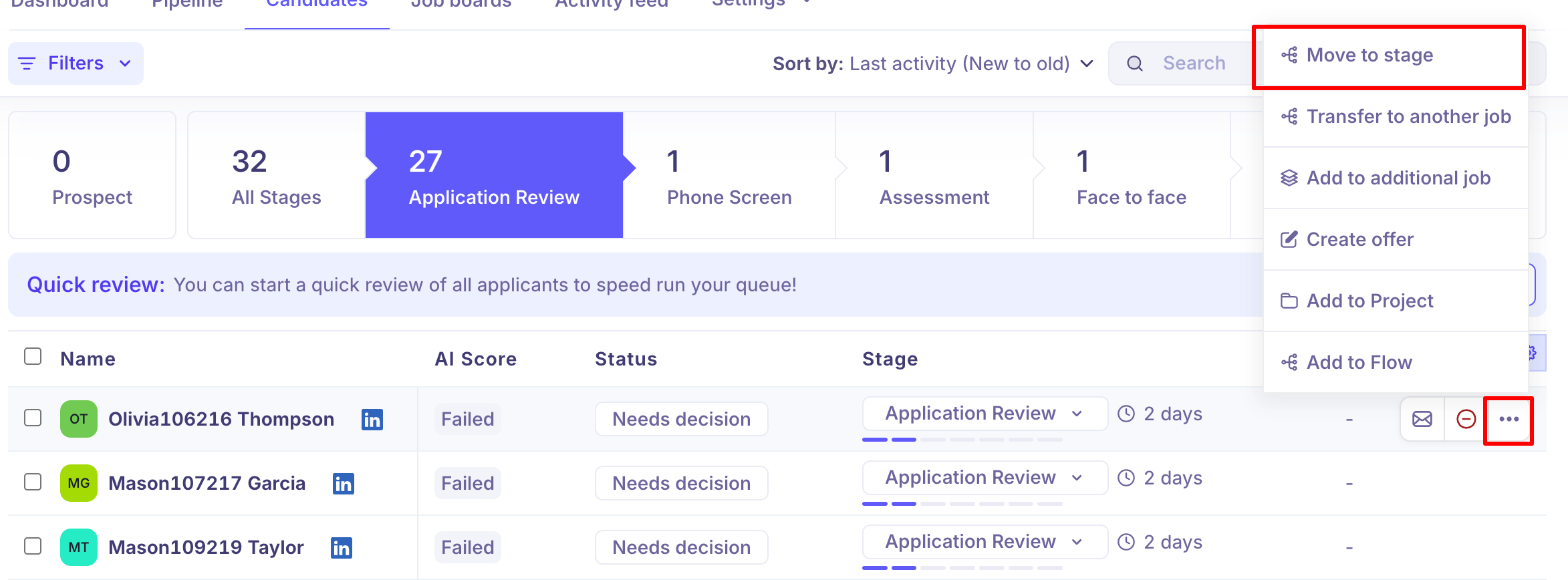
On an individual candidate
Move to stage — Move them to the next stage in your pipeline
Transfer to another job
Add to flow
In bulk
Select multiple candidates using the checkboxes to reveal the bulk action bar at the bottom:
Action | What it does |
Move to another stage | Move all selected candidates forward |
Reject all | Reject all selected candidates at once |
Send email | Send a message to all selected candidates |
Send self-schedule link | Send candidates a link to book their own interview slot |
Add tags | Apply tags to the selected group |
Transfer to another job | Move candidates to a different job (removes from this one) |
Add to additional job | Add to another job without removing from this one |
Add to Project | Shortlist for further review or outreach |
Add to Flow | Enroll in an outreach sequence |
Export as CSV | Download candidate details |
Sorting and Searching
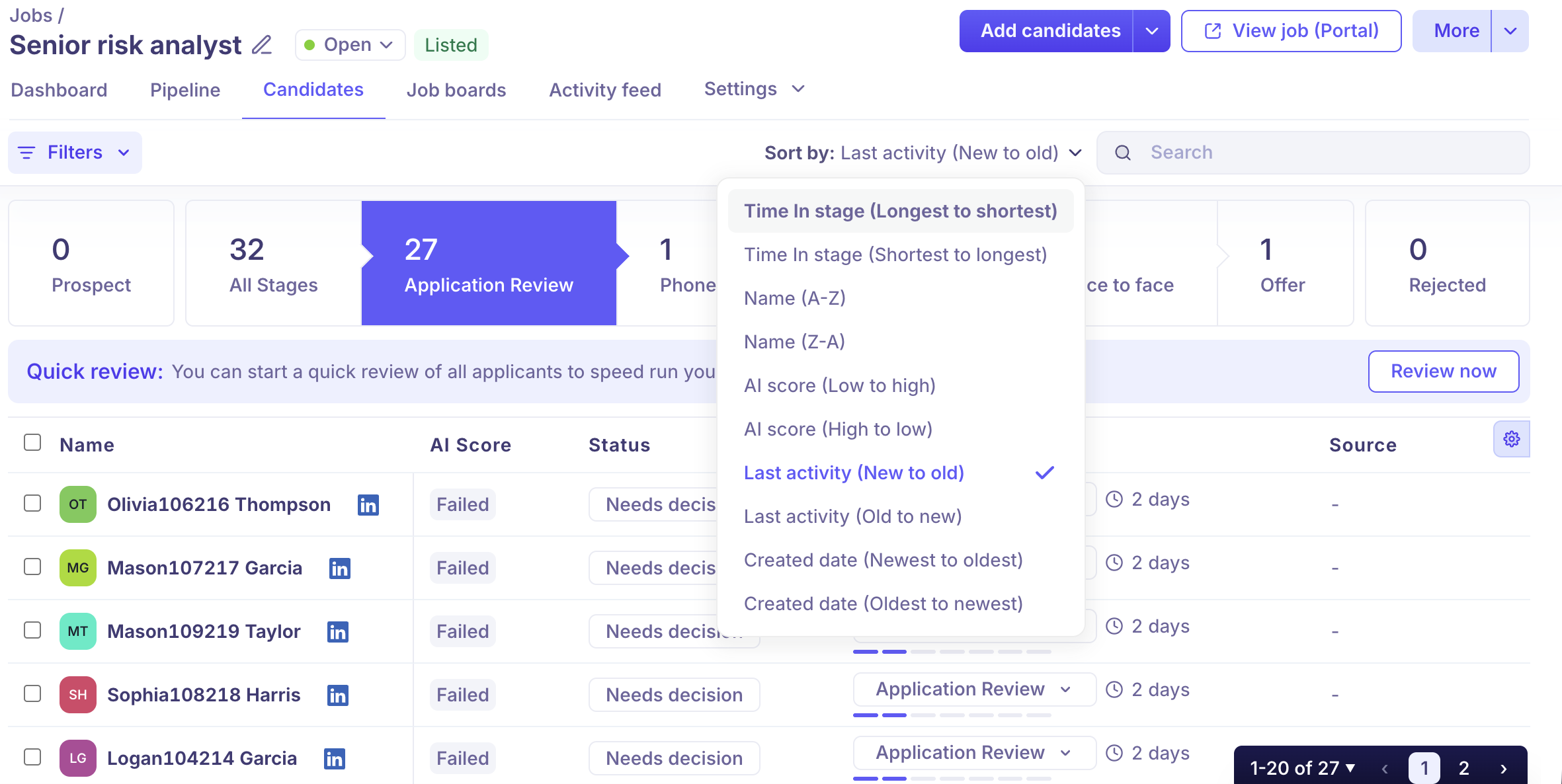
Use the Sort by dropdown to order candidates by Last activity, AI Score (high to low), Applied date, and more. Sorting by AI Score lets you prioritise your strongest matches first.
Use the Search bar to find a candidate by name within the current stage.
Good to know
You can skip Prospect. When you add candidates manually, you can put them straight into Application Review if they're ready to be evaluated.
A Failed AI score isn't a rejection. If the AI couldn't score a candidate because their profile didn't have enough data, the score shows as Failed. You can still review them manually.
External recruiters see only their own candidates. Someone on the job's hiring team as an External Recruiter sees only the candidates credited to them. To give them the full pipeline, add them to the hiring team as a Recruiter or Hiring Manager instead.
FAQ
Q: What's the difference between Prospect and Application Review?
Prospect is for sourced candidates who haven't entered formal evaluation yet. Application Review is the first active evaluation stage — where you review, score, and decide on candidates. Inbound applicants from the career page always land in Application Review, not Prospect.
Q: Why can't an external recruiter see all the candidates in Application Review?
External recruiters can only see and manage candidates they personally added to the job. To give an external recruiter full pipeline visibility, add them with the Recruiter or Hiring Manager role instead.
Q: A candidate has an AI Score that seems too high for their experience level. Why?
This may indicate your scoring attributes were configured with the older AI model. Updating your AI scoring attributes will retrigger scoring using the improved model, which better respects minimum experience requirements. Contact support for help.
Q: Can I sort Application Review candidates by AI Score?
Yes. Use the Sort by dropdown and select AI Score (high to low) to prioritise your strongest matches first.
Need Help?
If you have questions or need assistance with setup, feel free to reach out to us at support@kula.ai or use the in-app chat for assistance.