Requisition Approval Workflows
Last updated: April 15, 2026
Approval workflows define who must review and sign off on a requisition before it can proceed to the hiring stage. You can create multiple flows, each mapped to a specific combination of department, office, and work type. When a requisition is submitted, Kula automatically routes it to the matching flow.
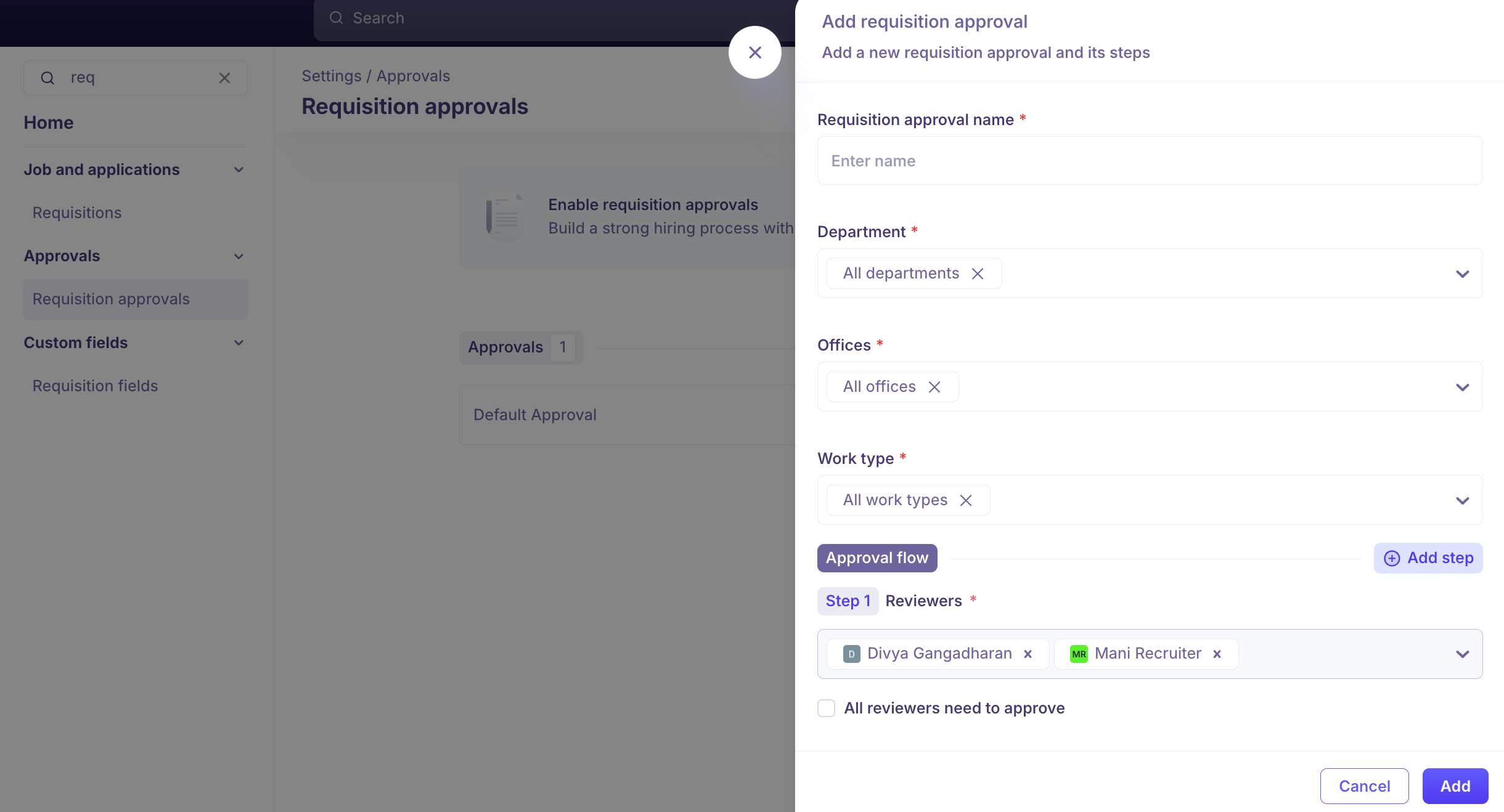
Each flow can have as many steps as needed. Each step can have one or more reviewers, and you configure whether:
All reviewers must approve to advance the step, or
Any one reviewer can approve to advance the step
Creating an Approval Flow
Go to Settings > Requisition Approvals.
Click Add approval.
Enter a Requisition approval name.
Map the flow to a Department, Office, and Work type combination. This flow will only trigger for requisitions matching all three.
Add reviewers to each step. Click Add step to include additional steps in the sequence.
For steps with multiple reviewers, select whether all must approve or any one can approve to advance.
Click Add to save the flow.
Existing flows can be edited or deleted at any time using the icons on the Requisition Approvals settings screen.
How Flows Are Triggered
A flow is triggered when a submitted requisition matches all three mapped attributes (department, office, and work type).
If no matching flow exists, the requisition is created without requiring approval (or blocked entirely, depending on your settings).
If multiple flows could apply, the most specific match is used.
Approving from Email and Mobile
Approvers receive email notifications when a requisition is assigned to them for review. They can:
Click the approval link in the email to take action directly
Approve or reject from the Tasks page in Kula
Act from a mobile device — approval pages are fully mobile-responsive
Re-approval After Changes
Some fields can be marked Requires re-approval (configured under Requisition Fields). If a user edits one of these fields after a requisition is already approved, the entire approval workflow restarts from the beginning.
This is most useful for sensitive fields like salary range, ensuring post-approval changes get a full re-review. Fields without this flag — like target start date — can be edited freely without triggering re-approval.
Frequently Asked Questions
Q: Can I have different approval flows for different teams?
Yes. Create as many flows as needed, each mapped to a unique department + office + work type combination. Kula automatically applies the matching flow when a requisition is submitted. If no match exists, no approval is required.
Q: What happens if a requisition doesn't match any approval flow?
The requisition is created without going through an approval process. If your organization requires all requisitions to be approved, ensure every relevant department, office, and work type combination is covered by a flow.
Q: Can more than one person approve a single step?
Yes. Add multiple reviewers to a step and choose whether all must approve (unanimous) or any one can approve (any). This supports both committee-based and delegation-based approval models.
Q: The approver is on leave. Can someone else approve on their behalf?
If the step is configured as any one reviewer can approve, any other reviewer on that step can complete it. If the step requires all reviewers, you may need to edit the approval flow to substitute the reviewer or add an additional approver to that step temporarily.
Q: I edited a requisition after it was approved and now it's back in "Pending approval." Why?
One or more of the fields you edited is marked Requires re-approval. Any change to such a field automatically restarts the approval workflow from the beginning. Check with your admin to see which fields have this flag — salary range is the most common example.
Q: Can approvers approve directly from their email on mobile?
Yes. Kula supports mobile-responsive approval pages. Approvers can click the approval link in their Gmail notification and take action without switching to a desktop browser.
Need Help?
If you have questions or need assistance with setup, feel free to reach out to us at support@kula.ai or use the in-app chat for assistance.