Creating a requisition
Last updated: April 15, 2026
You can create a requisition from scratch or clone an existing one to save time. Cloning copies all field values from the source requisition — useful for recurring or backfill roles.
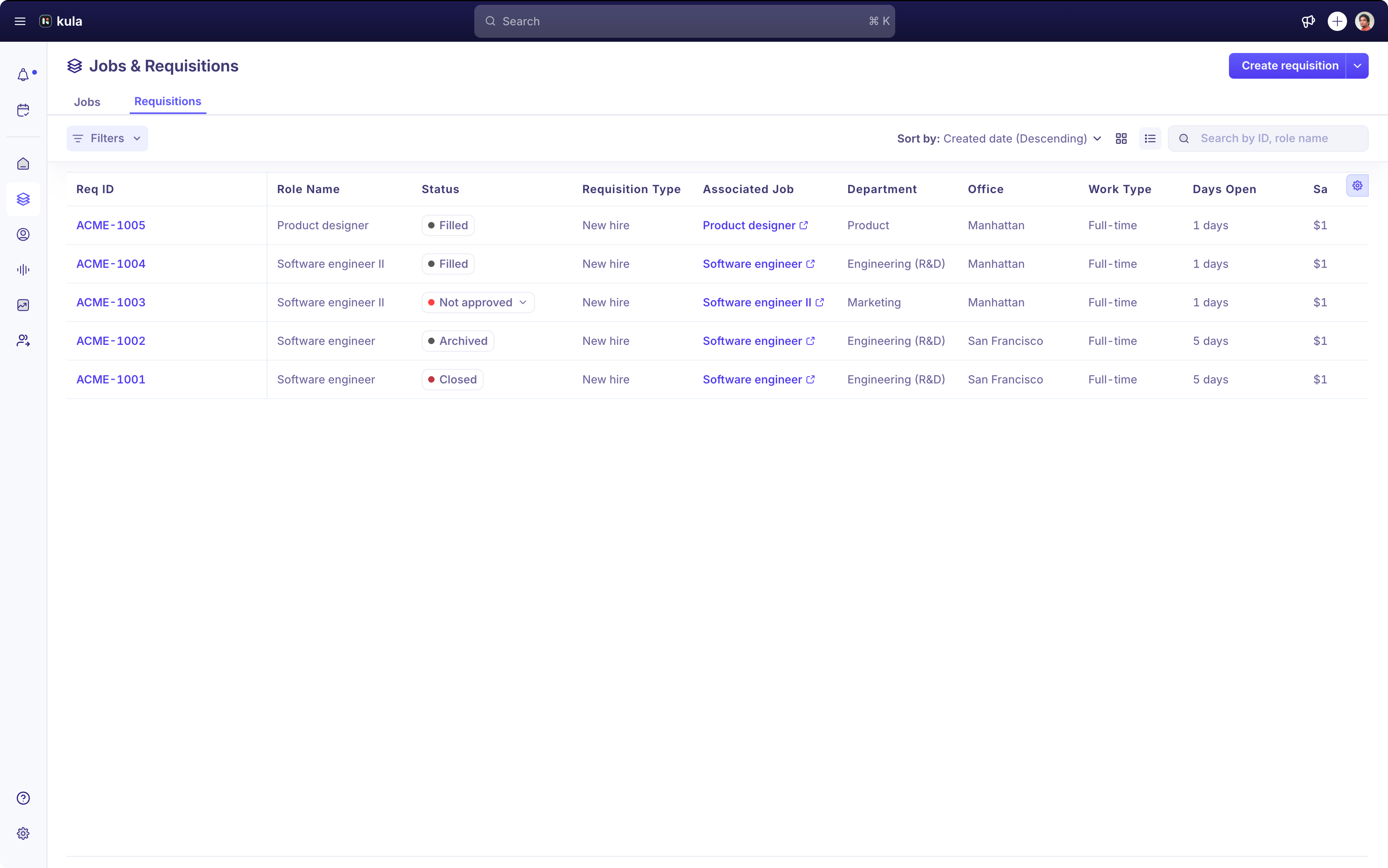
Create a new requisition
Create new requisitions with the following steps
Click Create requisition
Select Start from scratch, or you can also clone an existing requisition
When you start from scratch, you will have to fill the entire requisition yourself.
Start by filling in the default fields, such as Role name, Department, Description, Office, etc.
Requisition type — select one of:
New hire — a brand new headcount addition
Backfill — replacing a departing employee
Internal — filling the role with an internal transfer
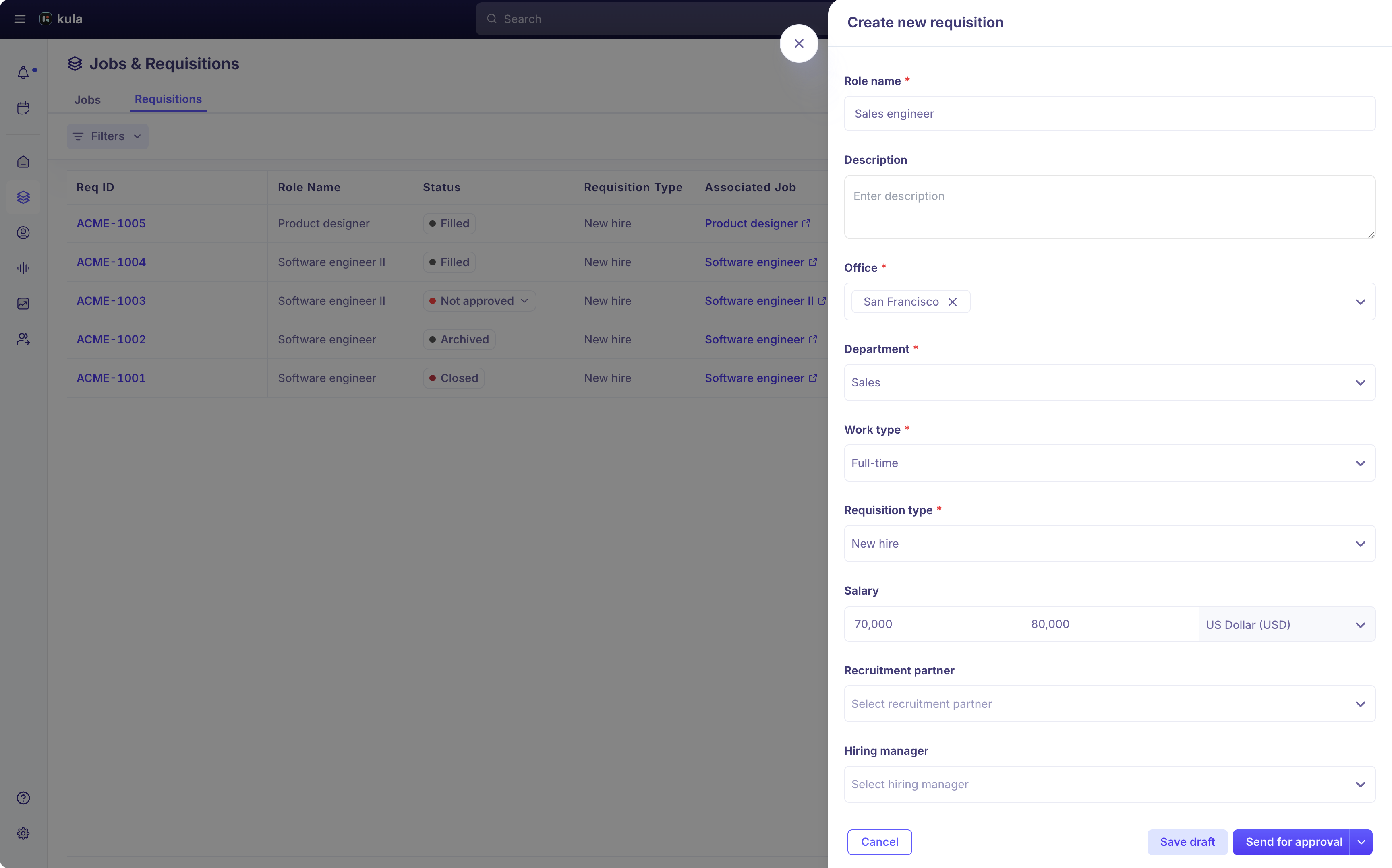
If you have set up any custom fields, you will have to fill them in too.
In case you want this requisition to be accessible only by a select group of individuals, check the Mark as confidential option.
If you already have a job ready for this requisition, you can associate it here. If not, you can skip this. R
Requisitions associated with jobs will be automatically marked as Open when approved.
Once you are ready, you can click Send for approval. If your requisition process does not require approvals, you can create the requisition directly here.
When you click Send for approval, you get two choices: send for approval alone or mark the requisition as open once approved. Choose the appropriate one and send it for approval.
You can add an optional note to the approvers to give them more context on the approval request.
Clicking Create and send for approval will trigger the approval process and create the requisition.
The requisition will be ready for use once it has been approved.
When sending for approval, you can choose to automatically mark the requisition as Open once approved, or wait to do it manually. You can also add a note to approvers for additional context.
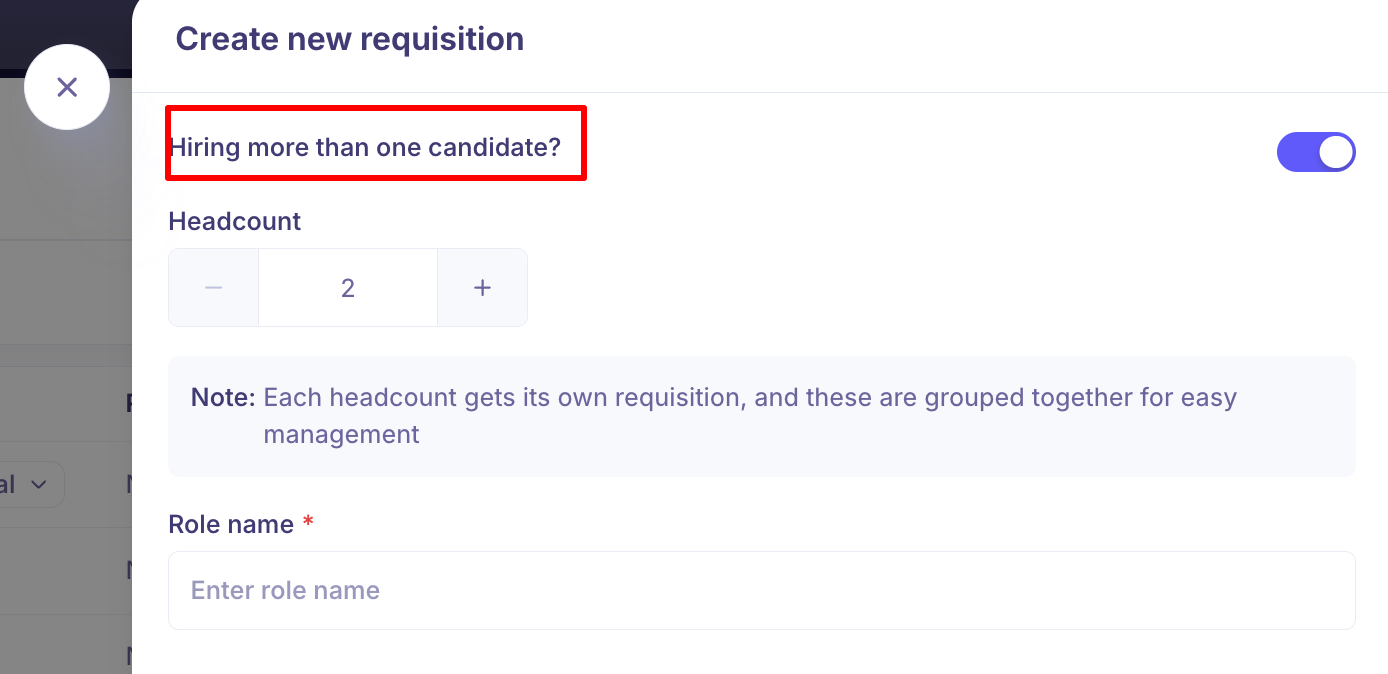
Hiring More Than One Candidate (Bulk / Headcount)
If you are hiring multiple people for the same role, you do not need to create separate requisitions one by one.
When creating a new requisition, toggle on Hiring more than one candidate? — a Headcount stepper will appear. Set the number of hires needed.
How it works: Each headcount gets its own individual requisition with a unique Req ID. All requisitions from the same headcount are automatically grouped together for easy management.
For example, if you create a requisition for 3 Finance Executive hires, Kula creates three separate requisitions — KUL-22-1, KUL-22-2, and KUL-22-3 — each tagged Part of a group. You can hover over the tag in the list to see all IDs in the group.
Note: Requisition IDs are automatically assigned once the group is created.
Managing grouped requisitions
Requisitions in a group can be approved or rejected all at once, or handled individually
Each requisition in the group follows the same approval flow and can be independently associated with a job or offer
Rejecting an entire group moves all requisitions in it to Not approved
Associating Requisitions with Jobs
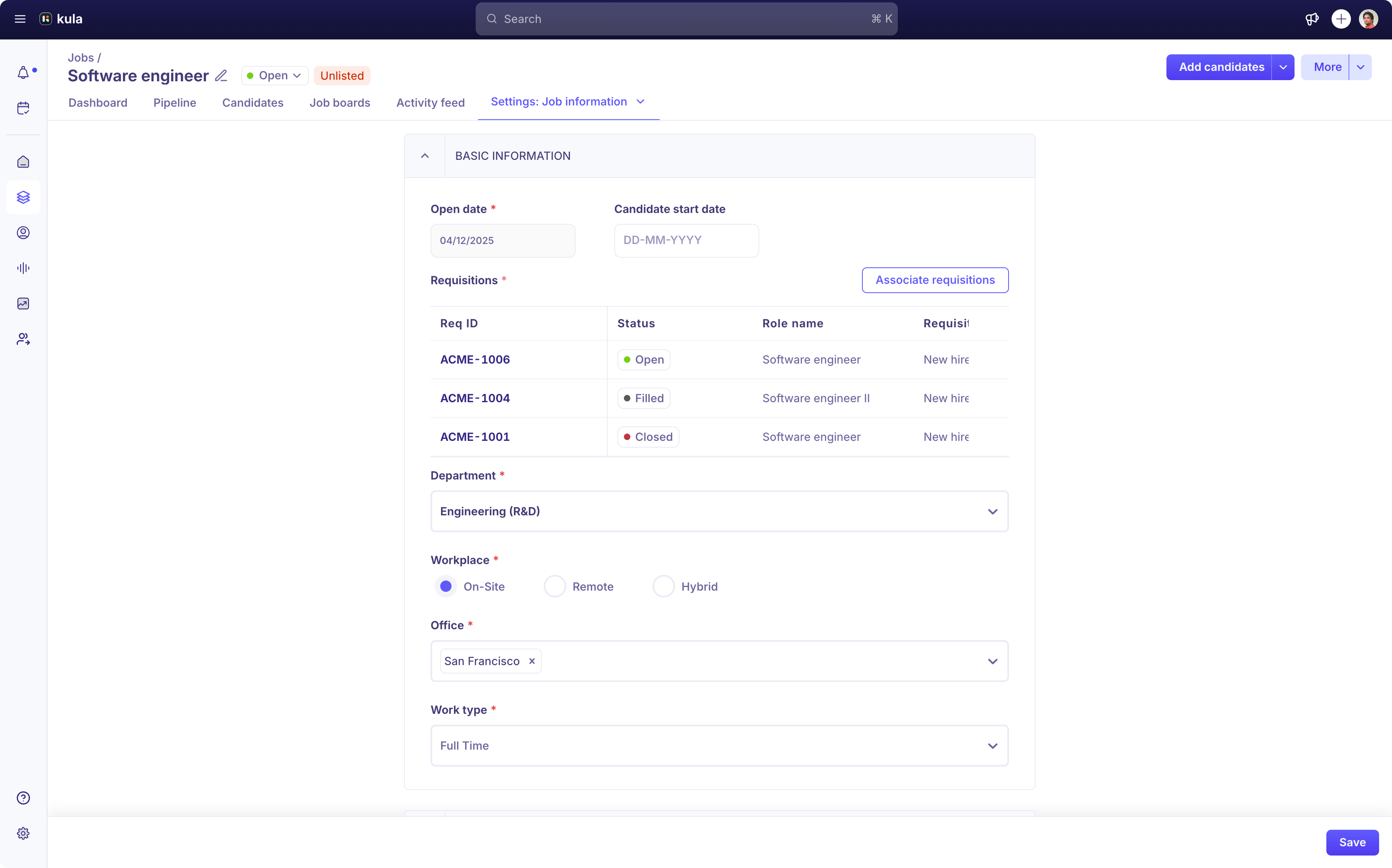
Once a requisition is approved, link it to a job either:
From within the requisition itself, or
From the Job Info tab inside the job
Once linked, the requisition becomes unavailable for other jobs and is automatically set to Open status.
Recommended workflow: Create the job after the requisition is approved, so all role details have already been reviewed and are consistent before sourcing begins.
Whether this step is mandatory or optional depends on your admin's configuration under Requisition Settings.
Associating Requisitions with Offers and Hires
Offers
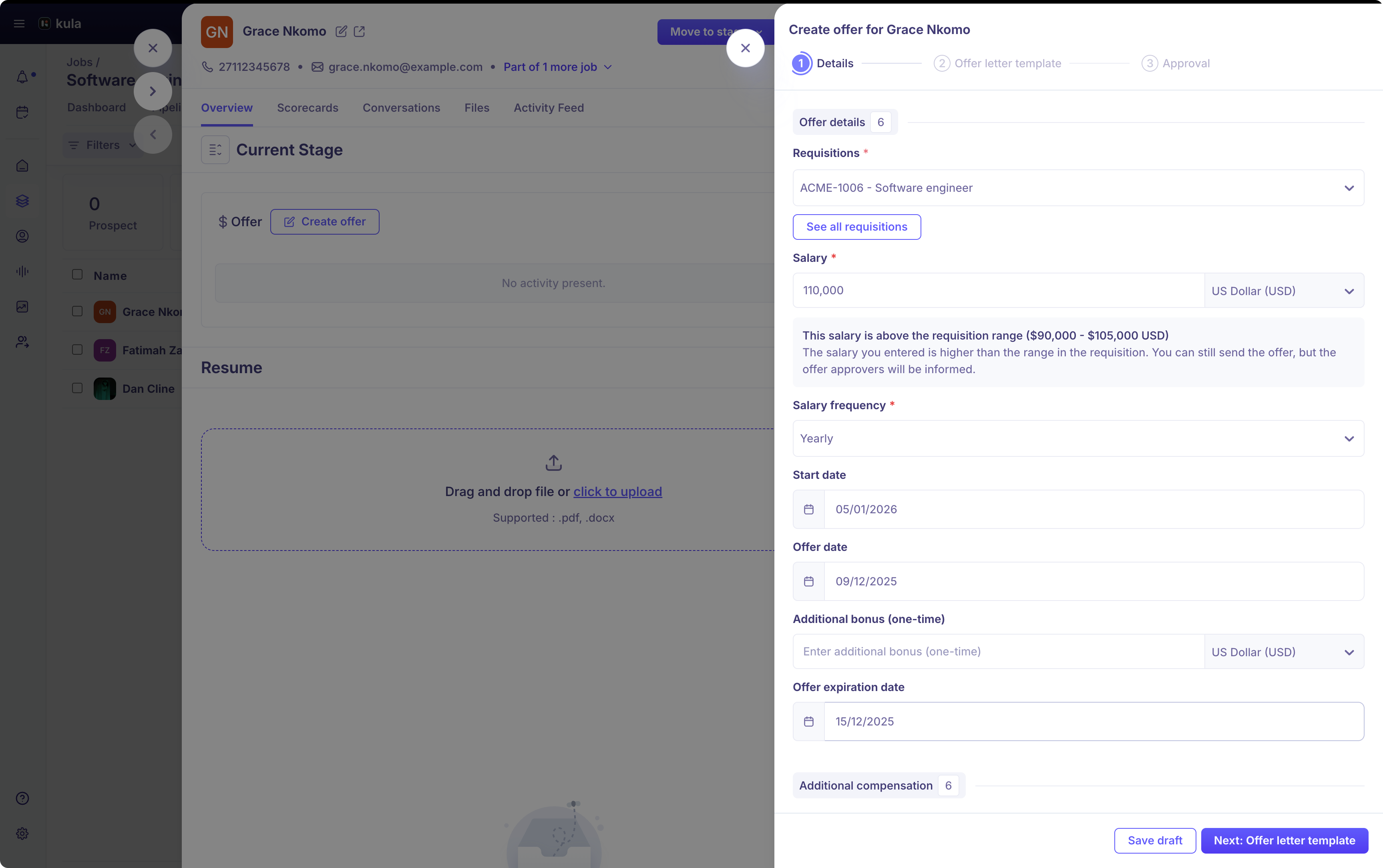
Every offer created in Kula must have a requisition associated with it. When creating an offer, an available requisition linked to the job is selected by default — but you can change it. Once a candidate accepts the offer:
The requisition is marked as Filled
It can no longer be edited (unless the offer is deleted)
Salary Out-of-Band Alerts
If the offer salary falls outside the range defined in the requisition, Kula automatically:
Flags the offer as out-of-band
Notifies the relevant approvers
This creates transparency without blocking the offer from proceeding.
Hires Outside Kula
If an offer was sent outside of Kula and the candidate is moved directly to the Hired stage, you will be prompted to associate a requisition at that point. This is always mandatory.
Frequently Asked Questions
Q: Can I clone a requisition?
Yes. When creating a new requisition, choose the option to clone an existing one. All field values are pre-filled from the source, which you can then edit before submitting for approval.
Q: Can I create a job before the requisition is approved?
It depends on your admin's settings. If Mandatory to create jobs is enabled, you must have an approved requisition first. If it is not mandatory, you can create jobs independently and link a requisition later. The recommended approach is to wait for approval before creating the job.
Q: What happens if I try to associate a requisition already linked to another job?
A requisition can only be linked to one job at a time. Once associated, it is removed from the available list for other jobs. If the job association is later removed, the requisition becomes available again.
Q: The offer salary is higher than the requisition range. Will this block the offer?
No. Kula flags the offer as out-of-band and notifies approvers, but the hiring process continues. The flag creates transparency without creating an unnecessary blocker.
Q: Can I add a note when sending a requisition for approval?
Yes. When you click Send for approval, an optional note field lets you provide context to reviewers — for example, explaining urgency or providing budget justification.
Q: Can I edit a requisition after it has been submitted for approval?
Yes, but editing certain fields (those marked Requires re-approval by your admin) will restart the approval workflow from the beginning. Fields without this flag can be edited freely at any point.
Need Help?
If you have questions or need assistance with setup, feel free to reach out to us at support@kula.ai or use the in-app chat for assistance.