Tracking requisition status
Last updated: April 15, 2026
Requisition Status Lifecycle
Every requisition moves through a defined set of statuses that reflect where it is in the hiring process.
Status | Description |
Draft | Created but not yet submitted for approval |
Pending approval | Submitted and waiting for reviewer action |
Approved | All approval steps are complete |
Not approved | Rejected by a reviewer; edits and resubmission required |
Ready to open | Approved but not yet linked to an active job |
Open | Actively linked to a job; candidates being sourced |
Closed | Manually closed; hiring cancelled or paused |
Archived | Retired from active use; no longer appears in default views |
Filled | A candidate accepted an offer or was moved to Hired against this requisition |
How statuses flow
Draft → Pending approval → Approved → Ready to open → Open → Filled
                        ↓                                  ↘
                   Not approved                           Closed → Archived
                        ↓
                  (edit & resubmit)
Draft → Pending approval: Triggered when the requester clicks Send for approval
Pending approval → Approved / Not approved: Set by the reviewer(s) completing the approval flow
Not approved → Pending approval: Requester edits the requisition and resubmits — restarts the flow from Step 1
Approved → Ready to open: Requisition is approved but no job has been linked yet
Approved / Ready to open → Open: Requisition is linked to an active job (automatically, or manually set)
Open → Filled: Candidate accepts an offer or is moved to Hired against this requisition (automatic)
Open / Approved → Closed: Manually closed when hiring is cancelled or paused
Closed → Archived: Manually archived to retire the requisition from active views entirely
Closed vs Archived: Closed means hiring is paused or cancelled but the record remains visible in filtered views. Archived removes it from default views entirely — use this for requisitions that are fully retired and no longer relevant to day-to-day operations.
Searching and Filtering Requisitions
The Requisitions page gives you full visibility into all hiring requests across your organization.
Search
Type in the Search by ID, role name bar to find requisitions instantly.
Search matches only requisition ID and role name — it does not search across department, hiring manager, or other fields.
Filter
Click Filter to open the filter panel. Available filters include:
Status
Requisition type
Associated job
Department
Office
Work type
Hiring manager
Recruitment partner (recruiter)
Created by
Created at
Target hire date
Target start date
When filtering by Status, the available values are: Draft, Pending approval, Approved, Not approved, Ready to open, Open, Closed, Archived, and Filled.
Multiple filters can be applied simultaneously. Each active filter is shown at the top of the panel and can be removed individually or cleared all at once.
Sort
Click Sort to order the list by:
Created date (newest first or oldest first)
Days open (highest or lowest)
Views and Columns
Switch between grid view (compact cards) and list view (full table) using the toolbar icons.
In list view, click Columns to show or hide fields such as salary, days open, filled date, requisition type, and more.
The Req ID column is always visible.
Requisition Analytics
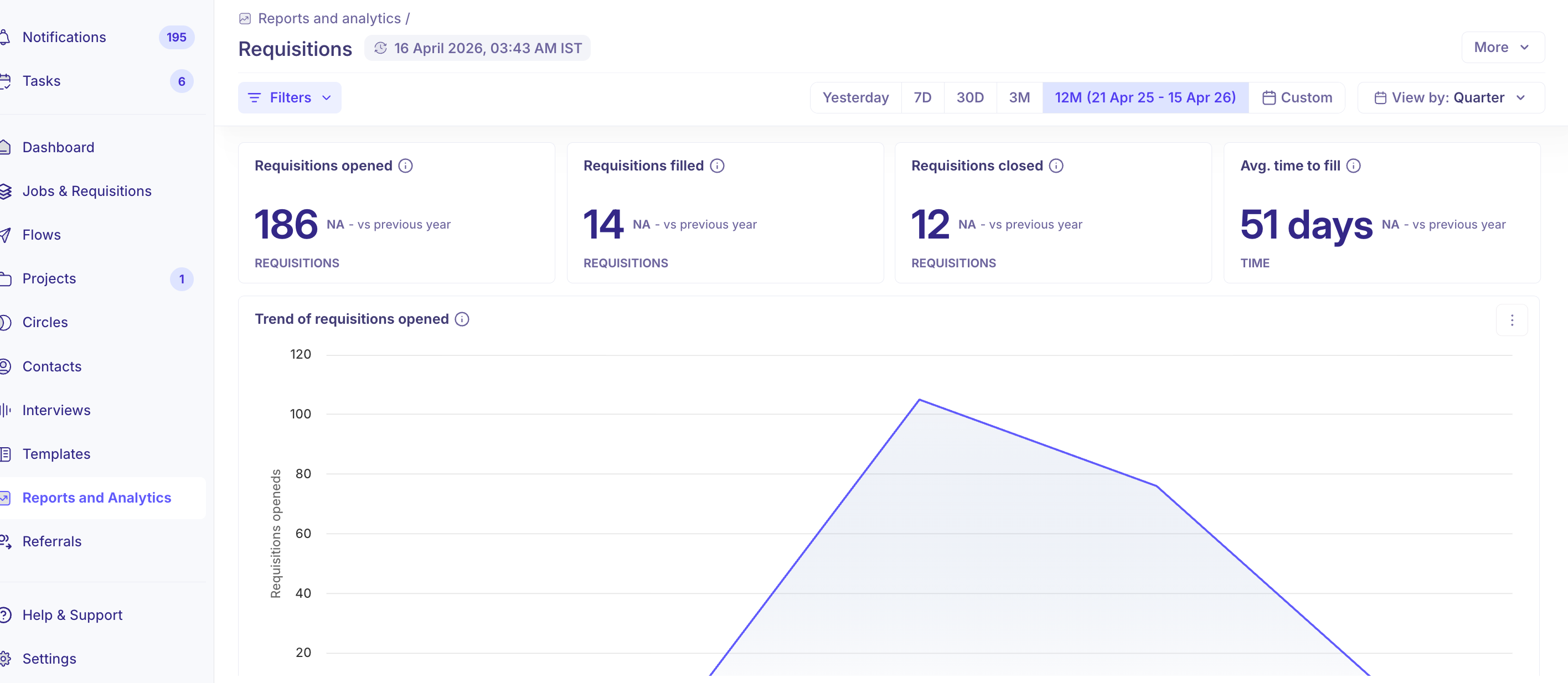
The Requisitions analytics report gives you pipeline visibility before jobs go live — helping you identify approval bottlenecks and forecast timelines.
Key Metrics
Metric | Description |
Requisitions opened | Requisitions marked as Open during the selected period |
Requisitions filled | Requisitions filled via an accepted offer or a hire |
Requisitions closed | Requisitions manually closed during the period |
Avg. time to fill | Average time from Open date to Filled date |
Charts
Trend of requisitions opened over time
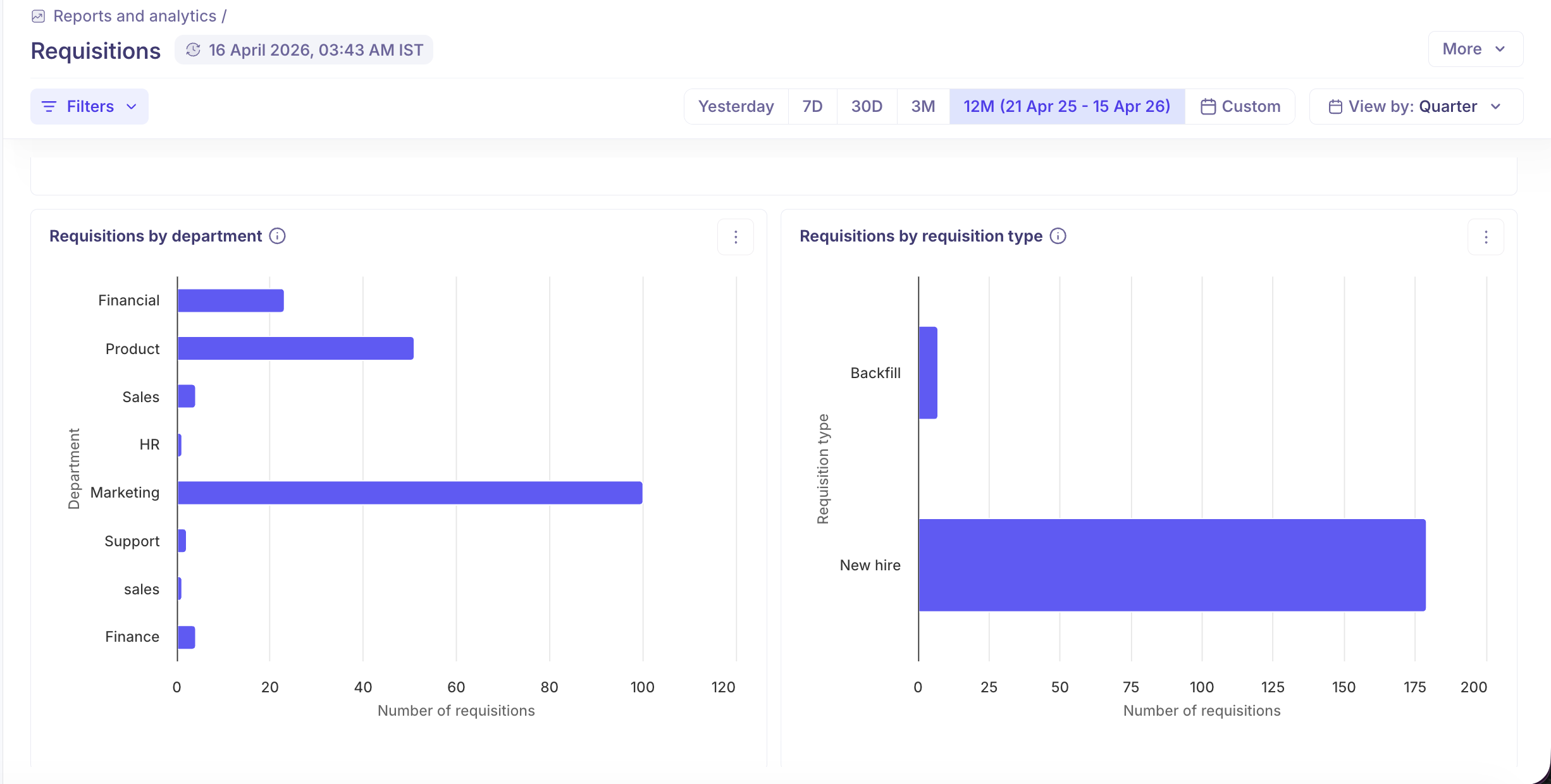
Requisitions by department
Requisitions by type (New hire, Backfill, Internal)
Percentage filled by department
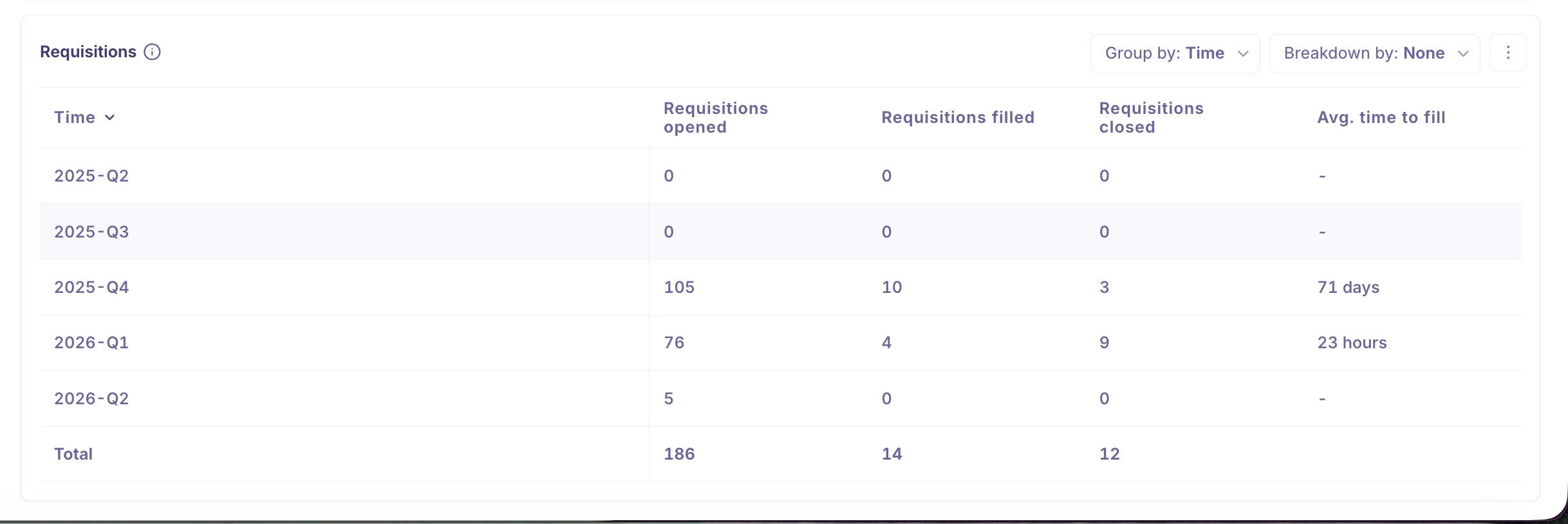
Group and Breakdown Options
Data can be grouped or broken down by: associated job, recruiter, hiring manager, department, office, work type, requisition type, and user who created the requisition.
Report Actions
Action | How |
Clone report | Duplicate as a custom report and add new blocks |
Download PDF | More > Download PDF |
Schedule email | Daily, weekly, or monthly delivery to configured recipients |
Frequently Asked Questions
Q: Can I filter requisitions by hiring manager?
Yes. Hiring manager is an available filter in the filter panel on the Requisitions page. You can combine it with other filters like department, status, or date range for more targeted views.
Q: Can I search for a requisition by department or salary?
No — the search bar only matches requisition ID and role name. To find requisitions by department, salary range, or other attributes, use the Filter panel instead.
Q: How is "Avg. time to fill" calculated?
It is calculated from the date a requisition is first marked as Open to the date it is Filled (offer accepted or candidate moved to Hired). If a requisition is reopened after being filled, Kula uses the most recent open and close dates for the calculation.
Q: Can I schedule the requisitions analytics report to be emailed weekly?
Yes. From the Requisitions analytics page, click More > Schedule email. Set the frequency (daily, weekly, or monthly), choose the delivery day and time, and add any recipients. For a weekly schedule, you can specify which day of the week to send it.
Q: How do I track which requisitions have been open the longest?
Use the Sort > Days open (Highest first) option on the Requisitions page. In list view, you can also make the Days open column visible via the Columns toggle to see this at a glance across all requisitions.
Q: What is the difference between Closed and Archived?
Closed means hiring for this role has been cancelled or paused — the requisition is still visible in filtered views and counts in analytics. Archived fully retires the requisition from active views; use this for requisitions that are no longer relevant to day-to-day operations and shouldn't appear in your working list. You can still find archived requisitions by filtering on the Archived status.
Q: Can I see archived requisitions in the Requisitions page?
Yes. Archived requisitions do not appear in the default view, but you can find them by applying a Status = Archived filter in the filter panel. This keeps your working list clean without permanently deleting historical records.
Need Help?
If you have questions or need assistance with setup, feel free to reach out to us at support@kula.ai or use the in-app chat for assistance.