Requisition fields
Last updated: April 15, 2026
Here, you can set up the fields that will need to be filled when creating new requisitions.
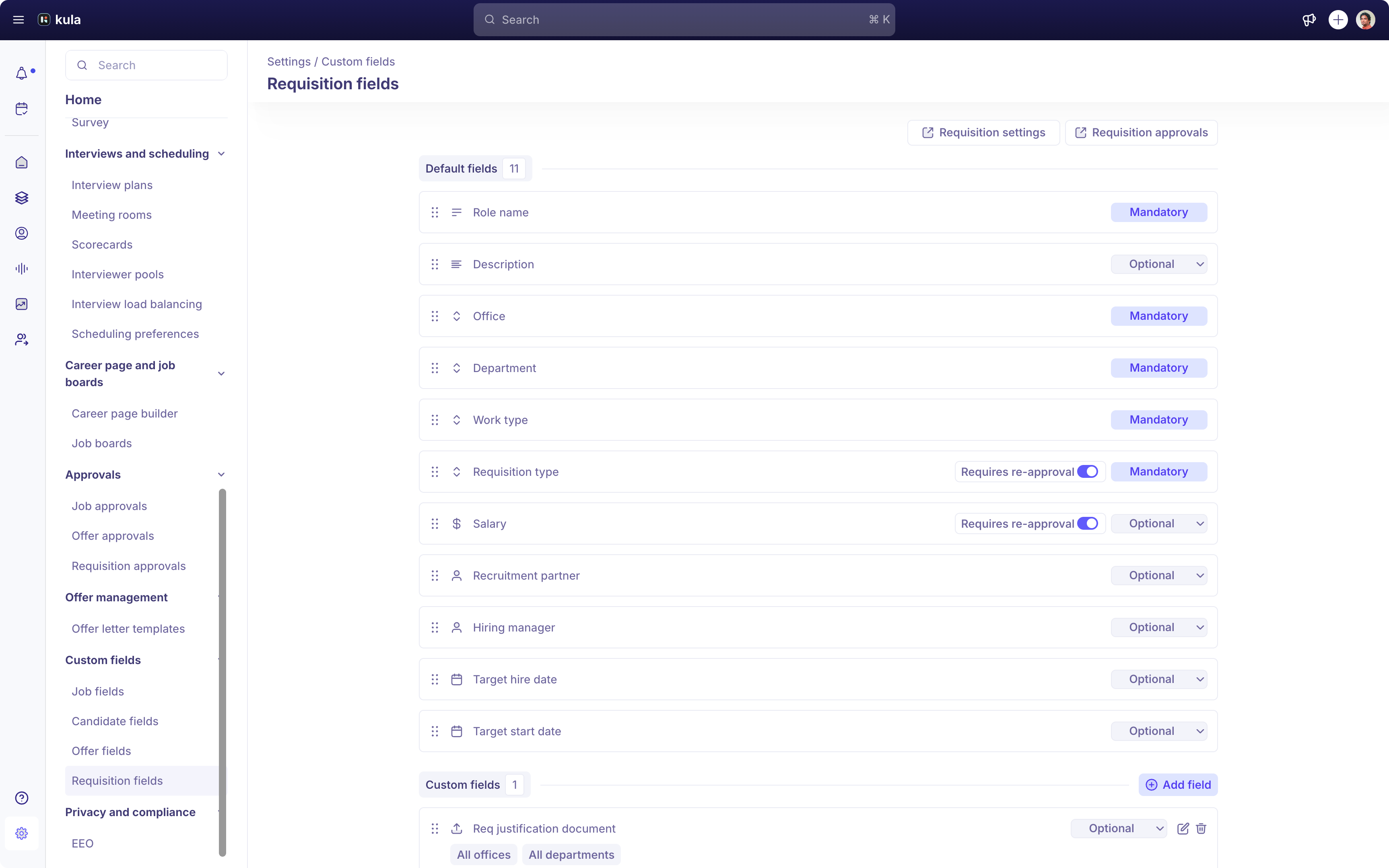
Create requisition custom fields
Click Add field to start creating new requisition fields.
Select one of the field types. You can choose between
Short text
Long text
Single select
Multi select
Yes / No
Date
Number
URL
File upload
Enter the Field name
You can switch the field type if required. Field type cannot be changed once the field is created.
You can add the respective Offices and Departments, and the custom field will appear only for those offices and departments.
The field can be marked as a required field.
The newly created field will start appearing in requisitions that are mapped to the same office and department combination as the field. The field can also be edited and deleted by clicking the Edit or Delete icons next to the field.
Requires re-approval
Any Requistion field can be flagged as Requires re-approval. When enabled, editing that field after a requisition is already approved will restart the entire approval workflow from the beginning.
When to use this flag:
✅ Salary range — a salary change materially affects the approved scope of the hire
✅ Headcount number — changing from 1 to 2 hires requires re-review
❌ Target start date — an administrative update that doesn't change the hiring decision
❌ Hiring manager notes — informational; no re-review needed
Need Help?
If you have questions or need assistance with setup, feel free to reach out to us at support@kula.ai or use the in-app chat for assistance.