Approving or Rejecting a Requisition
Last updated: April 15, 2026
When a recruiter submits a requisition for approval, every reviewer assigned to the current step is notified. As an approver, your job is to review the requisition details and either approve it to move it forward or reject it with a reason so the requester can make the necessary changes.
Kula supports approvals from three places: directly from your email notification, from the Tasks page in Kula, or from your mobile device (via email link).
How You Get Notified
When a requisition reaches your step in the approval flow, Kula sends you:
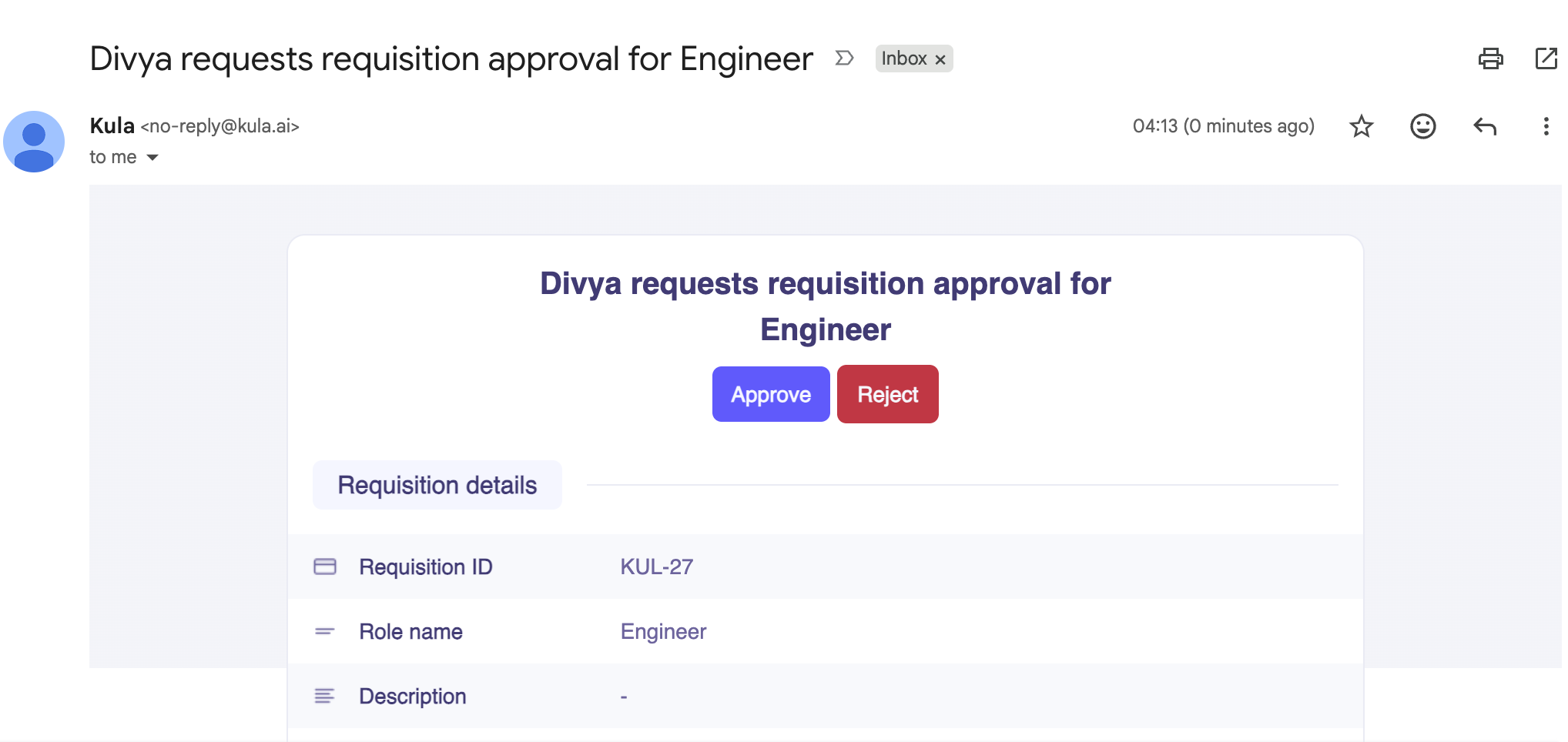
An email notification with the requisition details and direct Approve / Reject action buttons
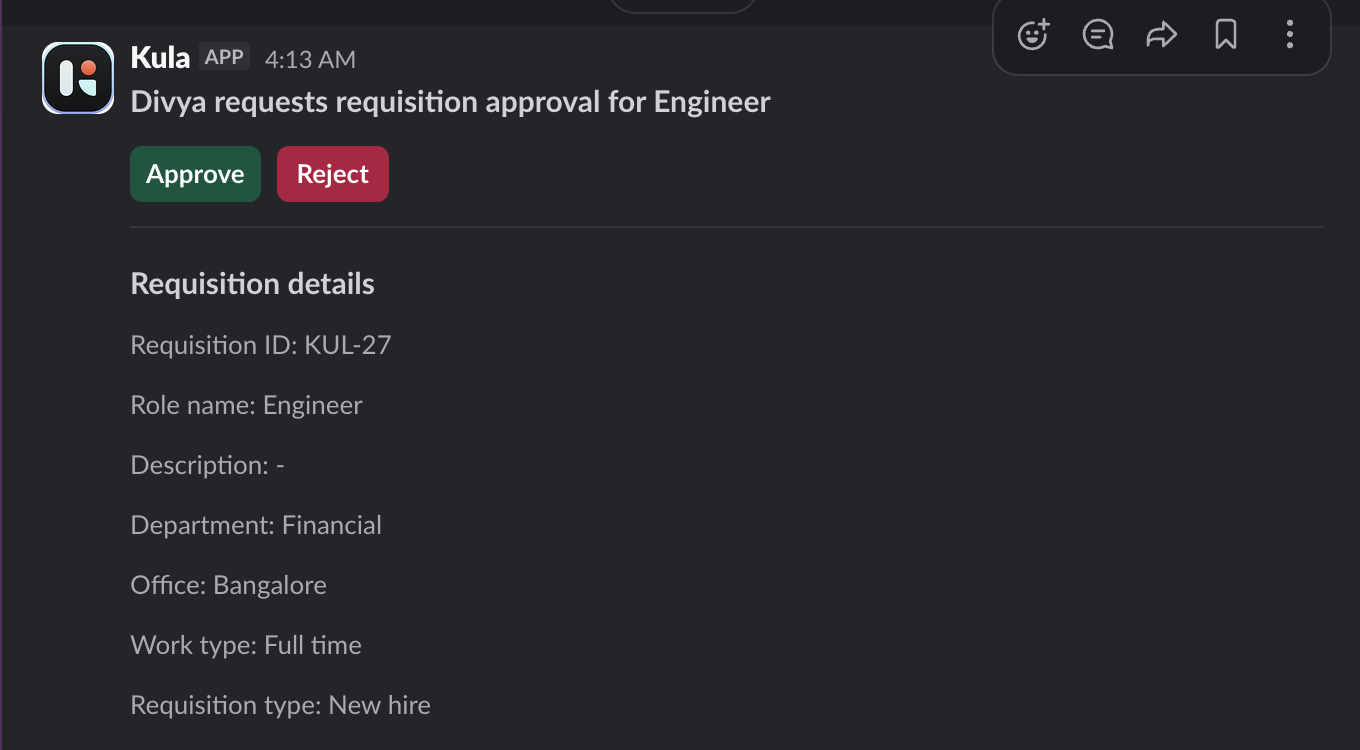
A Slack notification (if your workspace is connected to Kula) with the same action buttons
An in-app notification visible on the Tasks page inside Kula
The notification includes key requisition details — role name, department, office, work type, salary range, and any note added by the requester. If the approval step is configured so any one reviewer can approve, this is noted in the notification so you know your action alone is sufficient to advance the requisition.
Approving a Requisition
From email or Slack
Open the approval notification in your email or Slack.
Review the requisition details included in the message.
Click Approve.
The requisition advances to the next step in the flow (or moves to Approved if you are the final reviewer).
From the Tasks page in Kula
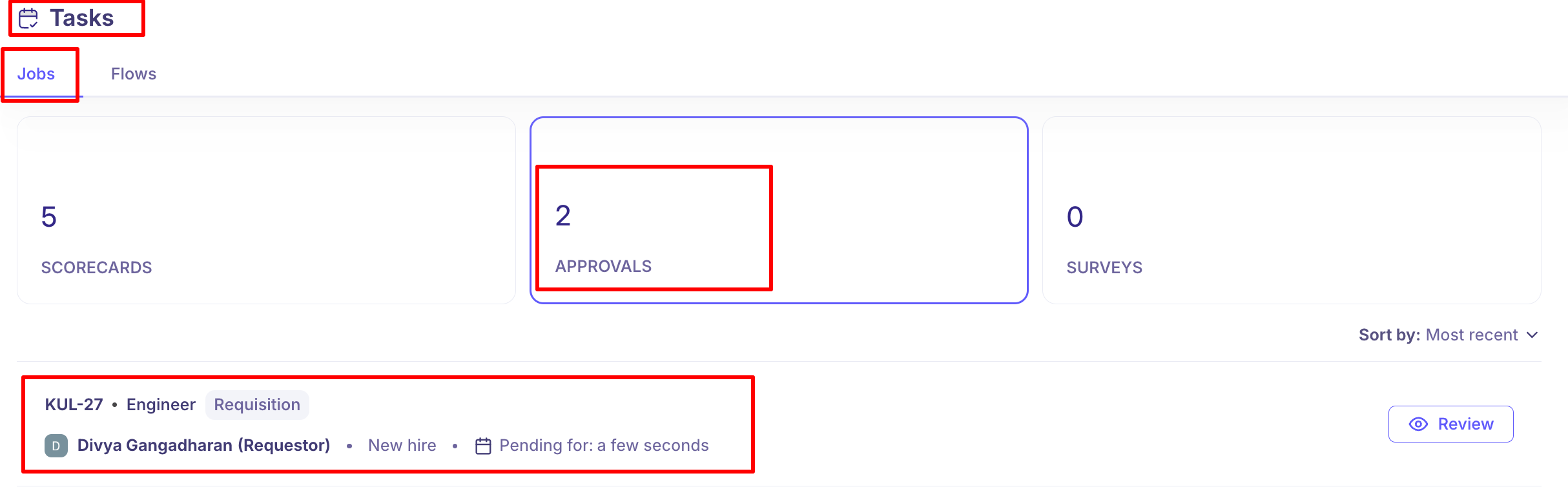
Log in to Kula and navigate to Tasks.
Find the requisition under the Requisition Approvals tab.
Click into the requisition to review the full details.
Click Approve.
From mobile
Approval email links are fully mobile-responsive. Open the notification on your phone, review the details, and tap Approve — no desktop required.
Rejecting a Requisition
If the requisition needs changes before it can be approved, you can reject it and the requester will be notified to make edits and resubmit.
Steps
Open the requisition from your email, Slack notification, or the Tasks page.
Click Reject.
Enter a rejection reason — this is captured and sent to the requester so they understand what needs to change.
Confirm the rejection.
The requisition status moves to Not approved and the creator receives a notification. They can then edit the requisition and resubmit it for approval, which restarts the workflow from the beginning.
Note: If you opened the rejection modal from email and cannot close or cancel it, try completing the action in-app via the Tasks page instead. This was a known edge-case behaviour that has since been resolved.
Multi-Step and Multi-Reviewer Flows
Requisition approval flows can have multiple steps and multiple reviewers per step. Here is how that works:
Scenario | Behaviour |
Multiple steps | Your approval completes the current step; the requisition then moves to the next step and the next set of reviewers is notified |
Any one reviewer can approve | Your approval alone is sufficient to complete the step; other reviewers on the step do not need to act |
All reviewers must approve | Every reviewer on the step must approve before the requisition advances |
One reviewer rejects | The requisition moves to Not approved regardless of whether other reviewers on the step have approved |
What Happens After Approval
Once all steps in the approval flow are completed:
The requisition status changes to Approved
The requester is notified that their requisition has been approved
If the requester chose to auto-open on approval, the status immediately moves to Open once an associated job is saved
The requisition is now available to be linked to a job and used in the hiring process
What Happens After Rejection
Once a requisition is rejected:
The status changes to Not approved
The requester is notified with the rejection reason
The requester can edit the requisition and resubmit it for approval
Resubmission restarts the entire approval workflow from Step 1
For requesters: After a rejection, edit any relevant fields in the requisition and click Send for approval again. You do not need to create a new requisition — resubmitting the same one is the correct path.
Sending a Reminder to Approvers
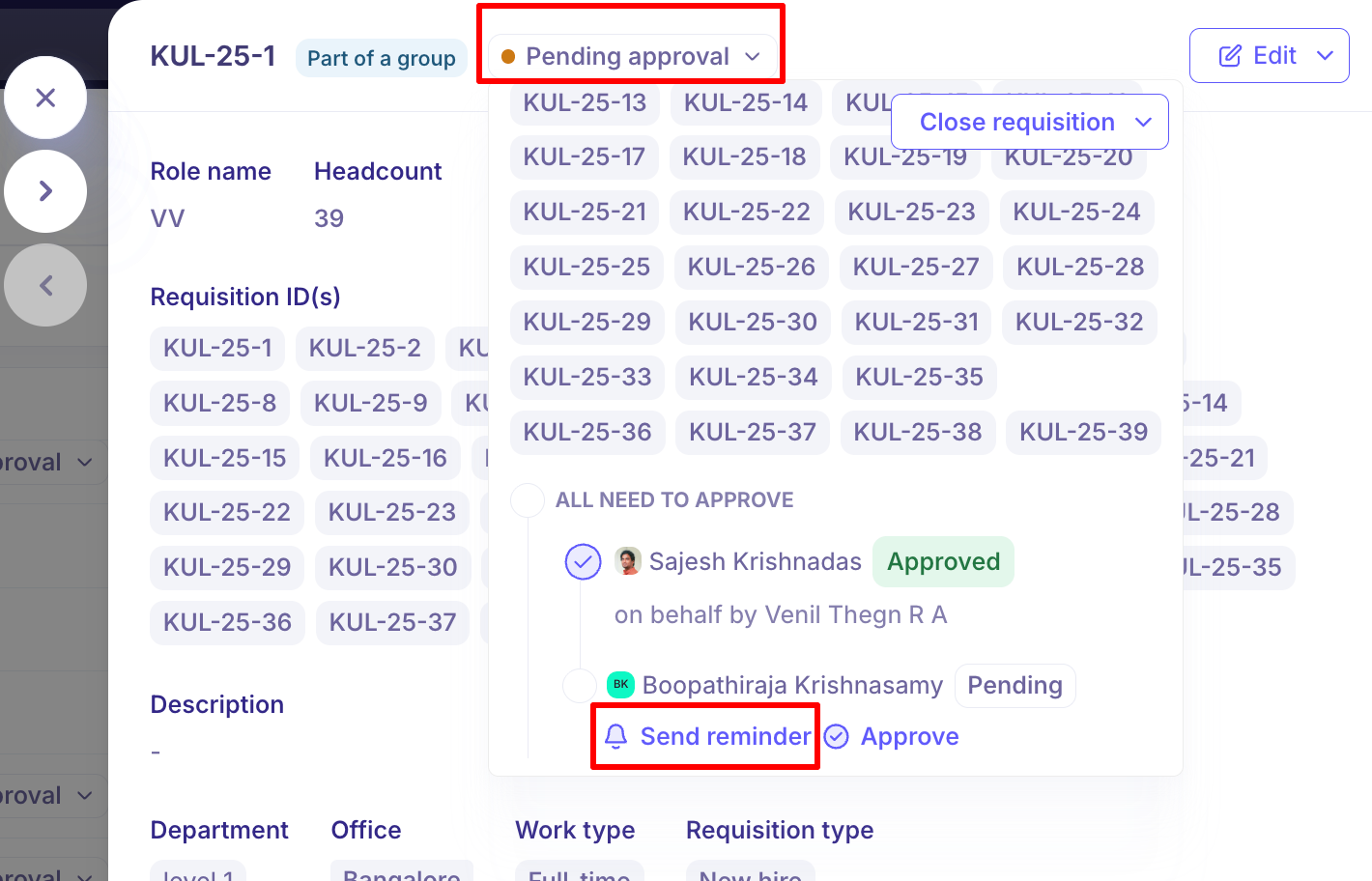
If a requisition has been pending for a while and no action has been taken, the requester can send a reminder to the approvers.
Go to the requisition and click Send reminder
Approvers at the current pending step receive a new notification
The reminder clearly shows it is coming from the requester (not from the system) so approvers have context
Frequently Asked Questions
Q: I received an approval notification but clicking Approve or Reject doesn't do anything. What should I do?
If the approve or reject buttons in your email or Slack notification are unresponsive, go directly to the Tasks page in Kula and action the approval from there. This was a reported edge-case behaviour that has been resolved, but if you encounter it, the in-app Tasks page is the reliable fallback.
Q: I approved the requisition but the status hasn't changed. Why?
There are two common reasons. First, the approval flow may have multiple steps — your approval completed your step, but the requisition is now waiting for reviewers in the next step. Check the requisition to see how many steps are in the flow and which step it is currently on. Second, if the status still shows the old state after completing the final step, try refreshing the page — this was a known display issue that has been resolved.
Q: Can I approve a requisition I didn't receive a notification for?
No. You can only approve requisitions that are actively assigned to you at the current step of their approval flow. If you try to access and approve a requisition you are not a reviewer on, you will see an error. If you believe you should be a reviewer, ask your admin to update the approval flow or add you to the relevant step.
Q: The rejection modal won't close after I clicked Reject from the email link. What should I do?
This was a known issue with the rejection modal triggered from email links. If the modal is unresponsive, navigate to the requisition directly via the Tasks page in Kula and complete the rejection from there. The issue has since been fixed.
Q: Does the requester get notified when I approve or reject?
Yes. The requester receives a notification whenever a requisition they submitted is approved or rejected. If the requisition has multiple steps, they are notified when the final step is approved (i.e., fully approved) and when it is rejected at any step.
Q: What should I check before approving a requisition?
Review the full set of details in the requisition before approving:
Role name and description — does this match the actual hiring need?
Department and office — is this the right team and location?
Work type — full-time, part-time, contract?
Salary range — is it within budget? If the offer later exceeds this range, Kula will flag it as out-of-band.
Headcount — is this a new hire, backfill, or internal transfer?
Custom fields — any org-specific fields like budget code, cost centre, or business justification
If anything looks off, reject with a clear reason rather than approving and fixing it later — changes to key fields after approval (like salary) may trigger a full re-approval cycle anyway.
Q: Can I approve a requisition on behalf of another reviewer?
Only if the approval step is configured as any one reviewer can approve. In that case, your approval alone completes the step, regardless of whether other reviewers have acted. If the step requires all reviewers to approve, each reviewer must take action individually — there is no "approve on behalf of" capability.
Q: What happens to bulk requisitions when I approve or reject them?
Bulk requisitions (multiple requisitions created in one go from a headcount) are grouped together in the approval view. You can approve or reject them all at once, or handle them individually. If you approve or reject them one by one, each requisition is removed from the group as it is actioned. Rejecting a group moves all requisitions in that group to Not approved.
Need Help?
If you have questions or need assistance with setup, feel free to reach out to us at support@kula.ai or use the in-app chat for assistance.