Editing candidate information
Last updated: September 26, 2026
Correct a phone number, add a missing email, update skills or tags, all without leaving the job you're in.
Who can do this: anyone with permission to edit candidates. Some fields may be limited by role
Where to find it: the candidate's application (Candidate info), the edit icon next to their name, or their profile from the Candidates page
What you can edit
On the application: name, email, phone, skills, education, experience and custom fields.
From the edit icon next to the candidate's name, which jumps to their details.
On the profile: edit email and phone where they're shown.
Missing details: add an email or phone that wasn't captured at first.
Experience and education: add, edit or remove entries.
What you can't edit
The LinkedIn URL, once added. If it's wrong, fix it by relinking or merging profiles.
The contact source. It's set when the candidate is first created. Changing the source on one application doesn't change it.
Editing from the job vs. the candidate profile
Candidate information you see while reviewing a job application and the information on the candidate profile aren't always the same data. Details on a job application are either entered directly by your team or provided by the candidate for that application, while details on the candidate profile can include information parsed from the candidate's resume. If numbers don't match between the two views, that's usually why — not a sync error.
Tags
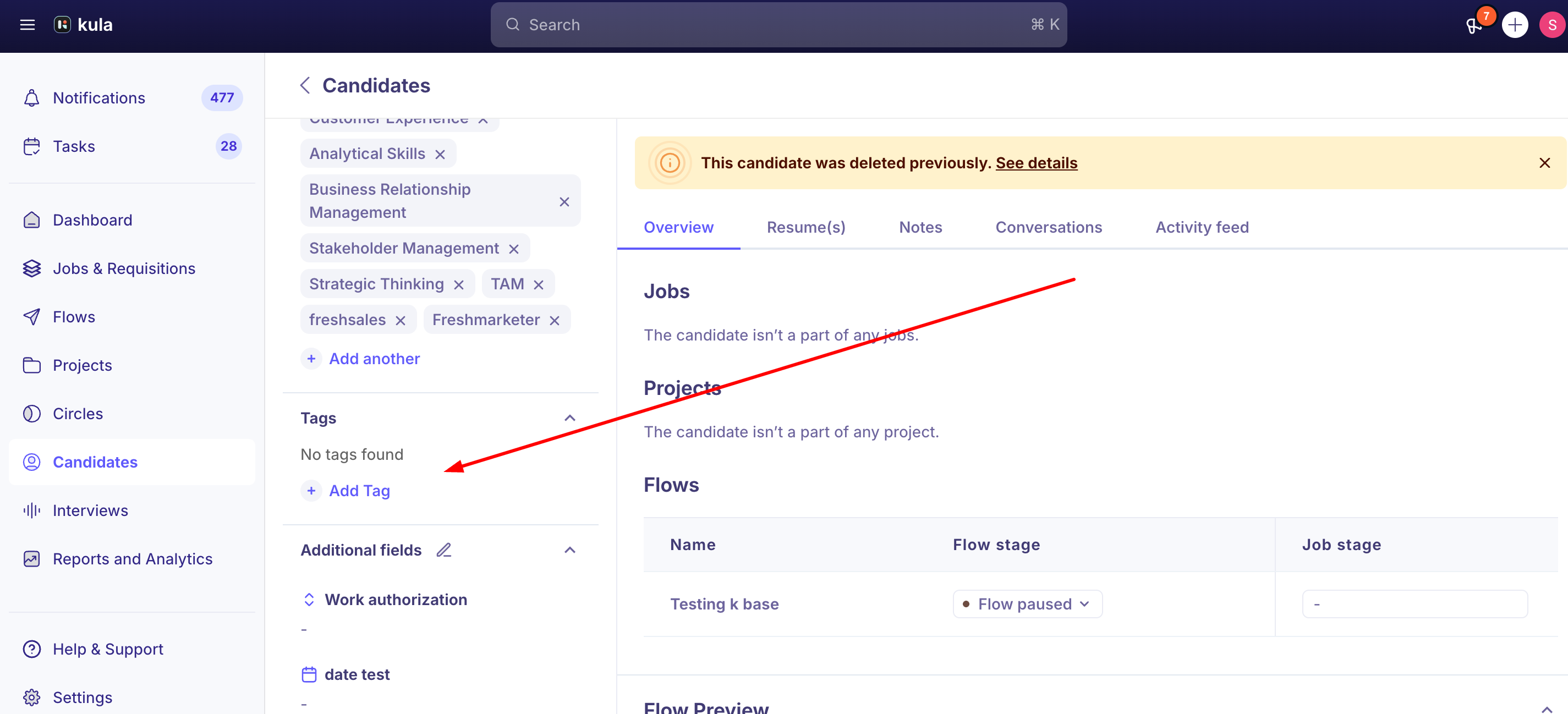
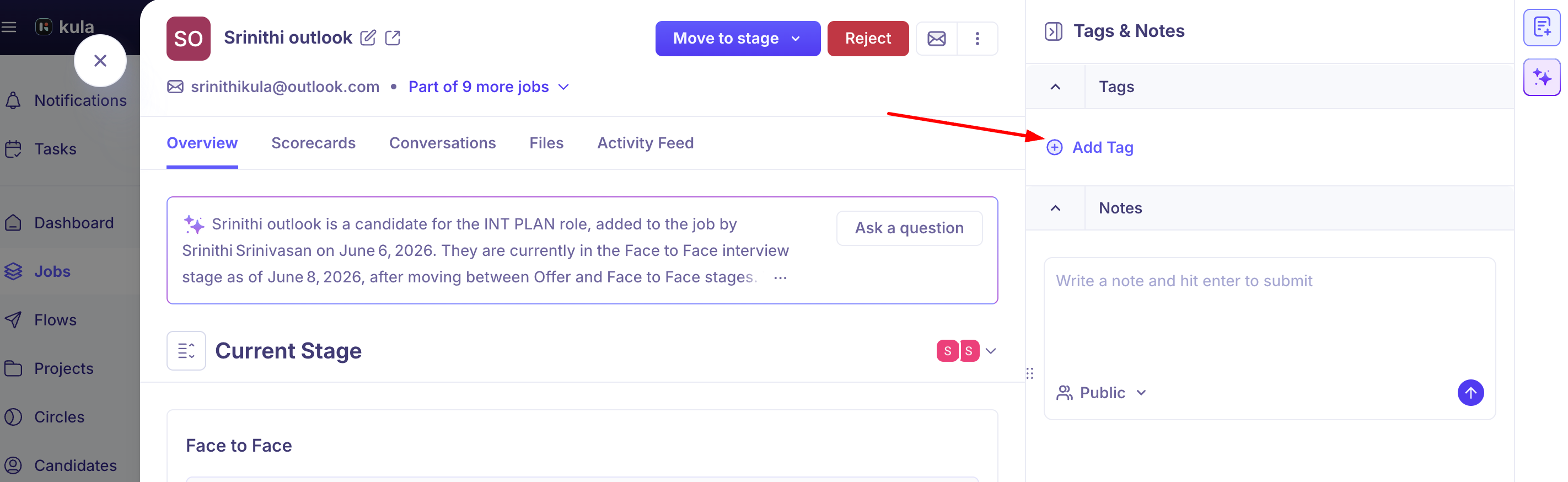
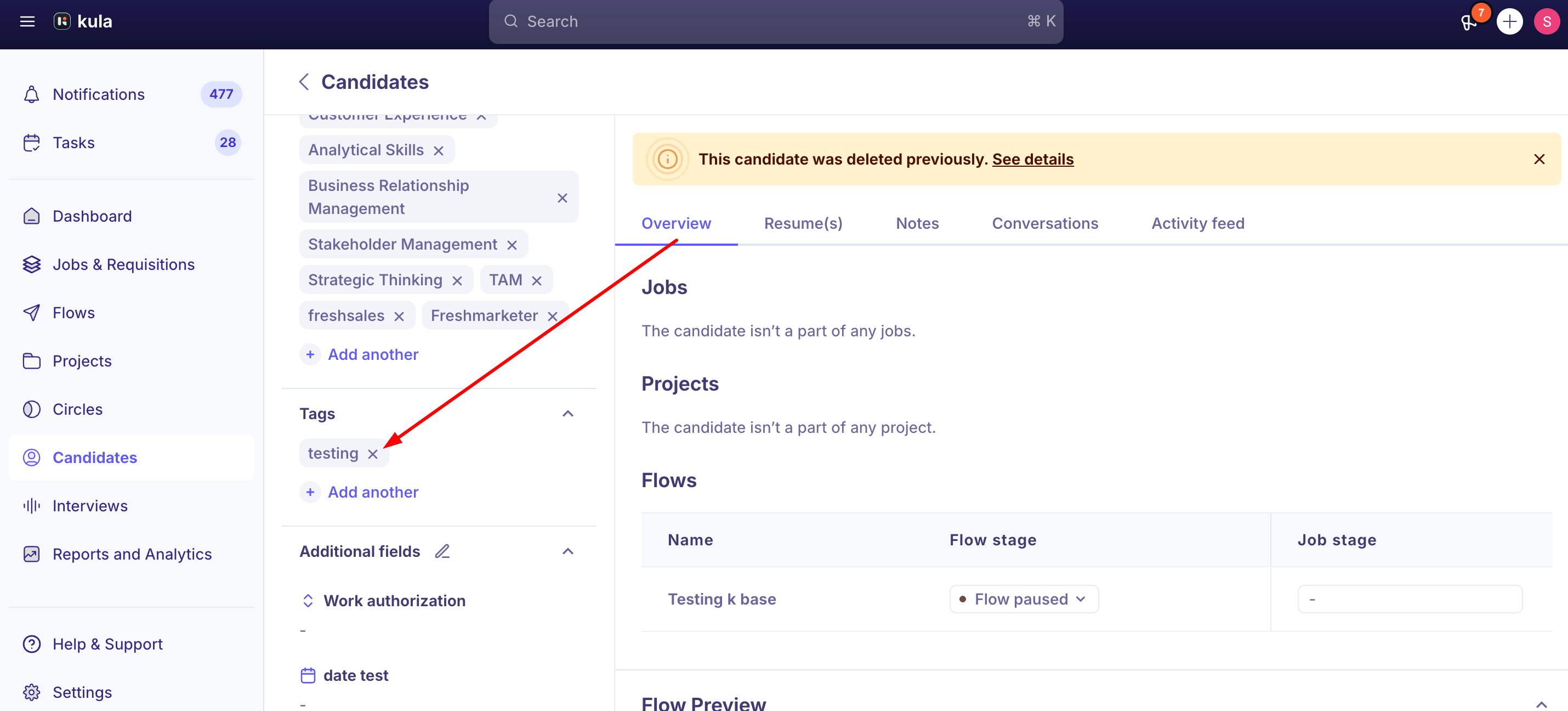
Add a tag: on the candidate's profile, or in the Tags column on the Candidates page or a job's Candidates tab. Choose an existing tag or create one; new tags are saved for reuse.
Remove a tag: the same way.
Tag many at once: select candidates on the Candidates page and add the tag in bulk. See Bulk actions on candidates.
Good to know
The application and profile can differ. Application details come from your team or the candidate's form; profile details can come from their resume. A mismatch is usually why, not a sync problem.
Email is optional once a candidate exists. You can save other edits without it.
An email that won't save may already be a secondary email on the same candidate. Make that one primary on their profile, then try again.
Dates are checked. An end date must be on or after the start date.
Greyed-out field? It's probably restricted for your role.
FAQ
Can I edit a candidate's details without leaving the job I'm working on? Yes — name, email, phone, skills, education, experience, and custom fields can all be edited directly from the job application page.
Can I change a candidate's LinkedIn URL if it was entered incorrectly? No — LinkedIn URLs are locked once added. You'll need to re-link or merge the candidate's profile rather than editing the field.
I edited a candidate's email but it's not saving — why? Check whether that email is already saved as a secondary email on the same contact. If so, go to the candidate profile, find the secondary email, and mark it primary before trying again.
Do I have to fill in education or experience details to save other edits? No, those fields are optional — but if you do add dates, the end date must be on or after the start date.
Why doesn't a candidate's Contact Source update when I change the source on their job application? Contact Source and Application Source are separate fields. Contact Source is set once, when the candidate is first created, and doesn't change when the source is updated on an individual job application.
Need help?
If you have questions or need assistance, reach out to us at support@kula.ai or use the in-app chat.