How to create a candidate
Last updated: September 26, 2026
Add a candidate to Kula yourself, either on their own or straight into a job. Candidates also arrive through applications, LinkedIn sourcing, CSV imports, referrals and forwarded resumes; this article covers adding them by hand.
Who can do this: anyone with permission to create candidates. That's separate from adding an existing candidate to a job, flow or project
Where to find it: Candidates → New candidate, a job's candidate list, a project, or the Kula Everywhere extension
What's required
First name is mandatory.
Either an email address or a LinkedIn URL is mandatory — you need at least one, not necessarily both.
Experience and education details (like institute or company name) are optional — none of the sub-fields in those sections are required to save the record.
Creating a candidate from different places
Candidates page — the standard entry point for adding a new candidate or contact.
From anywhere in the product — you can create a new candidate and directly associate them with the job you're currently working on, without navigating away first (useful if you receive a resume while reviewing a specific requisition).
From a Project — creating a contact directly from a Project page adds them to that project automatically.
As an extension fallback — if you're using the Kula Everywhere extension on a LinkedIn profile and automatic enrichment fails to load, you'll see an option to create the candidate manually instead of getting stuck.
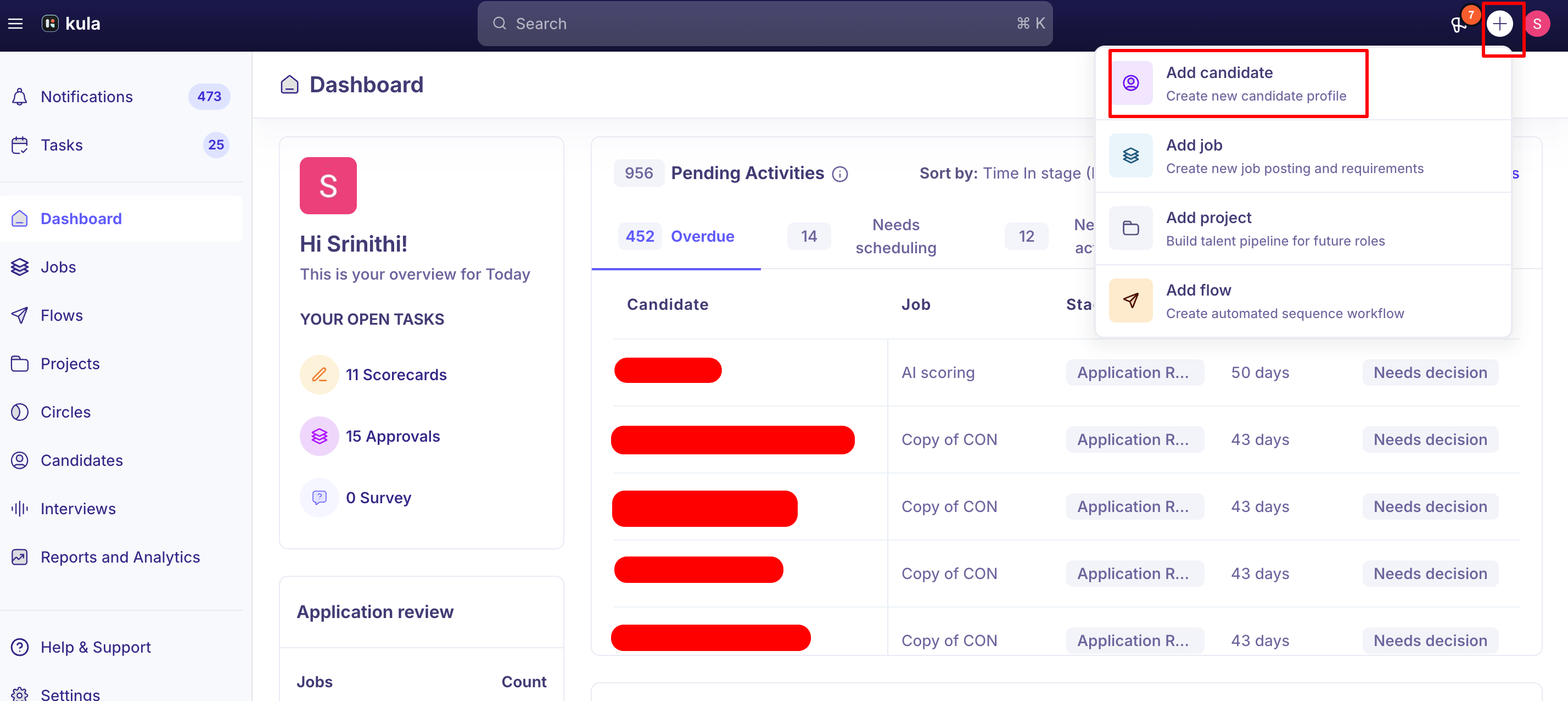
Adding a candidate separately (not tied to a job)
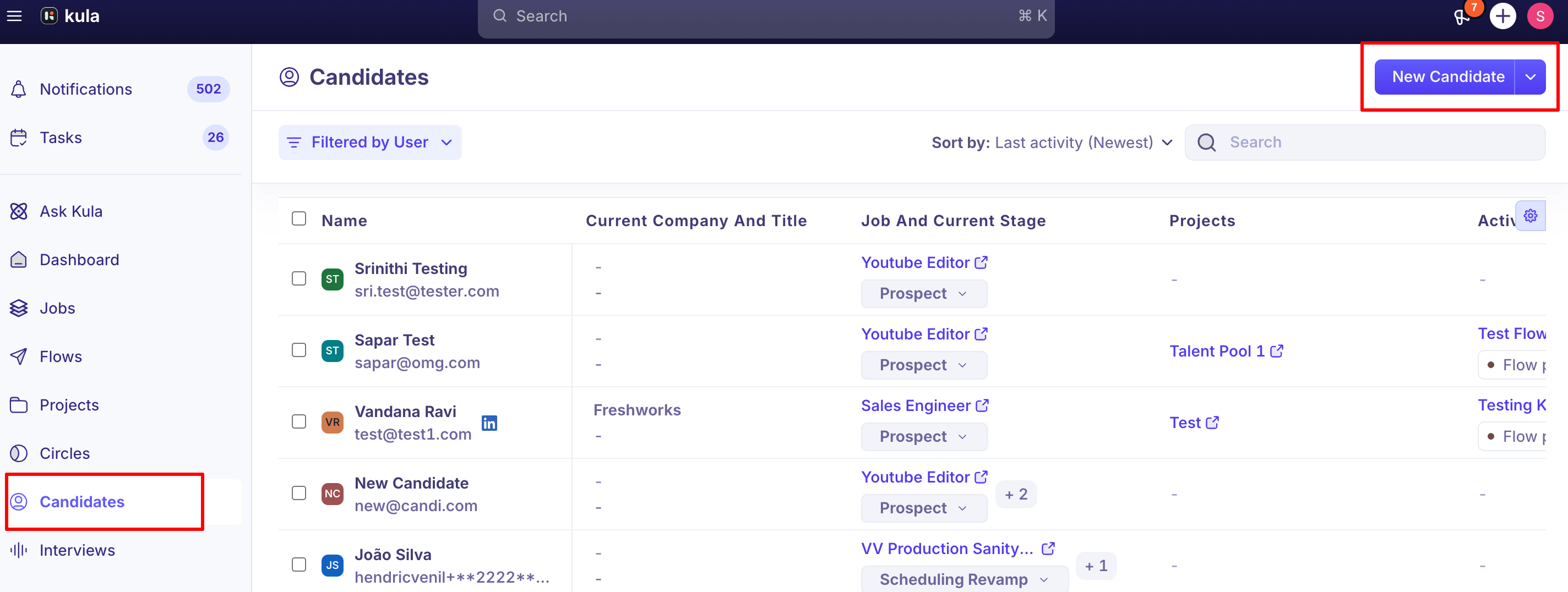
Go to Candidates in the side navigation.
Click New Candidate.
Enter a first name, and either an email address or a LinkedIn URL — at least one of the two is required. Everything else, including experience and resume details, is optional.
Save.
This creates a standalone candidate record with no job, flow, or project attached yet — you can add them to one later. The source you select here becomes their Contact Source, which represents how they first entered Kula and doesn't change later, even if they go on to apply to or get added to several jobs. The Candidates page also shows your account-level Maildrop email address, which you can use to forward resumes and have candidates created automatically instead of adding them one by one.
How Kula parses resumes
When a resume enters Kula, an automated parser reads it and tries to extract structured data — name, contact details, work history, education, skills — to save recruiters and candidates from typing it all in by hand. When parsing actually runs
Contact creation with a resume attached — parsing runs automatically as part of creating the contact.
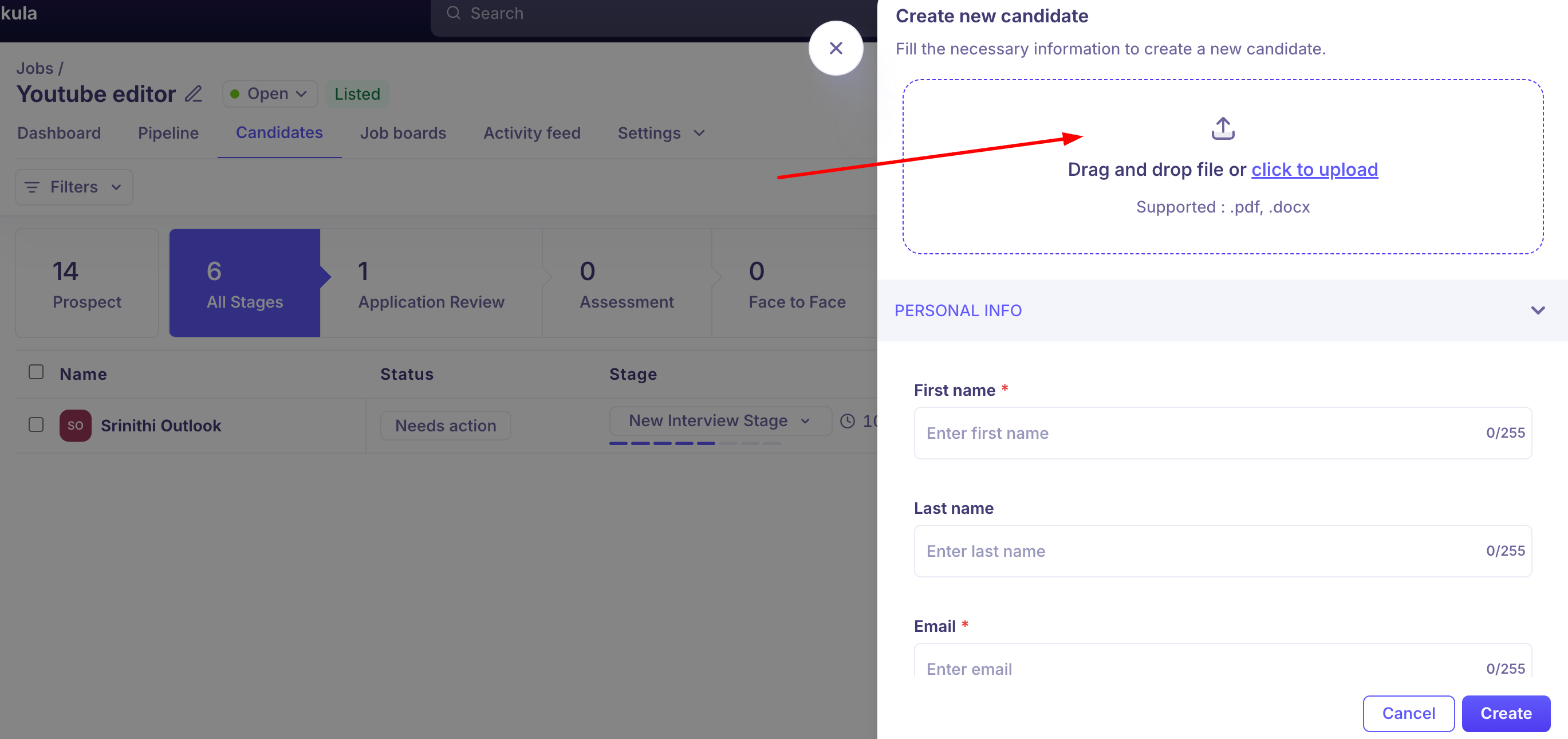
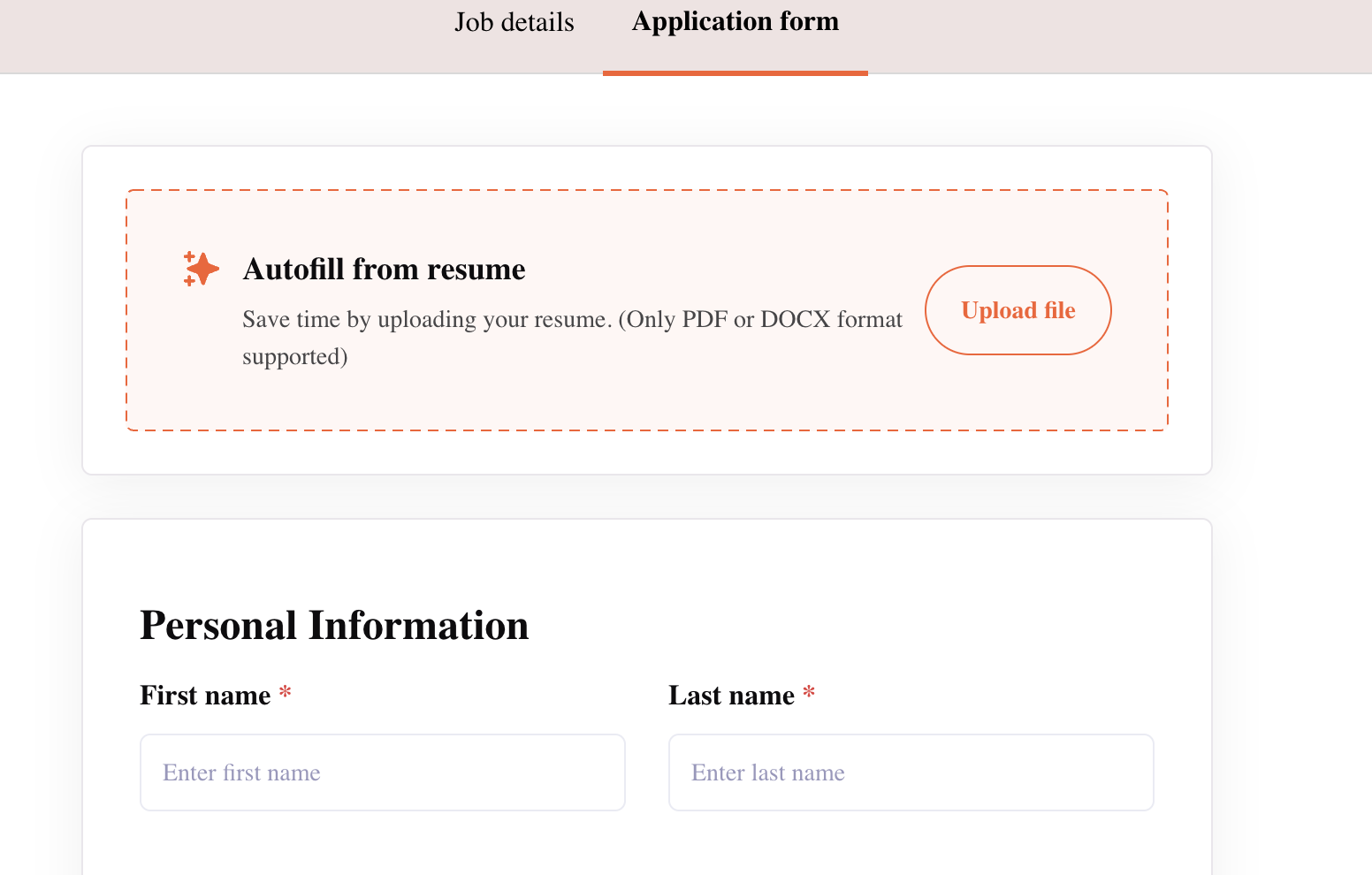
A candidate applying through the Kula career portal — the application form has a resume field with autofill/parsing capability; uploading a resume there both parses it to pre-fill the rest of the form and attaches the file.
Forwarding a resume to a Maildrop address. Kula parses the attachment and creates or updates a candidate profile automatically.
Two resume fields on the career-portal application form
The candidate-facing application form has historically shown two separate resume upload points, and they behave differently:
The autofill/parsing field (typically at the top) — parses the resume to pre-fill the rest of the form (name, experience, education, etc.). This is where the actual parsing capability lives.
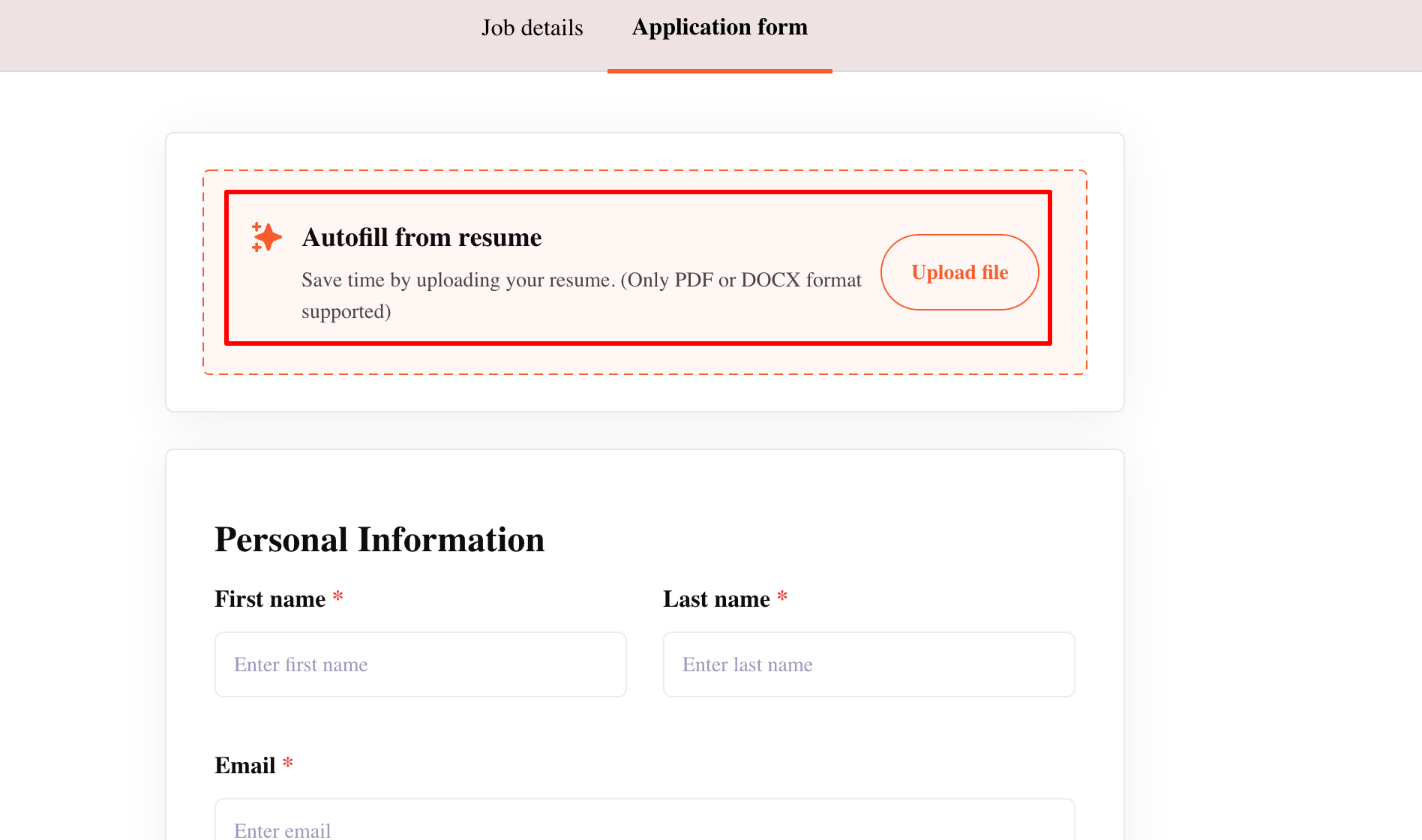
The plain resume attachment field — this is what actually gets saved as the candidate's resume file on their profile; when a resume is uploaded via the autofill field, it's auto-attached here too so the candidate doesn't have to upload twice.
Worth knowing: if a candidate edits a pre-filled field (for example, changing the email address the parser extracted) before submitting, it's the submitted value — not the originally parsed value — that ends up on the profile.
Supported file types
PDF, DOC, and DOCX are the supported formats
Kula checks for duplicates when you manually add someone.
If you try to add a candidate who's already associated with the job you're adding them to, you'll see a message telling you they already exist, rather than a second application being created.
The same protection applies to LinkedIn sourcing — a job won't even show as an option if the candidate is already linked to it.
Adding a candidate as someone else's referral
If you're adding a candidate on behalf of a colleague — for example, a senior team member forwarded you a resume and asked you to submit it — use the manual referral flow rather than a standard manual add.
This lets you credit your colleague as the referrer instead of yourself, which matters for referral tracking and any related referral programs.
Good to know
Only two fields are truly mandatory: first name, and either email or LinkedIn. Everything else, including resume and experience details, can be filled in later.
Phone number fields validate against the selected country code. If you get a save error, double-check the country code matches the number format you're entering — for example, a UK mobile number needs the full 10-digit national number without the leading 0.
Manual creation isn't the only way candidates enter Kula. Maildrop can automatically create candidates from forwarded emails and resumes, and LinkedIn sourcing creates them through the extension — this article covers the manual, form-based path specifically.
Adding a candidate manually and adding them as a referral are two different flows — use the referral flow if you want to credit someone else as the source.
FAQ
What information do I need to manually add a candidate? Just a first name and either an email address or a LinkedIn URL. Everything else, including experience and resume details, is optional.
What happens if I try to manually add a candidate who's already in the system for this job? Kula will tell you the candidate already exists rather than creating a duplicate application for them.
Can I create a candidate from somewhere other than the Candidates page? Yes — from a Project, directly from a Job's candidate list, or as a fallback inside the Kula Everywhere extension if automatic profile enrichment doesn't work.
I'm getting an error trying to save a candidate's phone number — why? Check that the country code selected matches the number you're entering — phone validation is tied to the selected country code and expects the correct number of digits for that country.
How do I add a candidate as a referral from someone else, not myself? Use the manual referral flow instead of a standard manual add — it lets you credit a specific colleague as the referrer rather than yourself.
Need help?
If you have questions or need assistance, reach out to us at support@kula.ai or use the in-app chat.