Offer letter templates
Last updated: September 23, 2026
Offer letter templates are the Word documents Kula fills in automatically when you send an offer. This article covers how templates work, what fields they support, and how to set one up.
Who can do this: Super Admin, Admin
Where to find it: Settings → Offers → Offer letter templates
What a template is
An offer letter template is a Word document (.docx) with placeholder tokens like {{offer.candidate_name}} or {{offer.salary}} that Kula fills in from the offer's details when you generate the document. A template can be a single document, or — if your organisation has multi-document templates turned on — up to 10 documents attached to one template, each up to 10 MB.
Add a template
Go to Settings → Offer → Offer letter templates.
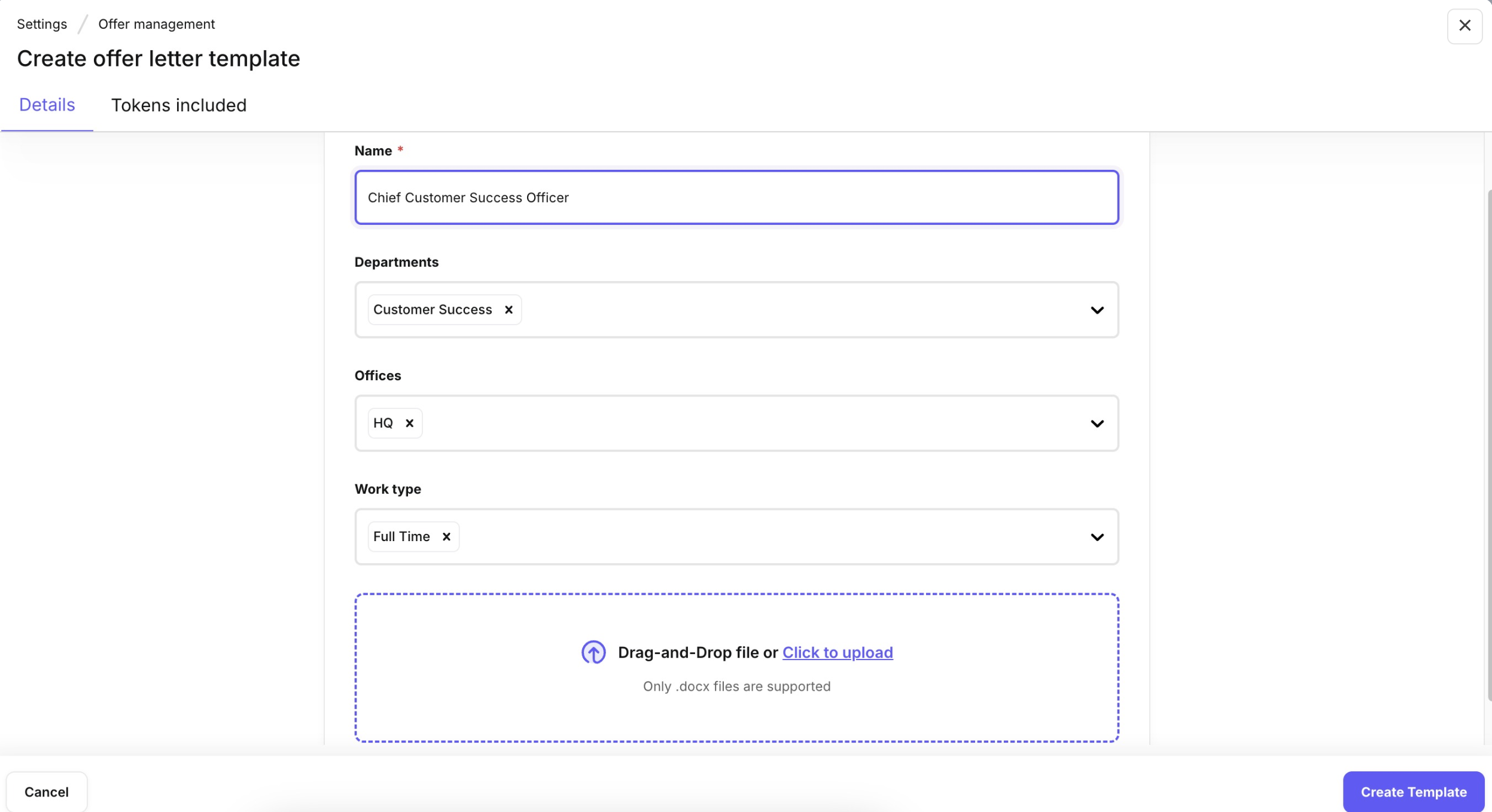
Click Add offer template, give it a Name and upload your .docx file(s).
Kula scans the document for tokens and checks that they're valid.
Choose which Departments, Offices and Work type this template applies to, or leave them on all.
Click Create template.
Template status
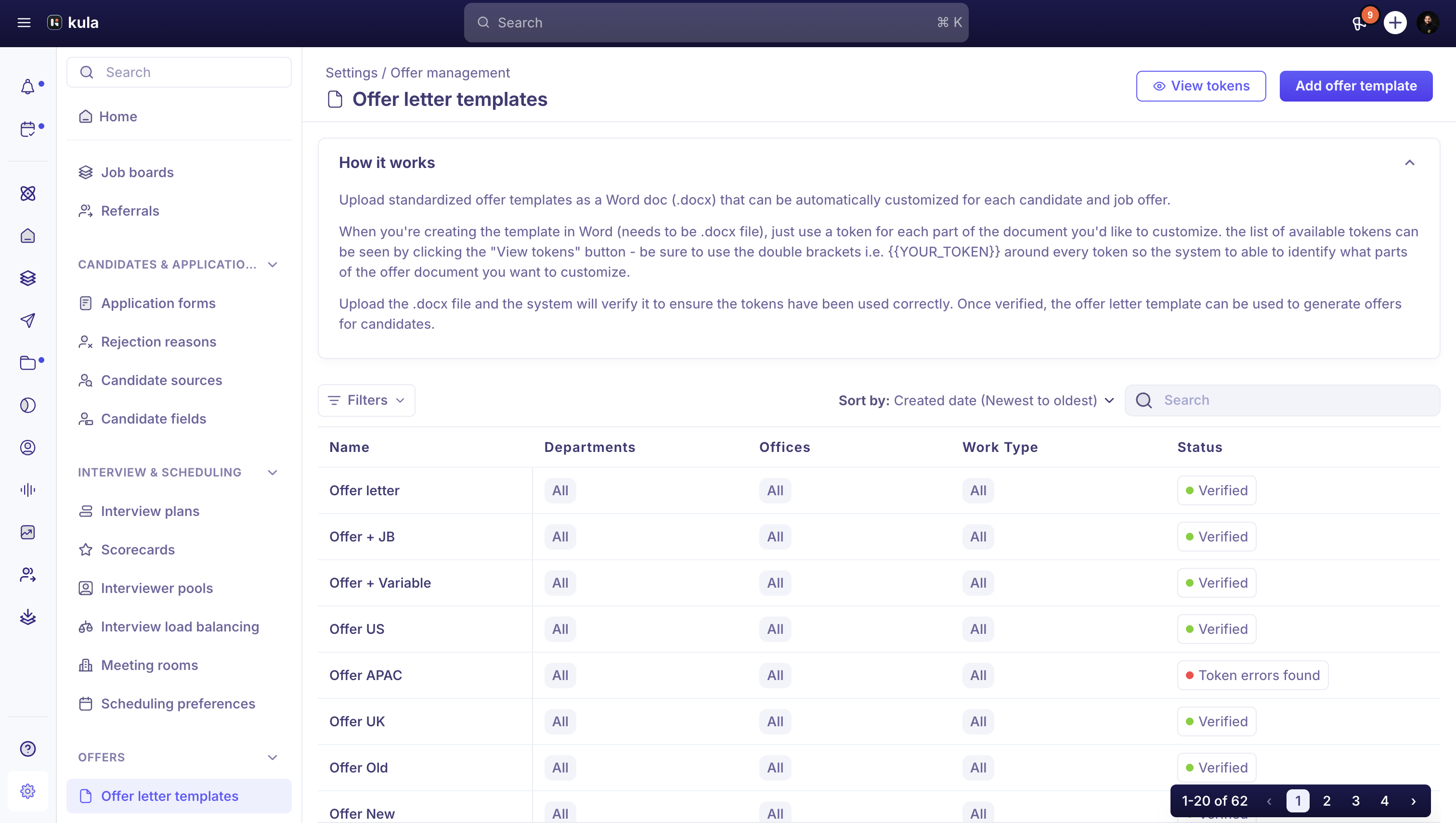
Status | What it means |
|---|---|
Not verified | The template hasn't been checked yet. |
Verified | Kula successfully read the template and validated its tokens. |
Token errors found | Kula found a problem with the template — usually an invalid or misspelled token. |
No tokens found | Kula found no tokens in the document, so nothing will be filled in. |
Available tokens
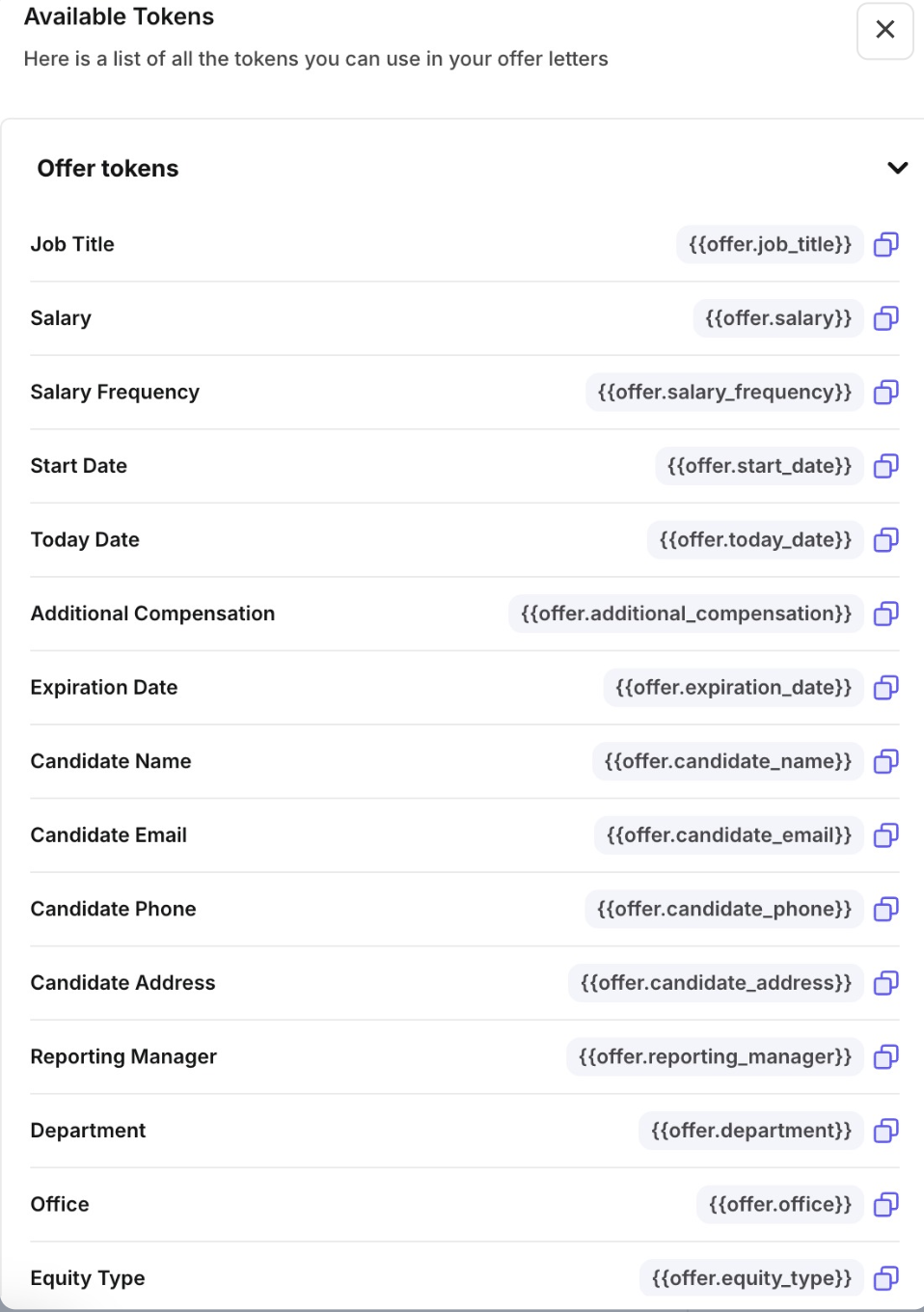
Templates support tokens grouped by where the data comes from:
Offer details — salary, start date, offer date, expiration date, additional bonus, and more
Additional compensation — equity type, amount, cliff, vesting period, strike price
Candidate details — name, email, phone, address
Job details — job title, department, office (including derived office city, state, country, and full address), reporting manager
Offer custom fields — any custom fields your organisation has added to offers
You can also use tokens specific to whichever e-signature provider you send through.
How to Edit an Offer Letter Template
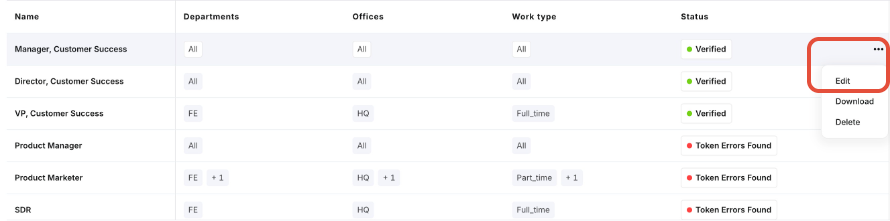
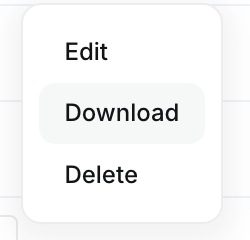
To edit, hover over the template on the Offer Letter Templates homepage and click the Ellipsis icon. Select Edit, update the Details section, and click Save template to save changes.
How to Download an Offer Letter Template
To download, hover over the template, click the Ellipsis icon, and select Download. The file will download in .docx format.
How to Delete an Offer Letter Template
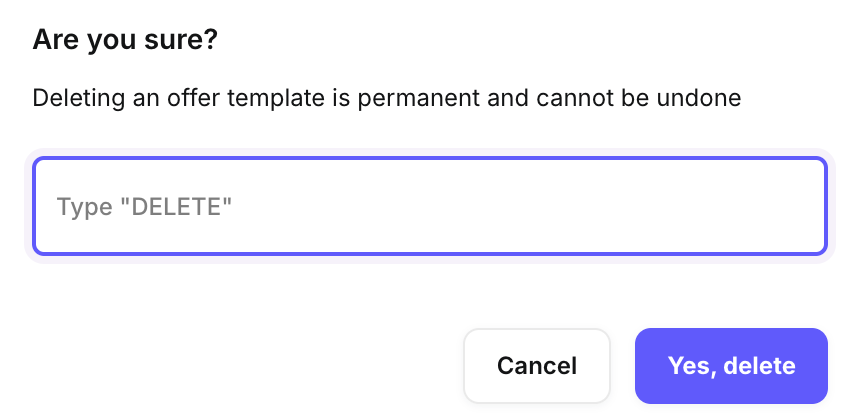
To delete, hover over the template, click the Ellipsis icon, and select Delete. In the confirmation modal, type "DELETE" and click Yes, Delete to confirm.
Good to know
A template can hold up to 10 documents, each up to 10 MB.
Kula validates every token against a fixed set of supported fields — a token it doesn't recognise puts the template in Token errors found status.
FAQ
Why does my offer letter template show Token errors found?
This usually means one of the tokens in your document isn't a field Kula recognises. Check your {{...}} tokens for typos against the list under View tokens on the Offer letter templates page.
Can I use different offer letter templates for different offices?
Yes — when you add or edit a template, you can scope it to specific departments, offices or work types.
Need help?
If you have questions or need assistance, reach out to us at support@kula.ai or use the in-app chat.