Knockout Questions in Kula (Auto-Rejection Rules)
Last updated: September 24, 2025
When a job posting receives hundreds of applications, recruiters spend significant time screening profiles that are often irrelevant.
With Knockout Questions (Auto-Rejection Rules) in Kula, recruiters can automatically filter out unqualified candidates based on predefined criteria.
This helps:
Remove irrelevant applications early.
Improve recruiter productivity.
Shorten time-to-hire without compromising on quality.
✅ Using Knockout Questions, recruiters spend less time filtering and more time hiring.
👤 Who Can Use This?
Recruiters assigned to the job
Job creators
Users with “Manage all jobs” permission
⚙ How Knockout Questions Work
Knockout questions are configured as Auto-Rejection Rules at the job level.
When candidates apply through the job form, their answers are evaluated against the rules.
If conditions are met:
The candidate is marked as Rejected (by Auto-Rejection Rule).
A rejection email (custom or template) is triggered or scheduled.
Activity is logged in the candidate profile for full visibility.
If conditions are not met:
The candidate continues in the pipeline as usual.
📝 Step 1: Create an Auto-Rejection Rule
You can create rules from:
Job Post Page → under job settings.
Application Form Settings → alongside the application form configuration.
Supported Conditions:
Custom Field – Single Select: Is / Is Not
Custom Field – Multi Select: Includes Any / Includes All
Custom Field – Yes/No: Yes or No
Custom Field – Numeric: Greater than / Lesser than / Equals
Custom Field – Date: Greater than / Lesser than / Equals
🔑 Multiple conditions can be combined (always AND logic).
📝 Step 2: Configure the Rejection Flow
Once conditions are defined, set up what happens when a candidate is rejected:
Select a rejection reason (from your rejection reasons library)..
Send a rejection email:
Use a template or write a custom email.
Choose the sender email ID.
Schedule it for “X weekdays after rejection.” (Weekdays = Mon–Fri).
Track Activity: Candidate activity feed will show:
Which auto-rejection rule rejected them.
When the email is scheduled/sent.
Recruiters can later edit rejection details (change reason, update template, reschedule email).
📝 Step 3: Manage Multiple Rules
Recruiters can create multiple auto-rejection rules per job.
Rules run in the order defined (stack-ranking).
Once a candidate matches a rule, they are rejected, and no further rules are applied.
📊 Reporting & Metrics
Kula tracks the following to help recruiters optimise: You get the data from Pipeline and Rejection Reports
Pipeline Report
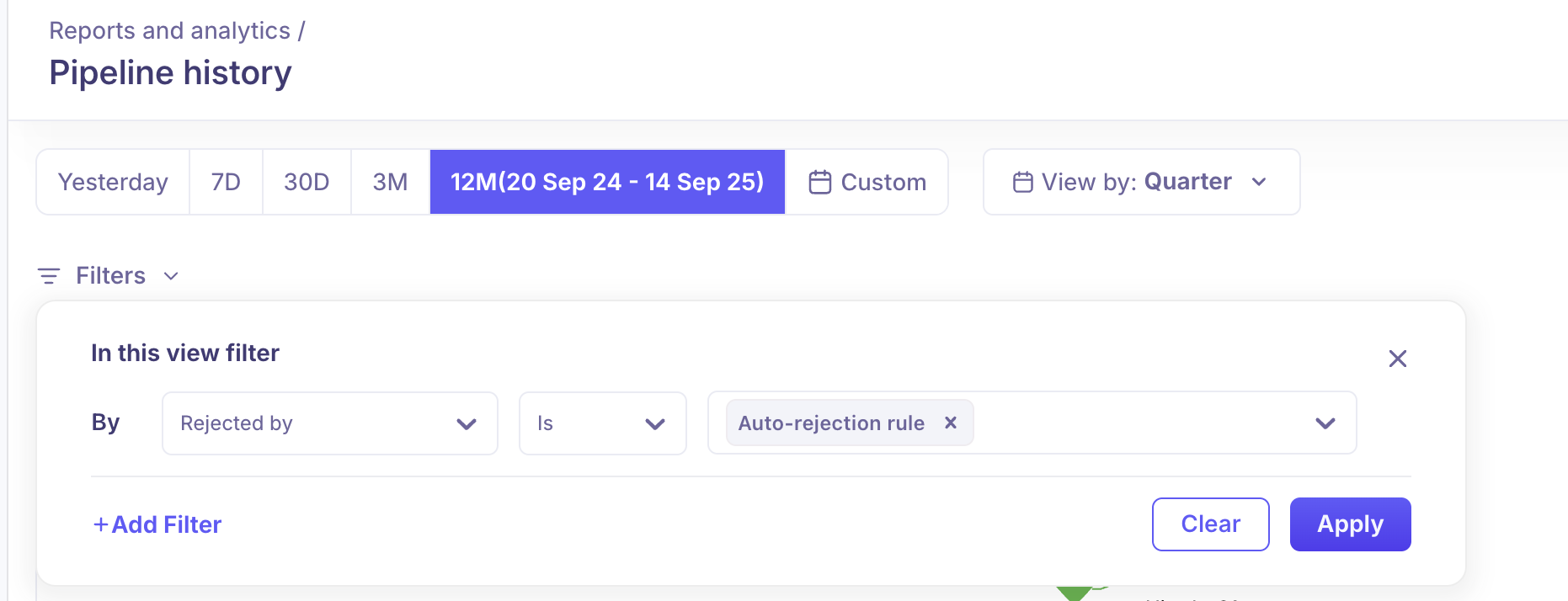
Number of auto-rejection rules per job.
Most-used conditions.
Execution counts per job and overall.
Failures/skipped executions.
Avg. time to configure a rule.
Avg. time to execute per candidate.
🎯 Benefits of Knockout Questions
Save time by removing unqualified candidates instantly.
Ensure fair and consistent application screening.
Improve candidate experience with timely, automated rejections.
Give recruiters more time to focus on qualified talent.
💡 Best Practices
Use mandatory fields (e.g., experience, location) to avoid “missing data” skips.
Be transparent in your application forms—let candidates know certain responses may disqualify them.
Keep rejection emails polite, professional, and branded.
Review metrics regularly to refine your knockout strategy.
❓ FAQs
Q: Can rejected candidates reapply?
Yes, but rules won’t re-run on the same candidate for the same job.
Q: Can I override a rejection?
Yes. Recruiters can reactivate a candidate manually at any stage.
Q: How do I know which rule rejected a candidate?
The candidate activity feed will show the exact auto-rejection rule.