Bulk review and bulk actions
Last updated: August 16, 2026
Kula gives you two ways to work through a group of candidates instead of opening each profile on its own. Quick review steps you through a queue of candidates one at a time in a focused panel, so you can decide on each one without leaving the flow. Bulk actions let you select multiple candidates with checkboxes and apply the same action, such as rejecting or moving a stage, to all of them at once.
Use Quick review when you need to make a separate decision on each candidate, for example clearing out a stack of new applicants where some move forward and others get rejected. Use bulk actions when you already know what you want to do to a group of candidates, for example moving 20 candidates who passed a screening call to the next stage in one action.
You'll find Quick review on the Application Review stage, both in a job's Pipeline and Candidates tabs. Bulk actions are available from checkboxes in candidate lists throughout Kula, including a job's candidate list and pipeline, your contacts list, and project prospect lists.
Quick review
Step 1: Open Quick review
Go to the job's Pipeline or Candidates tab.
In the Quick review banner on the Application Review stage, click Review now.
Kula opens the first candidate in the stage in a review panel.
Step 2: Review each candidate
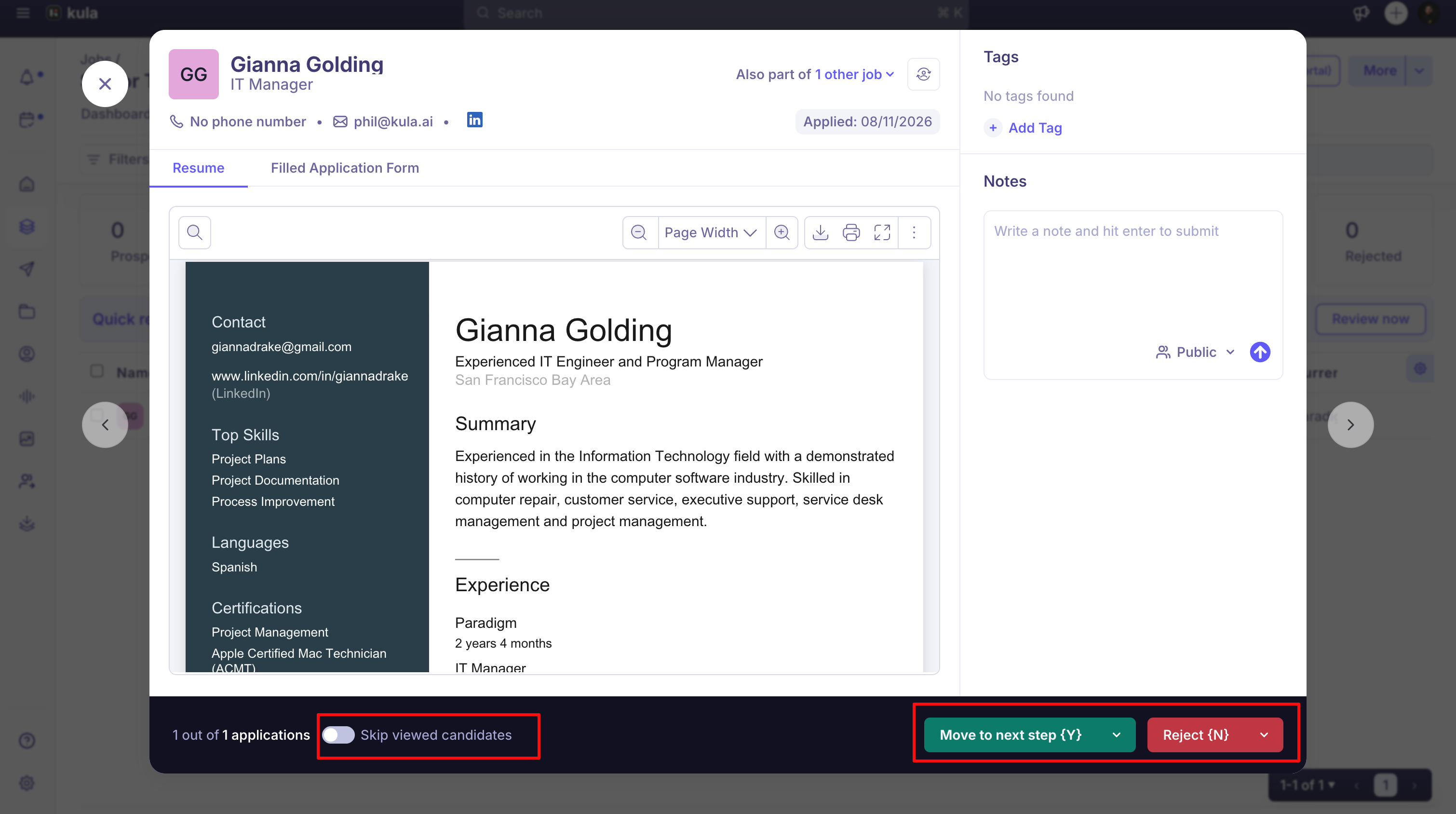
For each candidate, the panel shows their resume, candidate info, and filled application form on the left, and their AI score breakdown, notes, and tags on the right.
Read through the candidate's details.
Add a note or tag if you want to record something about the candidate.
Decide on the candidate:
Click Move to next step to advance them. Use the dropdown arrow to send them to a different stage instead of the next one in the interview plan.
Click Reject to reject them. Choose a rejection reason and, optionally, send a rejection email. Check Remember this combination for the next applicant to reuse the same reason and email choice without picking them again.
Kula moves to the next candidate in the queue automatically. Click Undo if you decide on the wrong candidate.
Note: To skip the stage dropdown on every candidate, open the Move to next step dropdown, pick a stage, and check Remember this selection for the next applicant. Kula then sends every candidate straight to that stage until you change or clear the selection.
Navigation and shortcuts
Use the arrow buttons, or these keyboard shortcuts, to move through the queue:
Y: move the candidate to the next step
N: reject the candidate
U: undo your last decision
Left and right arrow keys: move to the previous or next candidate without deciding
Turn on Skip viewed candidates to hide candidates you've already decided on if you leave and reopen Quick review.
Bulk actions
Step 1: Select candidates
In a candidate list, check the box next to each candidate you want to act on, or use the header checkbox to select every candidate on the page.
Step 2: Choose an action
Once you've selected at least one candidate, a bulk action bar appears. The actions available depend on which list you're working from, and can include:
Move to another stage
Reject all
Send email
Send self-schedule link
Schedule with AI
Add tags
Add to additional job
Add to Project
Add to Flow
Export candidates as CSV
Request consent
Kula doesn't cap how many candidates you can select for a bulk action.
Note: Bulk actions apply the same choice to every selected candidate. If different candidates need different outcomes, review them individually or use Quick review instead.
Sending bulk reviews from projects
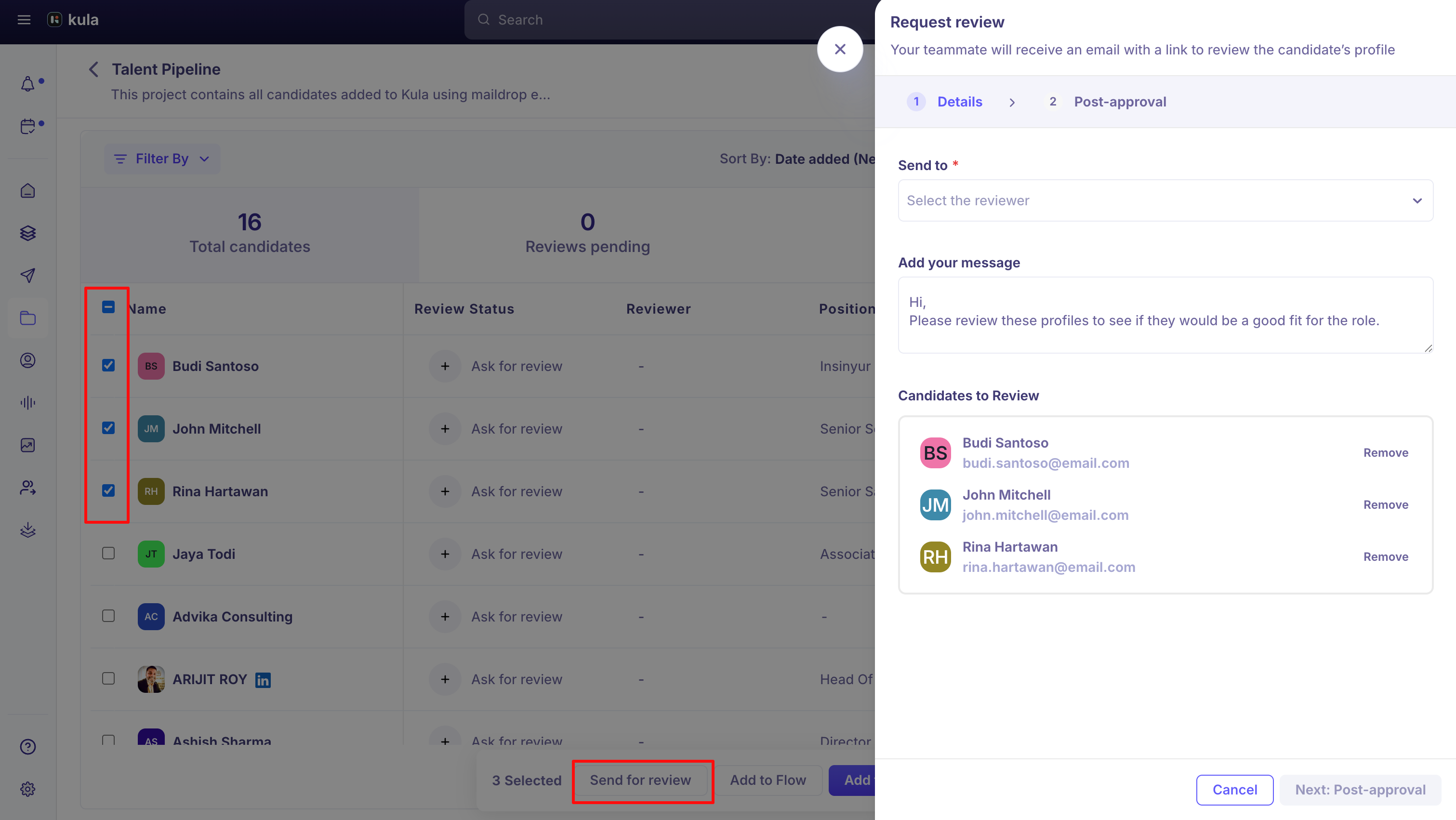
You can also send a group of project prospects for review, without adding a Review activity to a job's interview plan. This works the same way as an ad-hoc review, but for multiple prospects at once.
Step 1: Select prospects and start the review
Open the project and select the prospects you want reviewed.
In the bulk action bar, click Send for review.
Note: Send for review is disabled if every selected prospect already has an open review. If some, but not all, of your selected prospects already have one, Kula excludes them from the list automatically and shows a warning telling you how many were excluded.
Step 2: Choose a reviewer and message
In Select the reviewer, choose who should review the prospects.
Edit the message the reviewer receives if you want to change it from the default.
Remove any prospects you don't want to send, then click Next: Post-approval.
Step 3: Set what happens after a Good fit verdict
In Select a job, choose the job prospects should move into if the reviewer marks them a Good fit.
In Interview Stage, choose which stage of that job they should land on.
Click Send for review.
Kula emails the reviewer a link to review each prospect's profile. Any prospect the reviewer marks Good fit moves automatically into the job and stage you set in step 3.
Quick review vs. bulk actions: which to use
Quick review suits candidate-by-candidate assessment, where each candidate might get a different outcome. Bulk actions suit a group of candidates you've already screened and want to act on identically. Both work on the same underlying candidates, so you can switch between them depending on where you are in your process.
FAQ
Is there a limit to how many candidates I can select for a bulk action? No. Kula doesn't cap the number of candidates you can select at once.
Can I use Quick review to send candidates to different stages? Yes. Unless you turn on Remember this selection for the next applicant, Quick review asks you to pick a destination stage for each candidate separately.
What happens to candidates who already have an open review when I send a bulk review from a project? Kula excludes them from the request and won't send them for review again until their current review is resolved.
Need Help?
If you have questions or need assistance, reach out at support@kula.ai or use the in-app chat.