Application View
Last updated: April 9, 2026
The Application View gives recruiters and hiring managers a complete picture of a candidate's journey for a specific job — all in one place. When you click on any candidate from the pipeline, the Application View opens as a slide-over panel.
This guide explains every section and tab available in the Application View.
Opening the Application View
Go to Jobs from the left navigation.
Click the job you want to manage.
Click Pipeline.
Click on any candidate's name to open their Application View.
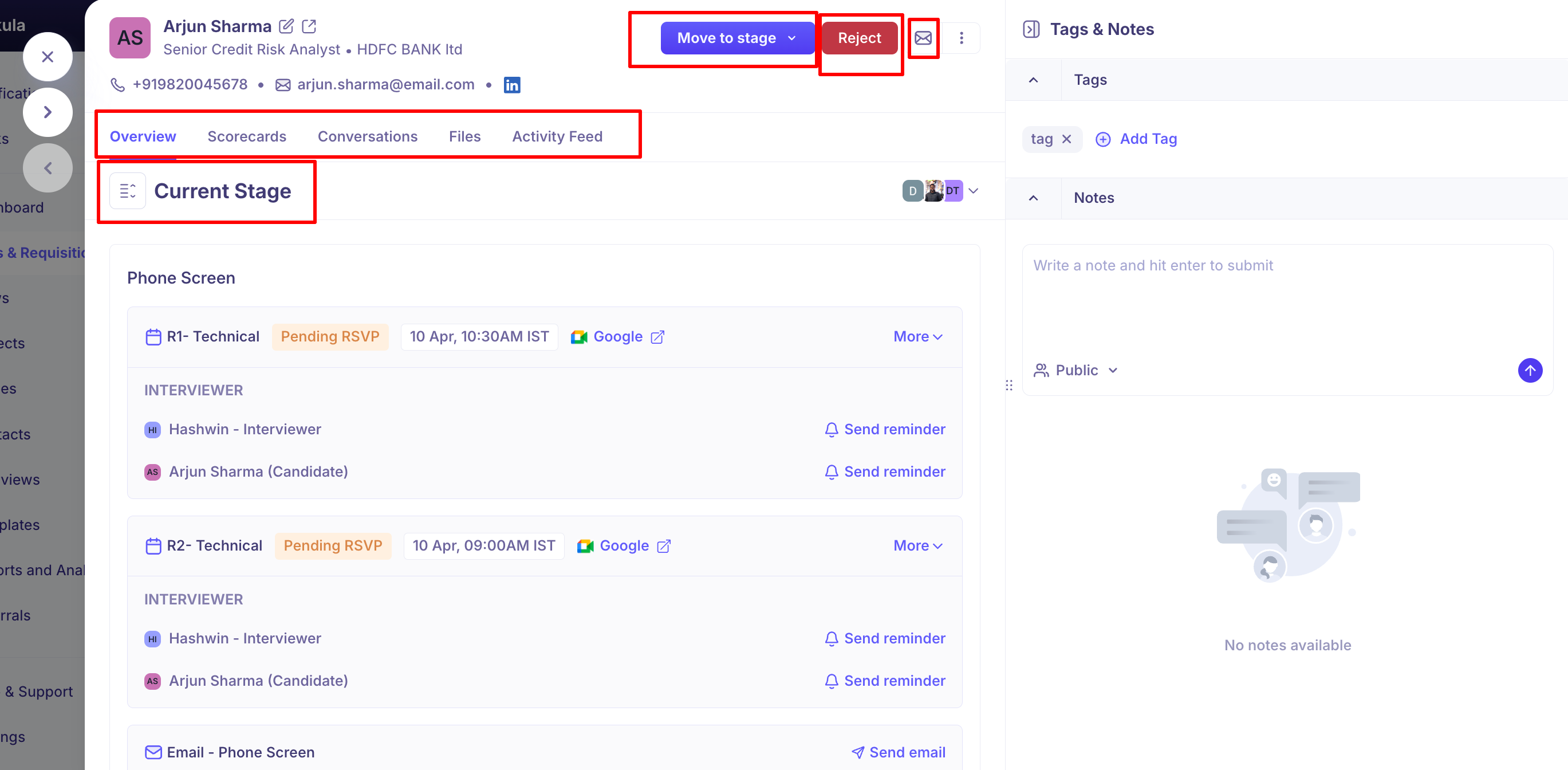
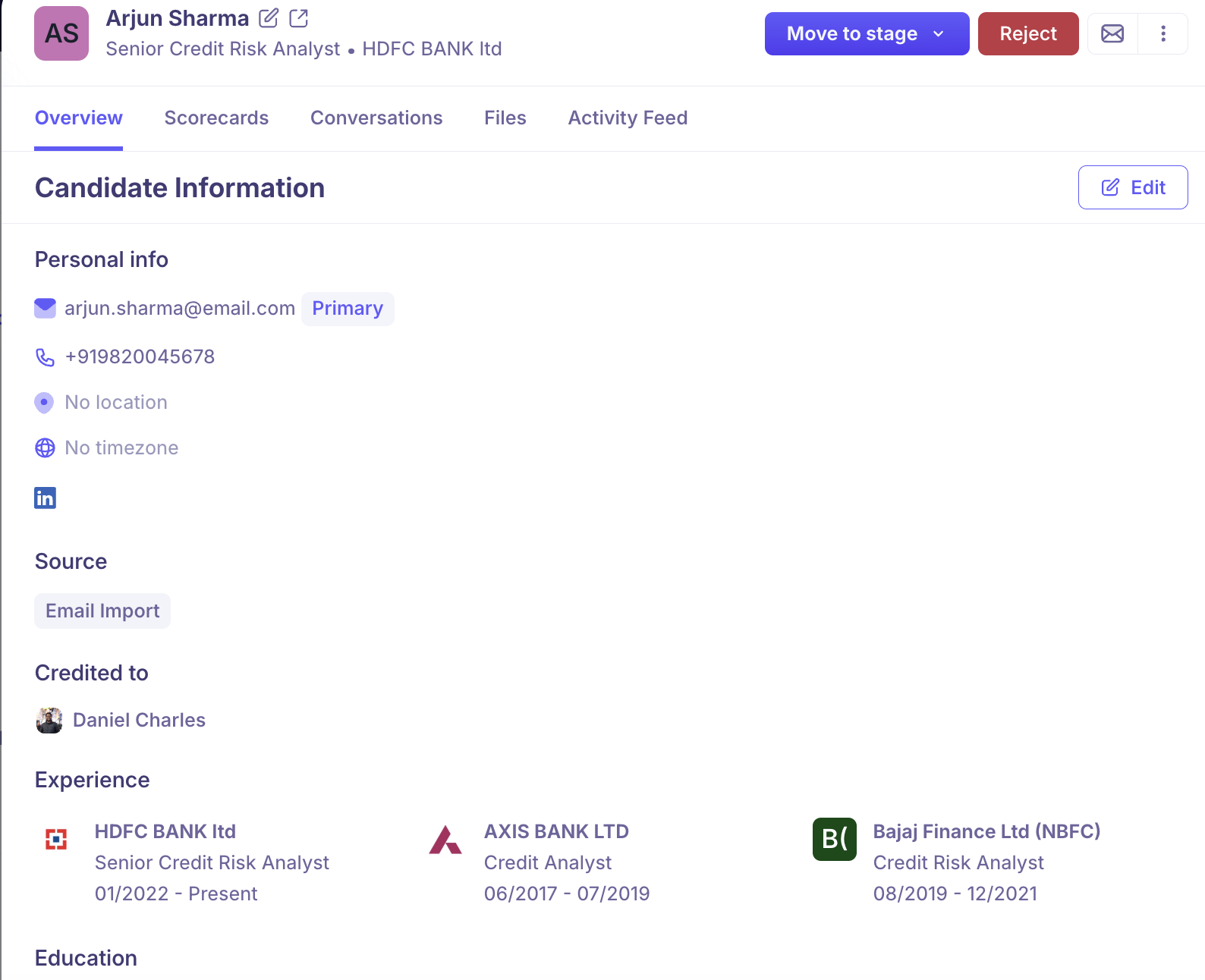
The panel slides open from the right, showing the candidate's name, current title, company, phone number, and email at the top.
Header Actions
At the top of every Application View, you will find the following controls:
Move to stage — Move the candidate forward or backward in the hiring pipeline. A dropdown lists all available stages: Prospect, Application Review, Test, Written Assessment, Phone Screen, Offer, Offer Acceptance, and Hired.
Reject — Reject the candidate from the current job.
Email icon — Send an email directly to the candidate.
Three-dot menu (⋮) — Access additional ad-hoc actions such as:
Schedule interview (ad-hoc)
Send survey (ad-hoc)
Send assessment (ad-hoc)
Send review (ad-hoc)
Create offer
Pause
Transfer to another job
Add to additional job
Add to project
Add to Flow
Send HackerEarth assessment
Send CriteriaCorp assessment
Send Certn assessment
Send Hireflix assessment
Tabs in the Application View
The Application View has five tabs: Overview, Scorecards, Conversations, Files, and Activity Feed.
Overview Tab
The Overview tab is the default view and contains the most important information about the candidate's current status.
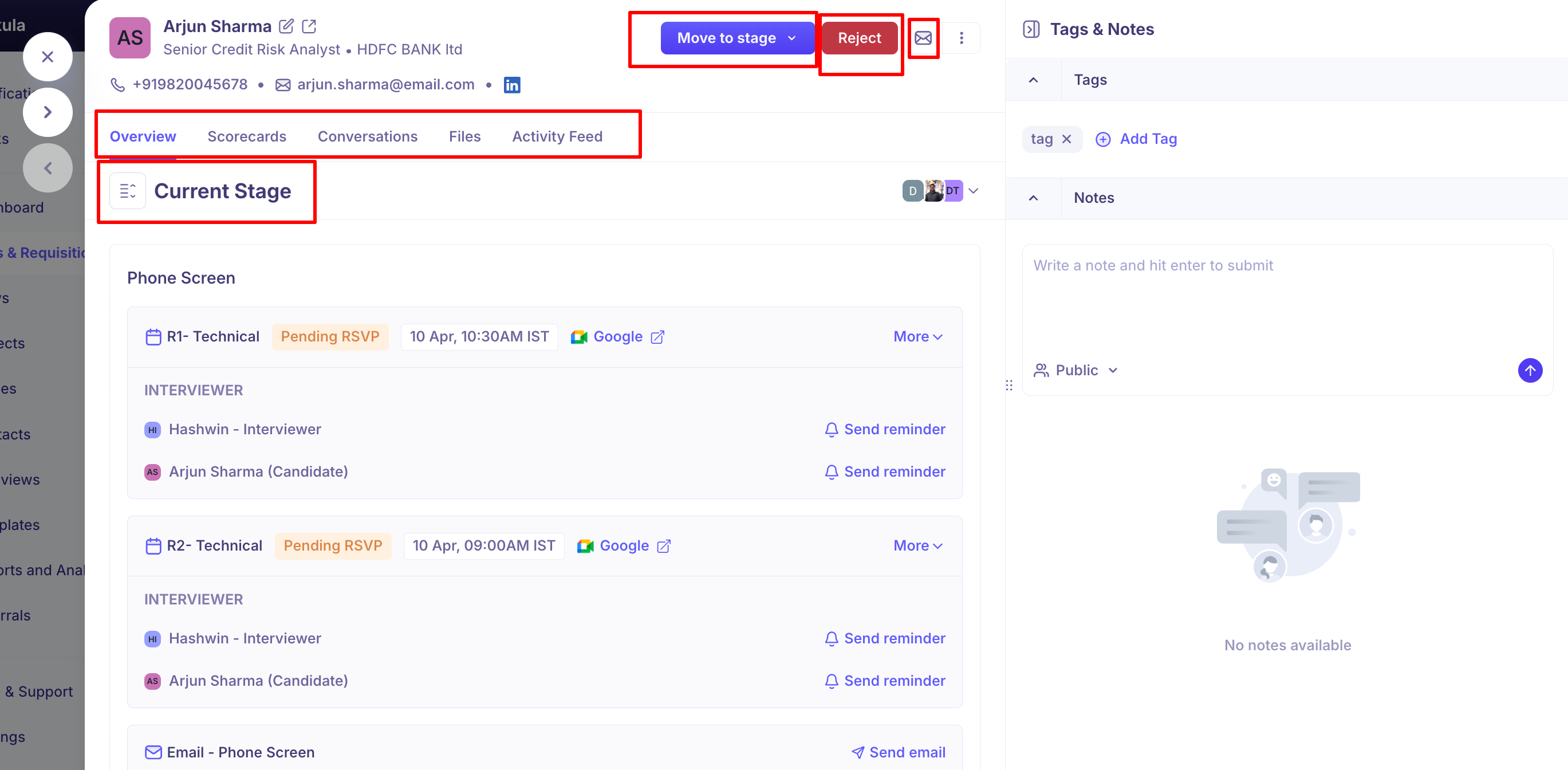
Current Stage
Displays the active stage in the hiring pipeline and the activities associated with it.
For interview stage, you can see:
The interview or activity name (e.g., Interview – Phone Screen)
The interview status (e.g., Interview ended)
A link to go to the interview
Interviewer Scorecards — shows who filled out the scorecard and the rating given (e.g., Strong yes)
A View scorecard link
If the stage has assessments (e.g., Written Assessment), you will see:
Assessment name
A Send assessment button
The list of Reviewers assigned
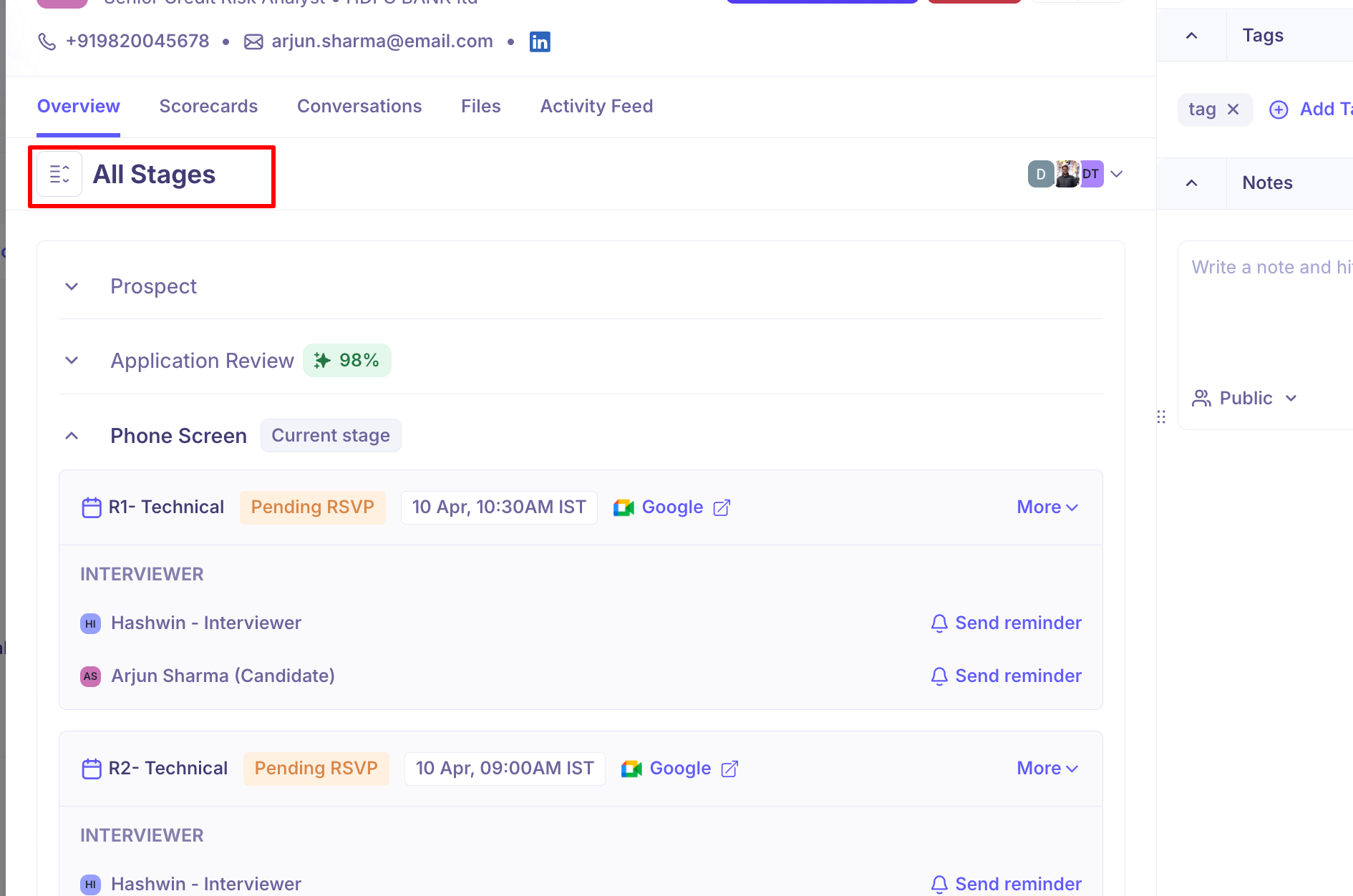
All Stages View
Click the list icon next to the stage name to toggle to All Stages view. This shows the complete pipeline with the details of previous stages.
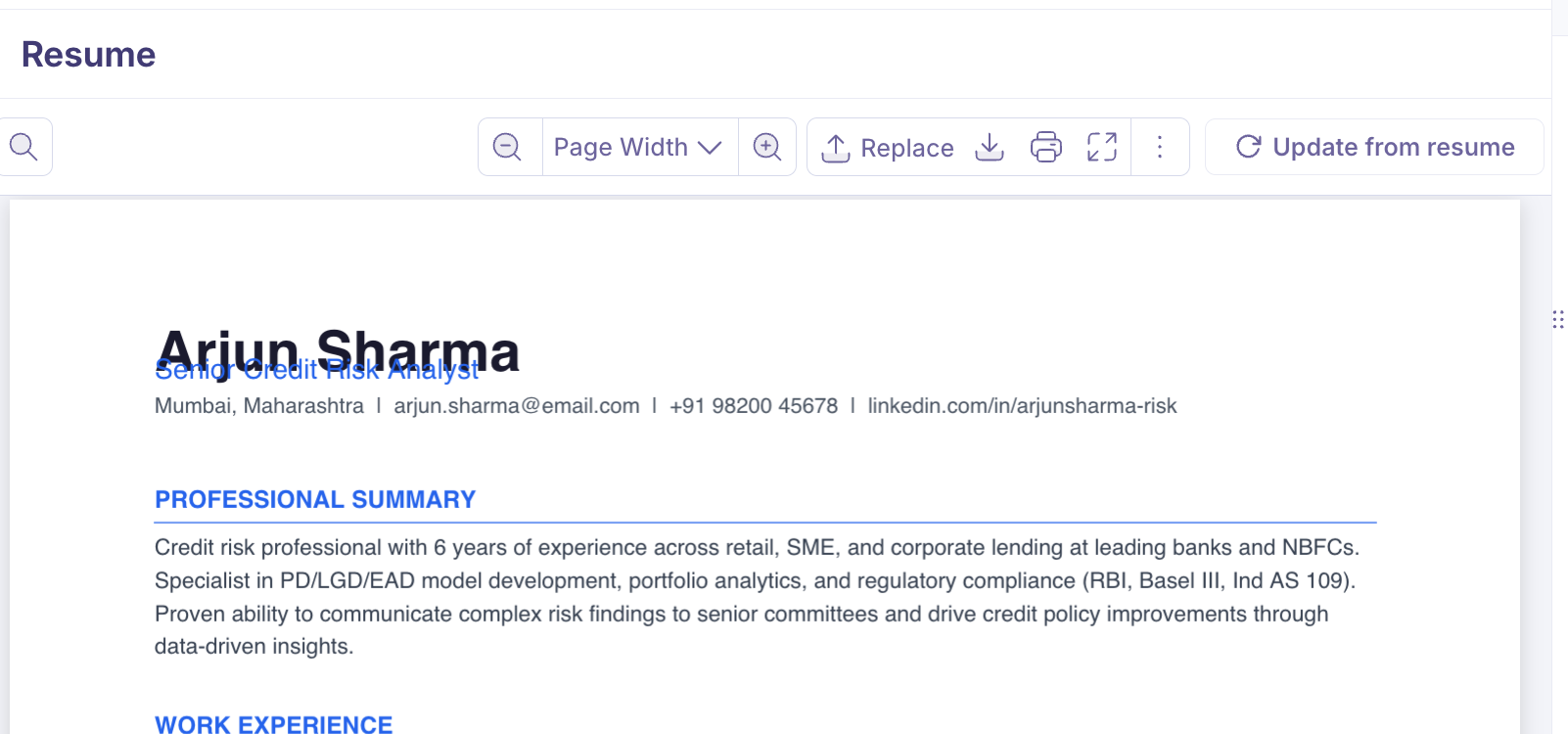
Resume
Below the current stage information, the Resume section displays the candidate's uploaded resume (PDF viewer). You can search, replace the resume, Download, print and update from resume - re-parse the resume to update candidate information.
If no resume has been uploaded, a drag-and-drop upload area is shown. Supported formats are .pdf and .docx.
Candidate Information
Further down the Overview tab, you will find candidate details related to Personal Info, Source, Credited to, Experience, Education, Skills, Tags, Additional fields.
Forms
At the bottom of the Overview tab, you will see any forms submitted by the candidate:
Application form — Filled in when the candidate applied through a job post
Referral form — Filled in if the candidate was referred by an employee
Scorecards Tab
The Scorecards tab shows all interview scorecards submitted for this candidate on this job.
It is divided into two sections:
Completed — Scorecards that have been filled and submitted, showing the interviewer/reviewer name, rating, activity, stage, and submission time. Click View to read the full scorecard. You can also download the scorecard as pdf.
Pending — Scorecards that have been assigned but not yet filled in.
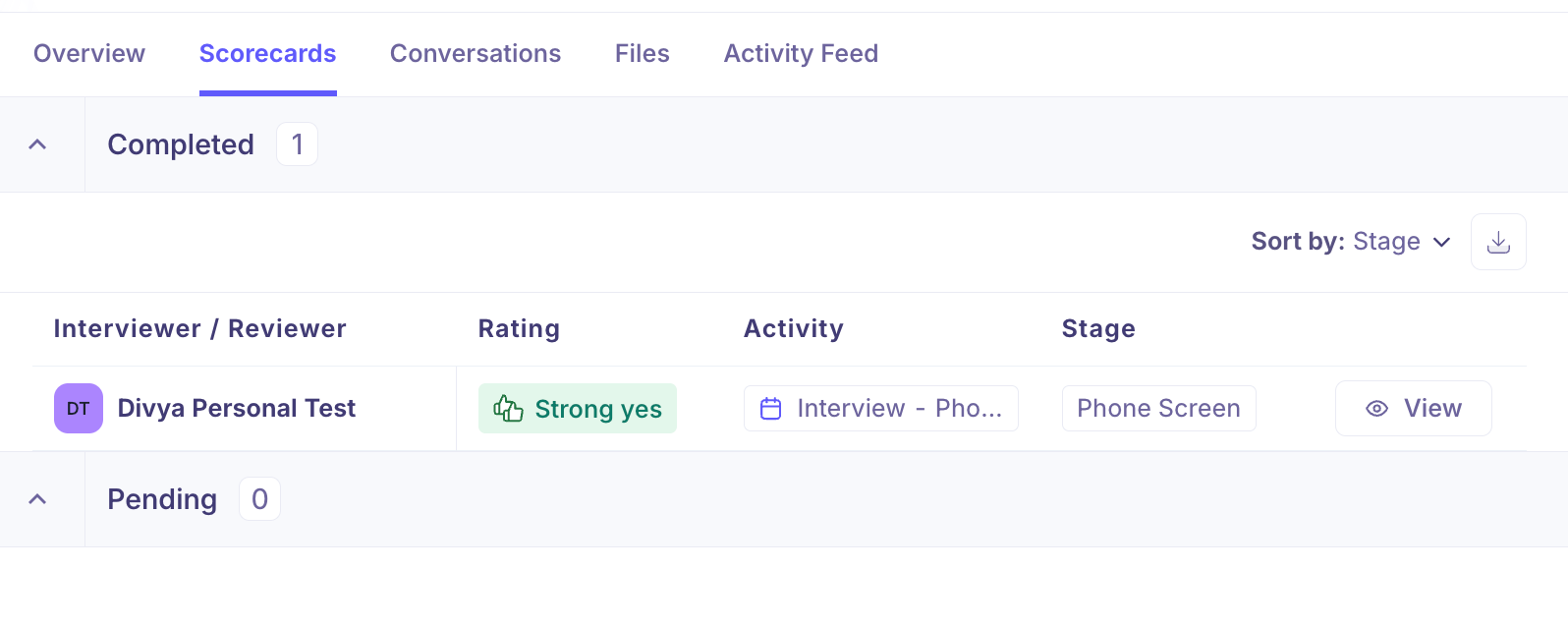
You can sort scorecards by Stage using the sort control at the top.
Conversations Tab
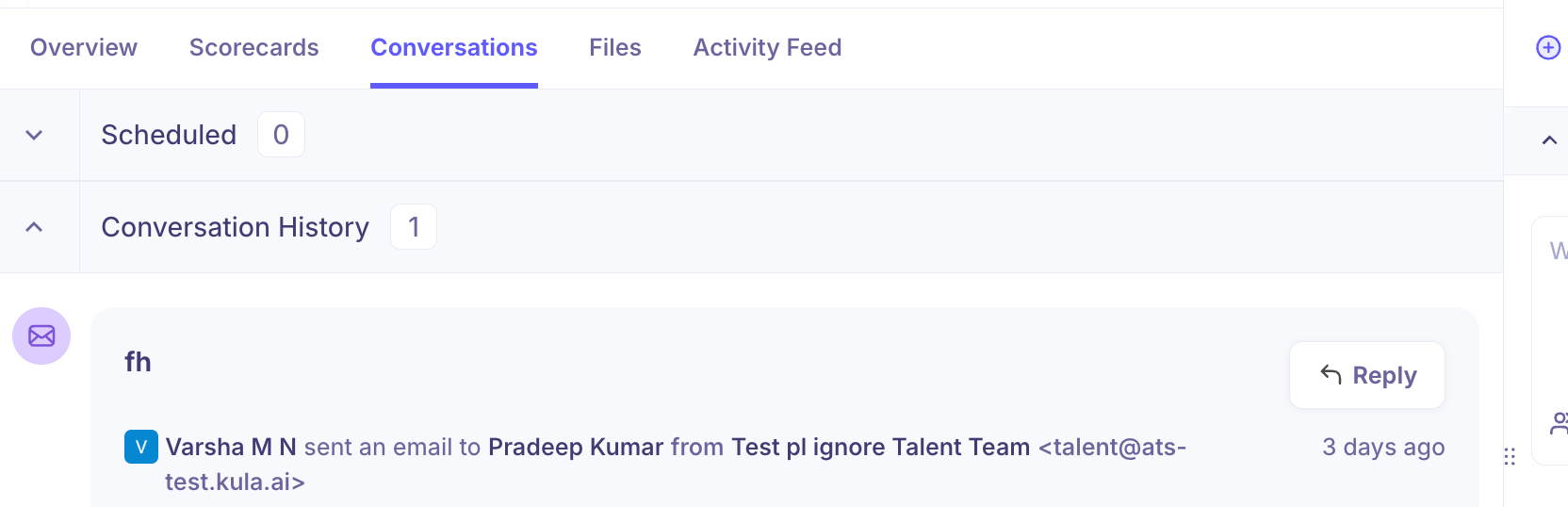
The Conversations tab shows all email communication with the candidate.
Scheduled — Emails that are queued or scheduled to be sent.
Conversation History — A chronological list of all emails sent and received. Each entry shows the subject, who sent it, when it was sent, and the sending email address.
Click Reply on any email thread to respond directly from Kula.
Files Tab
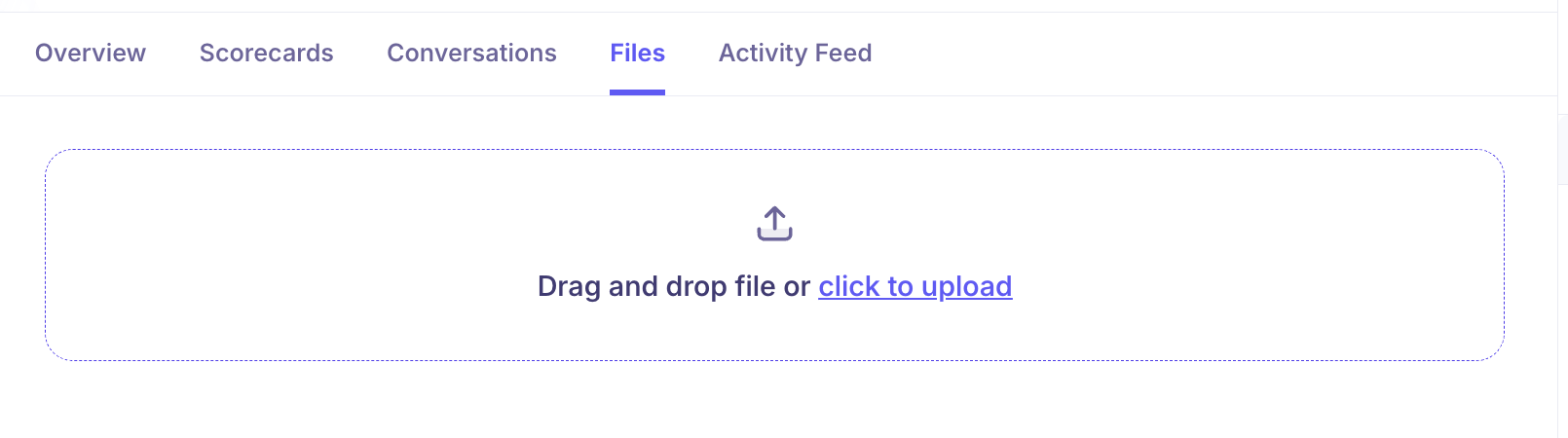
The Files tab allows you to upload and manage documents associated with the candidate for this specific job. This includes, resumes, offer letters, assessment files, etc.
Drag and drop a file or click click to upload to add documents. This is separate from the resume upload in the Overview tab and is intended for additional supporting documents.
Activity Feed Tab
The Activity Feed tab provides a complete chronological log of everything that has happened for this candidate on this job, including:
Scorecard submissions
Interview completions
Stage movements
Emails sent
AI scoring events
Candidate additions to the pipeline
Each entry shows the name of the team member who performed the action and the date and time it occurred.
Tags & Notes Panel
On the right side of the Application View, the Tags & Notes panel is always visible regardless of which tab you are on.
Tags
Tags help you categorise and filter candidates. Click Add Tag to apply one or more tags to the candidate.
Notes
The Notes section allows you to write internal notes about the candidate. Type your note and press Enter to submit. Notes are set to Public by default, meaning all team members with access to the job can see them. You can change the visibility using the dropdown next to the Public label.
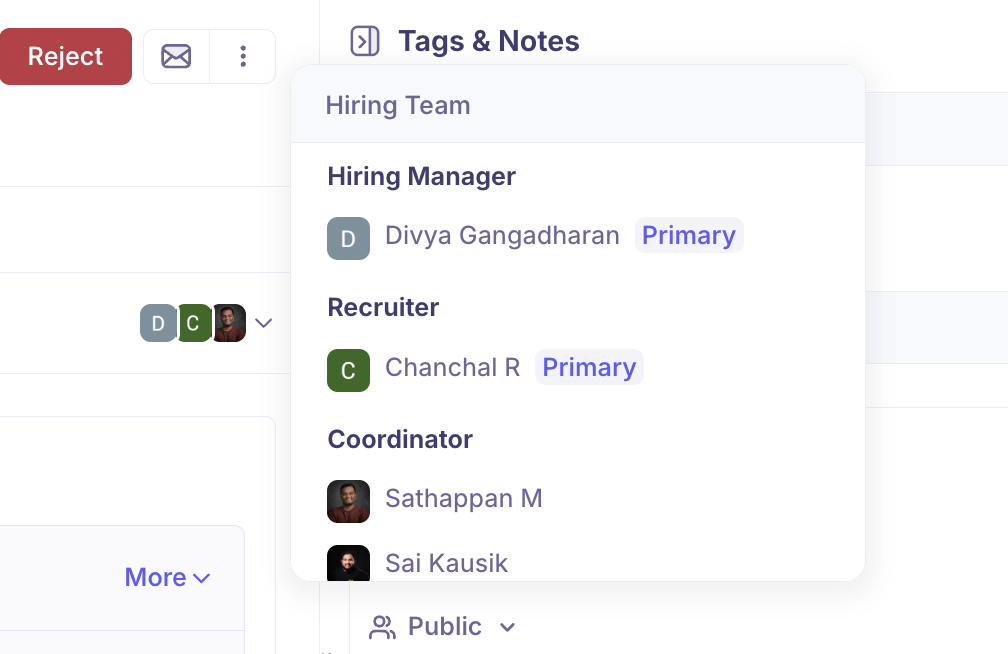
Hiring Team
Click the avatar icons shown next to the stage name on the Overview tab to view the Hiring Team assigned to this job. This shows:
Hiring Manager (Primary)
Recruiter (Primary)
Coordinator
External Recruiter (Agency) (if applicable)
Navigating Between Candidates
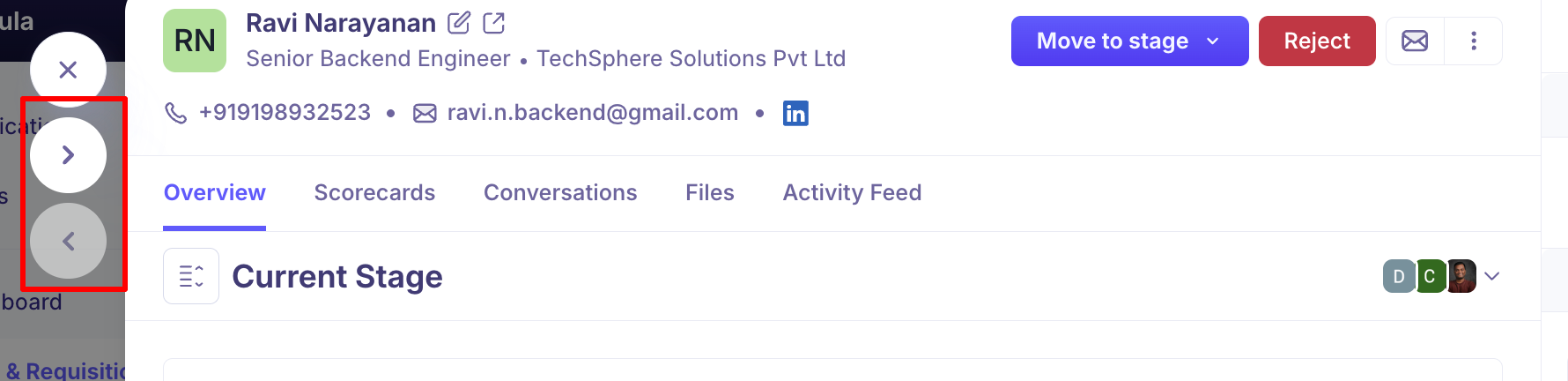
Use the arrow icons (← →) shown at the top-left corner of the Application View to move to the previous or next candidate in the pipeline without closing the panel.
FAQs
What is the Application View? The Application View is a slide-over panel that opens when you click on a candidate in the pipeline. It shows everything related to that candidate's application for a specific job, including their current stage, scorecards, conversations, files, and activity history.
Can I move a candidate to any stage directly from the Application View? Yes. Use the Move to stage dropdown at the top of the panel to move the candidate to any stage in the pipeline.
How do I reject a candidate? Click the Reject button at the top of the Application View.
Where can I see all interview scorecards for a candidate? Go to the Scorecards tab in the Application View to see all completed and pending scorecards.
Can I send an email to a candidate from the Application View? Yes. Click the email icon in the header or use the Conversations tab to view history and reply to existing threads.
What are Additional fields? Additional fields are custom fields configured by your admin. They appear in the Candidate Information section of the Overview tab and may include fields like Work authorization, Current CTC, or Gender.
What does the three-dot menu (⋮) do? The three-dot menu provides access to ad-hoc actions you can perform outside the standard pipeline flow, such as scheduling an ad-hoc interview, sending an assessment, creating an offer, transferring to another job, or adding the candidate to a project or Flow.
What is the difference between the Files tab and the resume in the Overview tab? The resume in the Overview tab is the candidate's primary resume used for parsing and AI scoring. The Files tab is for uploading additional supporting documents related to this specific application.
Who can see notes added in the Tags & Notes panel? Notes are Public by default, meaning all team members with job access can see them. You can change the visibility setting before submitting a note.
Can I navigate between candidates without closing the Application View? Yes. Use the left and right arrow buttons at the top of the panel to move between candidates in the pipeline.