Candidate Profile
Last updated: April 9, 2026
The candidate profile gives you a complete view of a candidate — their contact details, experience, job application history, resume, notes, conversations, and activity. You can open a candidate profile from the Candidates tab inside a job, or from the Contacts page.
Profile layout
The candidate profile is split into two panels:
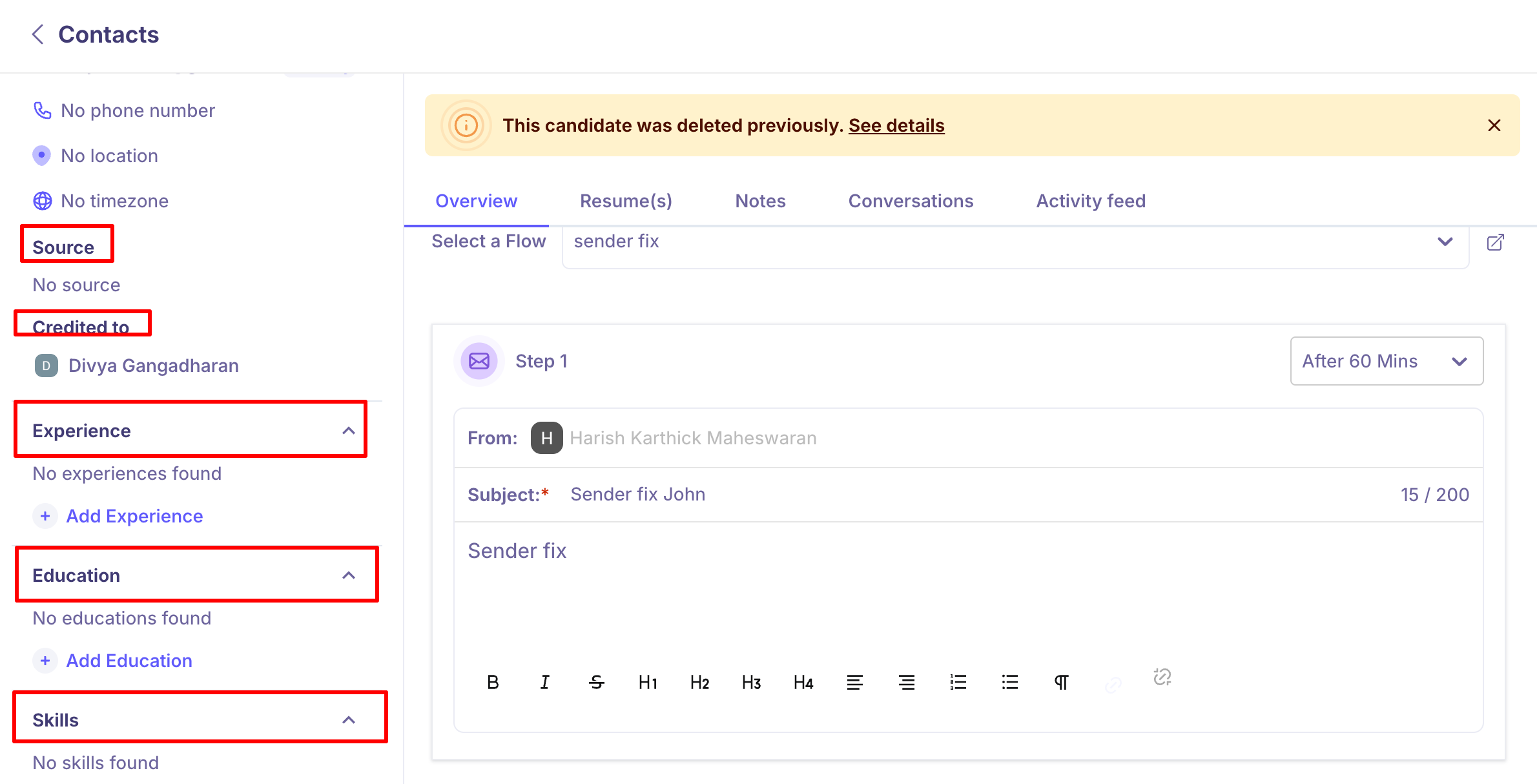
Left panel — displays the candidate's personal information, source, experience, education, skills, tags, and any additional fields configured for your account.
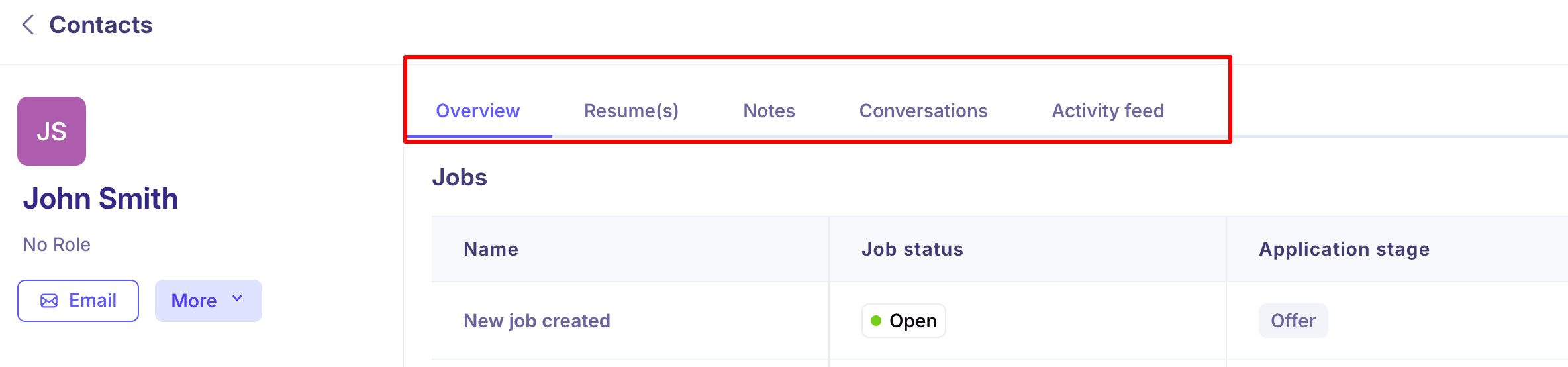
Right panel — contains tabs for Overview, Resume(s), Notes, Conversations, and Activity feed.
Left panel
Personal information
The top of the left panel shows the candidate's name, current role, primary email address, phone number, location, and timezone.
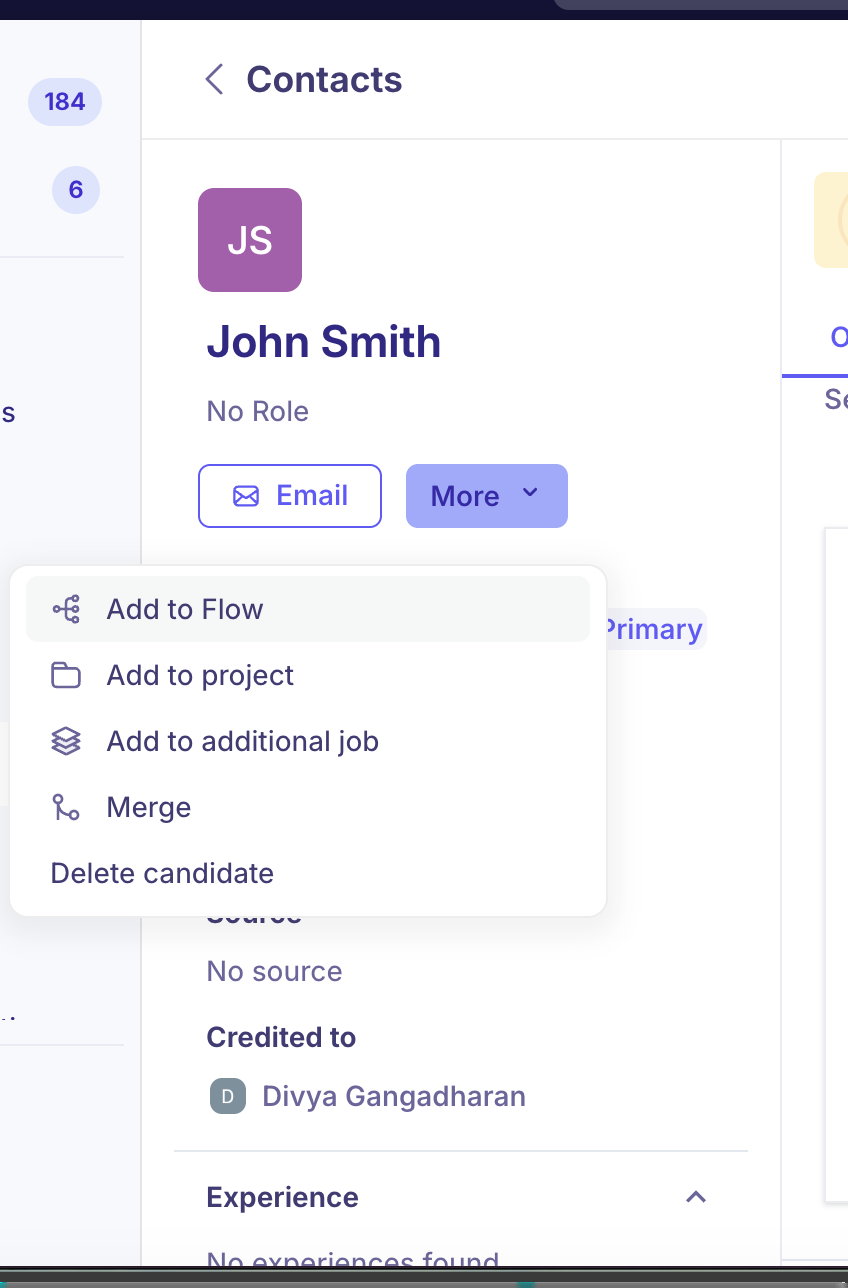
You can:
Click Email to send an email directly to the candidate.
Click More to access the following actions:
Action | What it does |
Source and credited to
Below the contact details, you can see how the candidate was sourced (e.g. Email Import, LinkedIn, Career page) and which team member is credited for bringing them into the pipeline.
Experience
The Experience section lists the candidate's work history — company name, job title, and employment dates. You can add, edit, or delete experience entries directly from this panel using the edit and delete icons on each entry.
Education
The Education section shows the candidate's academic background. If no education is found, you can add it manually using the Add Education link.
Skills
Skills are shown as tags. You can add or remove skills directly from the candidate profile using the Add another link.
Tags
Tags can be added to a candidate to help with categorization and filtering. Use Add another to apply additional tags.
Additional fields
If your team has configured custom contact fields (such as Work authorization, Current CTC, or other custom attributes), they appear here under Additional fields. Values can be filled in or edited directly from this section.
Right panel tabs
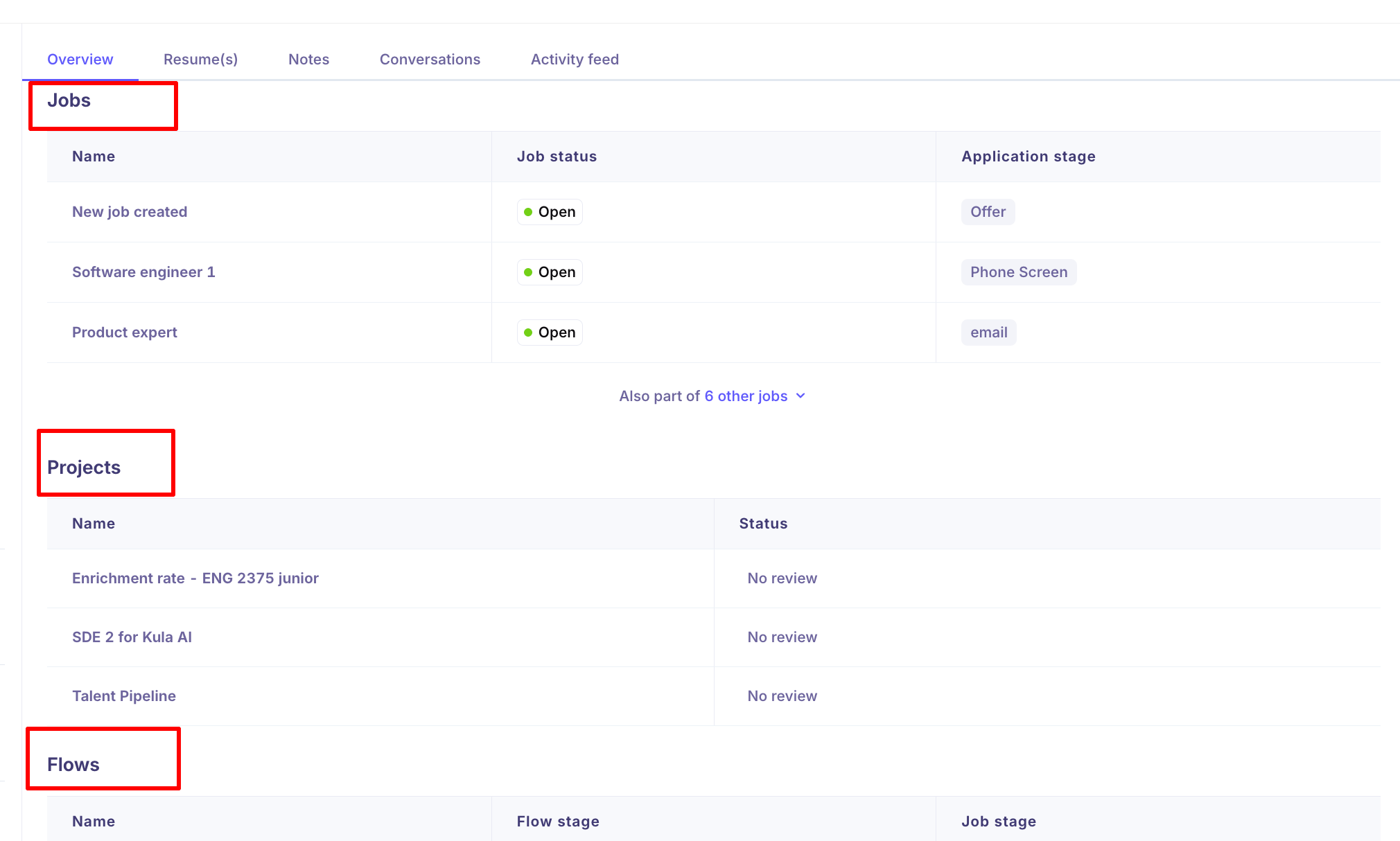
Overview
The Overview tab gives a snapshot of the candidate's activity across the platform, organized into three sections:
Section | What it shows |
Resume(s)
The Resume(s) tab displays all resumes attached to the candidate.
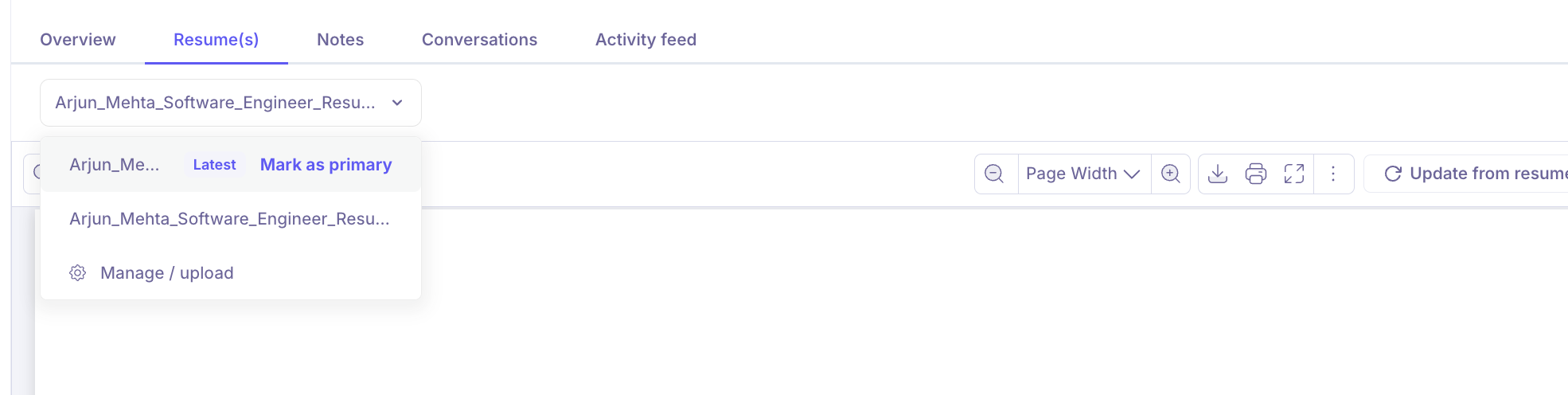
At the top of the tab is a dropdown that shows a list of all uploaded resumes.
The resume marked as Latest is the default one shown in the viewer. You can mark any resume as Primary by clicking "Mark as Primary".
Click any resume name in the dropdown to switch to it.
Uploading a resume
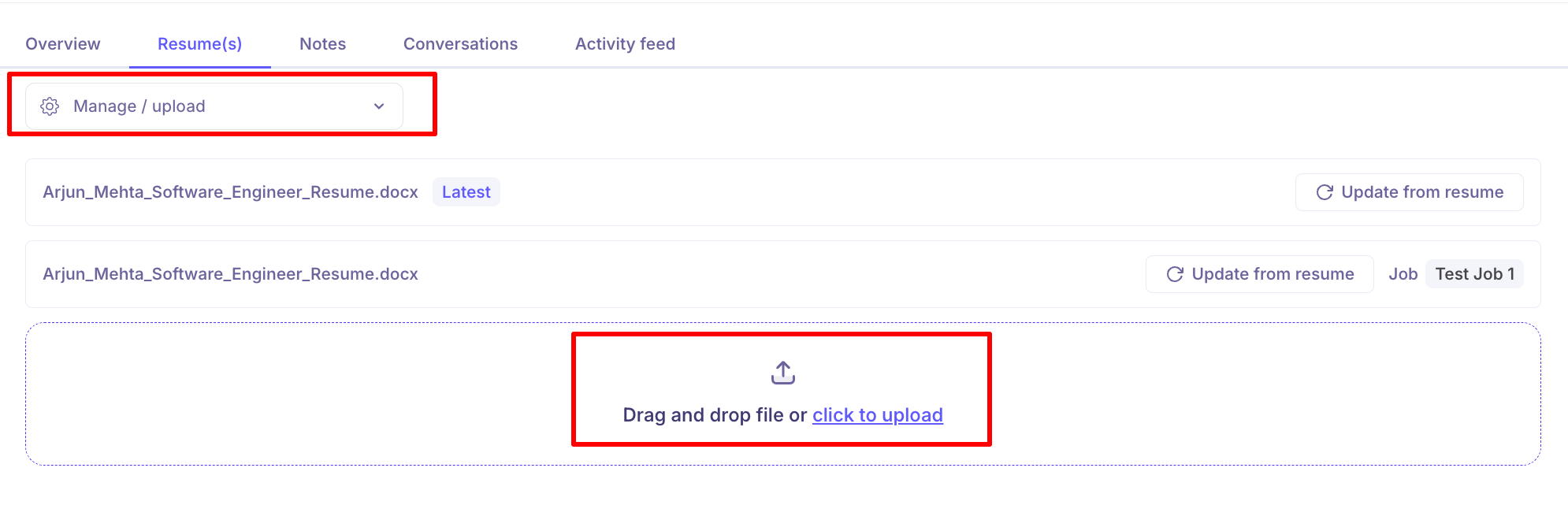
To add a new resume, click the Manage / upload dropdown and select Manage / upload from the bottom of the list, or use the drag-and-drop area at the bottom of the tab. You can also click to upload to browse and select a file from your device.
Update from resume
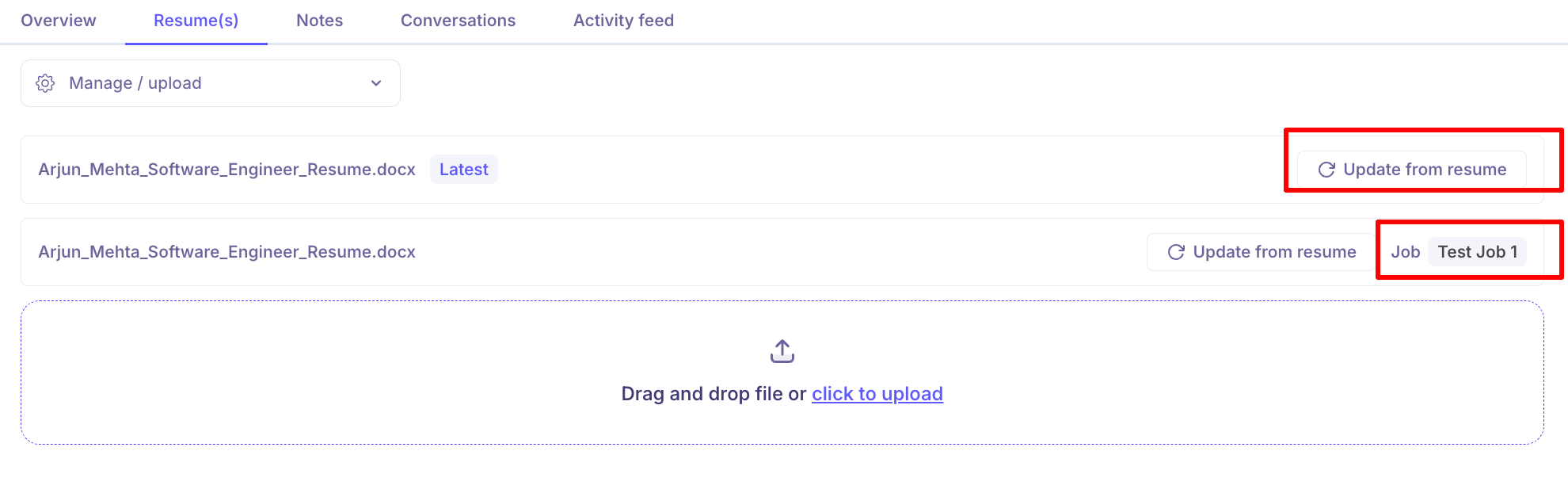
Each resume row has an Update from resume button. Clicking this re-parses the resume and updates the candidate's profile data — such as experience, education, and skills — based on the content of that resume.
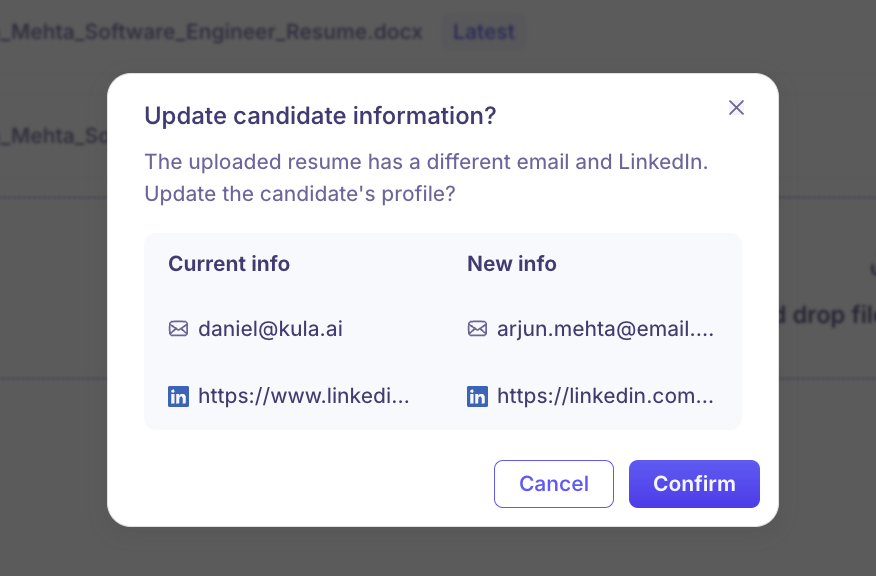
If the resume contains information that differs from the candidate's current profile (for example, a different email address), a confirmation dialog will appear showing the current information alongside the new information found in the resume. Click Confirm to apply the changes, or Cancel to leave the profile unchanged.
The Job column next to each resume shows which job the resume is associated with. If the resume is linked to multiple jobs, the count is shown as a number (e.g. +8).
Notes
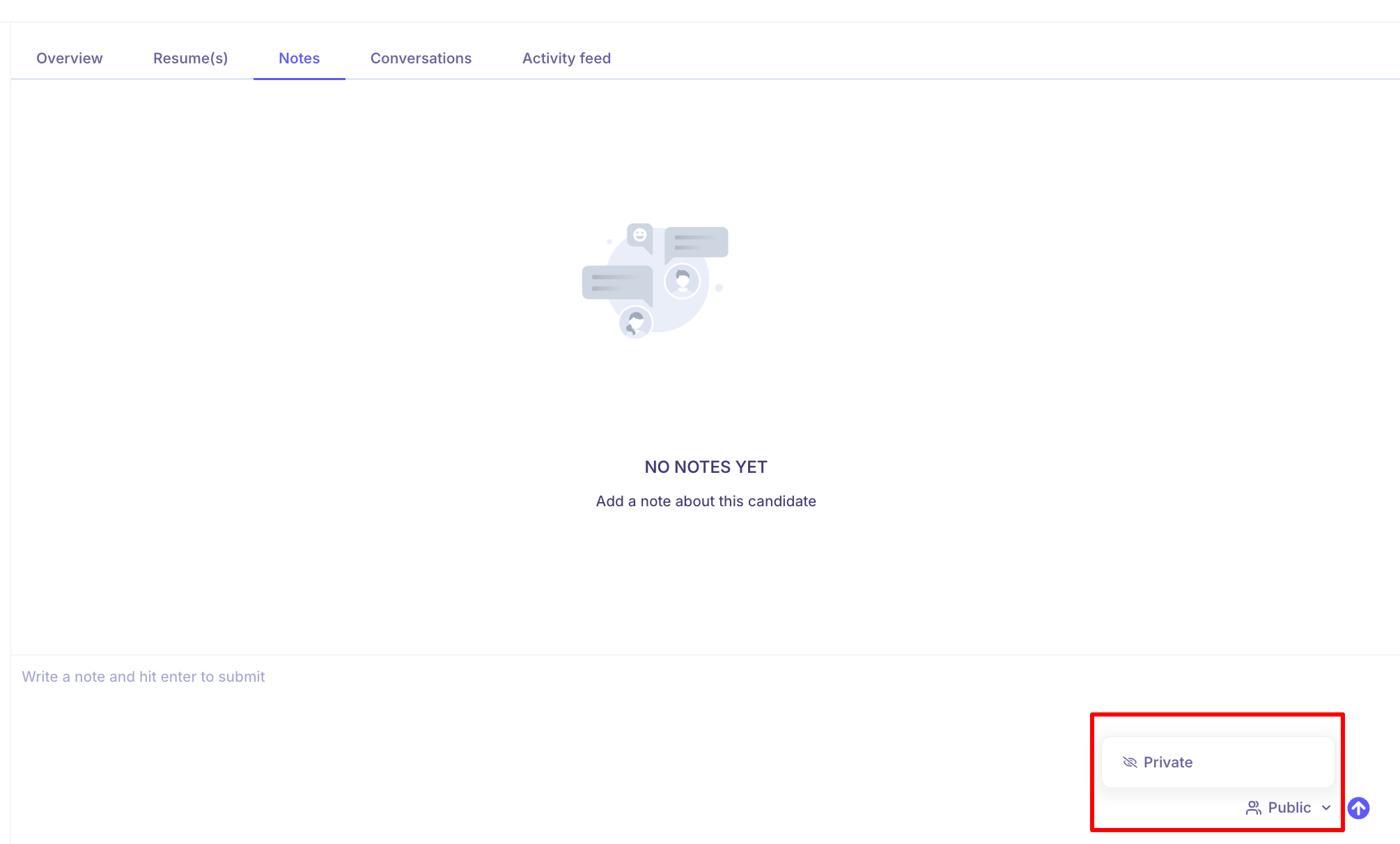
The Notes tab lets you add internal notes about the candidate. Type your note in the text box and press Enter to submit.
Notes have two visibility settings:
Public — visible to all team members who have access to this candidate.
Private — visible only to you.
Use the visibility toggle at the bottom right of the notes input box to set this before submitting.
Conversations
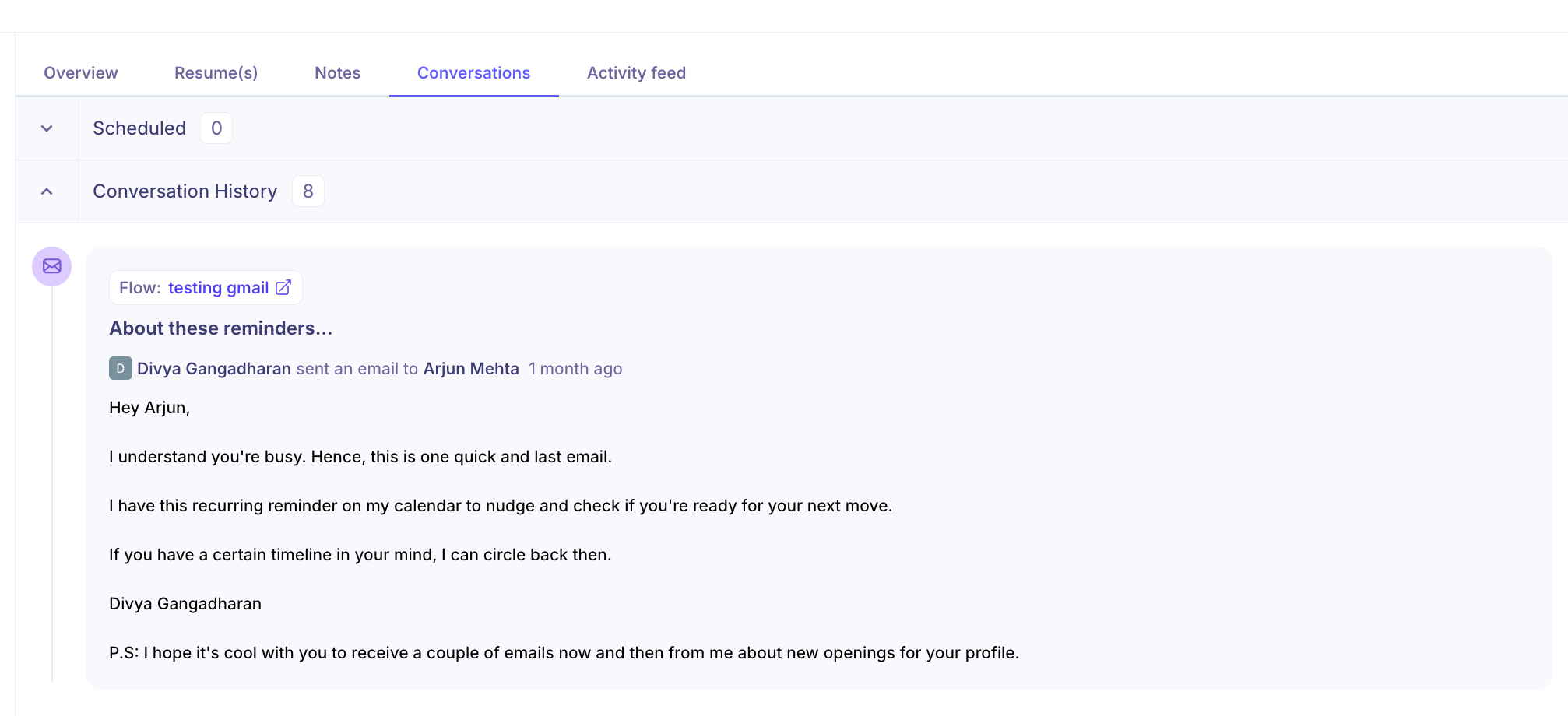
The Conversations tab shows all email communication with the candidate. It is organized into two sections:
Scheduled — shows emails that are queued to be sent to the candidate.
Conversation History — shows a log of all emails that have been sent, including the subject, sender, recipient, and the full email body. Each conversation is linked to the relevant job.
Activity feed
The Activity feed tab shows a chronological log of all actions taken on this candidate across all jobs — including stage moves, interviews scheduled, emails sent, and more. Each entry shows the team member who performed the action, a description of what happened, and a timestamp.
Deleted candidate banner
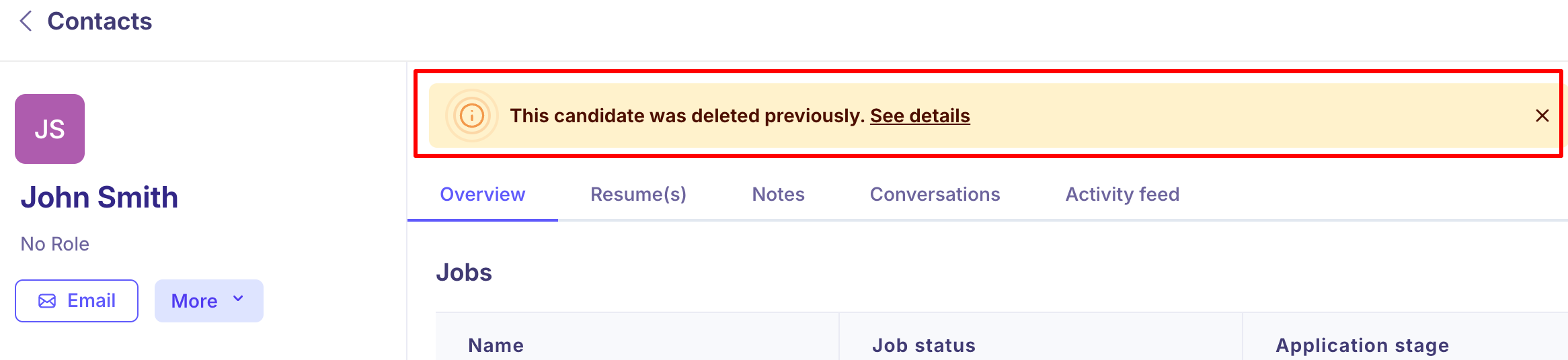
If a candidate was previously deleted and then re-added to Kula, a banner appears at the top of their profile reading: This candidate was deleted previously. Click See details to view more information about the deletion history.
Need Help?
If you have questions or need assistance, reach out to us at support@kula.ai or use the in-app chat.