Cloning a job
Last updated: August 7, 2026
Cloning a job creates a new job using an existing one as the starting point, so you don't have to rebuild the pipeline, job post, and settings from scratch for a similar role.
Who can do this: Recruiters, Admins, and Super Admins. Hiring Managers don't have clone access by default.
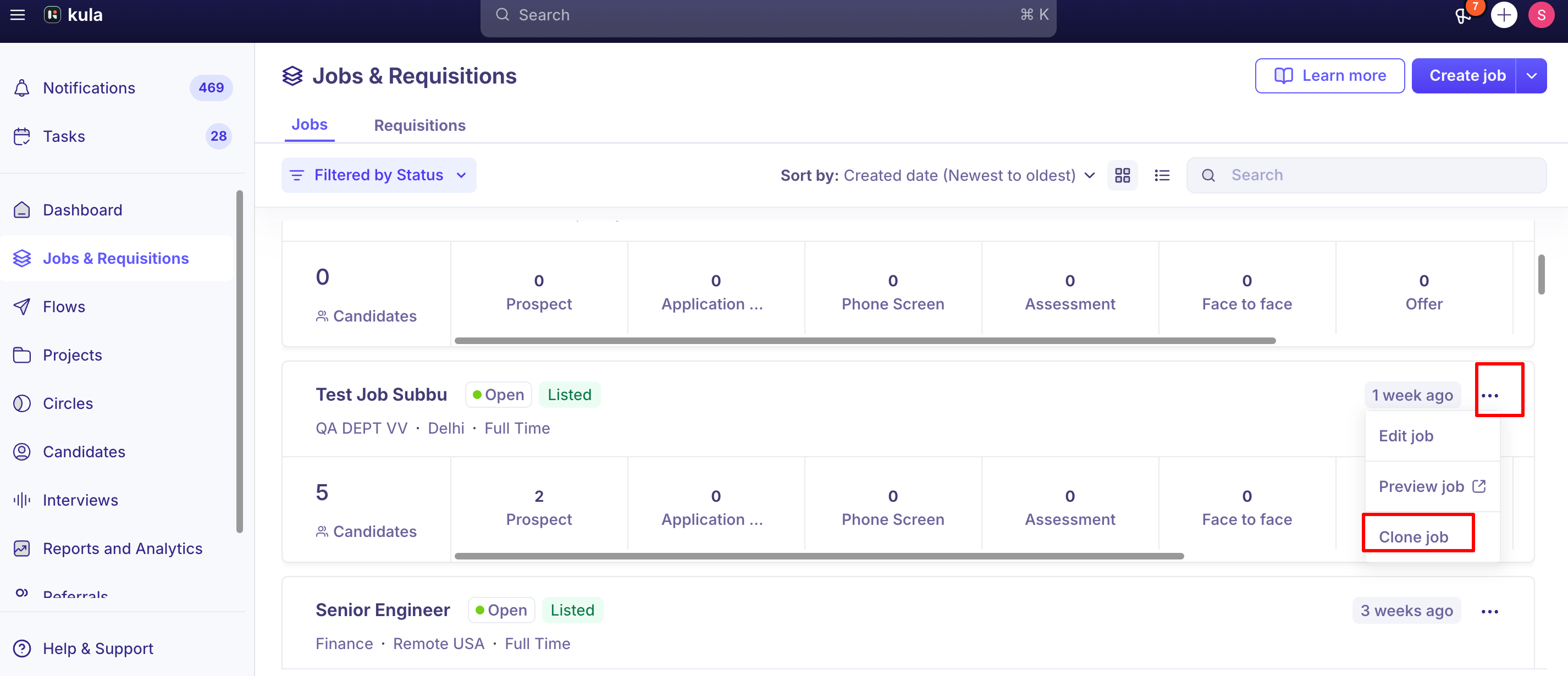
Where to find it: Jobs (or Archived Jobs) → the … menu next to the job → Clone Job
Clone a job
Go to Jobs. If the job you want to copy has been archived, go to Archived Jobs instead — cloning works from there too.
Find the job and click the … menu on its row.
Select Clone Job.
Step through the same setup screens used to create a job — job details, job post, and hiring team — making any changes the new role needs, then continue to publish.
Double-check the job title and job post before you publish the clone — review the details step rather than assuming everything is ready to go live as-is.
What carries over from the original job
Item | What happens |
Job details (department, office, work type, compensation) | Copied — editable during the clone flow |
Pipeline and interview stages | Copied |
Application form | Copied, and locked — you can't switch to a different template on a cloned job |
Field visibility rules | Copied exactly as configured on the original |
Scorecards and AI scoring configuration | Copied |
Auto-reject rules and other flow associations | Copied — review these before reposting |
Hiring team | Carried into the setup flow for you to confirm, not silently copied |
Candidates | Not copied — a cloned job starts with an empty pipeline |
Good to know
Hiring Managers can't clone a job by default. Clone access is limited to Recruiters, Admins, and Super Admins.
You can't change the application form on a cloned job, even while it's still in Draft. If the role needs a different application form, create the job from scratch instead.
A clone carries over settings like auto-reject rules from the original job. If the original had auto-reject configured, check it before you repost — a customer once had 48 applications auto-rejected on a reposted role because the carried-over rule fired unexpectedly.
You can clone an archived job. Archiving is permanent and can't be undone, so cloning is the way support recommends reusing an archived job's setup.
FAQ
I archived a job by mistake — can I un-archive it? No, archiving can't be reversed. Clone the archived job instead — it opens the same job details, pipeline, and settings in a new job you can publish. For more, see Archiving and Closing a Job (link to be added).
Nothing happens when I click Clone Job — is something wrong? This is usually a temporary error rather than something on your end. Try again, and if it still doesn't move to the next screen, contact support so it can be checked on your account. For more, see What is a Job in Kula? (link to be added).
I'm a Hiring Manager — why don't I see the option to clone a job? Cloning is available to Recruiters, Admins, and Super Admins; Hiring Managers don't have clone access by default. For more, see Set the hiring team on a job (link to be added).
Can I use a different application form when I clone a job? No — a cloned job keeps the application form template from the original, and this can't be changed even in Draft. If you need a different form, create the job from scratch. For more, see What is a Job in Kula? (link to be added).
Does cloning bring over things like auto-reject rules? Yes — a clone carries over the original job's configuration, including auto-reject rules and other flow associations, so it's worth reviewing those settings before you post the clone live. For more, see Job status: Draft, Open, Closed (link to be added).
Need help?
If you have questions or need assistance, reach out to us at support@kula.ai or use the in-app chat.