Jobs list view explained
Last updated: September 25, 2026
The Jobs list is where you see every role at a glance — its status, who's on it, how candidates are moving through it, and quick actions you can take without opening the job.
Who can do this: Anyone with access to view jobs — Recruiters, Hiring Managers, Admins, and Super Admins, scoped to the jobs they can see.
Where to find it: Jobs module (left-hand navigation)
Table view and card view
The Jobs list has two layouts, switchable from the top of the page:
Table view — a compact row-per-job list: title, days open, department, location, hiring team, status, and candidate count.
Card view — the same jobs as cards, with a visual breakdown of candidates by pipeline stage for each one.
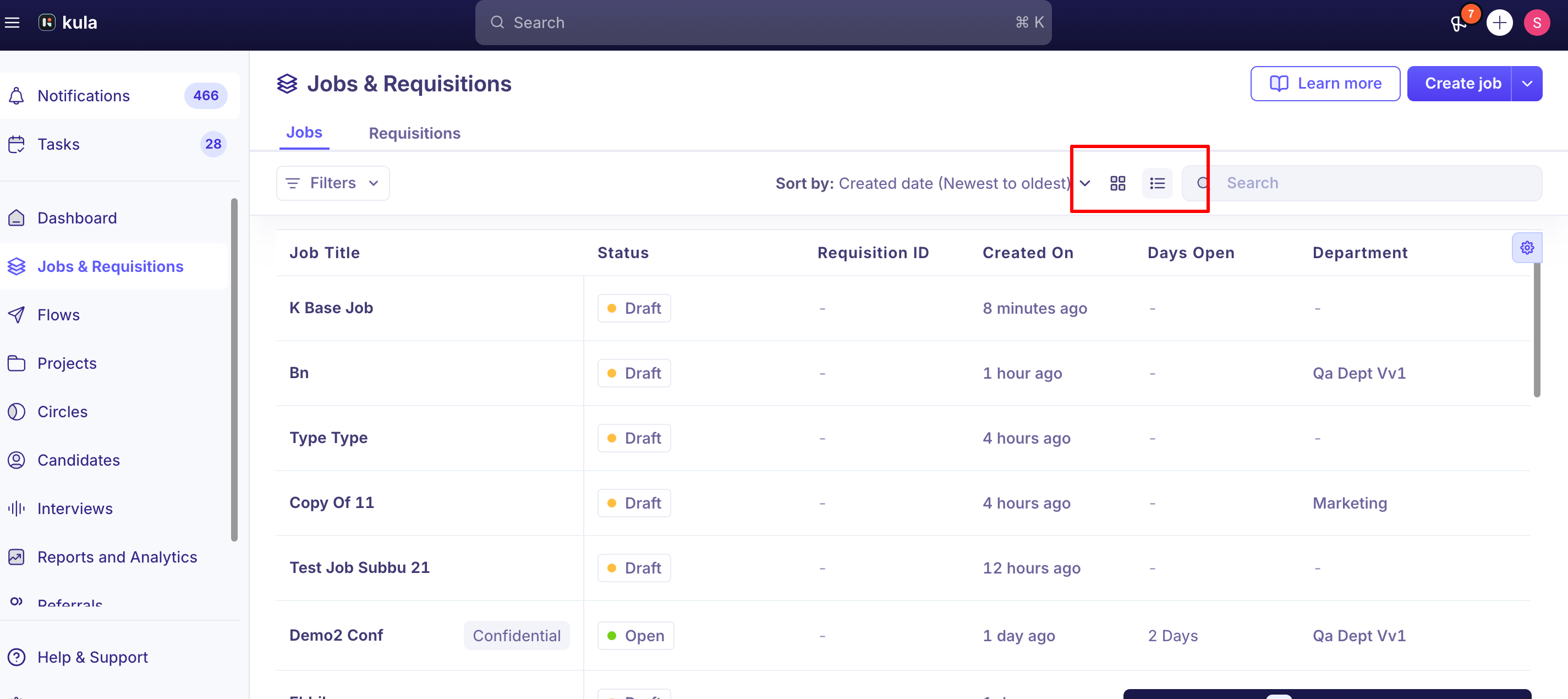
What each job shows
Every job in the list carries:
Status — Draft, Open, or Closed (see Job Status: Draft, Open, Closed for what each means).
Days open — how long the job has been active.
Department, office, and work type.
Hiring team — who's assigned.
Candidate count — including both in-process and rejected candidates, so you can see full pipeline volume, not just who's still active.
Search, sort, and filter
Search finds jobs by name.
Sort by created date, opened date (newest or oldest first), or job name (A to Z or Z to A).
Filter by Status, User, Department, Office, Primary recruiter, Primary hiring manager, EEOC data collection, Job posting visibility (Listed/Unlisted), Work type, Workplace, Job post (Internal/External), Confidential, or your job custom fields.
Filters stick. Your filters are saved to your Kula account, so they stay applied the next time you open the Jobs list, on any browser or device.
By default, the list shows Draft, Open, Scheduled and Pending approval jobs that you're on. To see every job, clear the User filter. Closed and archived jobs won't appear until you add them to the Status filter — this is the most common reason a job seems to have "disappeared.
Quick actions
From the list, without opening a job, you can clone or edit it directly via its row actions.
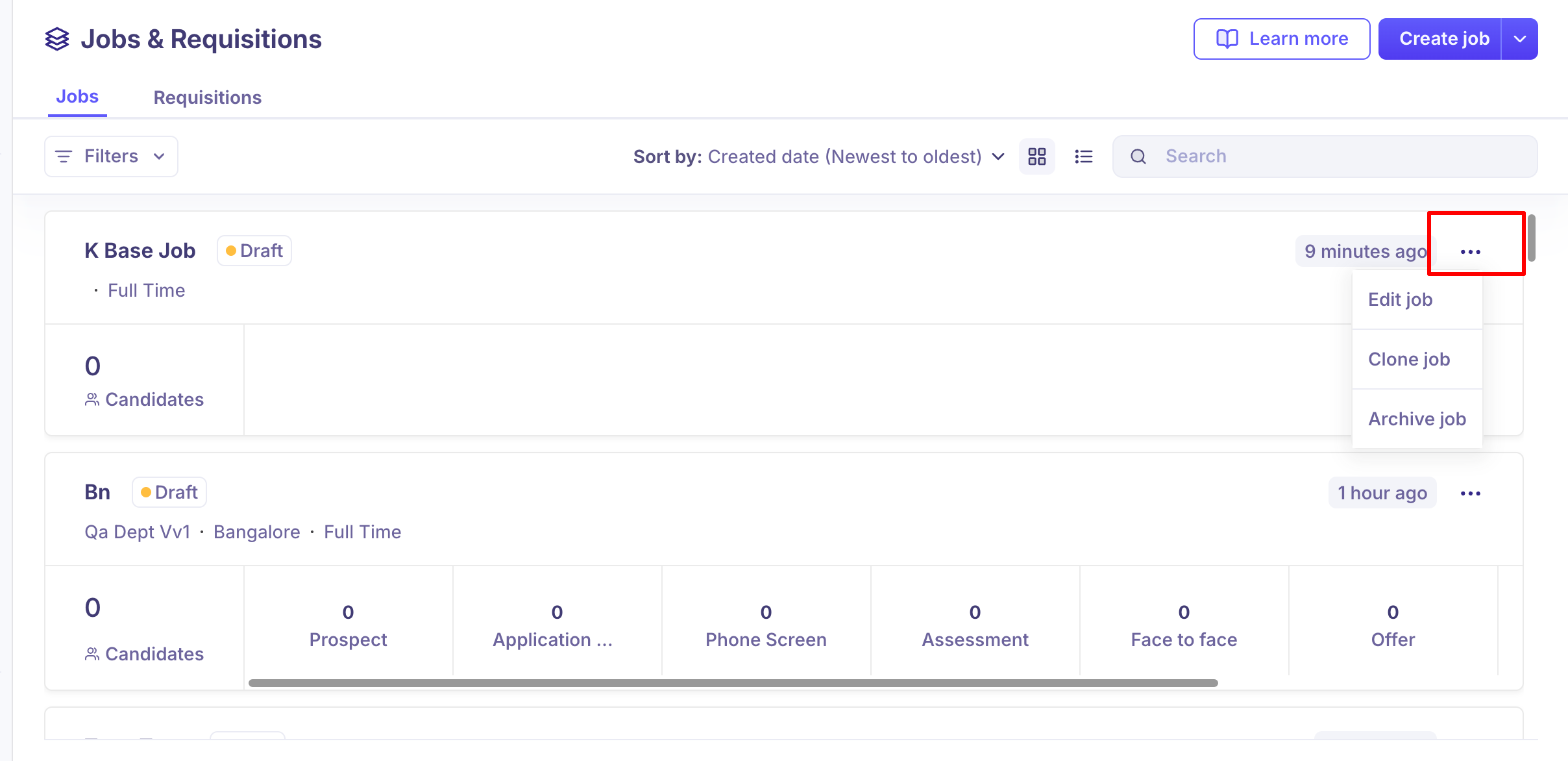
A short video showing the Job's List view:
Good to know
You can't delete a job — only archive it. Kula doesn't support permanently deleting a job, since jobs carry candidate data, scorecards, and history. Archiving removes it from the active list without losing that data.
You can only archive a job that's in Draft or Closed status. An Open job needs to be closed first before it can be archived.
FAQ
Why don't I see all my jobs when I open the Jobs list?
By default, the list only shows Draft, Open, Scheduled and Pending approval jobs that you're on. Clear the User filter to see all jobs, and add Closed or Archived to the Status filter to see those. For more, see Job status: Draft, Open, Closed.
Can I delete a job I don't need anymore?
No — Kula doesn't support deleting jobs. Archive it instead, which removes it from your active list while keeping the data. Only Draft or Closed jobs can be archived; an Open job needs to be closed first. For more, see Archiving and Closing a Job.
Do I have to reapply my filters every time I open the Jobs list? No. Your filters are saved to your Kula account, so they stay applied the next time you open the Jobs list, on any browser or device. For more, see Using filters across the platform.
What's included in the candidate count shown for each job?
Both in-process and rejected candidates, so the number reflects total pipeline volume rather than just active candidates. For more, see What a job in Kula is?
Can I filter the Jobs list by who owns a role — recruiter or hiring manager? Yes. Use User for anyone on the hiring team, or Primary recruiter / Primary hiring manager. For more, see Using filters across the platform.
Need help?
If you have questions or need assistance, reach out to us at support@kula.ai or use the in-app chat.