Application statuses
Last updated: July 31, 2026
Every application shows a status that tells you what's happening right now in its current stage. The stage is where the application sits in the pipeline; the status is what needs to happen next.
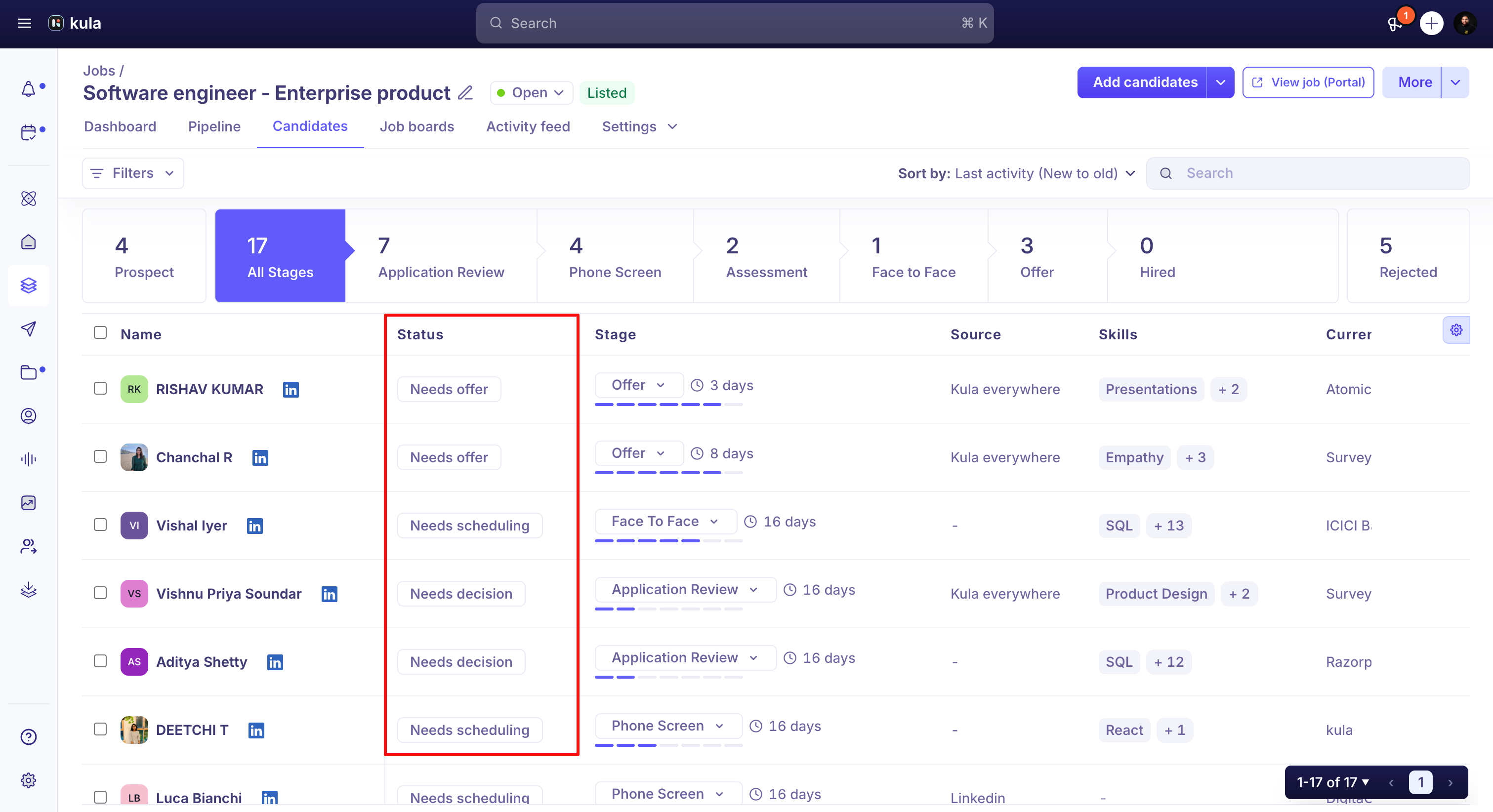
Use status labels to spot what's blocking an application, such as whether an interview needs to be scheduled or a scorecard decision is still pending, without opening every candidate to check.
Status vs. stage
An application's stage is which column it's in on the Pipeline tab, for example Application Review, an interview stage, Offer, or Hired. Its status is a label layered on top of the stage that tells you what's pending within it.
Stage | Status | |
What it tracks | Where in the interview process the candidate is | The overall state of the application |
Examples | Application Review, Phone Screen, Face to Face, Offer | Active, Paused, Rejected, Hired |
Set by | Moving a candidate forward or backward using Move to stage | Recruiter actions (Pause, Reject) or automatically on hire |
Can change multiple times? | Yes — candidates move forward and can be moved back | Yes — a paused application can be unpaused; a rejected one can be reactivated |
Status labels
Kula shows the following status labels on application cards and in the Candidates tab:
Needs action: An activity in the current stage requires attention.
Needs scheduling: An interview needs to be scheduled.
Needs decision: A scorecard or review decision is pending.
Needs offer: The application is in the Offer stage, but no offer has been created yet.
Survey sent: A survey has been sent and is awaiting a response.
Waiting on offer acceptance: An offer has been sent, and Kula is waiting on the candidate's response.
Overdue: An activity has passed its deadline.
Hired: The candidate has been marked as hired.
Application outcome
Separate from status, every application also has an outcome: Active, Paused, Hired, or Rejected. Outcome reflects the application's overall result and is what you group and filter by in Reports and Analytics and in candidate exports.
Active
The application is progressing normally through the pipeline. The candidate is being considered and no pause or rejection has been applied. This is the default status for any in-progress application.
Paused
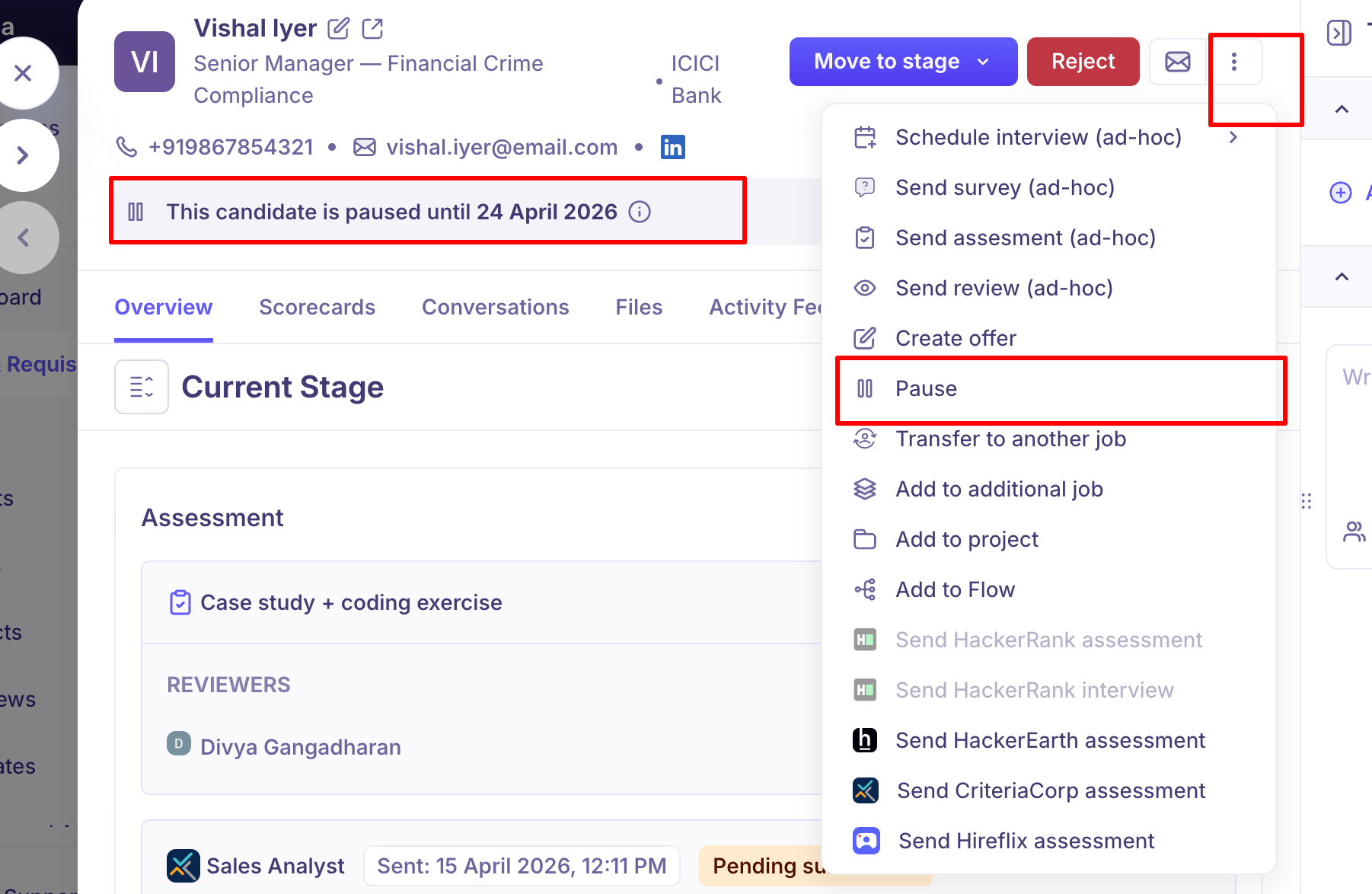
The application has been temporarily paused for a set duration. The candidate remains in their current stage but is flagged as inactive for that period. A banner reading "This candidate is paused until [date]" appears at the top of their application, with an Unpause button to resume earlier if needed.
Pausing is useful when a candidate needs more time (e.g., serving a notice period), the hiring team is in a freeze, or you want to revisit someone after a set interval without losing their place in the pipeline.
How to pause a candidate:
Open the candidate's application.
Click the ⋯ (more options) menu at the top right.
Select Pause.
Choose a duration: 1 week, 1 month, 3 months, or Until a custom date.
Enter a Pause reason (required).
Click Pause.
The pause reason is logged internally and visible to the hiring team.
How to unpause: Click the Unpause button on the paused candidate banner, or wait for the pause period to expire — the candidate is automatically reactivated when the date is reached.
Rejected
The candidate has been formally rejected for this role. Rejection can happen at any stage — after Application Review, after an interview, or at the offer stage. Rejected applications are closed and the candidate is no longer considered for this specific role.
How to reject: Click the red Reject button at the top of the application. You'll be prompted to select a rejection reason and optionally send a rejection email to the candidate.
Hired
The candidate has accepted an offer and been marked as hired. This is the successful terminal status. Once hired, the application is complete and the candidate moves to the Hired stage.
How to Change an Application Status
To pause: Click ⋯ → Pause, select a duration, enter a reason, and click Pause.
To unpause: Click the Unpause button on the paused candidate banner.
To reject: Click the red Reject button, select a reason, and optionally send a rejection email.
To reactivate a rejected application: Change the application status back to Active from within the application record. Stage history, scorecards, and notes are all preserved.
Where you'll see application status
On the candidate's card in the Pipeline tab's Kanban board.
In the Status column on the Candidates tab.
As a filter dimension on the Candidates tab and in Reports and Analytics.
In the Application status and Application outcome fields on contact exports.
Stages
Stages represent the steps a candidate moves through during the hiring process. Kula organises stages into five milestone groups:
Milestone | Default Stage(s) | Notes |
Prospect stages | Prospect | For sourced candidates not yet formally applied |
Application review stages | Application Review | Initial screening of submitted applications |
Interview stages | Phone Screen, Assessment, Face to Face, and any custom stages | Active interview process — fully customisable per job |
Offer stages | Offer | Offer extended and under review |
Hired stages | Hired | Candidate has accepted and been marked hired |
Stages within the Interview milestone are fully customisable — you can add, rename, reorder, and delete them. The Prospect, Application Review, Offer, and Hired stages are system-defined and cannot be deleted.
To move a candidate between stages, use the Move to stage button at the top of their application.
FAQs
Q: Can I reactivate a rejected application?
Yes. You can change a rejected application's status back to Active if you want to reconsider the candidate. Their previous stage history, scorecards, and notes are all preserved.
Q: Does changing an application status notify the candidate?
Only when rejecting — Kula offers the option to send a rejection email at that point. Pausing or reactivating an application does not trigger any automatic candidate-facing communication.
Q: If a candidate is rejected, can they apply again for the same job?
No. Kula prevents duplicate applications for the same job and email. If you want to reconsider a rejected candidate, reactivate their existing application rather than asking them to reapply.
Q: Does a pause affect where the candidate sits in the pipeline?
No. A paused candidate stays in their current stage — they are not moved backward. The pause simply flags them as inactive for the set duration and prevents them from being actioned until unpaused or the period expires.
Q: I can only see the first 100 applications — how do I view the rest?
This was a known pagination bug in the Candidates / Application Review view where pages 2 and beyond showed the same applications as page 1. It has been fixed. If you're still experiencing this, try refreshing the page or contact support.
Need help?
If you have questions or need assistance, reach out to us at support@kula.ai or use the in-app chat.