Configuring your application form
Last updated: September 26, 2026
Kula lets you build application forms that collect the right information from candidates for each role — a single default form applied to every job, or separate templates for different departments, locations or role types.
Who can do this: Super Admins and Admins manage form templates. A job's own form can be edited by its recruiters and anyone with the Manage all jobs permission.
Where to find it: Settings → Candidates & Applications → Application forms for templates, or the job's Job posting settings for one job's form
How templates and jobs fit together
Every account starts with a Default Application Form used for all jobs. Add more templates when different roles need different questions.
When you choose a template for a job, the job gets its own copy of the form:
Editing the job's form changes only that job.
Editing a template changes it for jobs that choose it from then on. Jobs already using it keep their copy.
You can switch a job to a different template only while the job is a draft. After that, edit the job's form directly.
Creating a new form template
Go to Settings → Candidates & Applications → Application forms.
Click Add application form.
Enter a name, and choose the departments, offices and work types it's for.
Build the form: edit the Personal Info and Profile sections, or click Add section to add your own (see the next section).
Save the form.
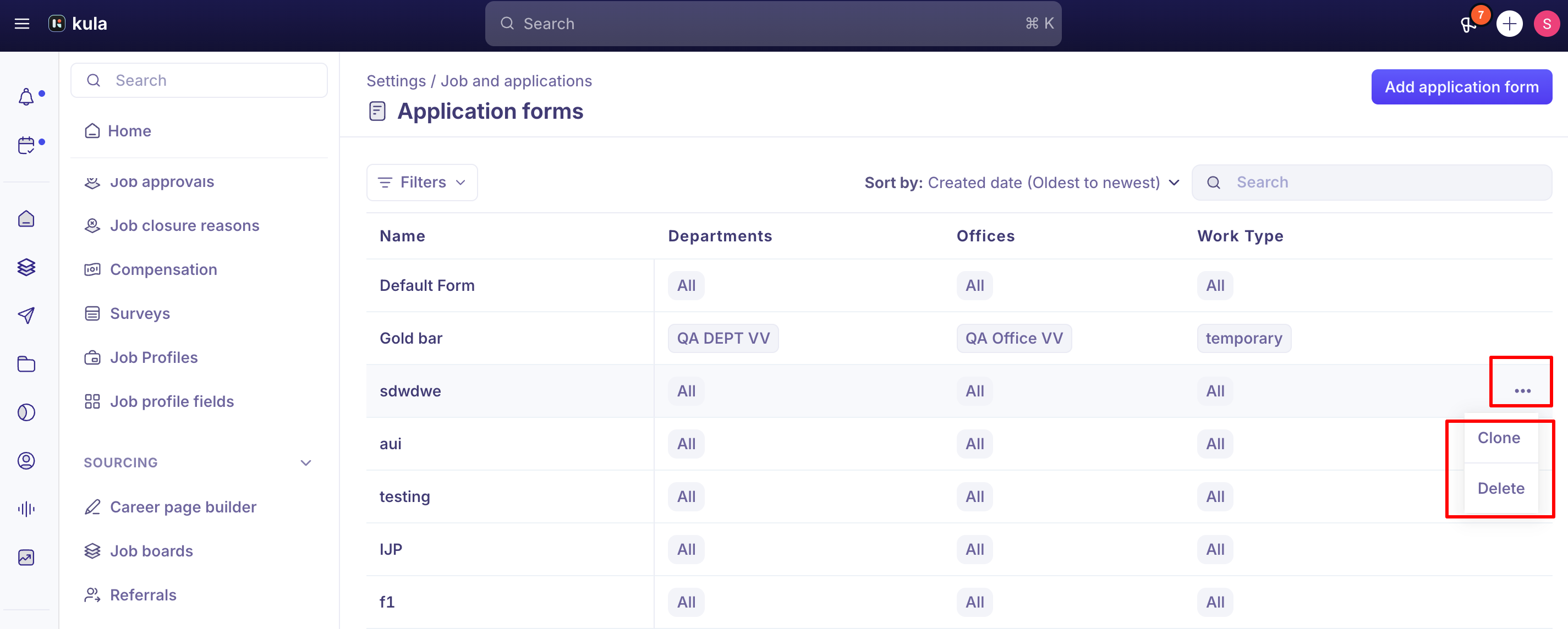
To reuse a form, open the … menu on it in the list and choose Clone, then give the copy a name. To delete one, choose Delete and type DELETE to confirm. A form that a job is using can't be deleted.
Add a question
Open the form template, or the form in the job's Job posting settings.
Go to the section you want, or click Add section.
Click Add field and enter the question as candidates should see it.
Choose the field type. It can't be changed later.
Optionally, add a description or placeholder.
Choose who on your team can see the answer (see "Who sees the answers" below).
Save the field, then save the form.
Field type | Good for |
|---|---|
Short text | Brief answers, up to 255 characters |
Long text | Open-ended answers, such as "Why this role?" |
Single select / Multi select | Choosing from options you set |
Yes/No | Eligibility questions, such as work authorisation |
Number | Years of experience, notice period |
Date | Earliest start date |
URL | Portfolio, GitHub or LinkedIn links |
File upload | Certificates, portfolios or a recorded video answer. Candidates can upload PDF, DOCX, JPG or PNG |
Drag fields to reorder them within a section. To delete a field or a section, use its delete icon. Deleting a section deletes every field in it.
Make a field mandatory, optional or hidden
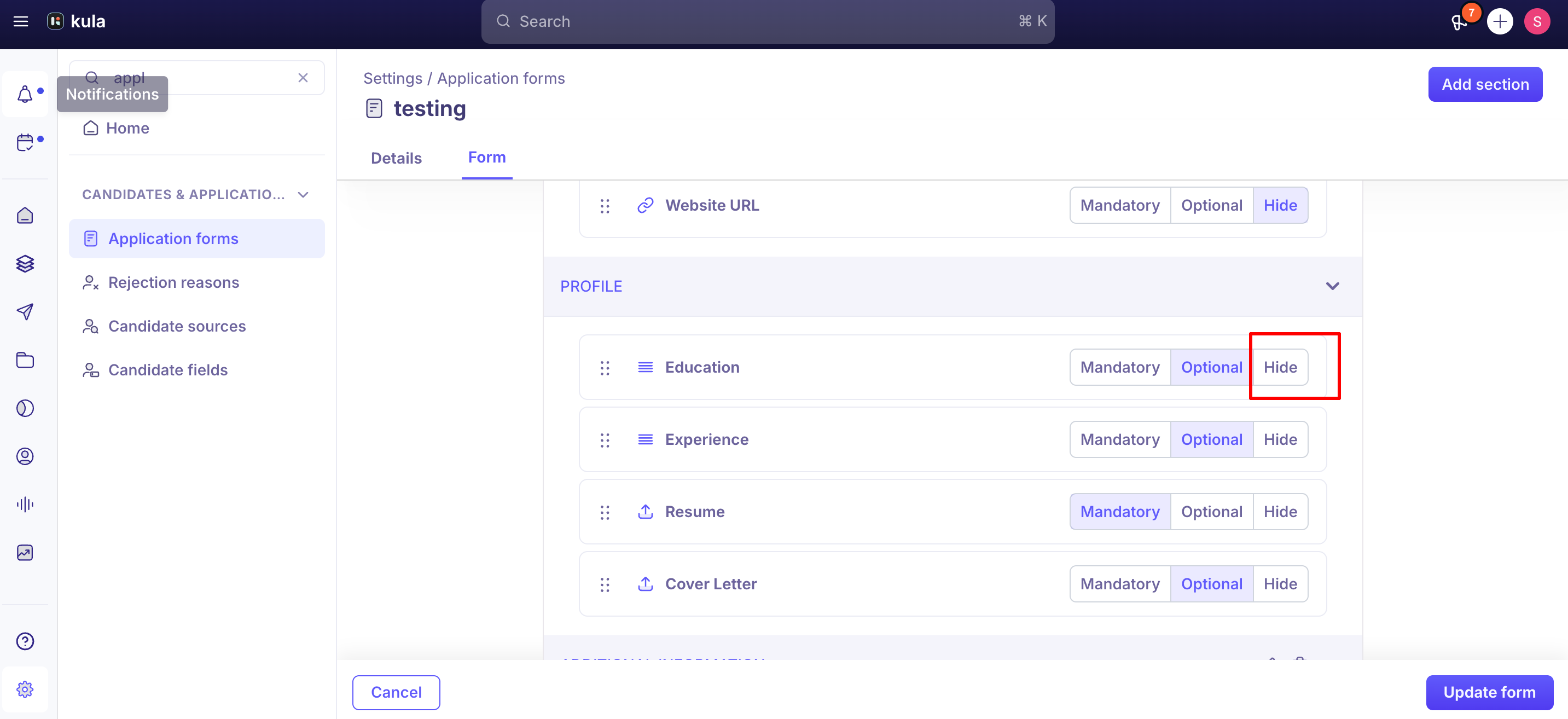
Every field, built-in or your own, has one of three settings:
Setting | Candidates see it? | Must they answer to submit? |
|---|---|---|
Mandatory | Yes | Yes |
Optional | Yes | No |
Hide | No | No |
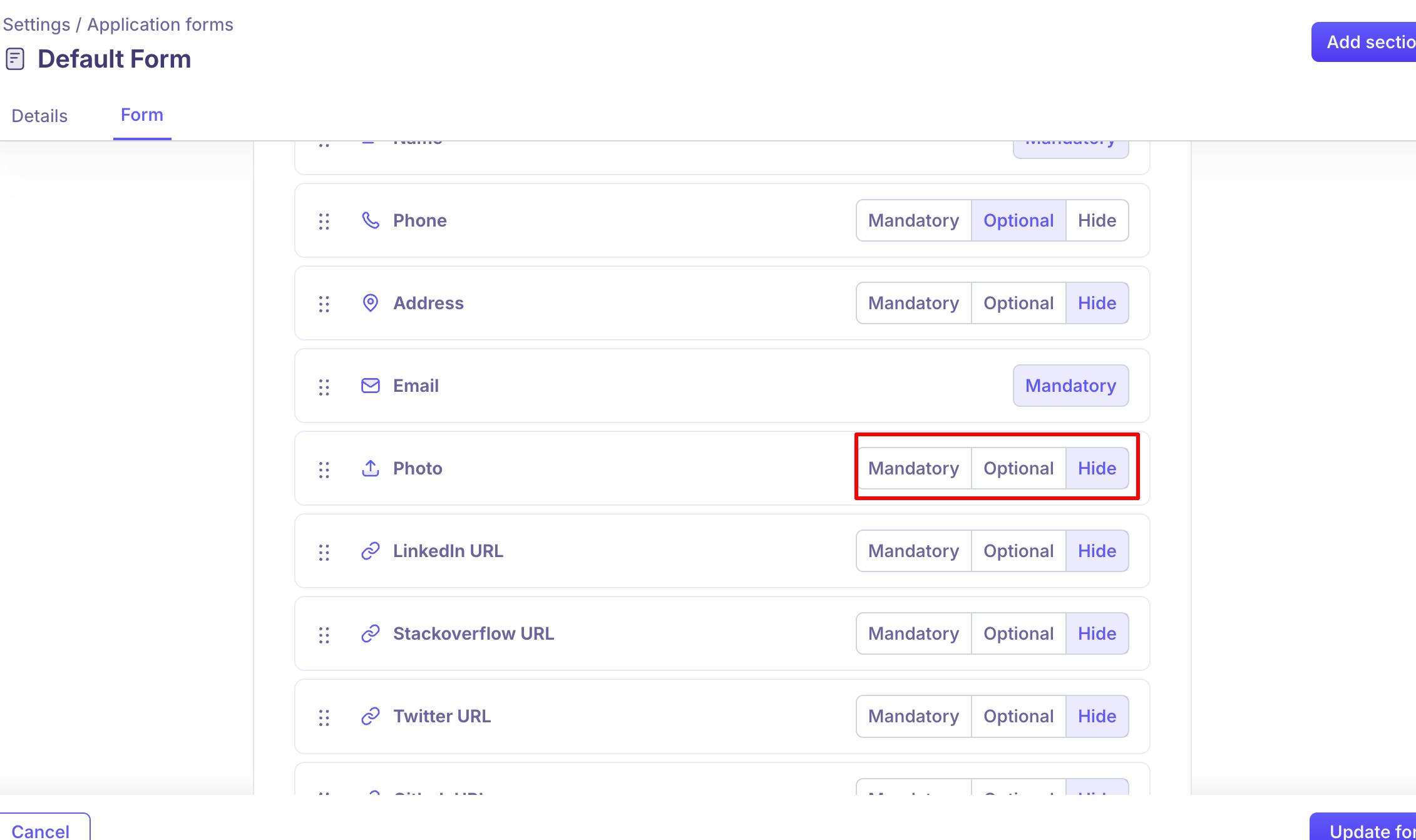
Choose the setting next to each field and save the form. You can change it at any time.
Use Mandatory for what you can't move forward without, such as work authorisation or location for an on-site role. Use Optional for nice-to-haves, such as a portfolio or cover letter. Use Hide for a template field that doesn't apply to this job, since it's easier to bring back than a deleted field.
Assigning a form to a job
While creating a job: open Job Post Settings, and use the Select Application Form Template dropdown to choose the template, then save the job.
On an existing job: open the job's Job Post Settings, edit the assigned application form, and adjust required/optional/hidden settings or add fields as needed, then save.
Changes made at the job level apply only to that job. They don't change the underlying template, and they don't affect any other job using the same template.
The reverse also holds: editing a template in Settings only changes what new jobs get going forward — jobs that already exist keep whatever version of the form they were assigned, until someone edits that job directly.
Cloning and deleting a form
Clone: on the Application Forms list, hover over a form, click the … icon, choose Clone, and give the copy a new name. This is the fastest way to reuse a form's structure for a different department or role type with minor changes.
Delete: hover over the form, click …, choose Delete, and type DELETE to confirm. A form currently assigned to an active job can't be deleted.
Controlling who can see an answer internally
Separately from whether a field is mandatory, optional or hidden from the candidate, each custom field also has a visibility setting that controls which of your own team can see the candidate's answer on their profile.
Recruiters and managers of the job can always see it. You can additionally grant visibility to Hiring managers, Coordinators, and External recruiters/agency users. Super Admins and Admins with the Manage job permission see everything regardless of this setting.
This is the mechanism to reach for when a field is sensitive — current compensation or expected salary are the common real-world examples — and you want it collected but not broadly visible.
If a field needs to stay hidden even from most of the hiring team, the more common workaround is to keep the person who shouldn't see it in an Interviewer role for that stage rather than adding them as a Hiring Manager, since Interviewers only see other interviewers' feedback, not the full application.
Internal vs. external application forms (Internal Job Postings)
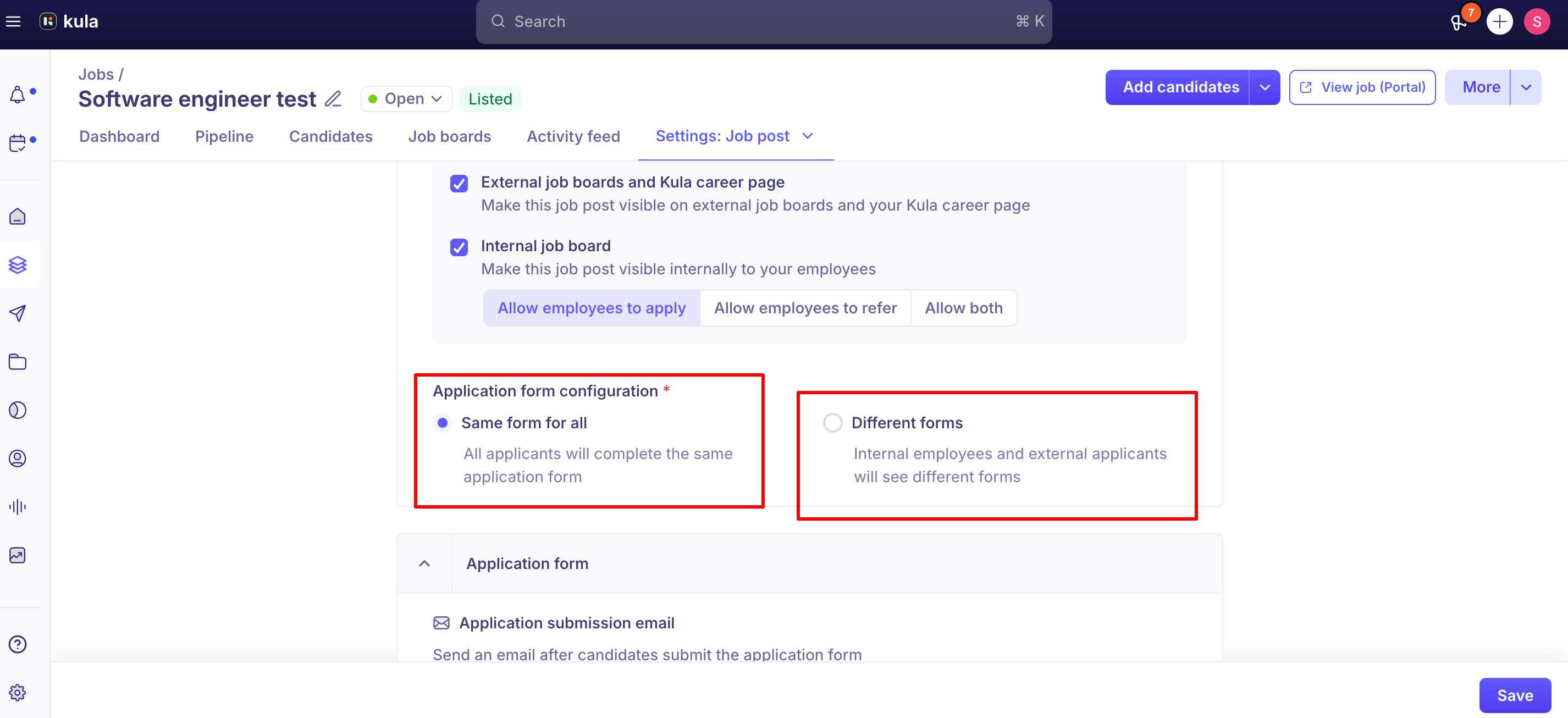
For jobs posted internally, Kula supports assigning a separate application form to internal employee applicants than the one external candidates see on the same job post — useful when the internal application should ask different questions (or none at all) compared to the public one.
Knockout rules only apply to the external form.
Good to know
Template edits are never retroactive. Editing a form template in Settings only affects new jobs created after the edit. Existing jobs keep the version of the form they already had, even if it came from the same template — you have to edit that job's copy directly to change it.
Fields can be reordered within a section, not moved between sections. If a field needs to live in a different section, you'll need to recreate it there and delete the original.
There's no dedicated video-response field type. To collect a video answer, add a question with the field type set to Attachment and ask the candidate to upload their recording as a file — there's no way to restrict the upload to video only or embed a recorder.
Knockout rules currently have to be set up per job — there's no central place to view or manage them across every job at once. You can import a job's rules from a global Application Form template to save re-entering them, but there's no cross-job list or bulk-reuse view today.
AI-scoring auto-rejection and Knockout Questions are two separate systems, and only one of them currently sends a rejection email automatically. A candidate auto-rejected because they scored below an AI threshold does not currently trigger an automatic rejection email — that's only wired up for the Knockout Questions/auto-rejection-rule flow. If you rely on AI scoring to auto-reject, plan on sending those rejection emails manually for now.
Cloning a form template may not copy its knockout rules. Check them on the cloned form.
Removing the default Education and Experience fields from an existing account isn't currently available.
If you're building a fully custom application experience against Kula's Job Boards API rather than using the Kula-hosted form, note that the public API reference doesn't fully document the Education and Experience field formats on the submit-application endpoint — contact support for the exact schema if you hit this gap.
FAQ
Can I edit a form after it's already assigned to a job? Yes — open the job's Job Post Settings and edit the application form directly. That change only affects this job.
If I update the template, does it change forms on jobs that already exist? No. Template edits in Settings only apply to jobs created after the change. Jobs that already exist keep the form version they were assigned until you edit that job directly.
Can I stop certain people on the hiring team from seeing a candidate's answer to a specific question, like expected salary? Yes — set that field's visibility to only Recruiters and managers of the job, rather than extending it to Hiring managers, Coordinators or agency users. For someone who needs interview access but shouldn't see the full application, adding them as an Interviewer rather than a Hiring Manager is the more common workaround.
Can candidates submit a video response to a question? Not as a dedicated field type. Add the question as an Attachment field and have candidates upload a video file instead.
Where do I set up auto-rejection / knockout questions? Under Settings → Application Forms for rules that apply globally, or under a specific job's Job Post Settings for rules scoped to that job only.
Need help?
If you have questions or need help setting up an application form or knockout rules, reach out to us at support@kula.ai or use the in-app chat.