Assigning reviewers to applications
Last updated: September 24, 2026
Get structured feedback on candidates from teammates who aren't interviewing them, for example a hiring manager screening resumes or a designer reviewing portfolios. Add a review to a stage, choose the reviewers, and Kula asks them for a scorecard whenever a candidate reaches that stage.
Who can do this: anyone who can edit the job's interview plan
Where to find it: the job's interview plan → a stage → Add review
Add a review to a stage
Open the job and go to its interview plan.
Expand the stage you want. Reviews work in any stage, and are most often used in Prospect or Application Review to screen before interviews.
Click the add-activity button and choose Add review.

In Review name, enter a name (required, up to 250 characters).
In Add reviewers, choose people, or a hiring-team role that fills in per job: Recruiters (on job), Hiring Managers (on job), Coordinators (on job), Primary Recruiter (on job) or Primary Hiring Manager (on job).
If there's more than one reviewer, choose how many must submit next to Require:
- All — everyone
- Any one — the first to submit completes it
- At least [N] — shown when you've added three or more people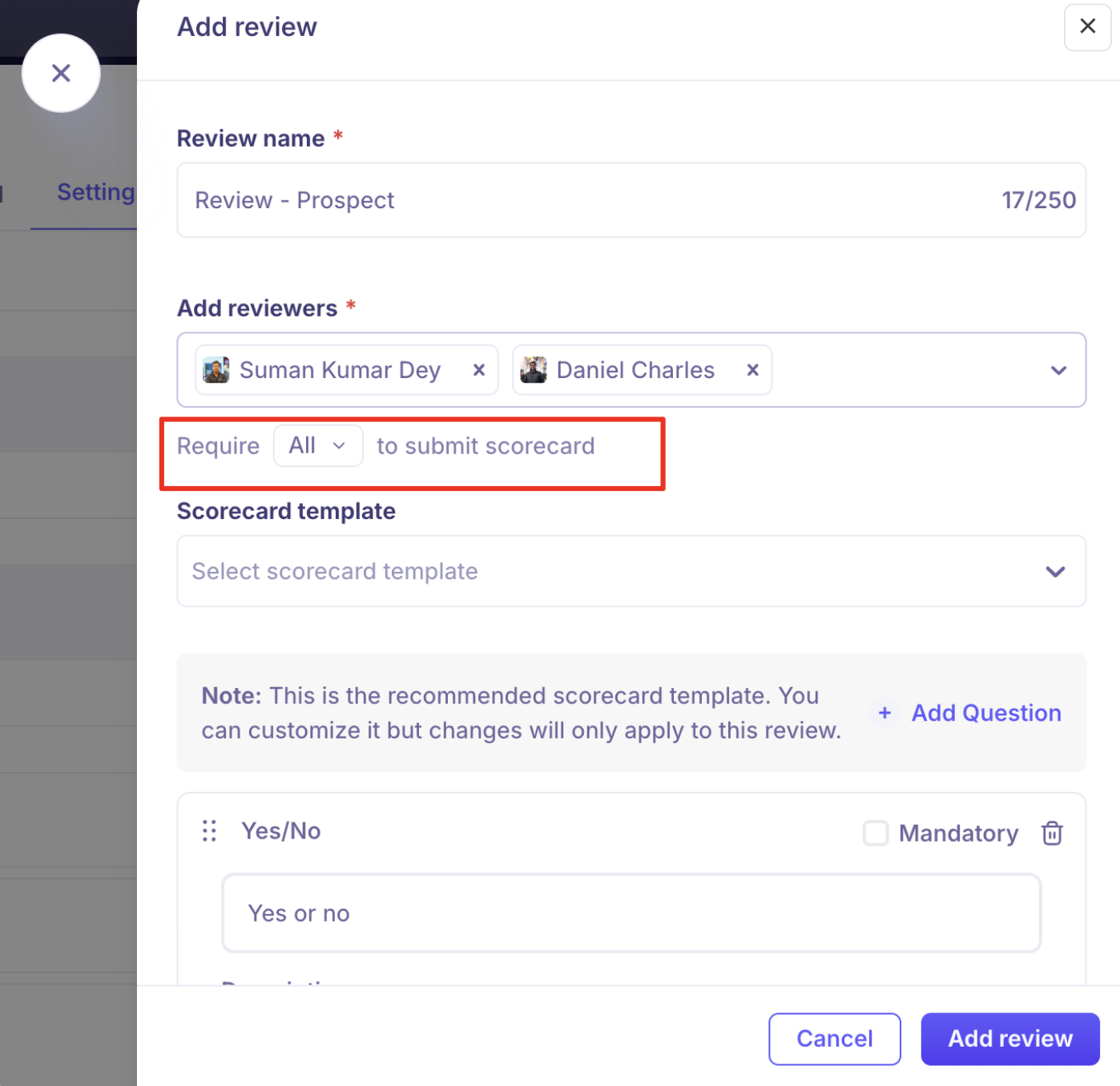
Choose a scorecard. Kula suggests one and fills in its questions. You can change the questions here without changing the template.
Click Add review.
What happens next
When a candidate reaches the stage, each reviewer is notified and the candidate appears in their queue. Reviewers open the candidate and submit their scorecard, and Kula reminds anyone who hasn't responded.
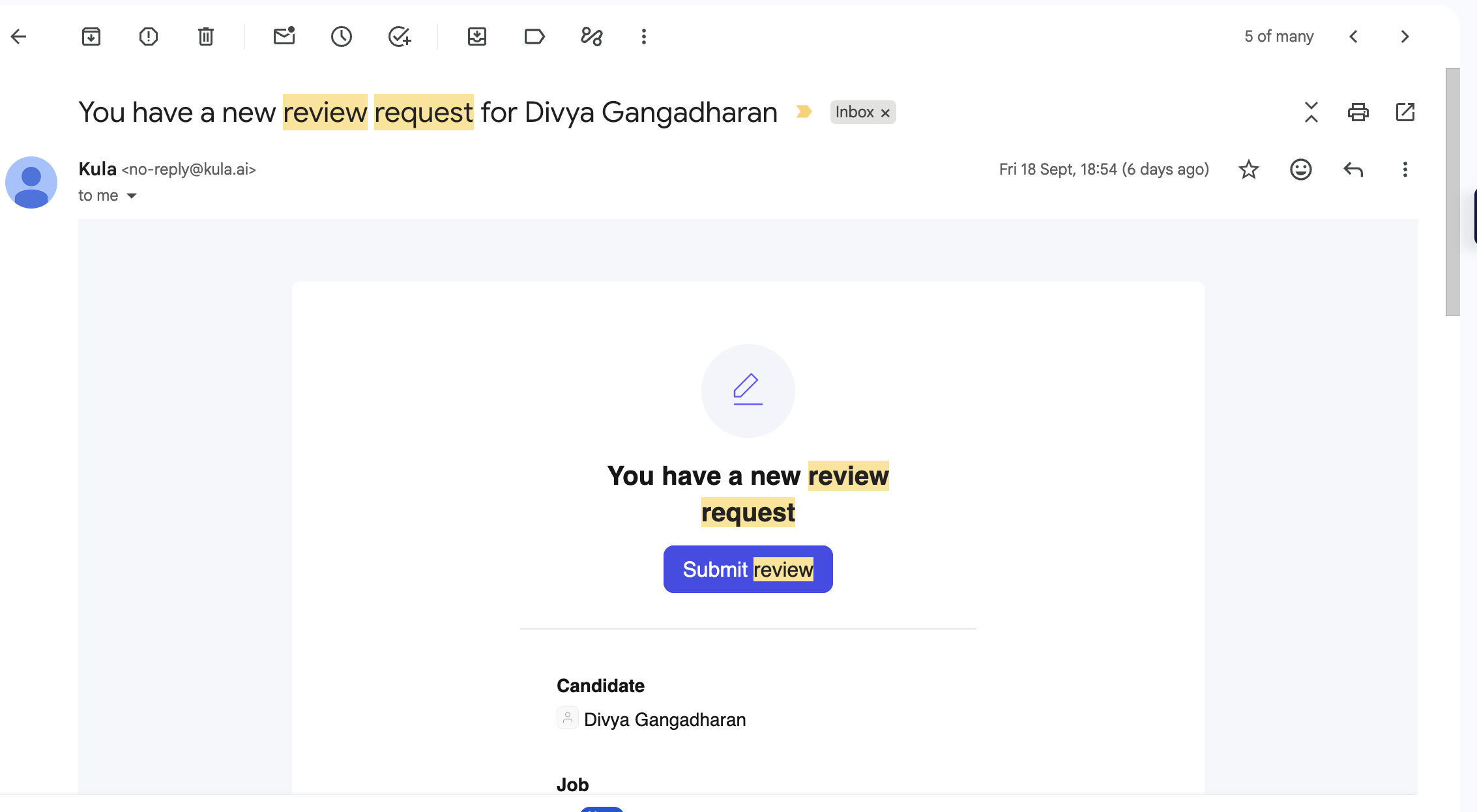
While waiting, the candidate's status is Awaiting feedback. Once enough scorecards are in, it changes to Needs decision.
Ask for a one-off review
A review in the interview plan applies to every candidate in that stage. To loop someone in for just one candidate:
Open the candidate's application.
From its actions menu, choose Send review (ad-hoc).
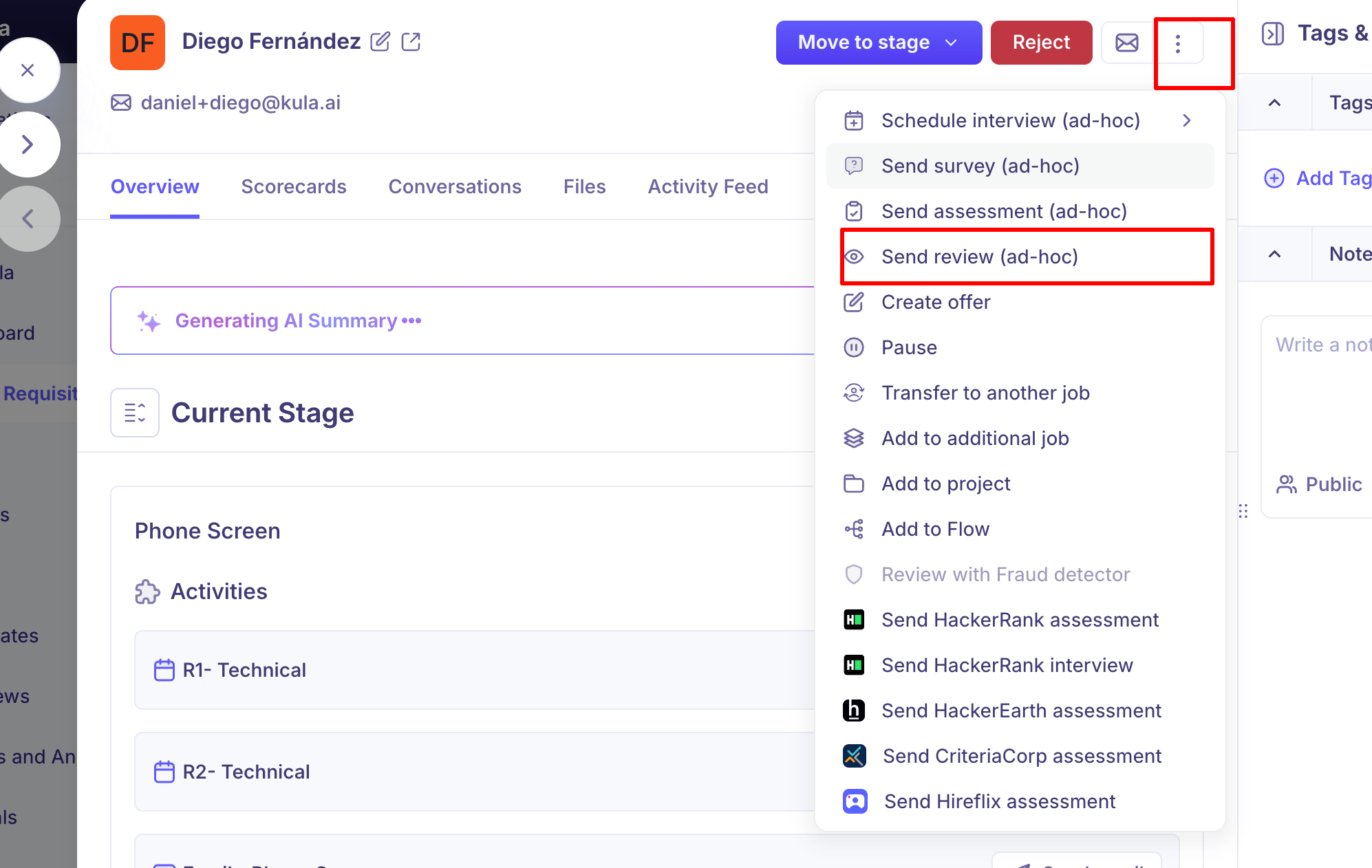
Choose the reviewer and scorecard, then send it.
Good to know
Reviewers are the same for everyone in the stage. For a different reviewer on one candidate, use Send review (ad-hoc).
Reviews don't block you. You can move or reject a candidate before all feedback is in.
Any active user can review. They don't need to be on the job's hiring team.
FAQs
Can I customise the scorecard for one review? Yes. Edit its questions when adding the review. The template doesn't change.
Can reviews go on later stages? Yes, any stage in the interview plan.
What does the candidate show while we wait? Awaiting feedback, then Needs decision once enough reviewers have submitted.
Need Help?
If you have questions or need assistance with setup, feel free to reach out to us at support@kula.ai or use the in-app chat for assistance.