Attaching files and notes
Last updated: September 26, 2026
Beyond a resume, you'll often want to keep documents and context with a candidate — an extra file, a private observation, feedback for a specific interview.
This article covers where files and notes live and who can see them.
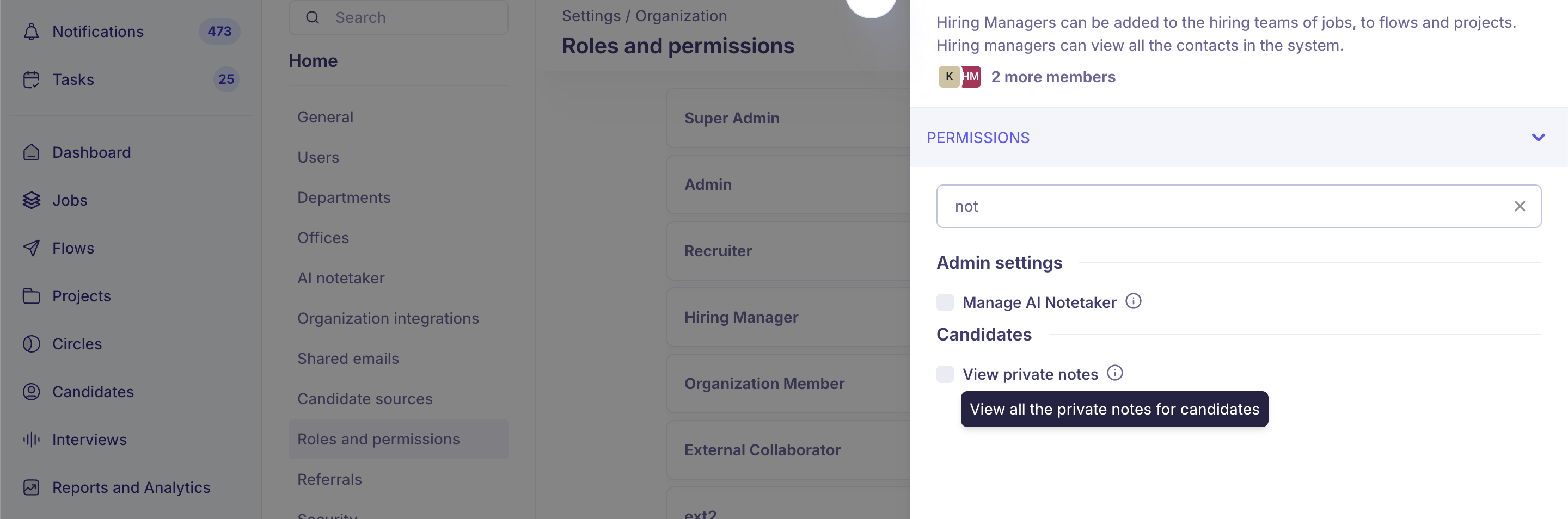
Who can do this: Any user with access to a candidate profile or a job application can add files and notes there. To see a private note, you need to be its author, be @-tagged in it, or hold the View private notes permission (Super Admin has it by default).
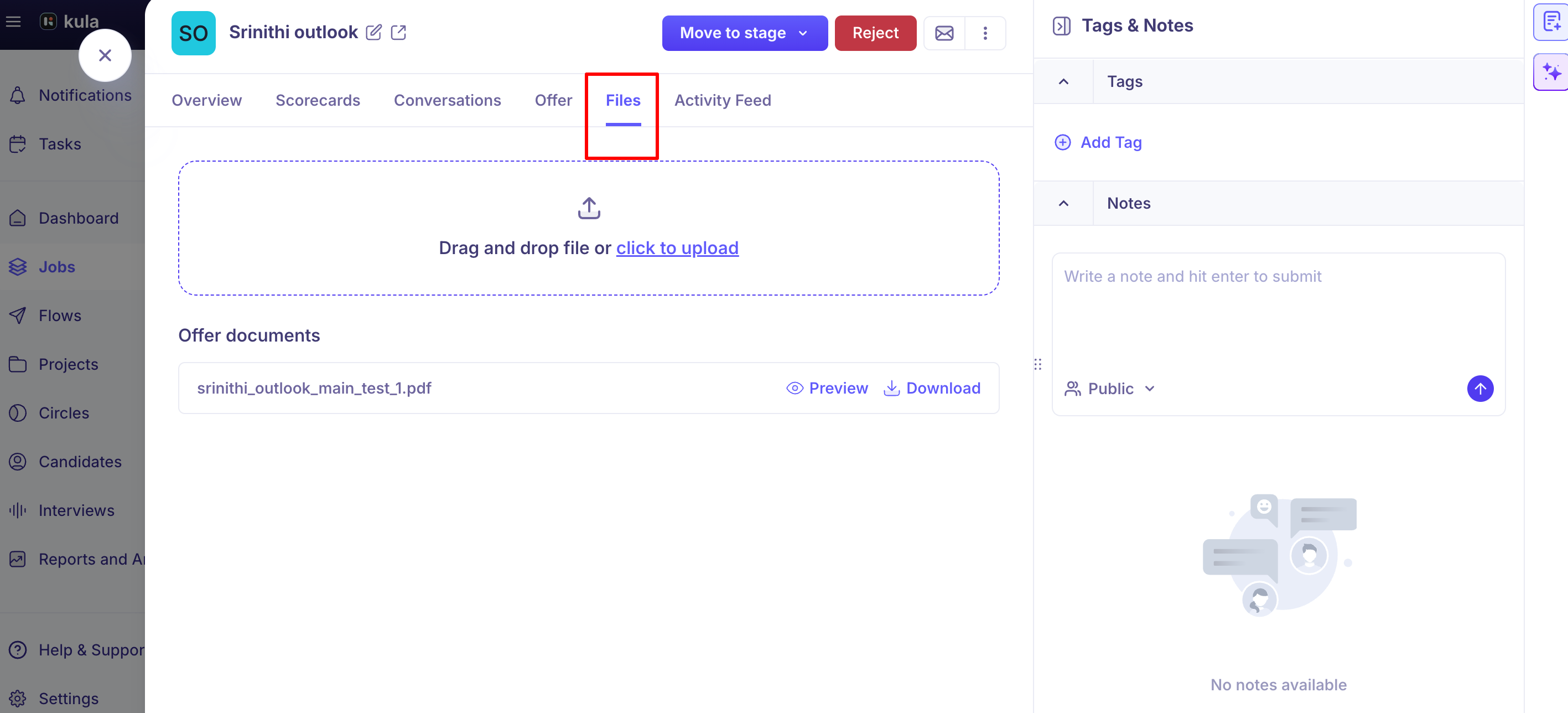
Where to find it: The Files tab
Attaching files
Files live at the Contact or Application level, separate from the resume that was uploaded or parsed on creation.
Email attachments can be added to Files directly. From the Conversations tab (on either the candidate profile or a job application), an "Add to Files" button lets you save an attachment that was sent or received by email into that candidate's Files section — no need to download and re-upload manually.
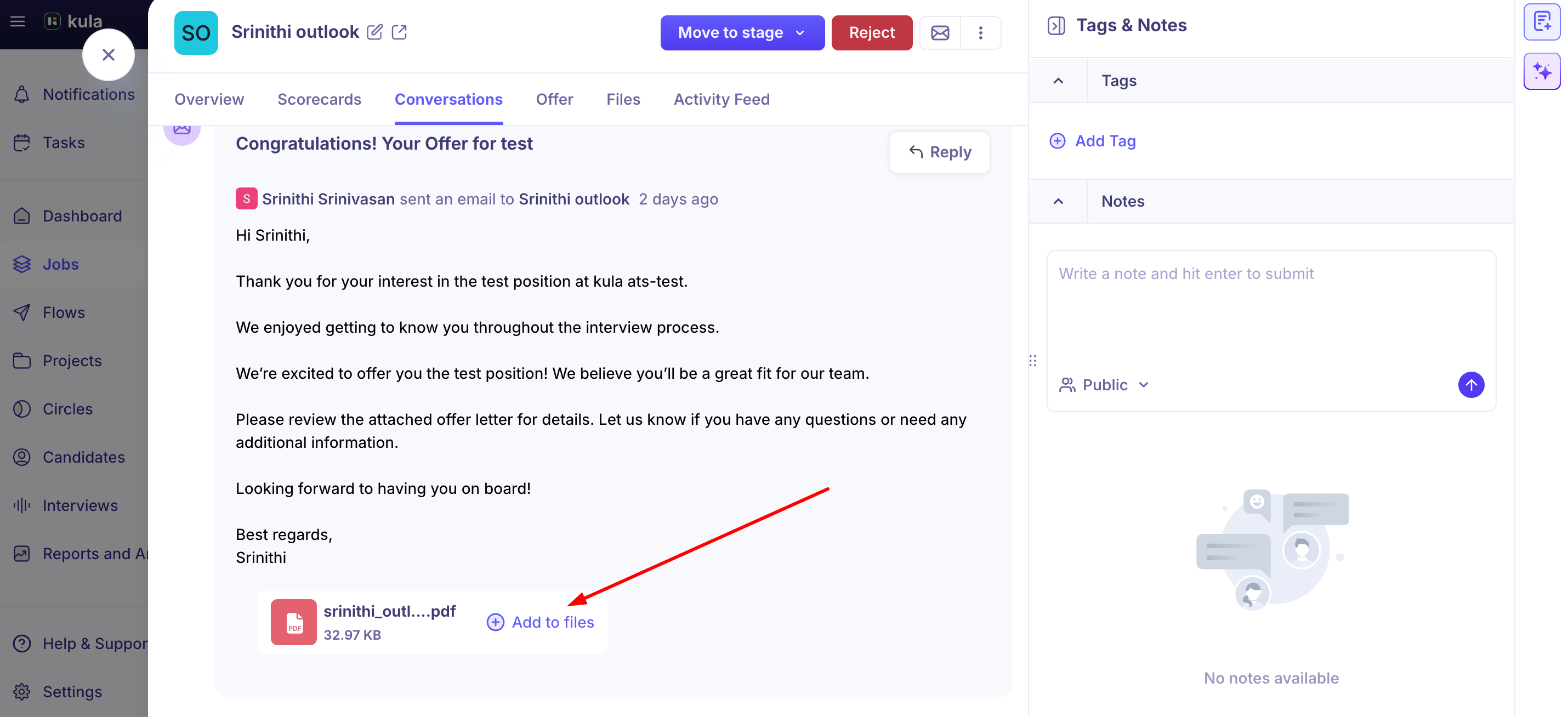
This only works for job-linked conversations. The "Add to Files" option is hidden for adhoc or standalone emails that aren't tied to a specific job application.
Attachments a candidate sends back in an email reply are tracked too, not just what your team sends out.
Email attachments can be up to 15 MB in total. You can attach any number of files to an email (including offer-related emails), as long as they add up to less than 15 MB.
Notes: three levels, three audiences
Notes exist at three different levels, and each has a different visibility scope:
Contact-level notes — visible to anyone who has access to that contact (recruiters, hiring managers, admins).
Application-level notes — visible only to the hiring team on that specific job, plus admins.
Interview-level notes — visible only to the specific interviewer, the hiring team on that job, and admins.
These levels are deliberate and don't merge automatically. If a candidate reapplies for a new role, the Notes tab on their new application won't show notes from their earlier application or their Contact-level notes — you'd need to check the candidate profile separately to see that history. This is expected behavior, not a bug, though it's a common point of confusion for recruiters working with repeat candidates.
Private notes
Marking a note private restricts it to: the person who wrote it, anyone with the View private notes permission (Super Admin by default), and anyone explicitly @-tagged in that specific note.
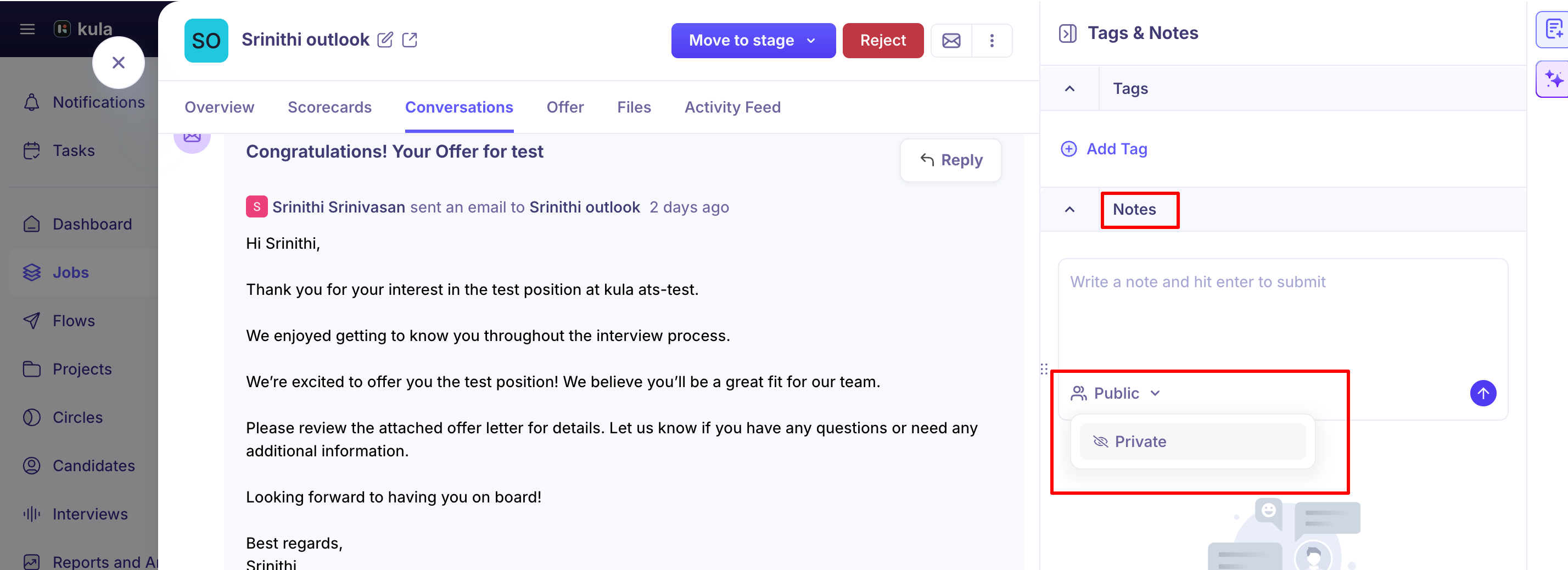
Admins without the private-notes permission can see public notes only — private notes stay hidden from them unless they're tagged in a specific one.
Tagging someone in a private note is the supported way to share a specific note with someone who wouldn't otherwise see it — for example, handing off context to a colleague while you're out. It grants access to that one note, not to all of your private notes generally.
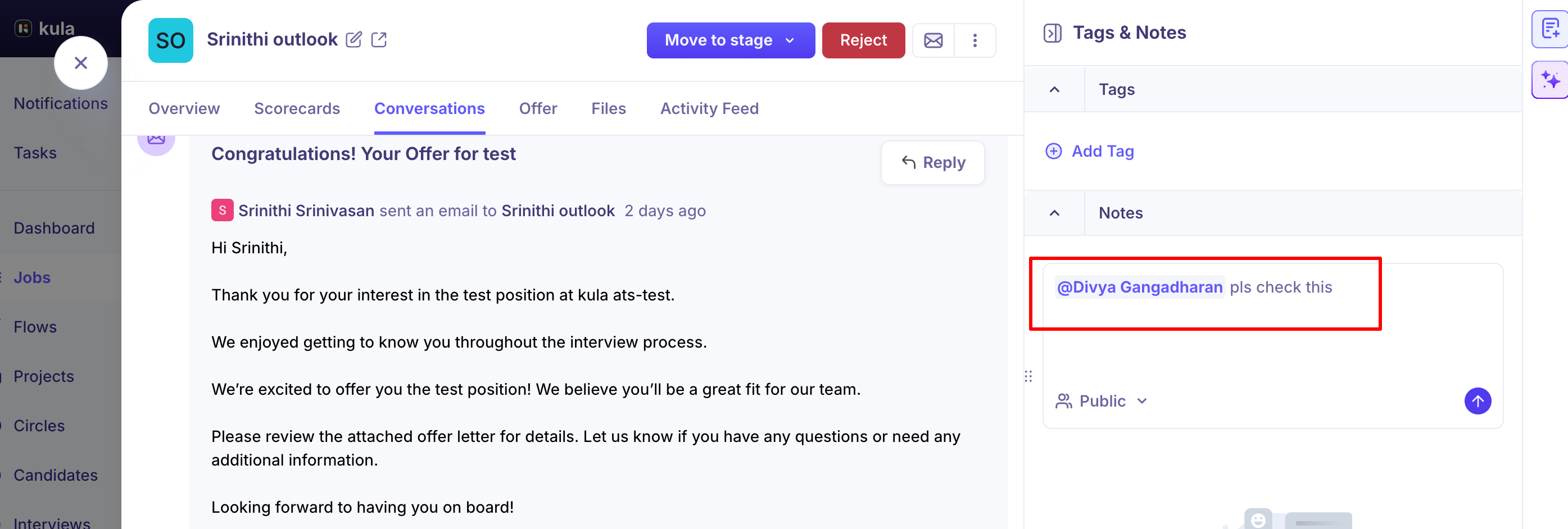
Tagging someone doesn't give them access
When you tag someone in a note, they get an email and an in-app notification with the note's text. To be sure they can also open the note in Kula, give them access to the job or candidate — for example, add them to the job's hiring team rather than only to one interview.
Good to know
A note has to be submitted, not just typed. If you type a note and navigate away before pressing Enter (or otherwise confirming it), the note is never saved — it can look like your note "disappeared," but nothing was actually deleted; it just never reached the server.
Files and notes (both public and private) carry over when a candidate is transferred between jobs. This is different from some other job-specific items — like scheduled or in-progress interviews and pending emails — which don't transfer.
Notes feed into AI-generated candidate summaries. If your account has the AI Assistant enabled, it can read and summarize notes (respecting private-note permissions) alongside interviews and activity when answering questions about a candidate.
FAQ
Where do I attach a file to a candidate? From the Files tab on the candidate profile or the job application, or via "Add to Files" on an email attachment in the Conversations tab (job-linked conversations only).
Can I see notes from a candidate's earlier application when reviewing them for a new role? Not automatically — application-level notes are scoped to that specific application. You'd need to check the candidate's candidate profile separately to see notes from other applications or the contact record itself.
I marked a note private — who can actually see it? Just you, anyone with the "View all private notes" permission (Super Admins by default), and anyone you explicitly @-tag in that note.
I tagged someone in a note but they say they can't see it — what's going on? They still get an email and notification with the note's text. To open the note in Kula, they need access to the job or candidate — add them to the job's hiring team.
Do notes and files carry over if I transfer a candidate to another job? Yes — notes (public and private), files, conversations, and activity history all transfer with the candidate. Scheduled or in-progress interviews and pending emails do not.
Need help?
If you have questions or need assistance, reach out to us at support@kula.ai or use the in-app chat.