Coordinator templates and tone
Last updated: September 25, 2026
Context templates are what the Coordinator Agent knows. Without them it can book a time and little else; with them it can answer the questions candidates actually ask on the phone. This article covers writing and managing templates, and how the agent's tone is controlled.
Who can do this: Super Admin, Admin, Recruiter
Where to find it: Settings → AI Teammates → Coordinator Agent → Context
What to put in a template
The most useful templates answer one candidate question each. Give each template a name that is the question, so anyone setting up a job can see at a glance what the agent will be able to talk about.
Templates teams write in practice:
Template | What it holds |
|---|---|
Why join now? | What's happening at the company that makes this a good moment — funding, growth, a new market, a product launch. |
About the people | Who the candidate would work with, the team's background, how it's structured. |
What you'll gain? | Growth, scope, learning, progression — what the candidate gets out of the role. |
Why join [company]? | Your mission, what makes you different, why people choose you over competitors. |
Who thrives at [company]? | The kind of person who does well — working style, values, what the culture rewards. |
Our interview process | How many stages, how long each takes, who the candidate meets by role, when they'll hear back. |
Write each as briefing notes for a new coordinator on their first day: plain sentences, no jargon, and only things you're happy for a candidate to hear.
Keep internal information out. Anything in a template is material the agent may say out loud on a call. Salary bands, scorecard guidance, hiring-manager opinions and internal deadlines don't belong here: anything in a template can be repeated to candidates.
Create a template
Go to Settings → AI Teammates → Coordinator Agent.
Open the Context tab.
Click Create template.
Enter a Name of the template. Phrase it as the question it answers — "Why join now?" beats "Template 2", because it's what people pick from a dropdown when setting up a job.
Write the Template content. Both fields are required; leaving the content empty shows "Template content is required" and blocks the save.
Click Save template.
To write several in one sitting, tick Create another one after saving before saving. The drawer stays open with a fresh form.
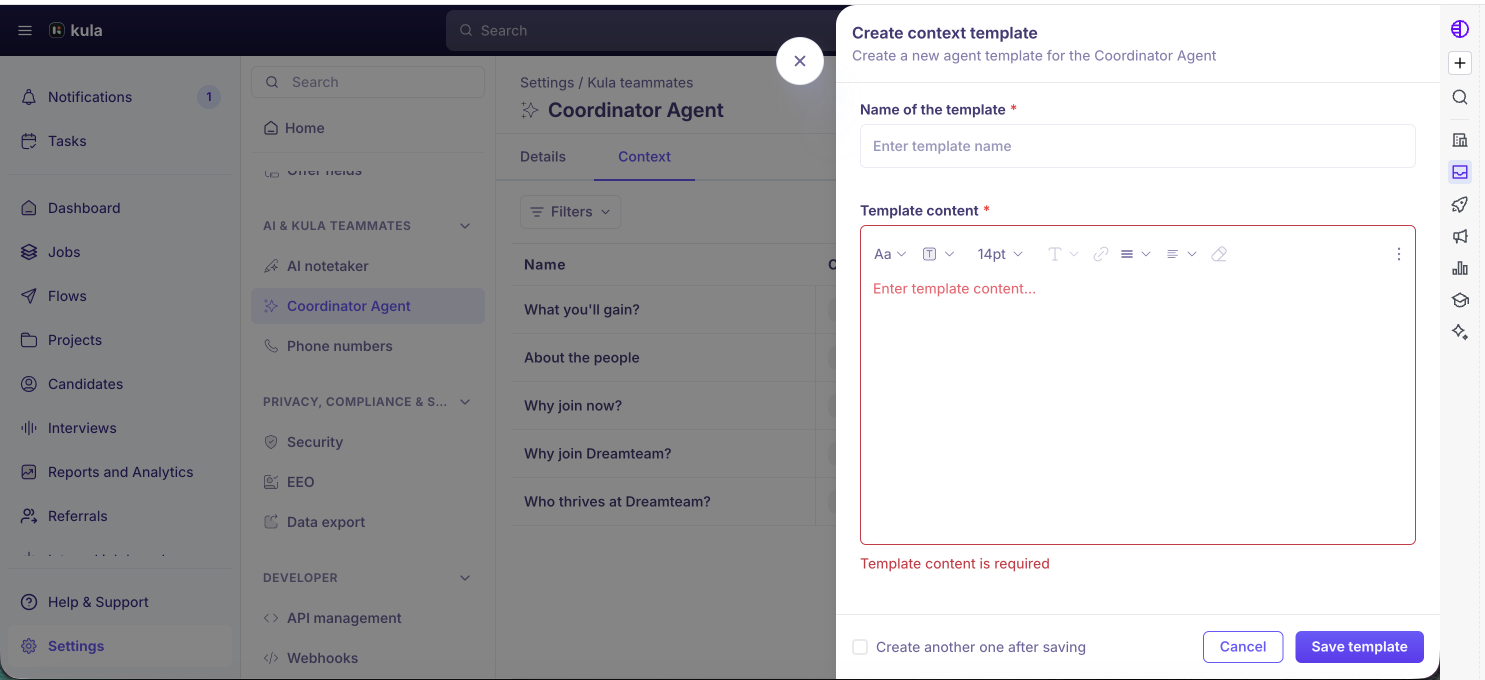
The content box has a formatting toolbar — font, size, colour, links, lists and alignment. The agent reads this aloud, so formatting has no effect on what a candidate hears. Use it to keep long templates readable for your own team; don't spend time styling.
Manage your templates
The Context tab lists every template with its Name, Created Date and Owner. Click a name to open and edit it. Use the search box and filters to find one when the list grows.
Action | What it does |
|---|---|
Clone | Makes a copy called "Copy of template name". Handy for a variant — clone "About the people" and adjust it for a different team. |
Archive | Removes the template from the list. This is permanent. |
Editing a template updates it everywhere. Every job that has it selected picks up the new wording on the next call — useful when your process changes, but worth remembering before you edit something used across twenty jobs.
How the agent's tone is set
There is no tone setting. Two things decide how the agent comes across, and both are in your control.
What you change | What it affects | Where |
|---|---|---|
Agent voice | How the agent sounds — accent and gender. American, British, Australian and Indian accents, each with a sample you can play. | Settings → AI Teammates → Coordinator Agent → Details for the default; any job can override it. |
How you word templates and additional context | How the agent speaks — warm or brisk, formal or conversational. | This page, and the Additional context box on each job. |
So tone is a writing job, not a setting. If you want the agent to sound warmer, write the context the way a warm recruiter would talk: shorter sentences, plainer words, and a line about what happens next. If you need it more formal, write it more formally. The agent takes its register from the material you give it.
Good to know
Archiving cannot be undone. Kula asks you to confirm, and the confirmation says so plainly.
Template names must be unique. A duplicate name shows the error on the field rather than as a toast.
Only published templates appear in the job picker. A draft won't show in the Context template dropdown when someone adds the Coordinator to a job.
Each template can be selected once per job. The Add another template button stays disabled until the current row has a selection, and once every template is already used.
FAQ
Where do I put what the agent should say about our company? In a context template here — one per question, named after the question, such as "Why join now?" or "About the people". Then select the ones you want on each job. Anything about a single role goes in that job's Additional context for the agent box instead.
How many templates should we write? Start with the questions your recruiters answer most on first calls — usually why join, who the team is, what the candidate gains, and how the process runs. One template per question keeps them reusable, since different jobs can pick different combinations.
Does formatting in the template change how the agent speaks? No. The agent reads the content aloud, so bold text, colours and font sizes make no difference to the candidate. Formatting only helps your team read a long template.
Can I make the agent sound more formal? There's no tone control. Change how it sounds by picking a different Agent voice, and how it speaks by rewriting your template content in the register you want.
Is anything I write here safe from the candidate seeing it? No — treat everything in a template as something the agent may say on a call. Keep salary bands, scorecard guidance and internal notes out entirely.
I archived a template by mistake. Can I get it back? No, archiving is permanent. Recreate it under the same name, or clone a similar template and edit it.
Why can't I see my template when adding the Coordinator to a job? The job picker only lists published templates, so a draft won't appear.
If I edit a template, do jobs already using it change too? Yes — immediately, everywhere it's selected. Clone it and edit the copy if you only want the change on some jobs.
Need help? If you have questions or need assistance, reach out to us at support@kula.ai or use the in-app chat.