Creating your first custom report
Last updated: March 25, 2026
Build tailored reports to track the metrics that matter most to your hiring process. Custom reports let you combine multiple data points, apply filters, and visualize insights in one place—without relying on external tools
Overview
Custom reports in Kula help you:
Track key hiring metrics across your pipeline
Combine multiple report blocks into a single view
Apply filters to analyze specific segments
Monitor performance over time with flexible date ranges
Instead of switching between multiple reports, you can create a single, consolidated view of your data.
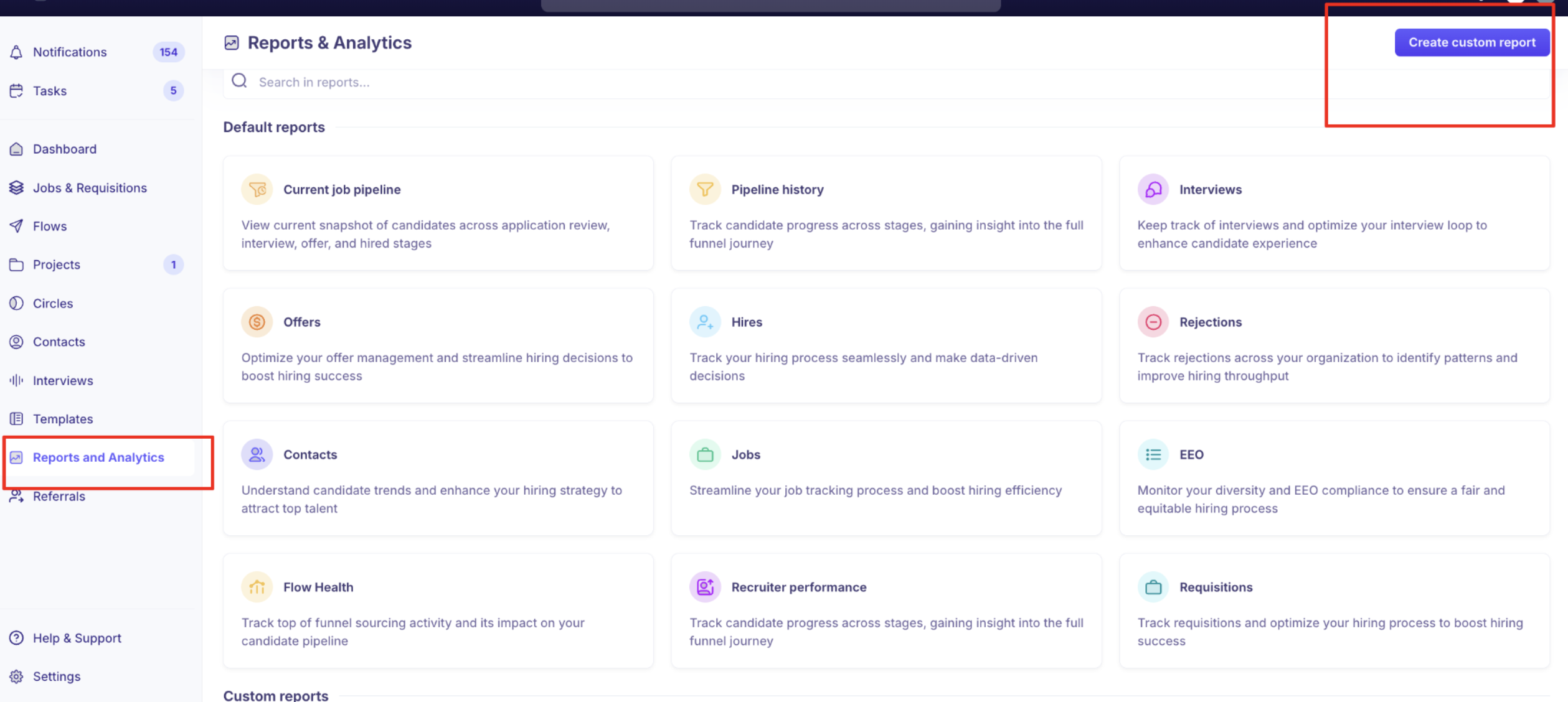
Step 1: Navigate to Reports & Analytics
Go to Reports and Analytics from the left sidebar
Click Create custom report in the top-right corner
Step 2: Add report details
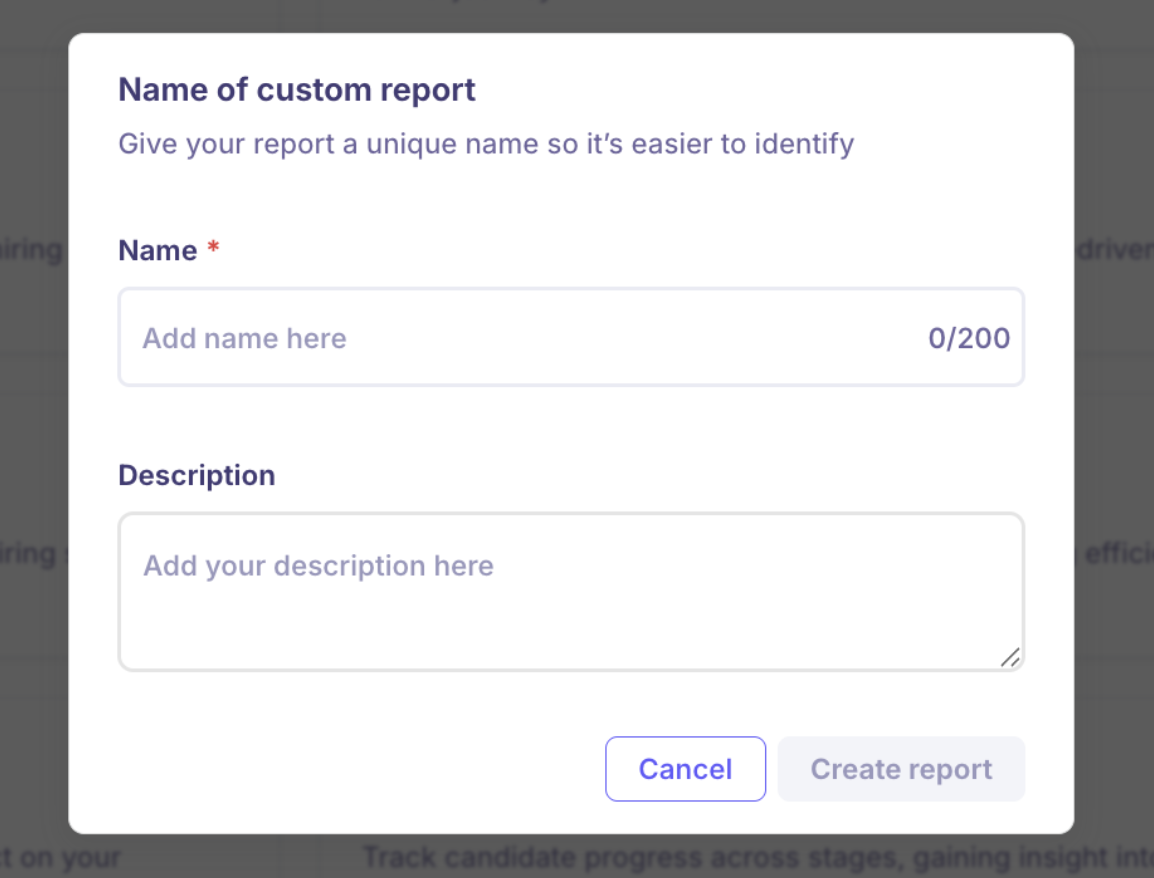
Enter a Name for your report
(Optional) Add a Description
Click Create report
This helps you easily identify and reuse reports later.
Step 3: Add report blocks
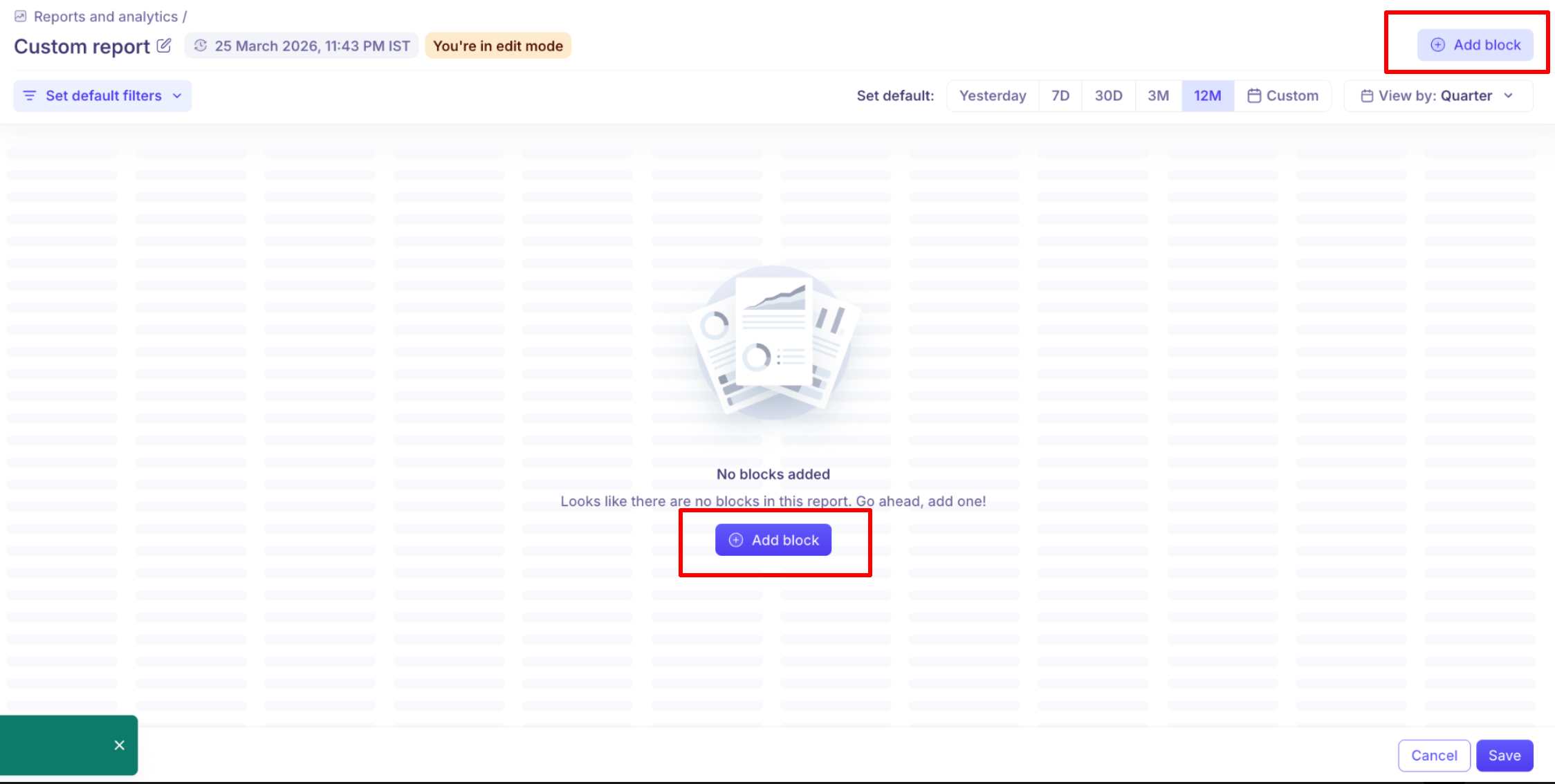
After creating your report, you can add blocks to visualize different parts of your hiring data.
Click Add block
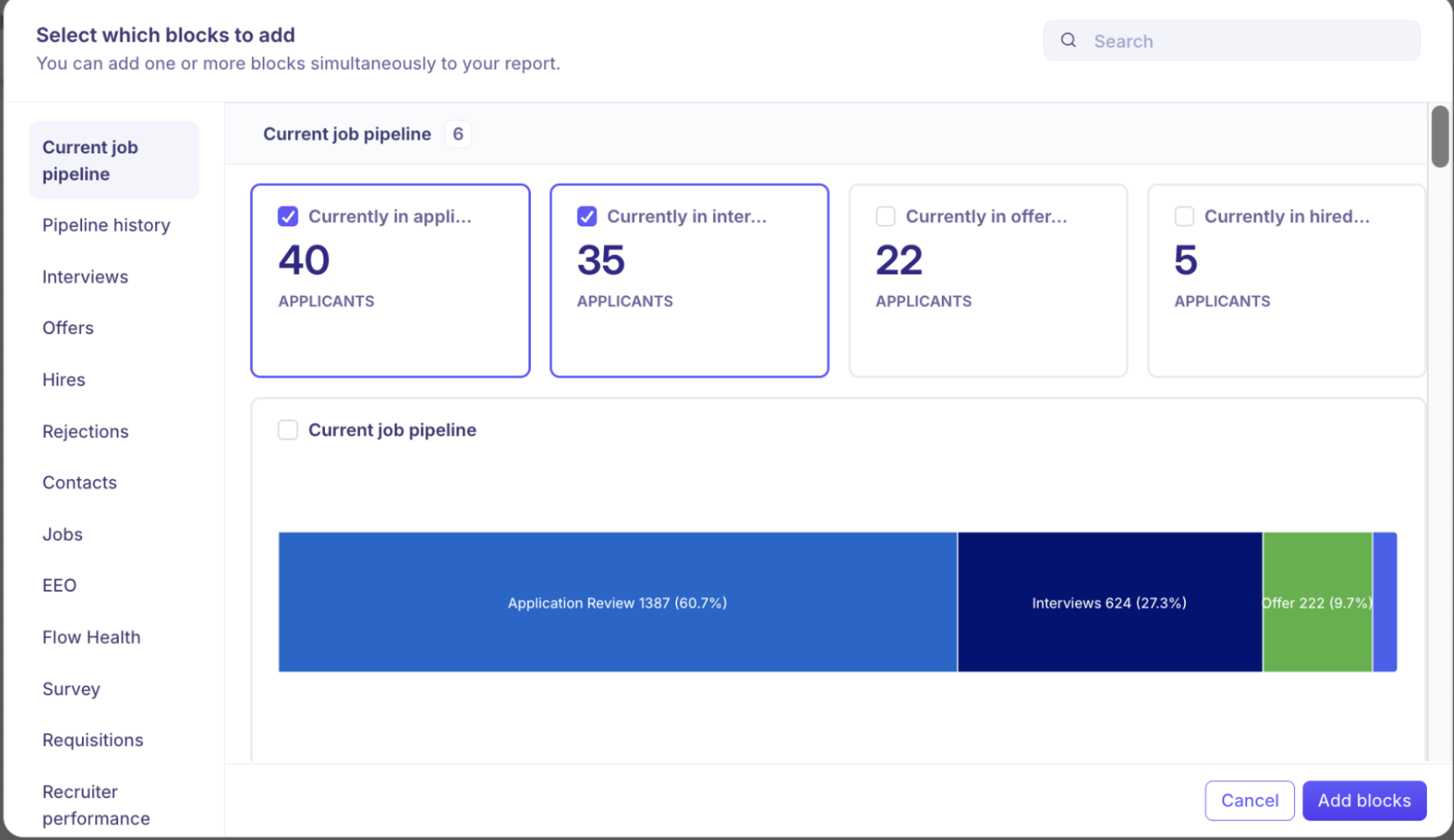
Browse or search for blocks
Select one or more blocks
Click Add blocks
Available report blocks
Kula provides a variety of blocks to help you analyze different stages of your hiring process:
Current job pipeline – Snapshot of candidates across stages
Pipeline history – Track movement of candidates over time
Interviews – Monitor interview activity and performance
Offers – Analyze offer rollouts and conversions
Hires – Track successful hires and hiring trends
Rejections – Understand rejection patterns
Contacts – Analyze candidate database and engagement
Jobs – View job-level performance and metrics
EEO – Monitor diversity and compliance metrics
Flow Health – Track funnel efficiency and bottlenecks
Survey – Analyze feedback and survey responses
Requisitions – Monitor hiring requests and approvals
Recruiter performance – Evaluate recruiter activity and outcomes
💡 You can add multiple blocks to a single report to create a comprehensive dashboard.
Step 4: Apply filters
Use filters to refine your report data:
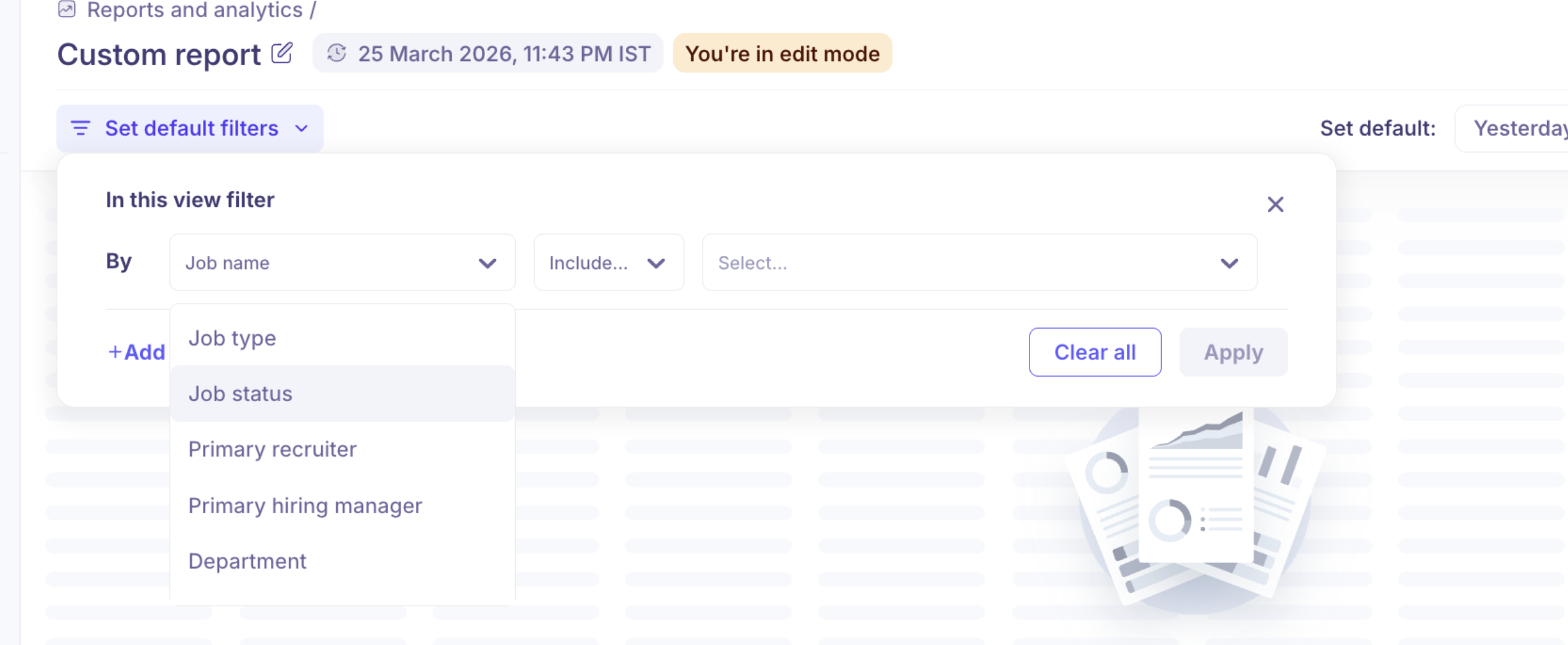
Click Set default filters
Choose a field like:
Job name
Job status
Department
Hiring manager
Office
Select:
Include any → match any selected values
Exclude all → remove specific values
Click Apply
👉 This lets you “slice and dice” your data without creating multiple reports.
Step 5: Set date range and view
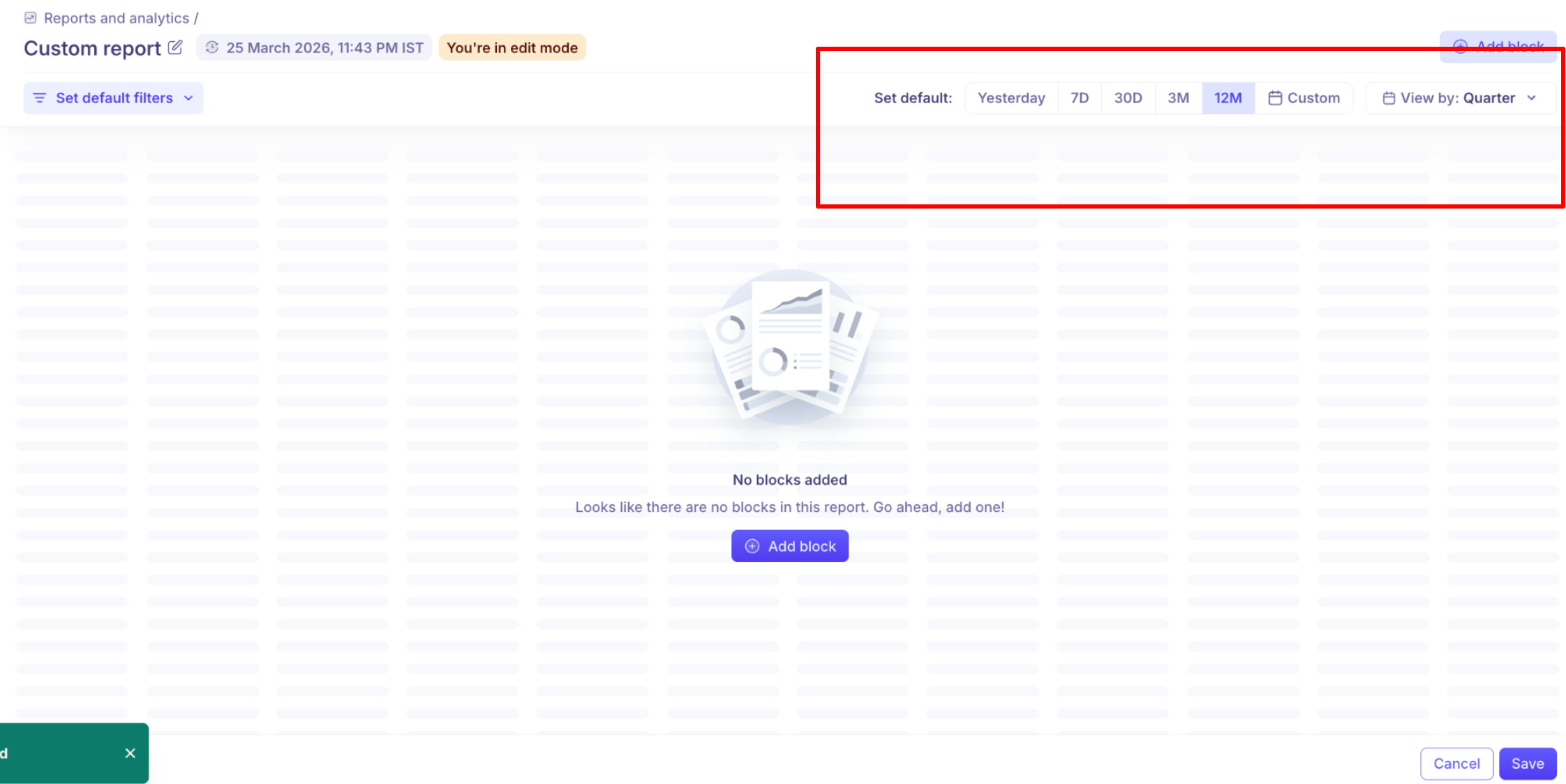
At the top of the report, you can:
Choose predefined ranges:
Yesterday
7D / 30D
3M / 12M
Use Custom for specific dates
Change View by (e.g., weekly, monthly, quarterly)
This helps you analyze trends over time.
Step 6: Save your report
Once you’ve added blocks and filters:
Click Save
Your custom report will now be available under Custom reports
Step 7: Manage your report (optional)
Once your report is saved, click More in the top-right corner to access additional options:
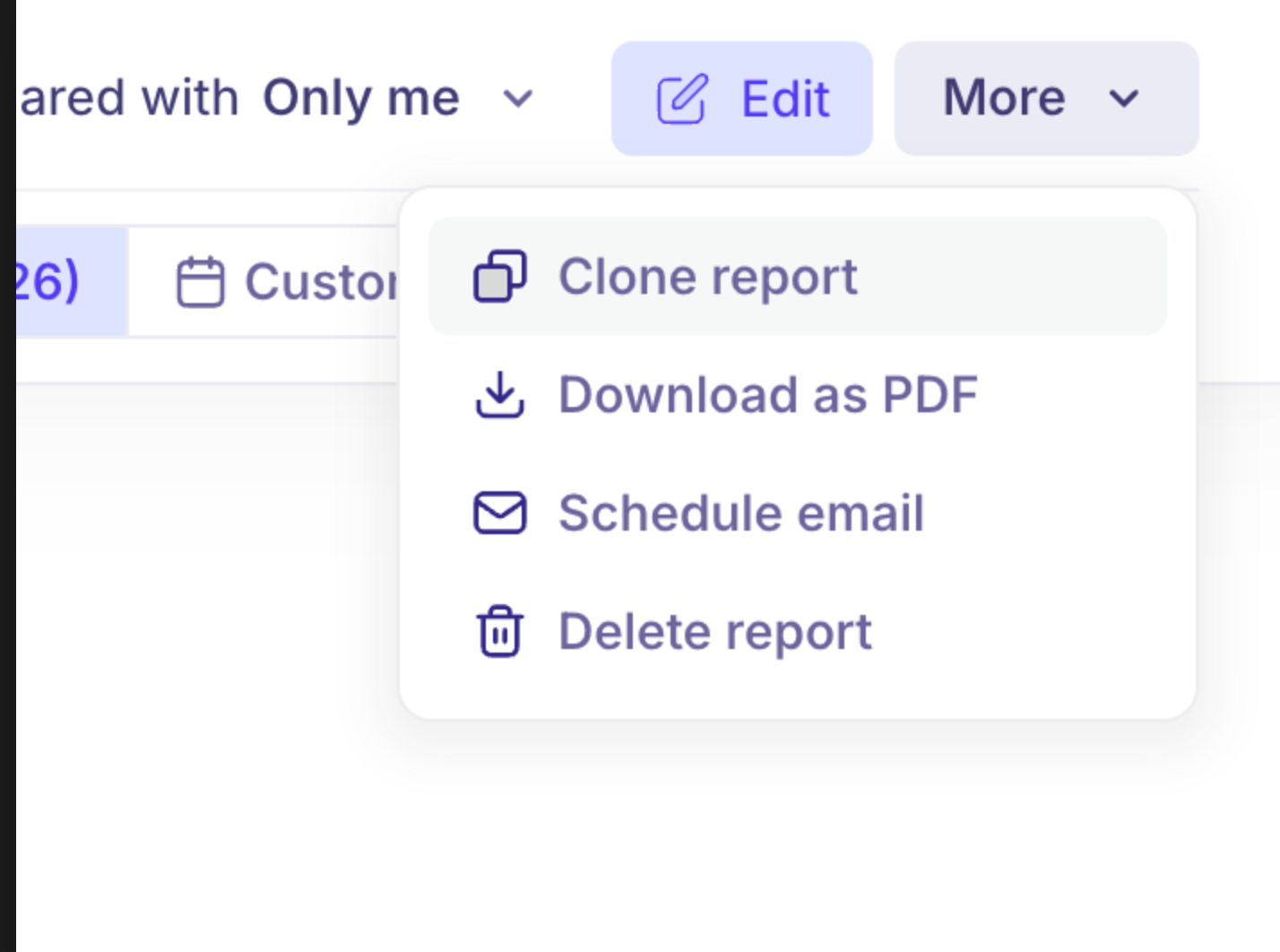
📄 Clone report: Duplicate the report to create variations
⬇ Download as PDF: Export the report for external sharing
📧 Schedule email: Automatically send reports to stakeholders
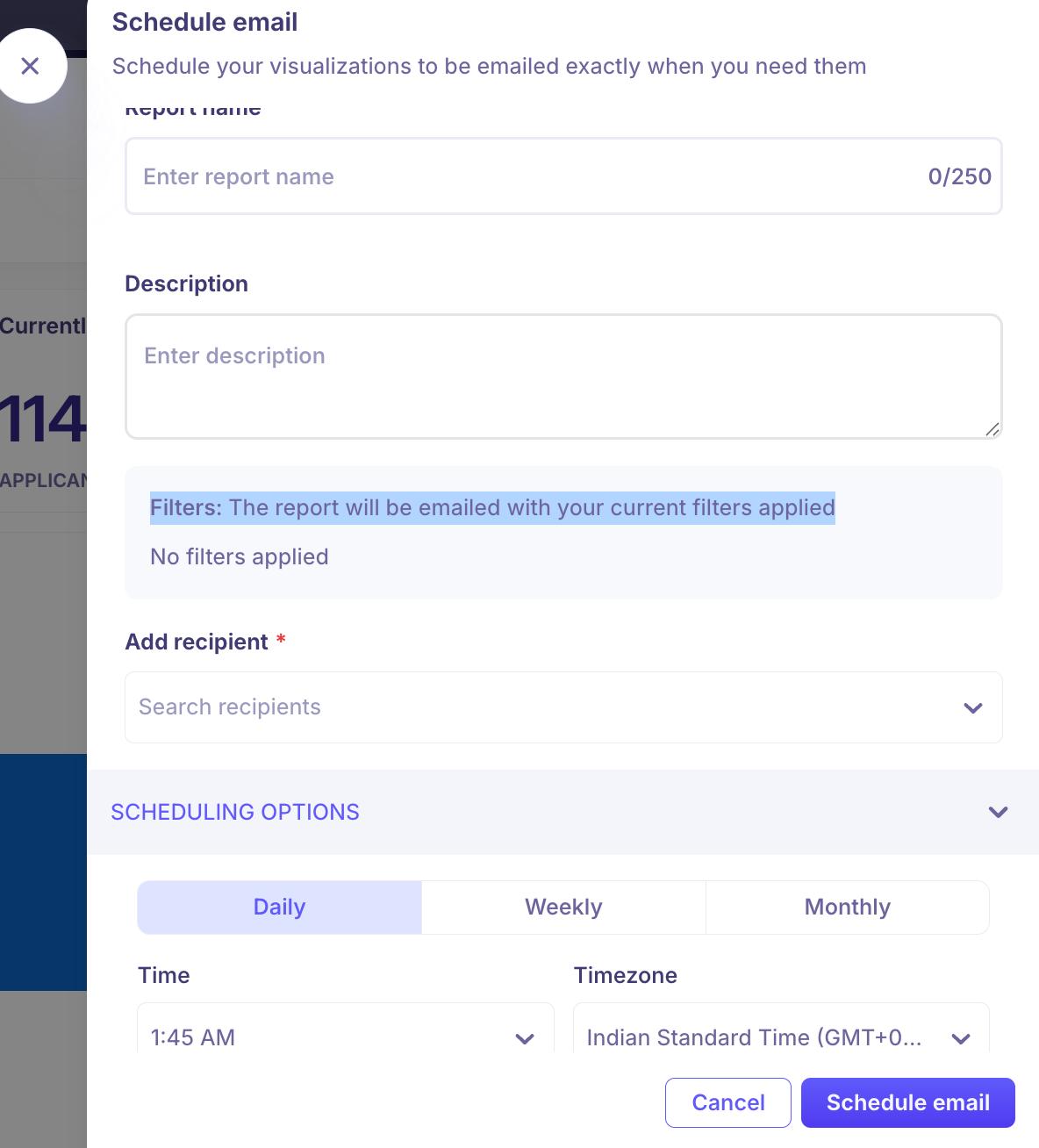
Click More → Schedule email
Fill in the required details: Report name (required), Description (optional), Add recipients(Select users from the dropdown, You can add one or multiple recipients)
Scheduling options: Choose how frequently the report should be sent:
Daily – Sent every day
Weekly – Sent once a week
Monthly – Sent once a month
Time – Select the time the email should be sent
Timezone – Choose the relevant timezone.
Click Schedule email:The report will now be automatically delivered based on your selected schedule.
Note: The report will be emailed with your current filters applied
🗑 Delete report: Permanently remove the report. This option is available only for the custom report.
When to use custom reports
Use custom reports when you want to:
Combine multiple metrics into one dashboard
Track team or recruiter performance
Analyze specific departments or roles
Prepare insights for leadership reviews
Summary
Custom reports allow you to:
Build flexible dashboards using blocks
Refine data using filters
Track trends using date ranges
Once set up, your report becomes a single source of truth for your hiring insights.
Need Help?
If you have questions or need assistance with setup, feel free to reach out to us at support@kula.ai or use the in-app chat for assistance.