What the interview plan prefills
Last updated: September 25, 2026
Set an interview up once in the job's interview plan and Kula fills those details in every time you schedule it. This article lists exactly what carries over and what you still have to choose each time.
Who can do this: Super Admin, Admin, and Recruiter can edit the interview plan. Anyone who can schedule an interview sees the prefilled values.
Where to find it: Settings → Interview & Scheduling → Interview plans, or a job's Interview plan tab
Why this matters
Scheduling has two very different experiences depending on whether the plan is set up.
Scheduling from a plan activity | Scheduling ad-hoc | |
|---|---|---|
Interview name | Already filled in | Empty — you type it |
Interviewer | Already selected | Empty — you search |
Duration, location, meeting host | Already set | You pick each one |
Email templates | Already chosen | You pick each one |
Scorecard | Already attached | You build or pick one |
If your team has not set up an interview plan, you fill in the whole form every single time. This is the single biggest reason scheduling feels slow.
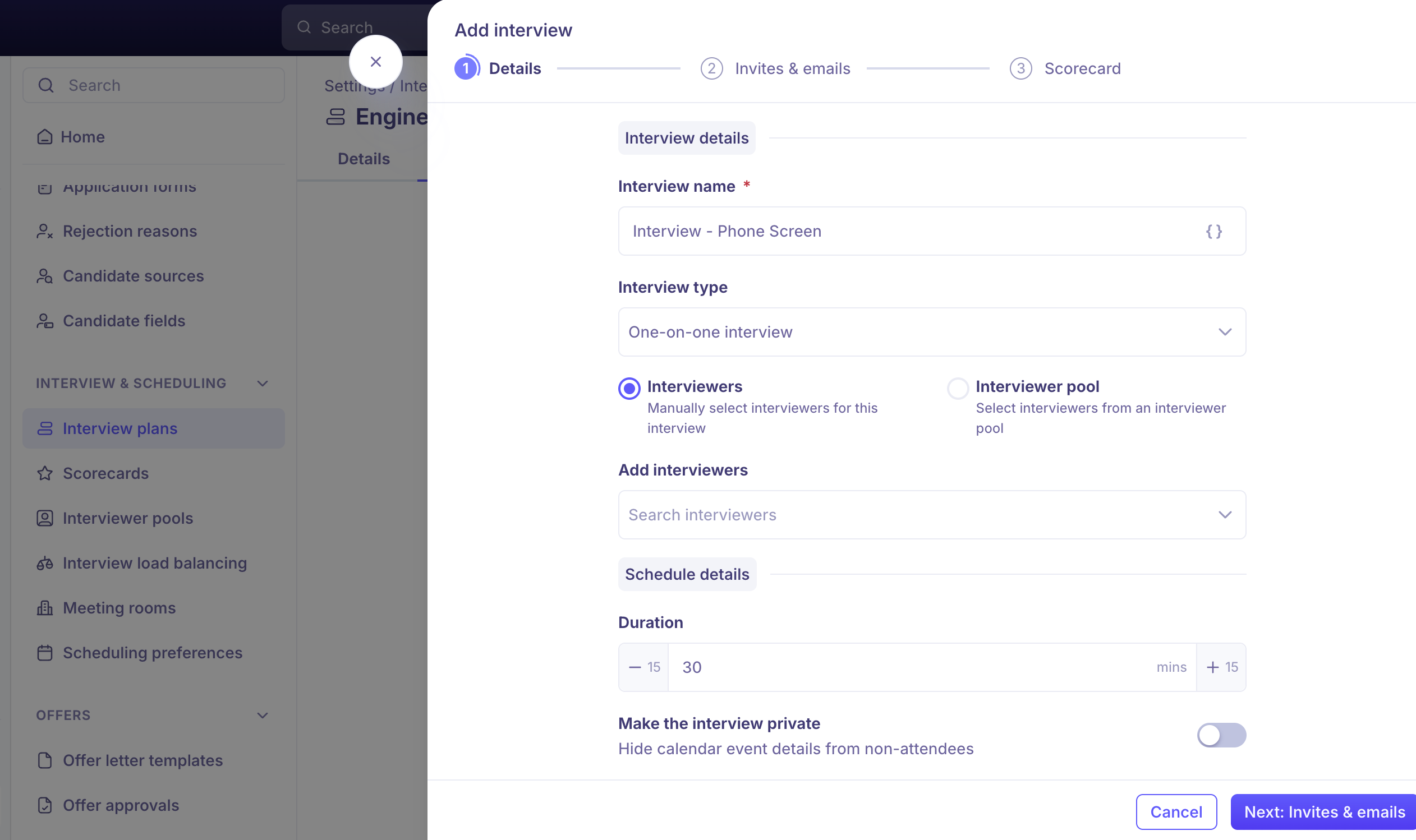
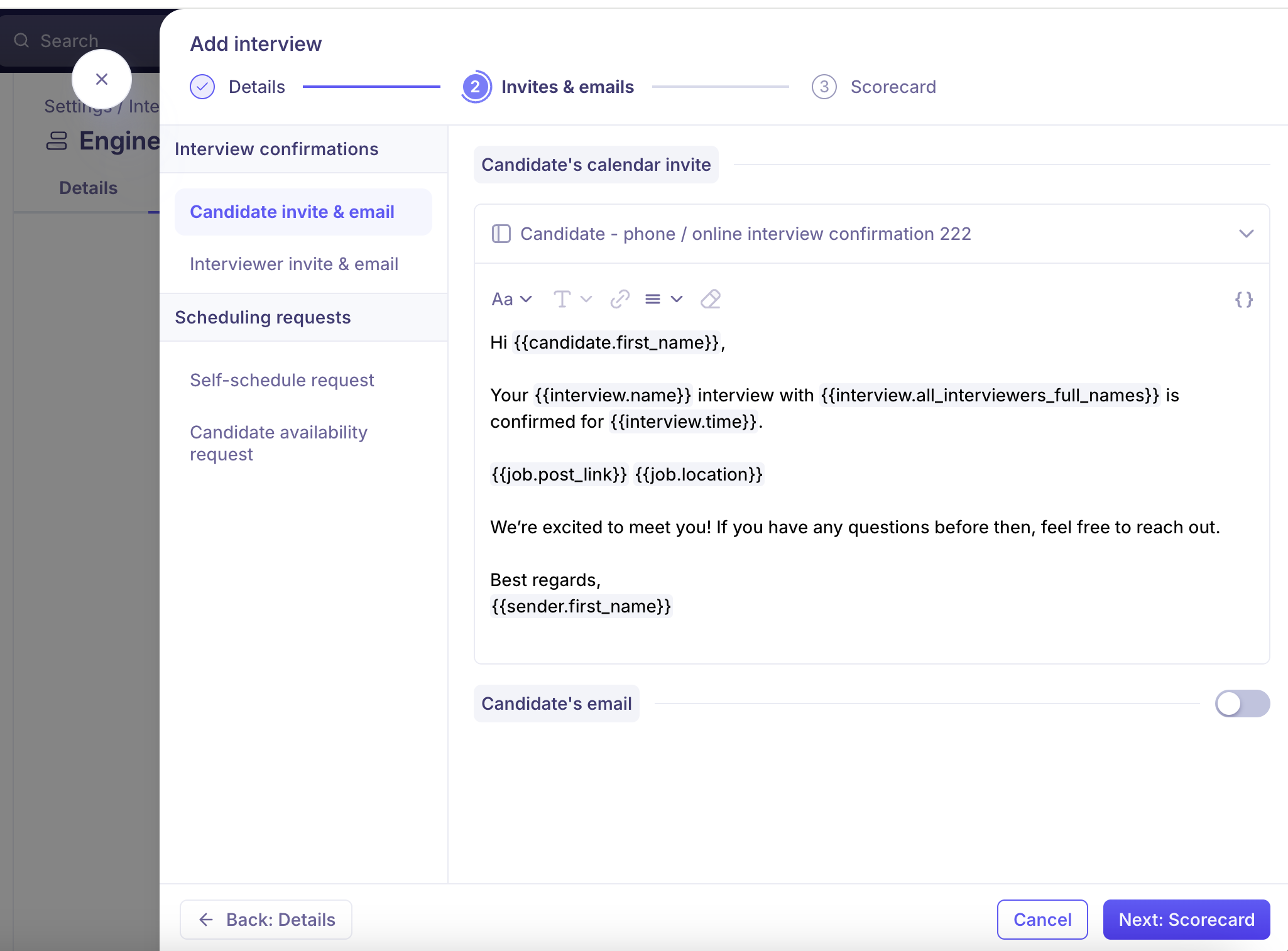
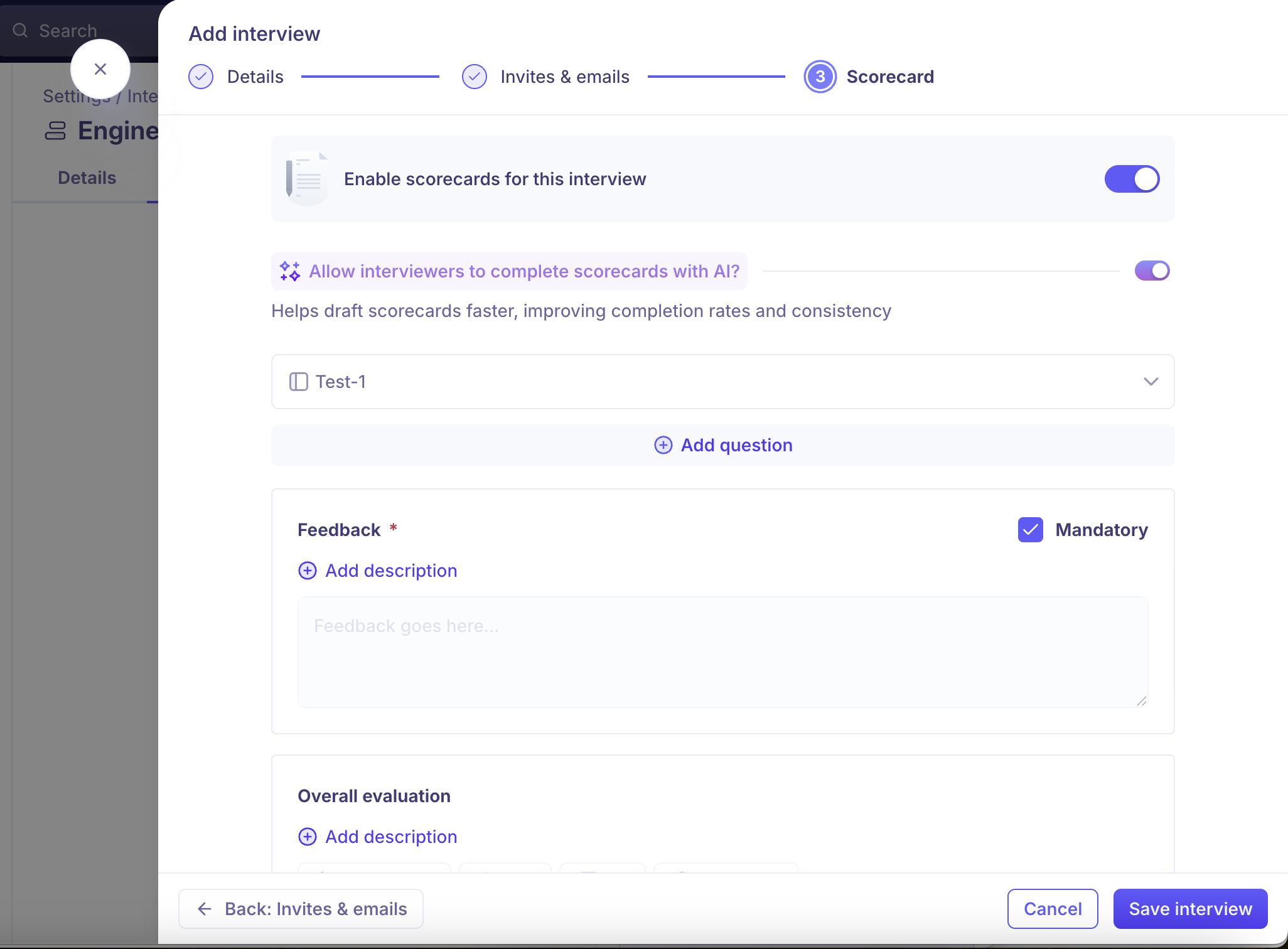
What the plan carries into scheduling
The interview itself
Setting | What the plan sets |
|---|---|
Interview name | The activity's name, such as |
Interview type | One-on-one or panel. |
Interviewers | Either named interviewers or an interviewer pool. |
Duration | In minutes. |
Location | Zoom, Google Meet, Teams, HackerRank, Phone interview, or Onsite / Physical. |
Office address | For onsite interviews. |
AI Notetaker | On or off for this interview. |
The calendar
Setting | What the plan sets |
|---|---|
Meeting host | The Zoom host, or the Google Meet host — organiser or a named interviewer. |
Target calendar | Whether the event lands on a personal calendar or a shared calendar |
Privacy | Whether the event is marked private, hiding its details from people who are not attending. |
The emails
The plan holds the communication templates for each message, along with who they come from:
Message | What the plan sets |
|---|---|
Candidate's calendar invite | Template. |
Interviewer's calendar invite | Template. |
Candidate's email | A separate note to the candidate alongside the invite, with an optional |
Interviewer's email | The same, for the interviewer. |
Self-schedule email | The template used when you send a booking link. |
Availability request email | The template used when you ask a candidate for their availability. |
Each one also carries its sender, CC and BCC lists, and the shared email address it sends from.
The scorecard
The scorecard template linked to the activity comes through with its questions, its feedback and rating descriptions, and whether feedback is mandatory. Whether a scorecard is required at all is also set in the plan.
What you still choose every time
The plan cannot know these, so they are always yours to set:
The time slot. The plan sets how long the interview is, never when it happens.
The candidate's phone number, for a phone interview.
A meeting room. Rooms are only offered while scheduling, never in the plan.
The date range when sending a self-schedule link or an availability request.
Good to know
A pre-filled value is a default, not a lock. Change anything in the drawer before you confirm, and the change applies to that interview only. The plan is untouched.
Editing the plan does not change interviews already scheduled. Pre-fill happens at the moment you open the scheduler, so existing interviews keep the settings they were booked with.
The AI Notetaker cannot be switched off for a single interview. If it is enabled for your organisation, the toggle in the drawer is locked. Change it in the plan or in organisation settings instead.
A Google Meet host must have granted the Meet permission. An interviewer who has not shows as ineligible with a "No Google Meet access" chip and cannot be picked. They grant it by re-authenticating the Google Calendar card under Settings → My Settings → My integrations.
You cannot preset the self-schedule or availability date range in the plan. Every send asks for the window again.
FAQ
We use a different self-schedule email for each round. Can we stop picking the template every time? Yes — set the self-schedule template on each interview activity in the plan, and Kula selects it automatically when you send a booking link for that round.
Why do we still have to fill in every field when we schedule?
Prefill only works when you schedule from an activity in the job's interview plan. An ad-hoc interview, or a job with no plan set up, has nothing to prefill, so every field is manual. Set up the plan for the job first — see Creating and editing an interview plan.
Need help?
If you have questions or need assistance, reach out to us at support@kula.ai or use the in-app chat.