Custom Reports in Kula
Last updated: March 7, 2025
Custom Reports in Kula allow users to generate tailored reports by selecting specific data points relevant to their recruitment process. This feature enables users to customize reports with multiple blocks, ensuring they get the exact insights they need.
Key Benefits of Custom Reports
Personalized Insights - Customize reports to focus on specific recruitment metrics.
Multiple Data Blocks - Add different sections to structure reports according to your needs.
Flexible Sharing Options - Share reports with selected users or make them accessible to everyone.
Convenient Exporting & Scheduling - Download reports as PDFs, schedule them via email, or delete when no longer needed.
How to Create a Custom Report in Kula
Navigate to Reports and Analytics > Click "Create custom report".
A prompt will appear where you need to:
Name your report (e.g., “Weekly Interview Report”).
Provide a Description for the report (e.g., “Overview of interviews conducted during the week”).
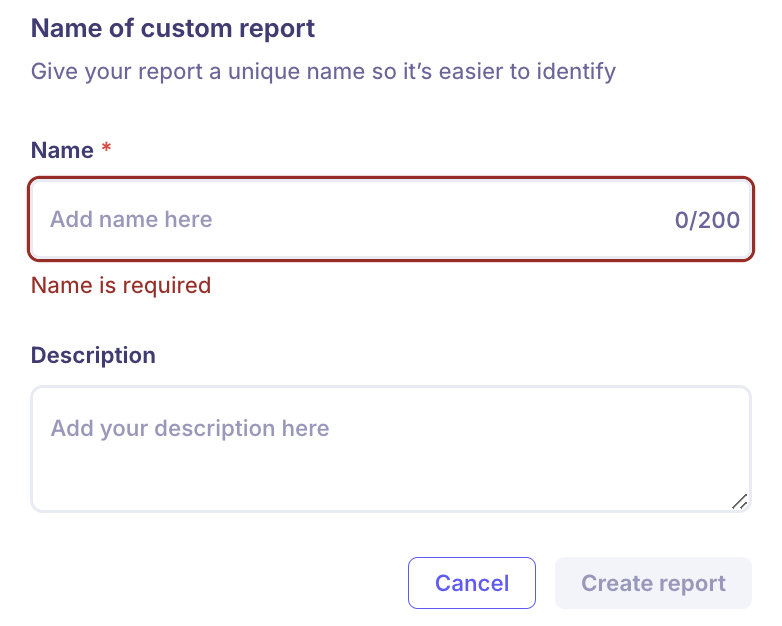
Click Create Report to proceed.
After creating the report, you'll be taken to a new page where you can customize the data displayed.
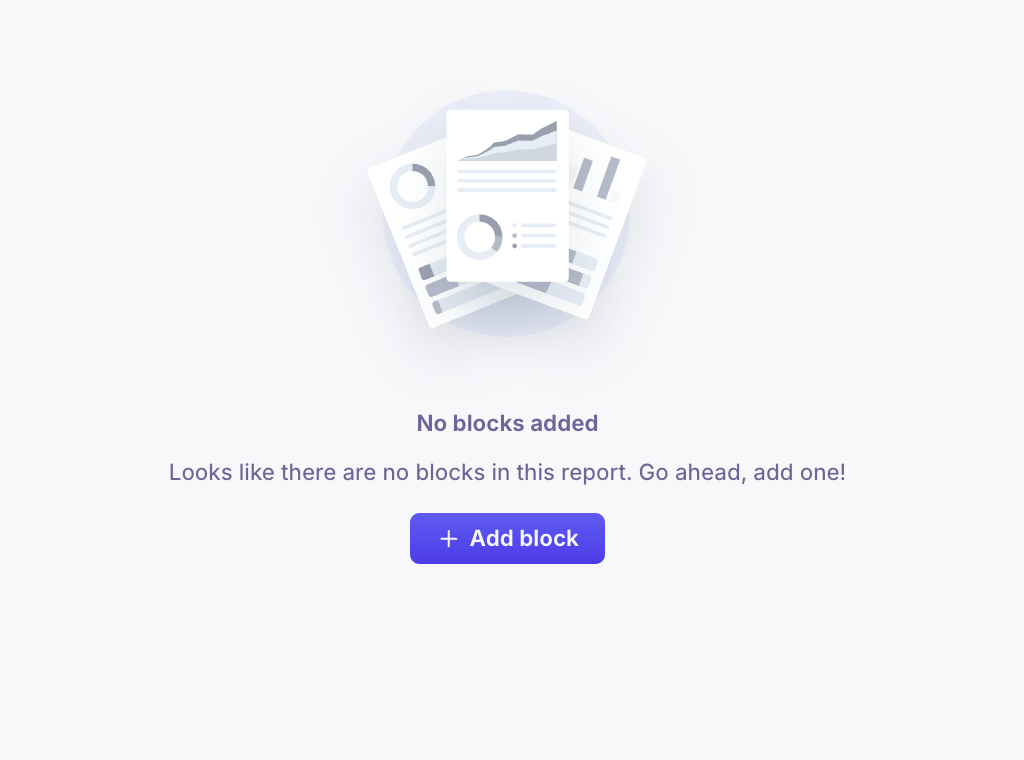
Click Add Block and choose from the following options:Pipeline: Data related to your candidate pipeline.
Interviews: Information about interviews scheduled, completed, or pending.
Offers: Details about job offers extended.
Hires: Data about the candidates hired.
Rejections: Information about rejected candidates.
Contacts: List of candidate and job contact information.
Jobs: Information related to job postings and statuses.
EEO: Equal Employment Opportunity data.
Flow Health: Sourcing data, including candidate sourcing channels.
Continue adding or removing blocks to tailor the report to your specific needs.
Once your report is ready, you can choose to either download or share it via email:
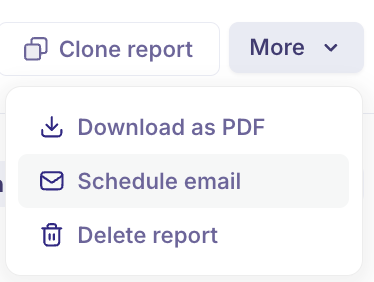
Option 1: Download PDF
Click Download PDF to generate a PDF version of your report.
The file will be saved to your device for easy sharing or printing.
Option 2: Schedule Email
To send the report via email, click Schedule Email.
In the prompt:
Enter a Report Name (optional, to differentiate if sending multiple reports).
Add a Description for the email (e.g., “Weekly Interview Overview”).
Add Recipients by entering email addresses.
Scheduling Options:
Frequency: Choose how often you want the report to be sent (e.g., daily, weekly, or monthly).
Start Date: Set the date for the first email to be sent.
Click Save to finalize your email schedule. The report will be sent to recipients according to your chosen frequency.
Custom Reports in Kula provide a powerful way to analyze recruitment data in a personalized format. With flexible customization, sharing, and export options, users can ensure they always have the right insights at their fingertips.