Signing offers with AdobeSign
Last updated: September 7, 2026
Send an offer straight into Adobe Sign for the candidate — and, if you need one, a company signer — to sign electronically. This article covers connecting Adobe Sign and sending an offer through it.
Who can do this: Recruiter, Hiring Manager send offers. Super Admin, Admin connect Adobe Sign.
Where to find it: Candidates → open a candidate's application → Current job tab → Offer → Send with Adobe Sign.
To connect: Settings → Organisation → Integrations → Adobe Sign
Connect Adobe Sign
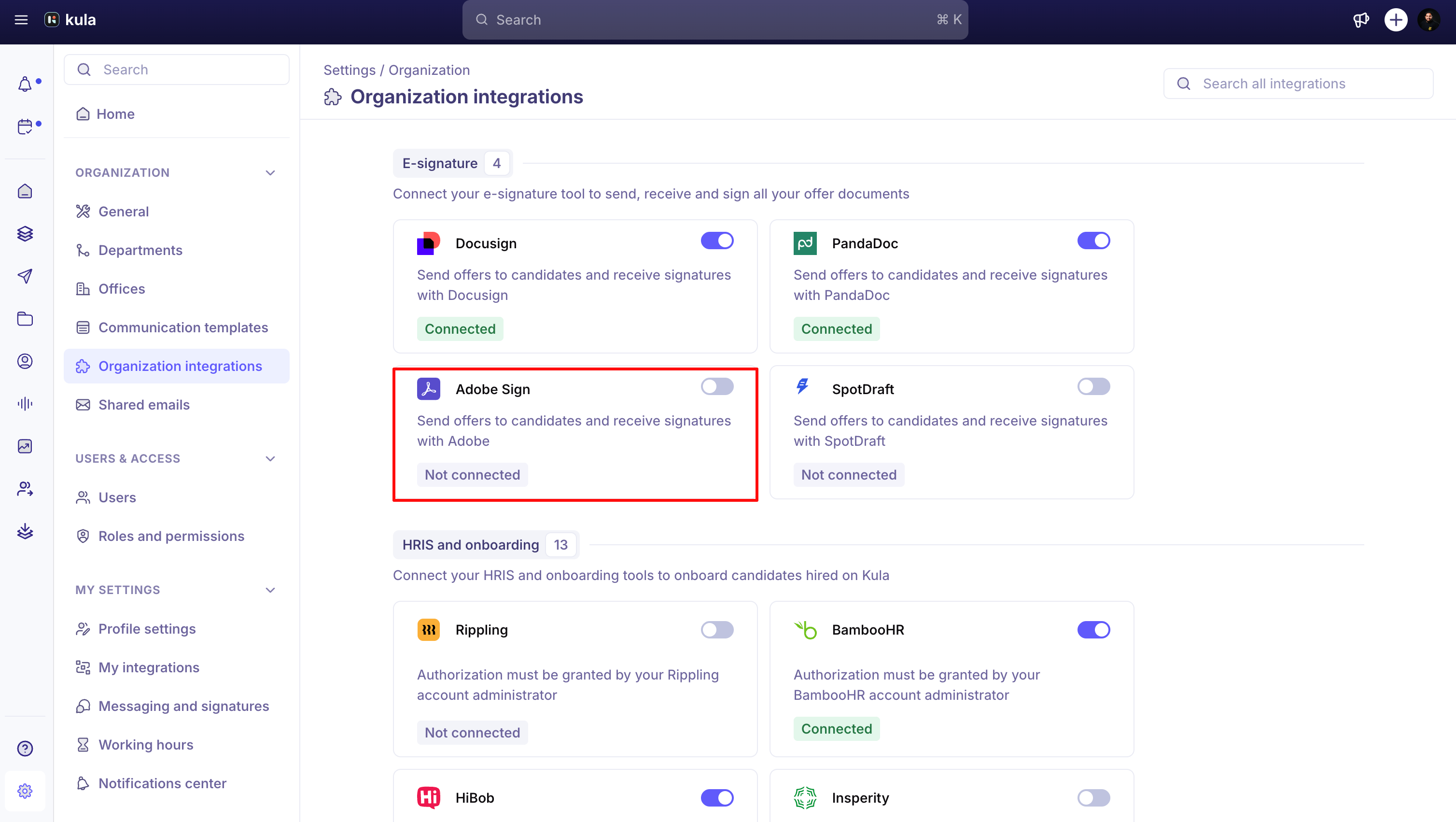
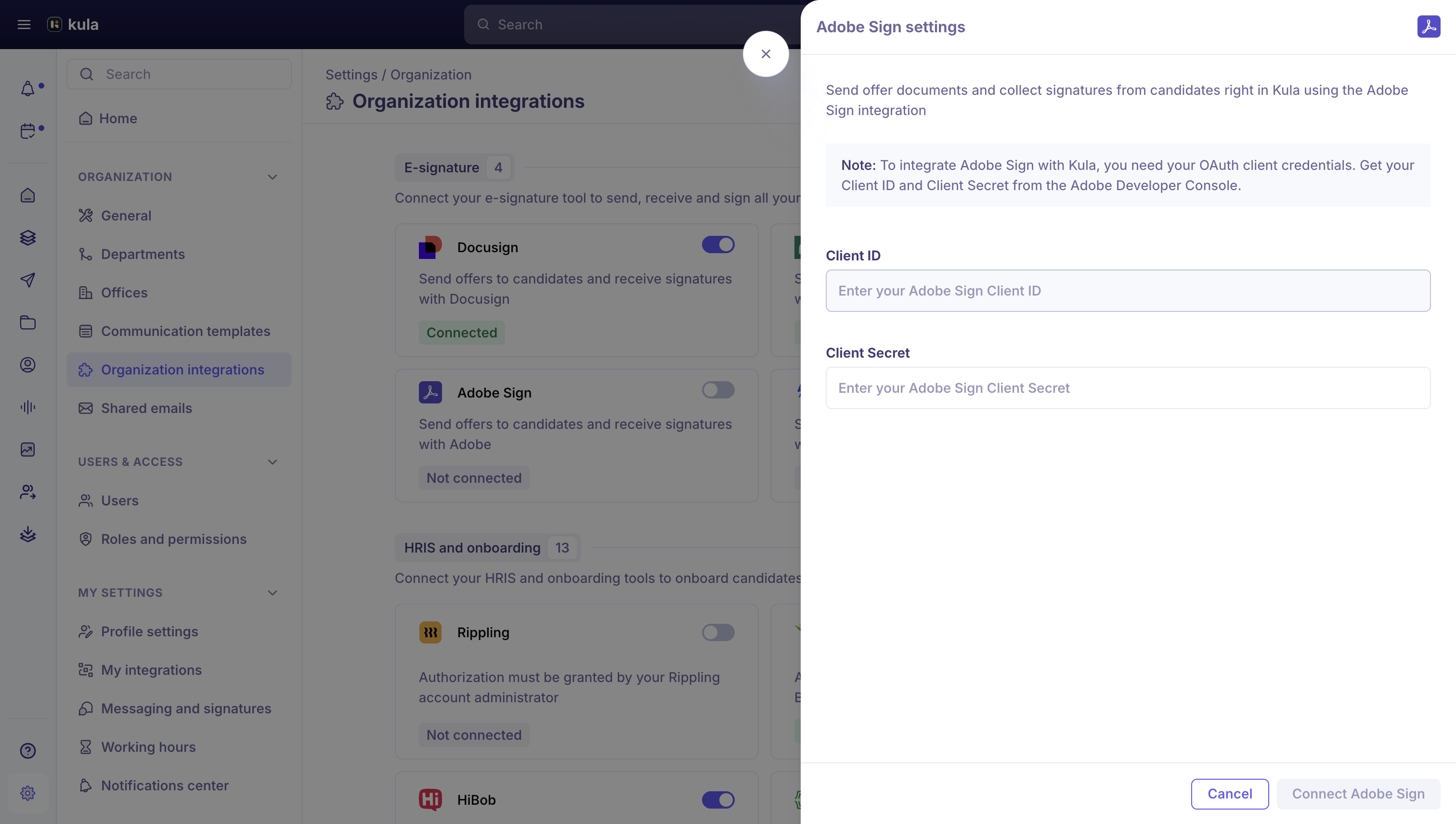
Adobe Sign connects in two steps.
Go to Settings → Organisation → Integrations → Adobe Sign.
Enter your Client ID and Client Secret from the Adobe Developer Console, and save.
You're redirected to Adobe to finish signing in and authorise Kula.
Send an offer with Adobe Sign
The offer must already be approved.
Open the approved offer and choose Send with Adobe Sign.
Write your message. Unlike DocuSign and PandaDoc, Adobe's message box is plain text only — no formatting or links.
Click Send.
Good to know
Your offer letter template needs Adobe's own tokens (like {{adobe.candidate_signature}}) for signature and date fields to work.
Adobe Sign doesn't have a preview/review step like DocuSign does — sending goes straight to the candidate (and company signer, if required).
If an Adobe agreement is cancelled or expires on Adobe's side, the offer doesn't move to a final Voided state the way it does with the other providers — it reopens as an editable draft instead, ready to regenerate and resend.
FAQ
Why can't I preview the offer in Adobe before sending, like I can with DocuSign?
Adobe Sign doesn't have a preview step in Kula — only DocuSign does. Double-check your offer details and template before you send with Adobe Sign.
An Adobe envelope I sent got cancelled — why does the offer show as an editable draft instead of Voided?
This is expected for Adobe specifically. When an Adobe agreement is cancelled or expires, Kula reopens the offer as a draft rather than marking it Voided, so you can fix it up and send it again.
Need help?
If you have questions or need assistance, reach out to us at support@kula.ai or use the in-app chat.