Signing offers with Pandadoc
Last updated: September 7, 2026
Send an offer straight into PandaDoc for the candidate — and, if you need one, a company signer — to sign electronically. This article covers connecting PandaDoc and sending an offer through it.
Who can do this: Recruiter, Hiring Manager send offers. Super Admin, Admin connect PandaDoc.
Where to find it: Candidates → open a candidate's application → Current job tab → Offer → Send with PandaDoc.
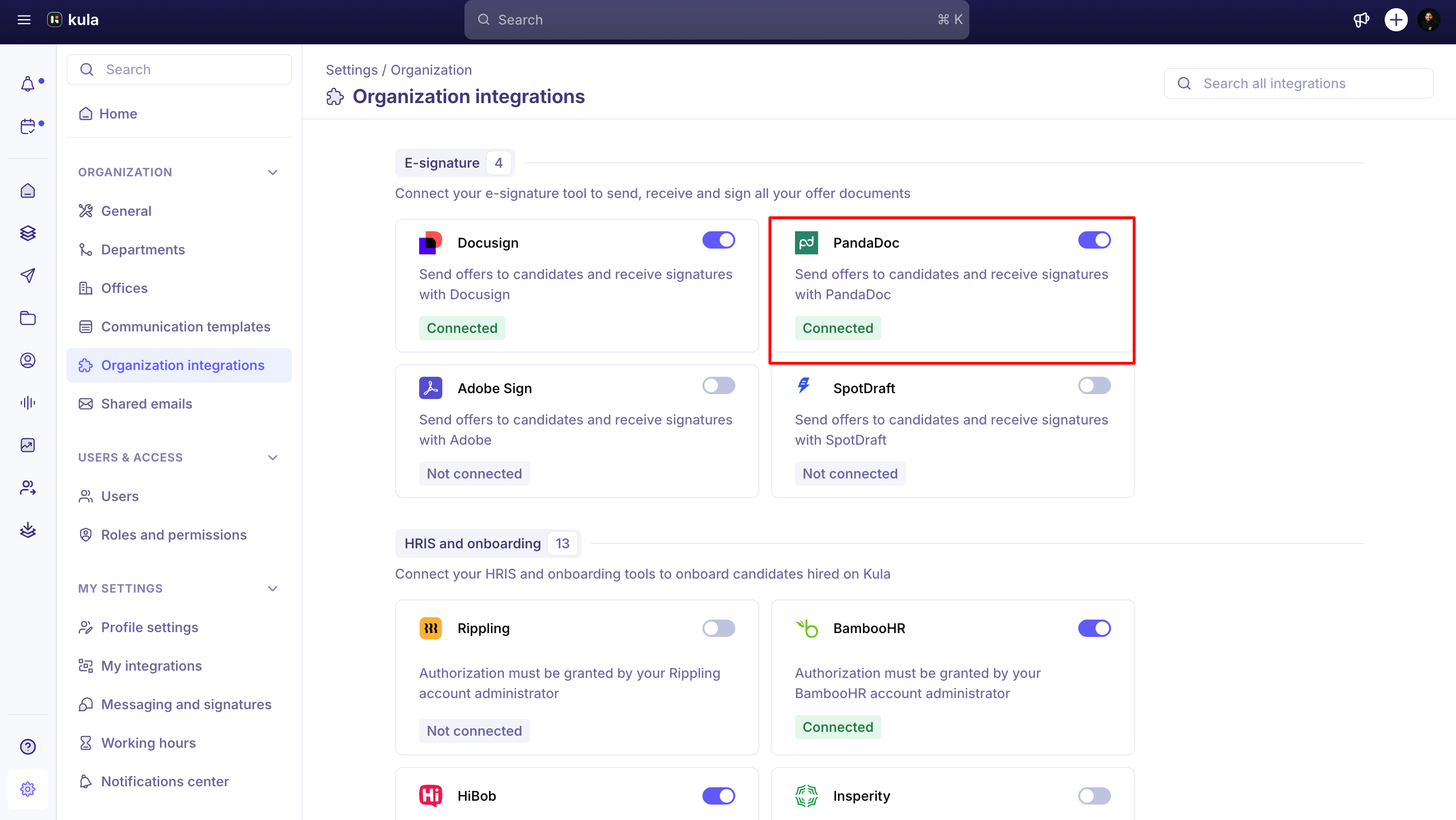
To connect: Settings → Organisation → Integrations → PandaDoc
Connect PandaDoc
PandaDoc requires a paid PandaDoc account.
Go to Settings → Organisation → Integrations → PandaDoc.
Get your API key from PandaDoc's Dev Center, under Production configuration → API keys.
Paste it into Kula and save.
Send an offer with PandaDoc
The offer must already be approved.
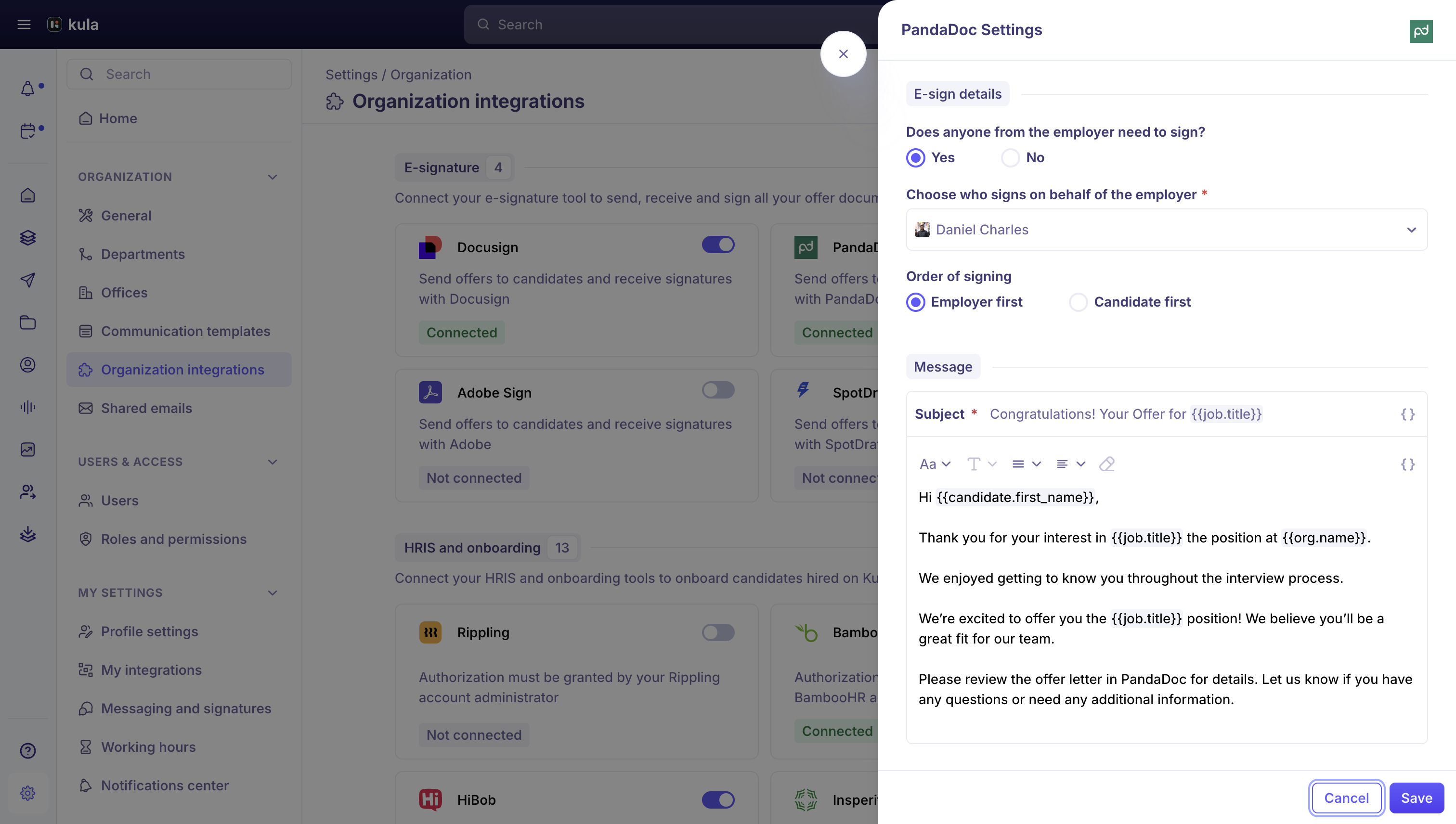
Open the approved offer and choose Send with PandaDoc.
Write your message.
Click Send.
Good to know
Your offer letter template needs PandaDoc's own field tags (added automatically from tokens like {{pandadocs.candidate_signature}}) for signature and date fields to work.
If your offer letter template has more than one document attached, only the first one is sent for signature in PandaDoc — any extra documents stay visible to the candidate in Kula's own offer preview, not inside the PandaDoc envelope.
PandaDoc doesn't have a preview/review step like DocuSign does — sending goes straight to the candidate (and company signer, if required).
FAQ
I attached more than one document to my offer template — will the candidate see all of them in PandaDoc?
Only the first document is sent into PandaDoc for signature. Any additional documents are still part of the offer in Kula, but the candidate sees them in Kula's offer preview rather than inside the PandaDoc envelope.
Why don't I see a decline reason on a PandaDoc offer right away?
PandaDoc doesn't include the decline reason in its first notification to Kula — Kula fetches it separately, so it may appear a little after the decline itself.
Need help?
If you have questions or need assistance, reach out to us at support@kula.ai or use the in-app chat.