Editing or revoking a sent offer
Last updated: September 14, 2026
Once an offer has been sent — or even signed — you're not locked out of it. You can still edit it, and if you need to pull it back entirely, you can revoke it. What happens next depends on whether that offer has an active e-signature request with DocuSign, Adobe Sign, or PandaDoc.
Who can do this: Any user with access to the candidate's offer.
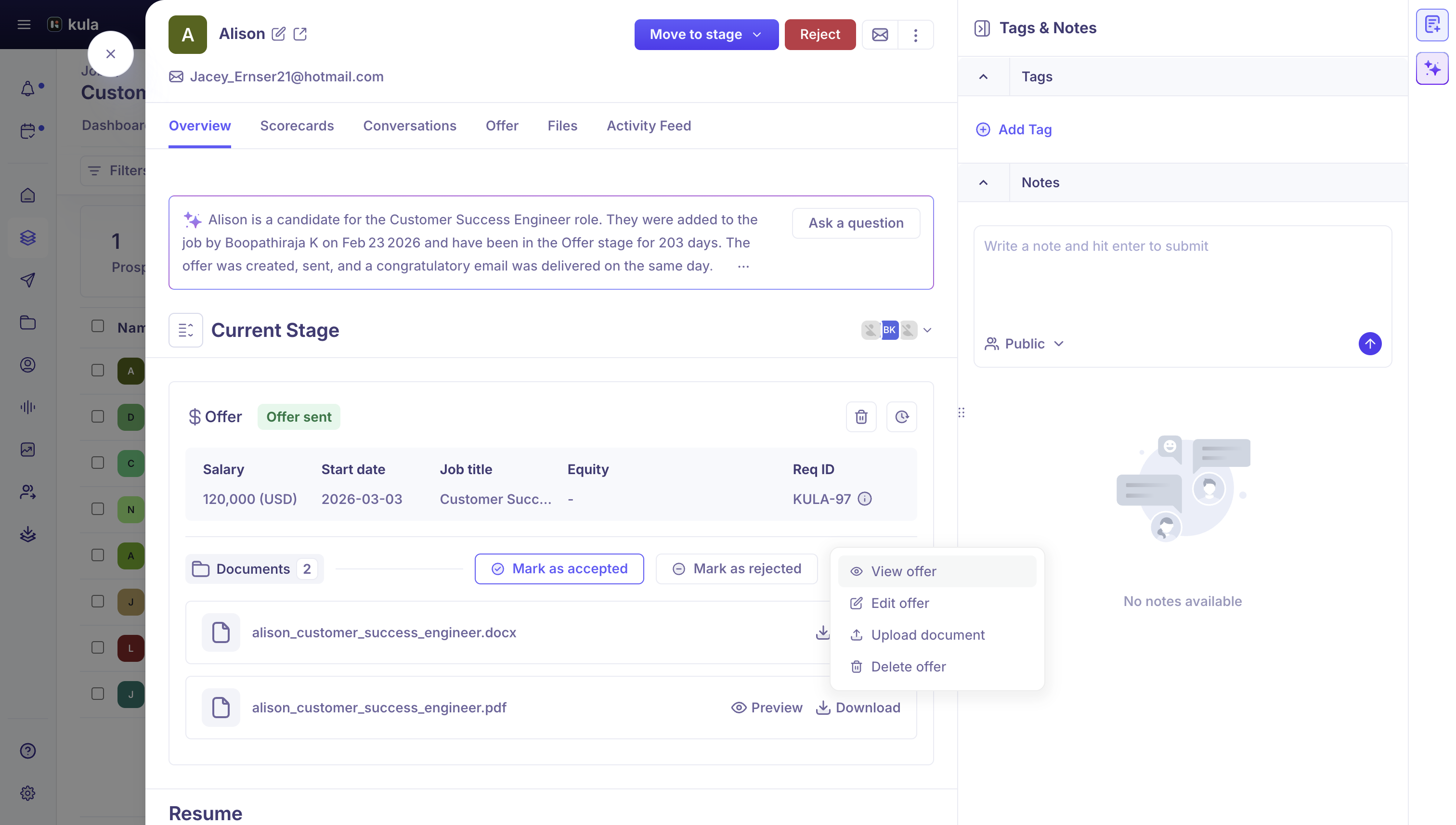
Where to find it: On the candidate's Offer stage, the More menu on the offer.
Editing a sent offer
From the offer's More menu, click Edit offer.
Change what you need — including switching to a different offer letter template if the one that went out had an error in it.
Save.
What happens next depends on what you changed:
If you changed a field marked "Requires re-approval" (see "Creating and managing offer fields"), the offer goes back through the approval flow before anything else can happen to it — it doesn't just quietly update.
If you didn't touch any re-approval-required fields, Kula just saves the change — you won't be asked to send it through approval again for no reason.
If you switch the offer letter template, Kula regenerates the offer document with the new template's content — including on an offer the candidate has already signed. This is the fix for exactly the kind of situation where a template error was discovered after offers had already gone out: correcting the template and re-saving updates what Kula shows as the offer's content going forward.
Revoking a sent offer
From the offer's More menu, click Delete offer.
Kula tells you what deleting will actually do, based on the offer's e-signature status, before you confirm.
No e-signature request on this offer: a plain confirmation — deleting is permanent and can't be undone, and you can create a new offer for the candidate afterward.
An e-signature request is still active (not yet accepted or rejected on the provider's side): deleting the offer also voids the DocuSign envelope, PandaDoc document, or Adobe Sign agreement, and you can create a new one for the candidate.
The e-signature request already reached a final state (accepted or rejected/declined on the provider's platform): Kula can't void it — DocuSign, PandaDoc, and Adobe Sign all refuse to void something already marked complete or declined on their end. You can still delete the offer on Kula's side, but it will remain present on your account with that provider.
There's also a lighter-weight Mark as rejected action for DocuSign-backed offers, which voids the DocuSign envelope and marks the offer rejected without deleting the offer record itself — useful when you want the history to stay but the signature request to stop.
Good to know
Whether editing changes require re-approval depends entirely on which fields you touched — this is configured per field under Settings → Custom fields → Offer fields, not something you choose in the moment.
You cannot void an e-signature request that's already been completed or declined by the candidate or company signer — that's a restriction from DocuSign/PandaDoc/Adobe Sign themselves, not a Kula limitation. If you need it gone from your e-signature provider's own records at that point, you'll need to do that directly with the provider.
The quick "Mark as rejected" action currently only appears for DocuSign-backed offers — for PandaDoc or Adobe Sign, deleting the offer is the way to void an active signature request.
FAQ
We found an error in an offer template after it had already gone out — and the candidate had already signed it. We fixed the template and edited the offer to use the corrected one, but the offer still showed the old, wrong content after saving.
This was a real gap and has been fixed — editing a sent or signed offer's template now regenerates the offer document with the corrected content. If you're still seeing the old content after switching templates and saving, that's worth raising with support rather than assuming it's expected.
Need help?
If you have questions or need assistance, reach out to us at support@kula.ai or use the in-app chat.