Custom application questions
Last updated: August 6, 2026
Add custom fields to a job's application form to collect information beyond Kula's built-in Personal info and Profile sections, questions specific to the role, like a knockout question or a portfolio link.
Custom fields you add appear to candidates on the application form, and to your hiring team as part of the candidate's profile.
Step 1: Open the application form builder
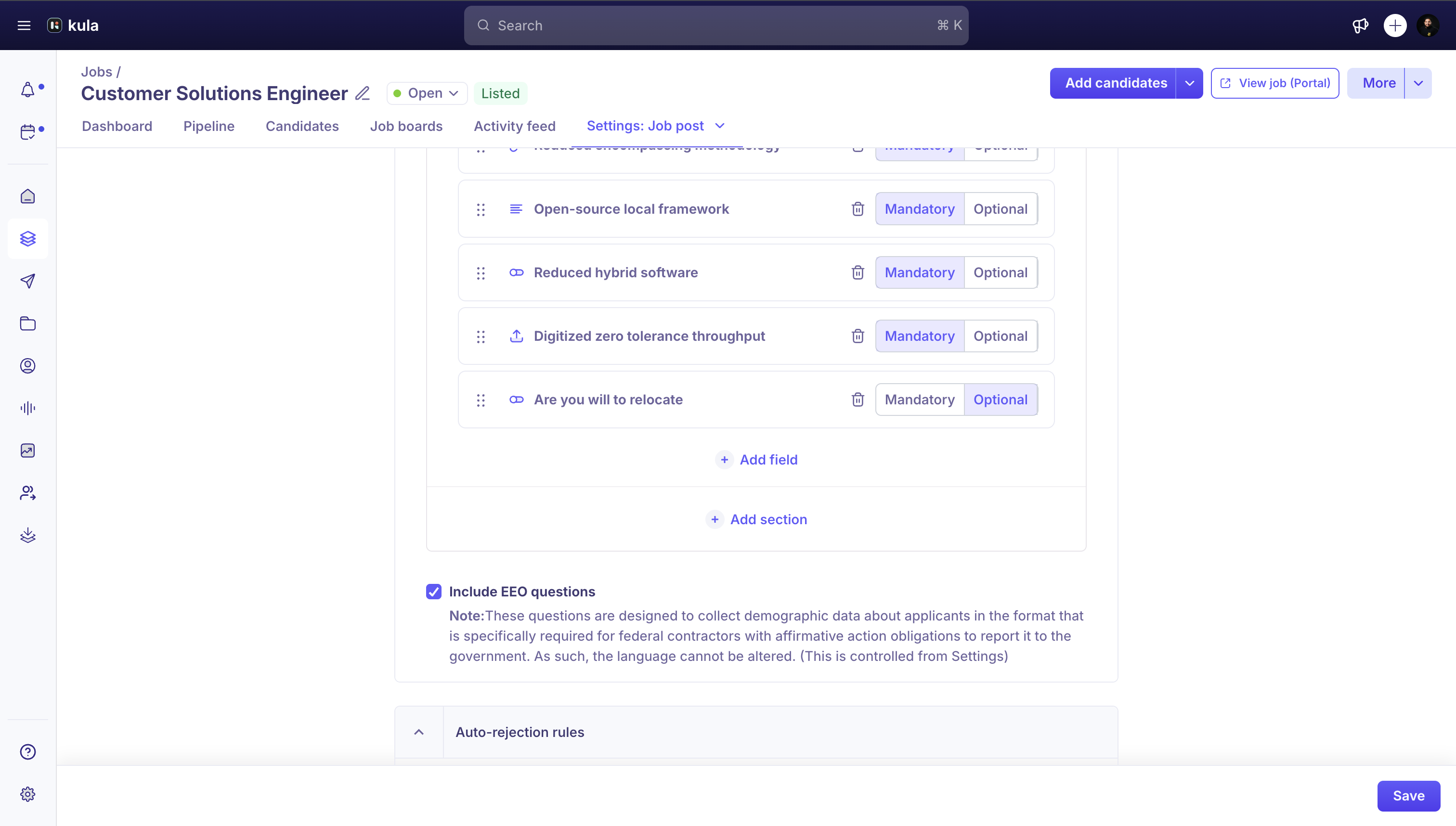
Go to the job's Settings, then Job Post.
Scroll to the Application form builder.
Step 2: Add the field
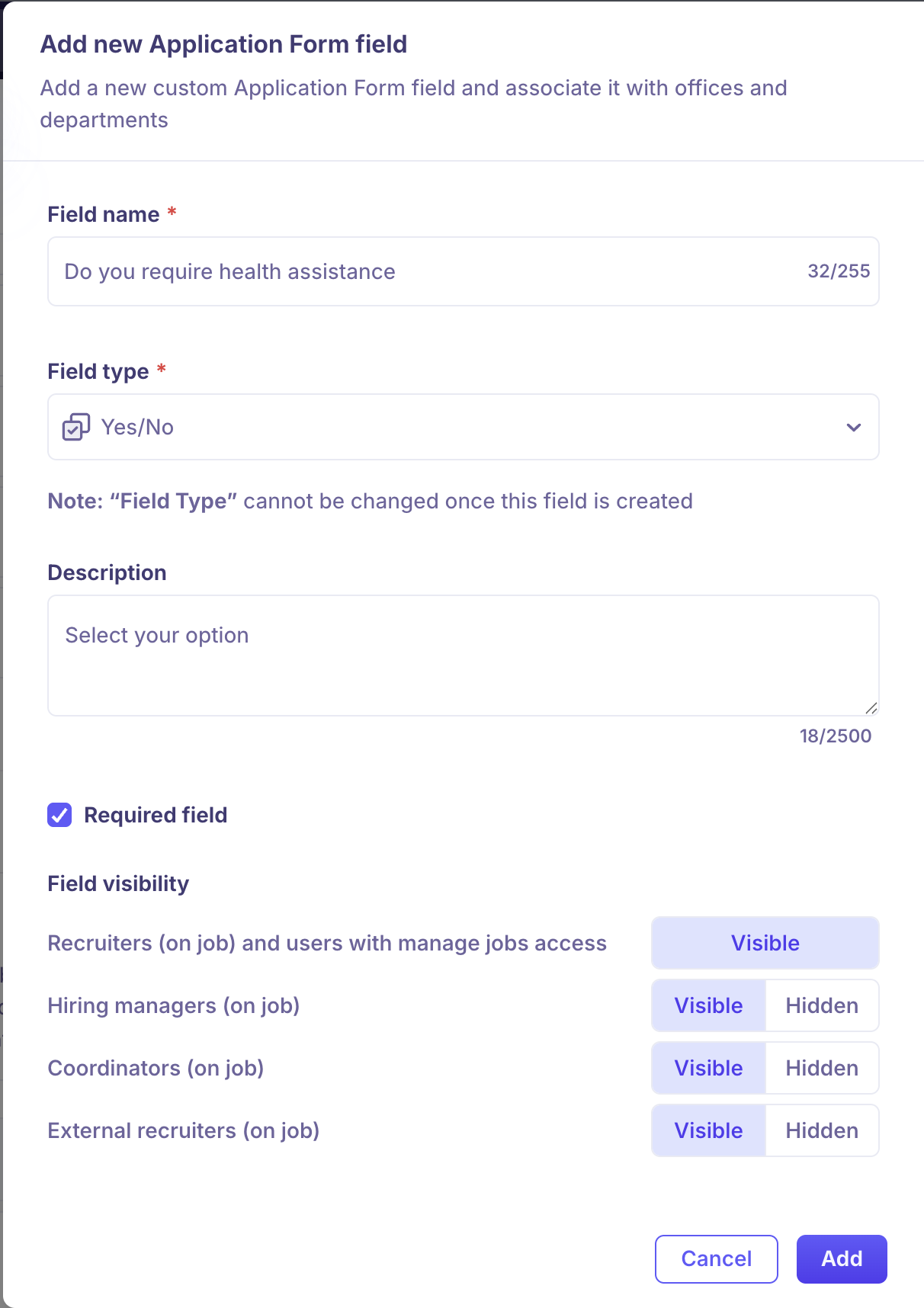
Click Add field.
Enter a Field name (up to 255 characters).
Select a Field type. The following types are available: Short Text, Long Text, Yes/No, Single Select, Multi Select, Number, Date, URL, File, and Rich Text.
Note: You can't change a field's type after you create the field, so confirm the type before you save.
Add a Description to explain the field to candidates.
Add a Placeholder to show example text inside the field.
Turn on Required field if candidates must answer before they can submit.
Set Field visibility for your hiring team. Recruiters always see the field; for Hiring managers, Coordinators, and External recruiters, toggle it Visible or Hidden.
Need Help?
If you have questions or need assistance, reach out to us at support@kula.ai or use the in-app chat.