Set Up Scorecards & Approval Flows
Last updated: June 23, 2026
Scorecards and approval flows standardize hiring decisions by capturing feedback from interviewers and automating approval processes. Scorecards help teams consistently evaluate candidates against key criteria, while approval flows ensure the right stakeholders sign off before moving a candidate forward. Together, they create structure and accountability in your hiring pipeline.
This article covers:
Creating and customizing scorecards
Assigning scorecards to interview stages
Setting up approval workflows
Configuring approver permissions
Frequently asked questions
Creating and Customizing Scorecards
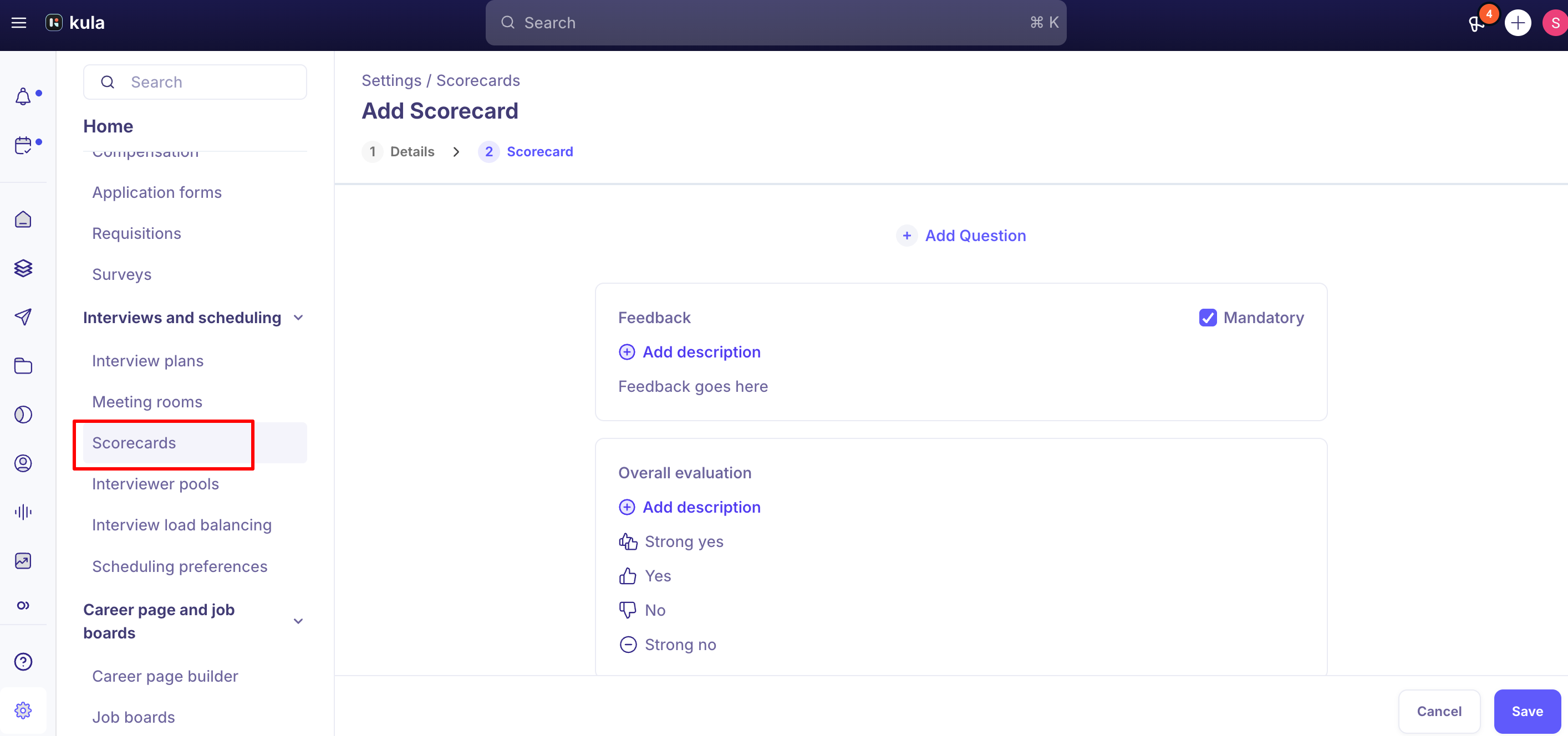
Scorecards define the evaluation criteria used during interviews. Each scorecard can have multiple questions or competency ratings tailored to your hiring needs.
Navigate to Settings in your Kula account.
Select Hiring > Scorecards.
Click Create Scorecard.
Enter a scorecard name (e.g., "Engineering Interview," "Director-level Assessment").
Add evaluation questions or competencies:
Click Add Question
Enter the question or competency label (e.g., "Technical Skills," "Communication")
Select the rating scale (e.g., 1–5, Strong/Adequate/Needs Work, Yes/No)
(Optional) Add guidance text to help interviewers understand what each rating means
Reorder questions by dragging them into your preferred sequence.
Click Save Scorecard.
Your scorecard is now ready to assign to interview stages.
Tip: Create role-specific scorecards for different positions. A technical role scorecard should emphasize problem-solving and coding ability, while a sales role scorecard should focus on communication and objection handling.
Assigning Scorecards to Interview Stages
Once you've created scorecards, assign them to specific interview stages in your pipeline to ensure candidates are evaluated consistently.
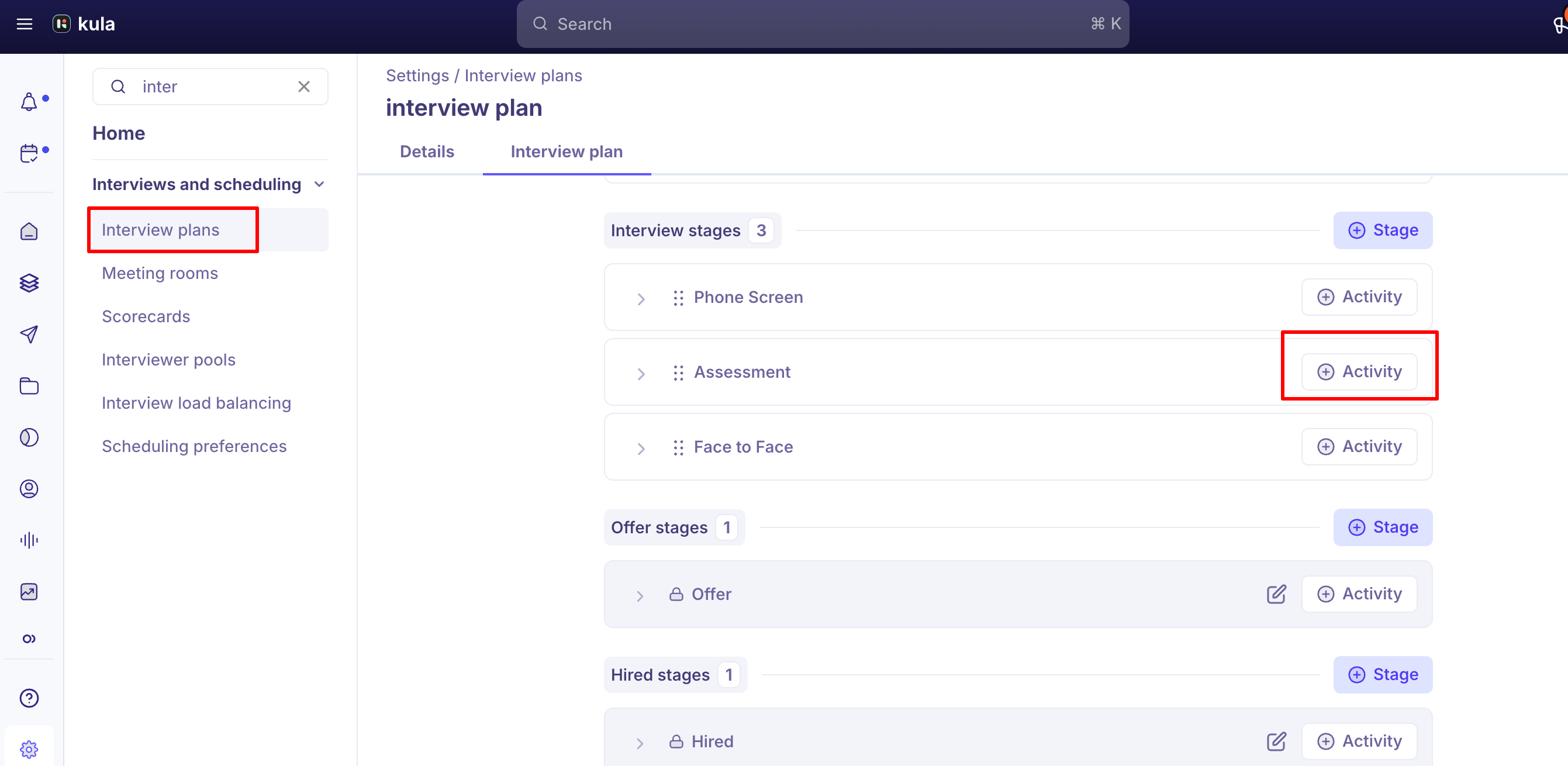
Navigate to Settings > Interview plan > Select the Interview plan you want to add this scorecard to
Select the stage where you want to use a scorecard (e.g., "Phone Screen," "Technical Interview").
In the Scorecard section, click Assign Scorecard.
Choose the scorecard from the dropdown list.
(Optional) Mark the scorecard as required—interviewers must complete it before moving to the next stage.
Click Save.
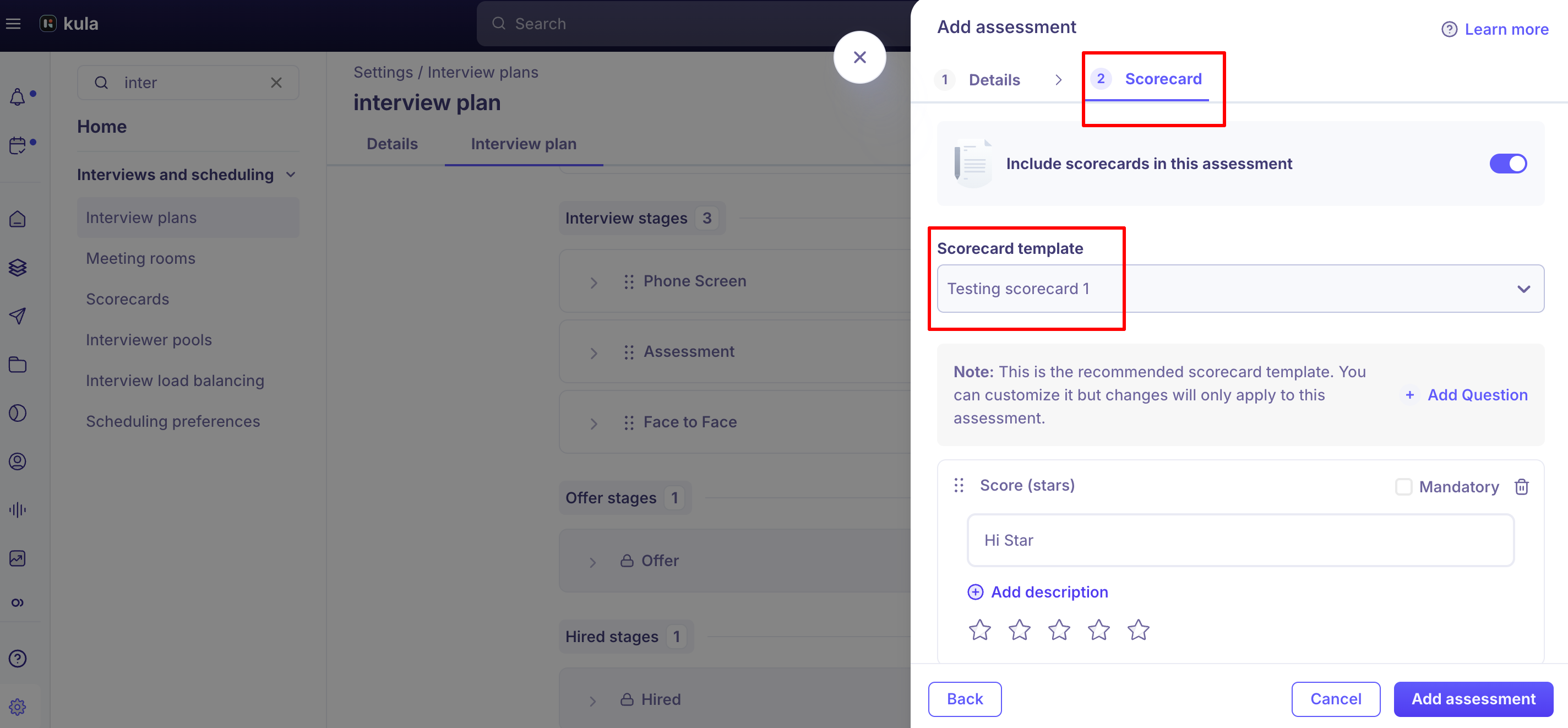
When interviewers conduct interviews at this stage, they'll be prompted to fill out the scorecard before advancing the candidate.
Stage | Suggested Scorecard | Required? |
Initial Screen | Cultural Fit & Communication | Yes |
Technical/Skills Interview | Role-Specific Technical Skills | Yes |
Manager Interview | Leadership & Team Fit | Yes |
Final Round | Overall Potential & Compensation Alignment | No |
Setting Up Approval Workflows
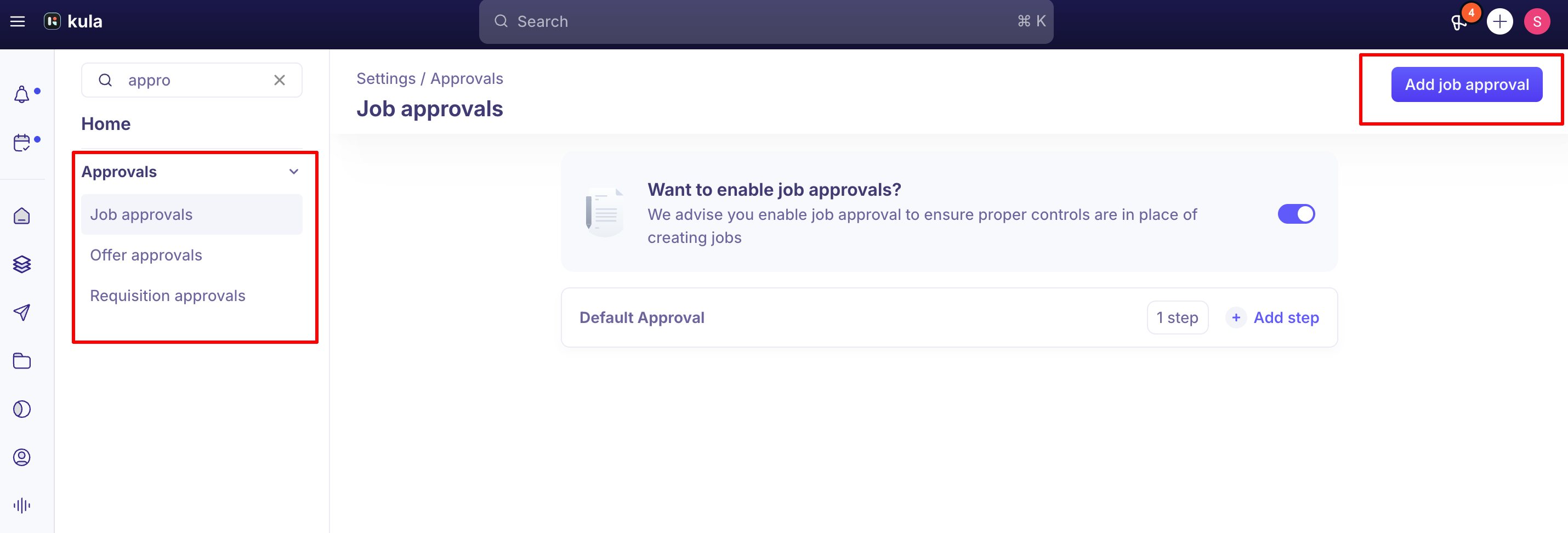
Approval workflows route candidates to designated approvers once they reach a particular stage. This ensures hiring managers, executives, or compliance teams review and sign off before the candidate moves forward. We have Offer approvals, Referral approvals and Requisition Approval.
Navigate to Settings > Approvals (whichever approval you want to edit)
Define the department this approval is for
Click Add Approvers
If multiple approvers are needed, decide the approval order
Click Save
Once saved, any candidate reaching the designated stage will automatically enter the approval workflow.
Tip: Use sequential approval for high-stakes decisions (C-level hires, significant compensation packages) and parallel approval for routine offers to speed up hiring.
Frequently Asked Questions
1. Can I set up different scorecards for different regions or departments?
Yes. Create multiple scorecards with region-specific or department-specific criteria, then assign them to relevant pipeline stages. You can also create department-specific workflows with approvers from each region.
2. What if an approver rejects a candidate?
The candidate returns to the previous pipeline stage, and the hiring manager is notified. You can revise the candidate's profile, interview them again, or adjust the offer. After changes, resubmit the candidate for approval.
3. Can I export scorecard data and approval history?
Yes. Go to Reports > Hiring Analytics. You can view approval timelines, scoreboard consistency, and which approvers are causing delays in your process.
Need Help?
If you have questions or need assistance setting up scorecards and approval flows, reach out to support@kula.ai or use the in-app chat for help.