Configure Pipeline Stages
Last updated: June 22, 2026
Pipeline stages define the steps in your hiring process, from initial candidate contact through offer acceptance. Kula lets you create custom stages that match your workflow, set stage entry conditions, assign automations, and track candidate progress. Configure your pipeline to reflect how your team actually hires.
This article covers:
Stages vs. milestones: Key differences
Understanding default pipeline stages
Accessing pipeline settings per job
Creating and managing custom stages
Frequently asked questions
Stages vs. Milestones: Key Differences
It's important to understand how stages and milestones work differently in your hiring pipeline.
Aspect | Stages | Milestones |
Purpose | Define hiring workflow steps | Track key dates and deadlines |
How it works | Candidates move through stages sequentially (Prospect > Application Review > Offer > Hired) | Set milestone dates within or across stages (e.g., Phone screen by June 1, Final interview by June 10) |
Status | A candidate is IN one stage at a time | A candidate can have multiple milestones |
Example | Stage: Interview (where the candidate currently is) | Milestone: Final interview by June 10 (deadline to complete the stage) |
Tip: Use stages to organize your workflow and milestones to track deadlines. Together, they help you manage pace and stay on schedule.
Understanding Default Pipeline Stages
Kula comes with four locked default pipeline stages that represent a typical hiring workflow. You cannot delete these stages, but you can add custom stages within them.
Stage | Description |
Prospect (Lead) | Candidate has been identified as a prospect. Locked stage - cannot be deleted. |
Application Review (Applied) | Candidate has applied or been moved to active review. Locked stage - cannot be deleted. |
Offer | Offer has been created or sent to candidate. Locked stage - cannot be deleted. |
Hired | Start date has passed; candidate is now an employee. Locked stage - cannot be deleted. |
Tip: These four locked stages ensure consistency across all jobs. Custom stages you add will sit within these locked milestones to create your unique hiring workflow.
Accessing Pipeline Settings Per Job
Pipeline stages are configured per job, not globally. This means each job can have its own custom stages tailored to that role.
The pipeline you configure in the Interview plan is the one that shows up under the Job.
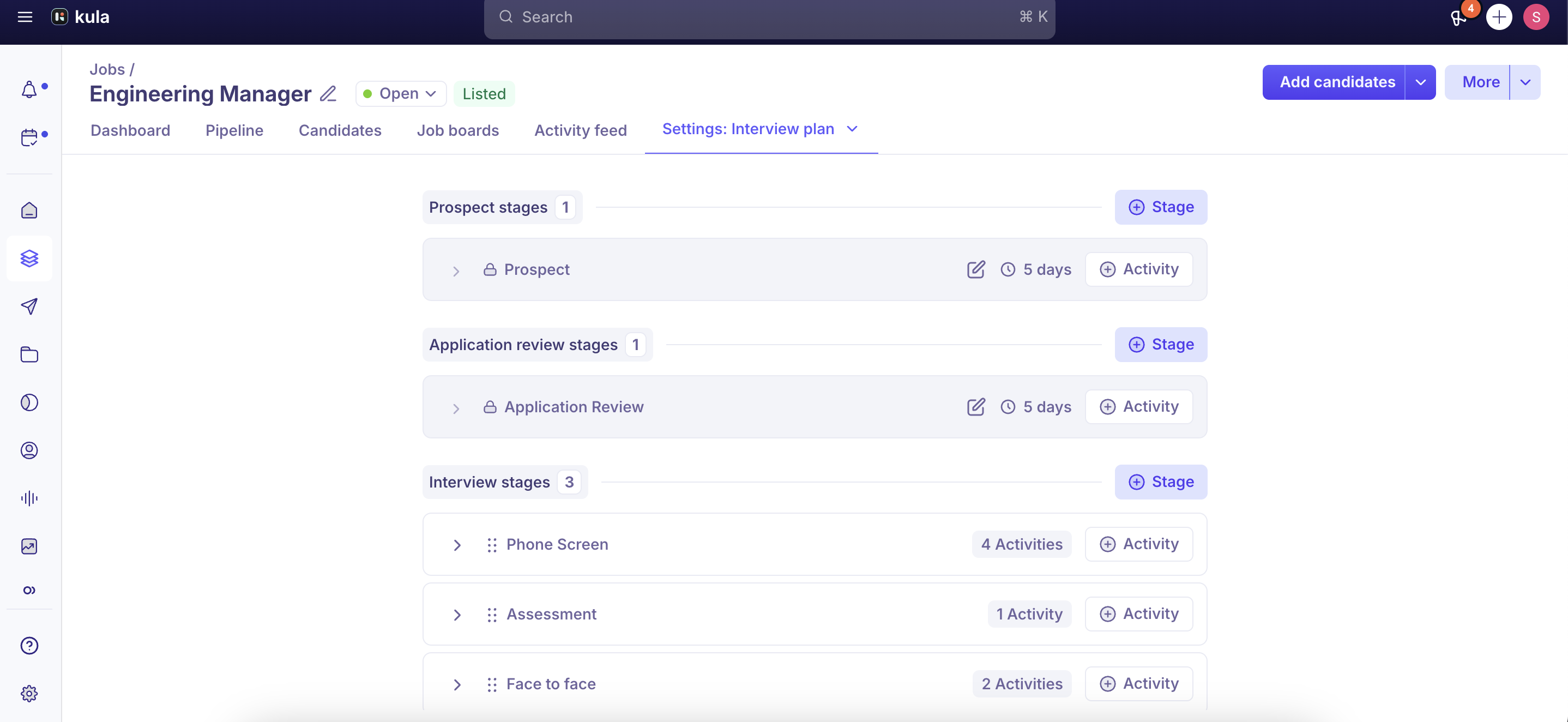
Tip: You can have different pipeline stages for different jobs. For example, your Engineering roles might have a Technical Interview stage while Sales roles have a Demo stage.
Frequently Asked Questions
1. Can I have different pipelines for different jobs?
Yes. Each job has its own customized pipeline. Go to the Pipeline tab for each job and configure the stages you need for that specific role.
2. Can I delete the four locked stages?
No. Prospect (Lead), Application Review (Applied), Offer, and Hired are locked and cannot be deleted. They form the foundation of every pipeline in Kula.
3. Can I delete custom stages I've added?
Yes. Any custom stages you add can be deleted. Before deleting, make sure no candidates are in that stage, or you'll need to reassign them first.
4. What if I want to reuse the same pipeline for multiple jobs?
Configure the pipeline for one job, then manually set up the same stages for other jobs. Kula does not have a template copy feature yet, so each job requires individual configuration.
5. Can I rename the locked stages?
No. The locked stages have fixed names to ensure consistency across your workspace. However, you can add custom stages within them to create your unique workflow.
6. Where do custom stages fit within the locked stages?
Custom stages sit within the locked milestones. For example, you might have Phone Screen and Technical Interview stages within the Application Review milestone.
Need Help?
If you have questions about configuring pipeline stages or need assistance, reach out to support@kula.ai or use the in-app chat for help.