Connect Insperity to Kula
Last updated: September 18, 2026
Connecting Insperity lets you push a hired candidate straight into Insperity as a new employee, with the details you already hold in Kula filling the form for you.
Who can do this: Super Admin, Admin
Where to find it: Settings → Organization → Organization integrations → HRIS and onboarding
What the connection window looks like
Turning the toggle on does not connect Insperity straight away. It opens a secure connection window that walks you through the permissions Kula is asking for, then the details you need to request from Insperity, then your credentials. All three are covered below.
Before you connect — start this early
Insperity does not use a sign-in-and-approve flow. You cannot finish this in one sitting, because Insperity has to issue your credentials first.
Your Insperity integration specialist must give you three things:
What you need | Why |
|---|---|
Company ID | Identifies your company on Insperity's API |
API Key | Authenticates the connection |
IP allowlisting and API endpoint access | Insperity blocks the connection until Kula's IP addresses are allowlisted and the required endpoints are enabled |
Step 1 — Review the permissions
Go to Settings → Organization → Organization integrations.
Find the Insperity card under HRIS and onboarding.
Turn the toggle on. The connection window opens on Connect your Insperity account to Kula.
Read the list of permissions Kula is asking for.
Click Continue.
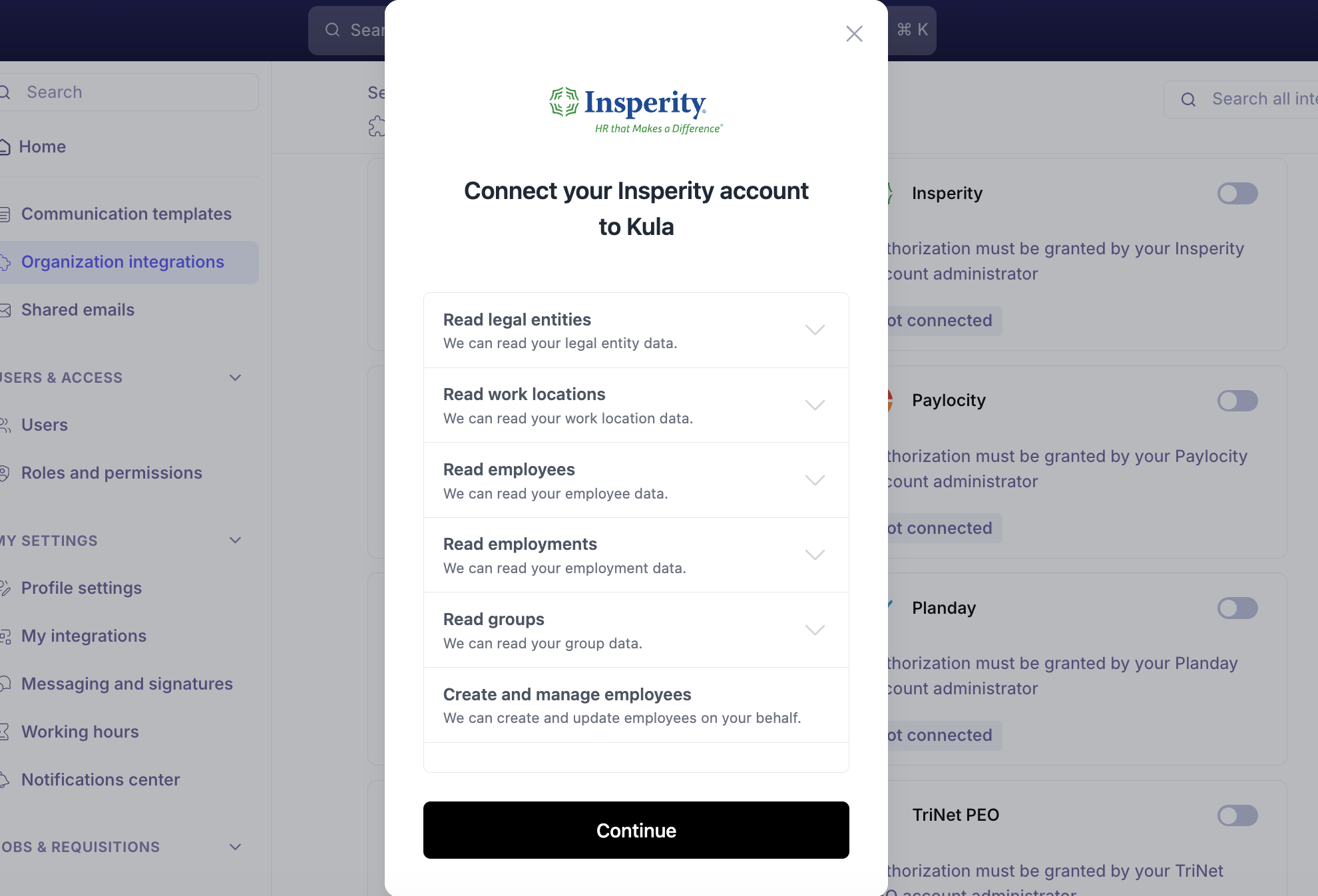
Permission | What Kula can do |
|---|---|
Read legal entities | Read your legal entity data |
Read work locations | Read your work location data |
Read employees | Read your employee data |
Read employments | Read your employment data |
Read groups | Read your group data |
Create and manage employees | Create and update employees on your behalf |
Step 2 — Copy the IP addresses and endpoints
The next screen is API Credentials. It gives you everything you need to ask Insperity for.
Copy the IP addresses listed under "please make sure to ask for the following IP addresses to be whitelisted". There are several, not one.
Copy the full list of API endpoints below them. They are grouped by area — HRIS, Onboarding and Core — and each is a specific
GETpath such as/company/{companyid}/departments/v1.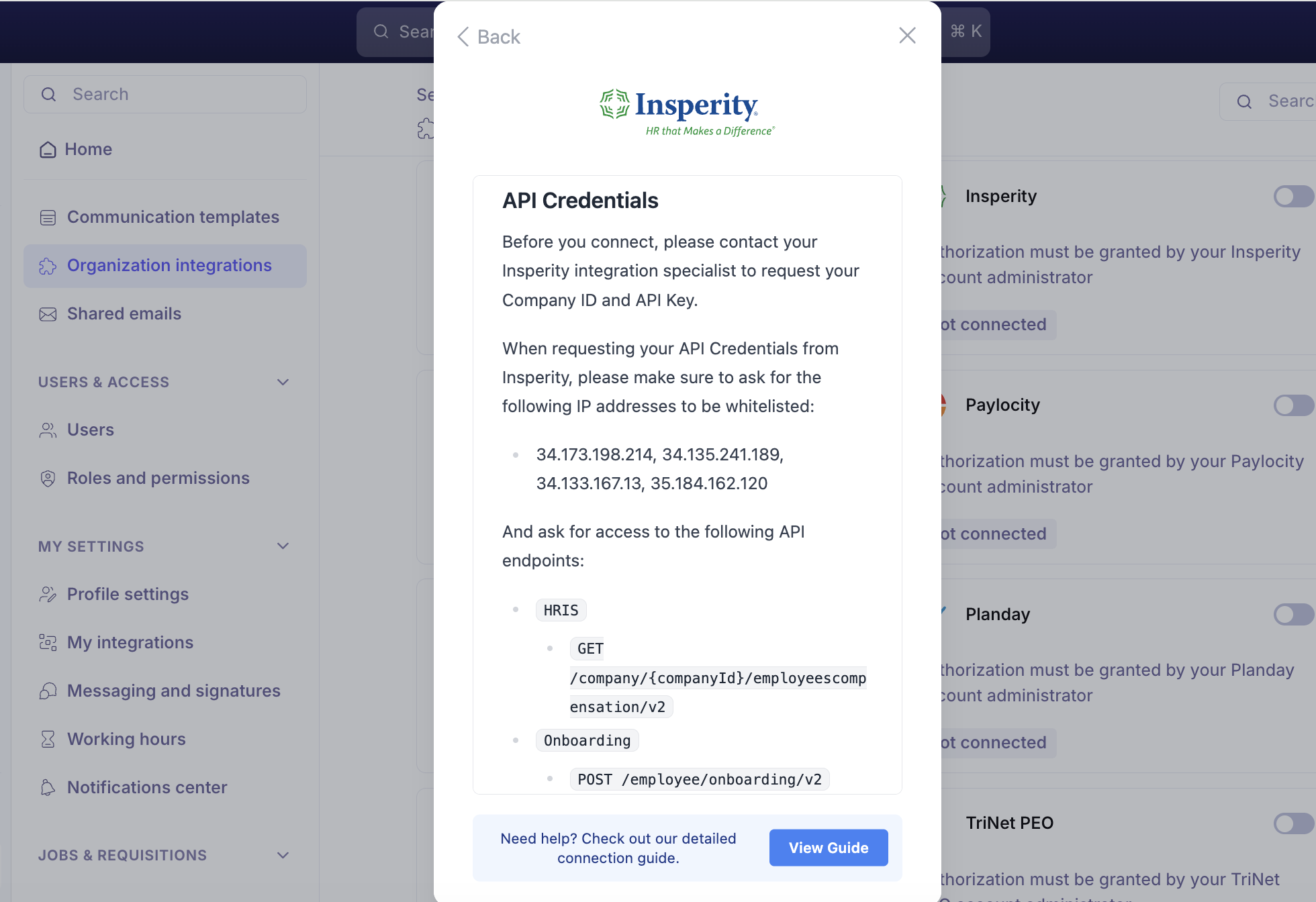
Copy both lists from your own connection window. Do not reuse values from a colleague, an older ticket, or this article — they are generated for your account and the wrong ones will fail.
You can close the connection window at this point and come back once Insperity replies.
Step 3 — Request access from Insperity
Send your Insperity integration specialist the IP addresses and endpoint list, and ask for your Company ID and API Key. Something like:
Hello Insperity support team,
We would like to request API access for our company.
Could you please allowlist the following IP addresses:
<IP addresses from Kula>and grant us access to the following API endpoints:<endpoint list from Kula>We also need our Company ID and our API Key.
Thank you,
<your name>,<your company>
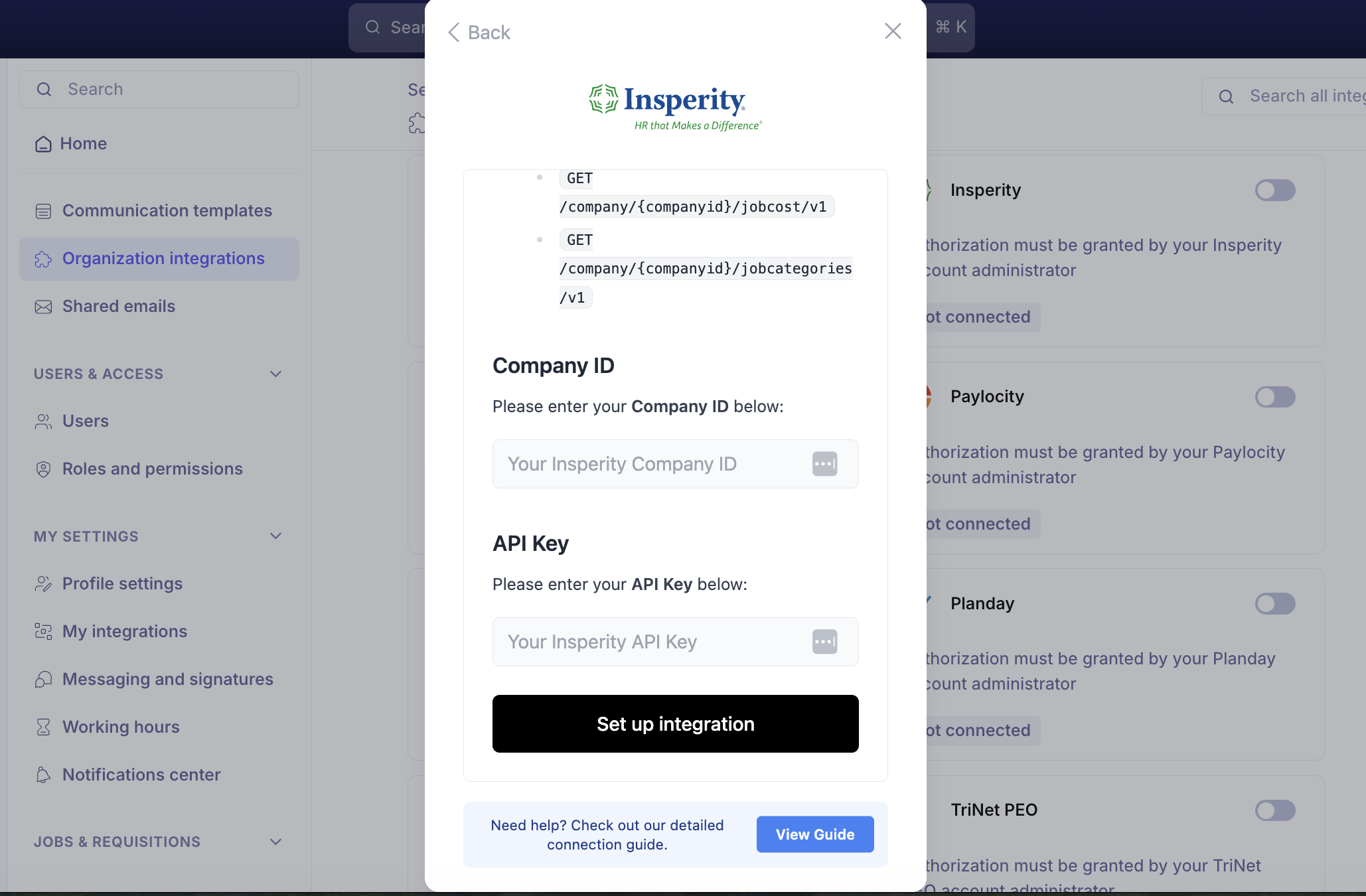
Step 4 — Enter your credentials
Once Insperity has sent your credentials and confirmed the allowlisting:
Open the Insperity card again to return to the connection window.
Enter your Company ID.
Enter your API Key.
Click Set up integration.
The field mapping screen opens automatically straight after a successful connection, so you can set your mappings while you are already there. You can reopen it at any time — see below.
Map your Kula fields to Insperity
Field mapping decides which Kula value fills which Insperity field, so the employee form arrives prefilled instead of blank.
Hover over the connected Insperity card.
Click Edit.
Match each Insperity field to the Kula field that should fill it.
Save.
These Kula fields are available to map, from your job, requisition and offer records:
Group | Fields you can map |
|---|---|
Organisation | Department, Sub Department 1, Sub Department 2, Sub Department 3 |
Address | Full Address, Street, City, State, Country, Zipcode |
Office | Office Name, Office Location |
Dates | Hire Date — the date the candidate was last moved to the Hired stage |
Push a hired candidate to Insperity
Once the mapping is set, open the hired candidate's application and send them to Insperity. Kula loads the Insperity employee form, prefills every mapped field, and fetches Insperity's own dropdown options live so the values you pick are always valid.
You can also attach documents from the application — offer letters and other files — and choose which Insperity document category each one goes into.
For the full flow, see Handing off to your HRIS.
Fix an invalid connection
If the card shows Invalid, the credentials were revoked or rotated on the Insperity side, or the IP allowlisting was removed, and pushes will fail.
Hover over the Insperity card.
Click Re-authenticate.
Enter your current Company ID and API Key.
Your existing field mappings are kept — you do not have to set them up again. If the credentials are still correct, check with Insperity that the allowlisting and endpoint access are still in place.
Good to know
Only hired candidates can be pushed. If the application is not in the Hired stage, Kula blocks the push.
Documents are limited to 20 MB per file. Anything larger is rejected. Files over 10 MB, and any push covering more than one document category, upload in the background — the push itself completes straight away and the documents follow.
Pushing the same person twice fails. If the employee already exists in Insperity, Kula reports it rather than creating a duplicate.
A permissions error means Insperity, not Kula. If the push fails with a permission error, the Insperity credentials that authorised the connection do not have rights to create employees. Ask your Insperity administrator to widen them and re-authenticate.
Where a job or requisition has more than one office, the first office is used when sending to Insperity.
HRIS and onboarding integrations are only available on ATS accounts.
Insperity takes longer to set up than the other HRIS integrations. The others connect in one sitting; Insperity depends on your integration specialist issuing credentials and completing the allowlisting. Start it well before you need it.
There are several IP addresses to allowlist, not one. If Insperity only allowlists the first one you send them, the connection will fail intermittently rather than cleanly — copy the whole list.
The IP addresses and endpoint list are generated for your account. Never reuse values from another company, an older ticket, or a screenshot.
The endpoint list is grouped by area — HRIS, Onboarding and Core. Send Insperity all of them, not just the HRIS group.
Every screen in the connection window carries a View Guide button next to "Need help? Check out our detailed connection guide.", which opens Insperity's own guide with screenshots.
FAQ
Insperity is asking us for IP addresses to whitelist — where do we find them? On the Insperity connection window in Kula. Turn on the Insperity card, click Continue past the permissions screen, and the API Credentials step lists the IP addresses and the API endpoints to request. There are several IP addresses — send Insperity all of them.
Can we connect Insperity today? Only if you already have your Company ID and API Key. Insperity issues these through your integration specialist and also has to allowlist Kula's IP address, so the request has to go to them first. Everything else on the Kula side takes a couple of minutes once the credentials arrive.
Can I send a candidate to Insperity before they are marked as hired? No. The push is only available once the application reaches the Hired stage — Kula blocks it before then to avoid creating employees for candidates who have not accepted.
We changed our field mapping — do we need to reconnect Insperity? No. Mapping and connection are separate. Hover over the card, click Edit, change the mapping and save; the connection is untouched.
Need help? If you have questions or need assistance, reach out to us at support@kula.ai or use the in-app chat.