Setting up Work type
Last updated: September 26, 2026
Work Type describes the employment arrangement for a job or requisition — Full time, Contract, Internship, and so on. It's used throughout Kula: on jobs and requisitions themselves, in filters and reports, in survey and offer-template scoping, and on the career page.
Who can do this: Any user creating a job or requisition sets its work type. Customizing work types needs the Manage work types permission (Admin and Super Admin by default).
Where to find it: Set on a job or requisition when creating or editing it. Manage the list itself under Settings → Jobs & Requisitions → Work types
The built-in work types
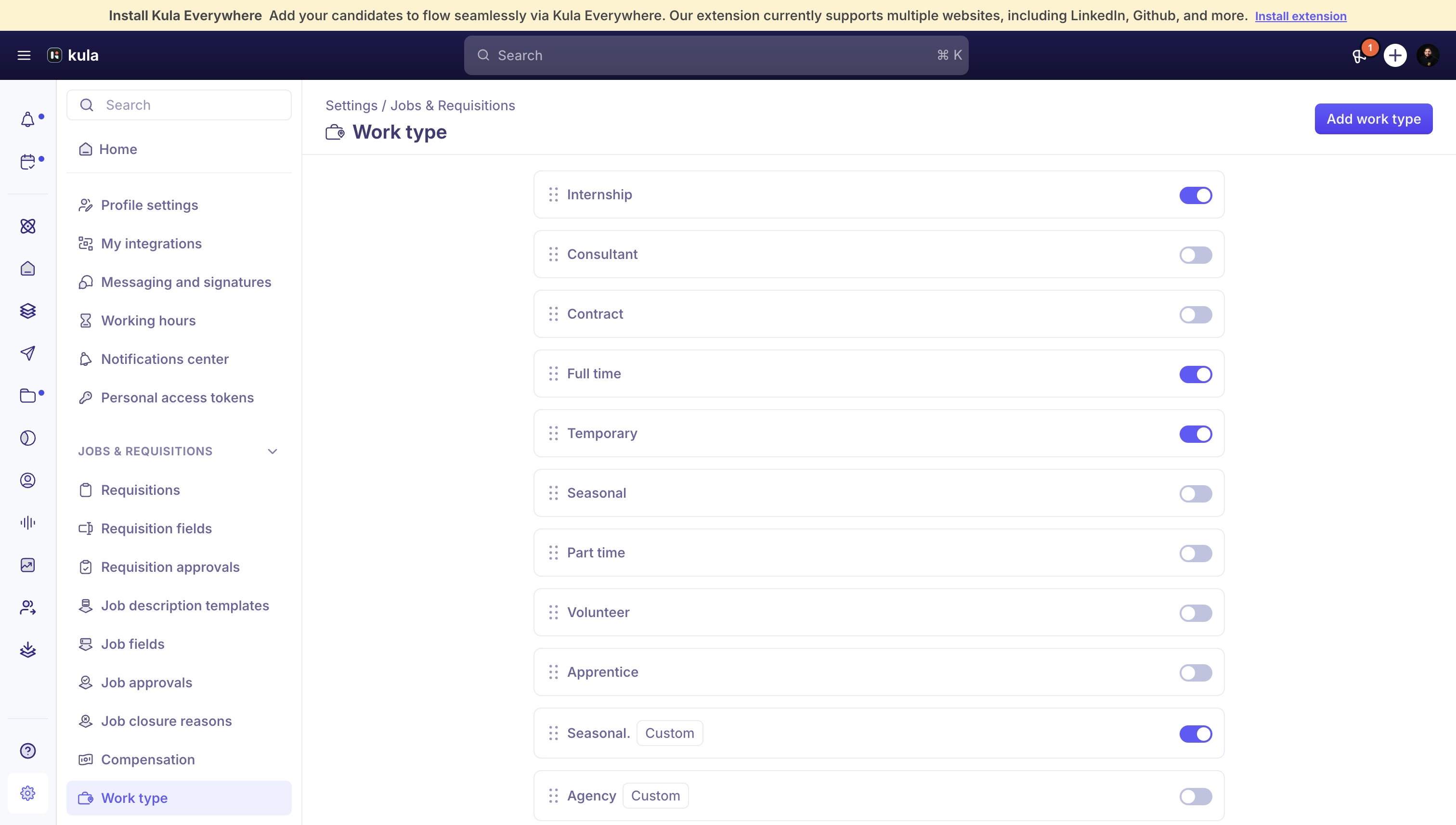
Kula ships with nine default work types: Full time, Part time, Contract, Internship, Temporary, Seasonal, Volunteer, Consultant, Apprentice. These are system defaults — you can enable or disable them, but you can't rename or delete them.
Where Work Type is used
Work Type isn't just a label on a job — it's a filter and scoping dimension across the product:
Jobs and requisitions — set directly when creating either one; filterable in the jobs list and requisitions list.
Custom Reports — a supported filter and breakdown dimension across both Job and Requisition reporting.
Requisition approval workflows — approval rules can be configured by Work Type (alongside Department, Office, and Requisition Type).
Job Description Templates — can be scoped to a specific Work Type (alongside Department and Office).
Surveys — can be mapped to specific Work Types, or applied globally.
Career page — the Workplace field (Remote/On-site/Hybrid) sits next to Work Type on job listings.
Customizing your work types (new)
Beyond the nine defaults, you can add your own custom work types and control which ones are available.
Go to Settings → Jobs & Requisitions → Work types.
Click Add work type and give it a label (up to 250 characters, must be unique on your account).
Use the toggle on each row to enable or disable a work type. At least one work type must always stay enabled — the toggle on the last remaining enabled type is disabled with a tooltip explaining why.
Drag rows to reorder them — this is the order they appear in everywhere work type is picked.
For a custom work type only (not a default), you can also rename it (pencil icon) or delete it (trash icon). Default work types can be disabled, but never renamed or deleted.
Deleting a custom work type
Deletion is a two-step, permanent action:
If the work type is still attached to any jobs, requisitions, or other records, Kula asks you to reassign those records to a different work type first.
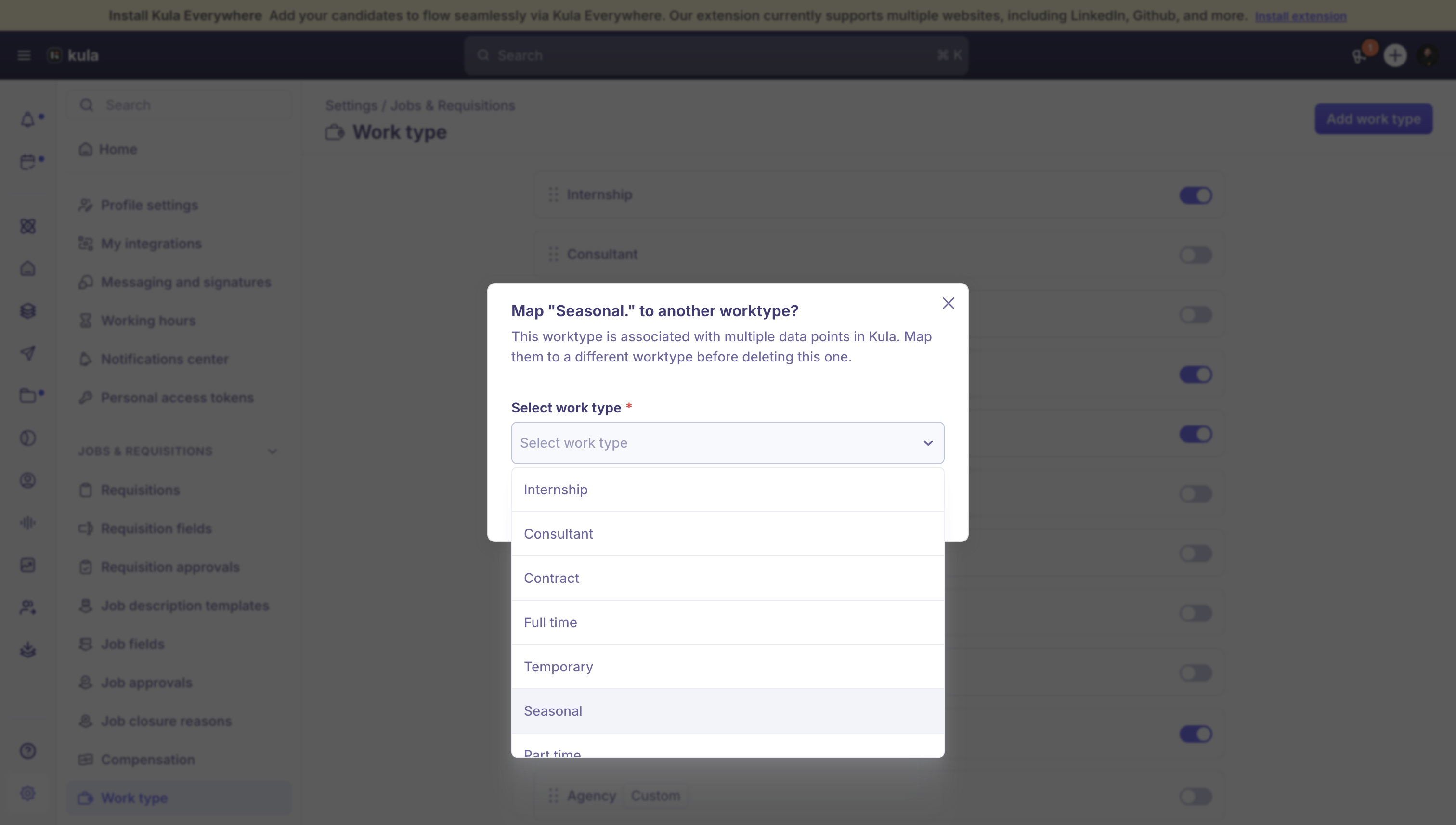
Once nothing depends on it (or after reassigning), you're asked to type DELETE to confirm. This cannot be undone.
Need help?
If you have questions or need assistance, reach out to us at support@kula.ai or use the in-app chat.