External users and what they can see
Last updated: September 17, 2026
An external user is someone on the External Collaborator role — an agency, a search partner or a contractor. It is the narrowest role in Kula, with four permissions and nothing else. This article shows what those four allow, which candidates an external user can read, and how to hide specific fields from them.
Who can do this: Super Admin, Admin — and anyone on a custom role with the Manage users permission
Where to find it: Settings → Users & Access → Roles and permissions → External Collaborator to see the role; a job's Hiring team tab to change what a given external user reaches
Who counts as an external user
Only people on the built-in External Collaborator role. Nobody else is treated as external, whatever their email domain — an Organization Member with a supplier's email address is still an internal user.
There are two ways someone becomes an external user in your account:
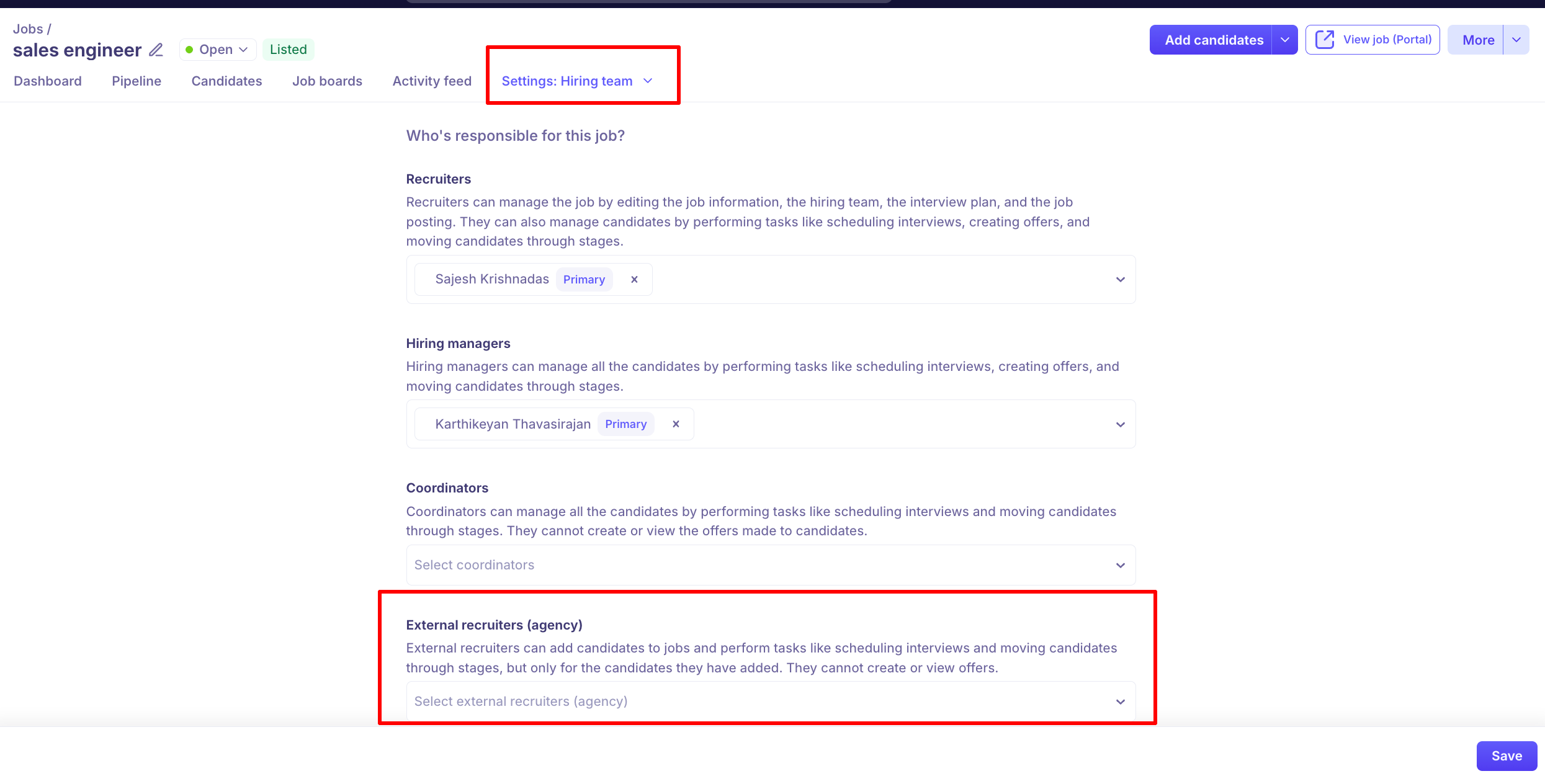
You invite them with the External Collaborator role, then add them to a job's hiring team.
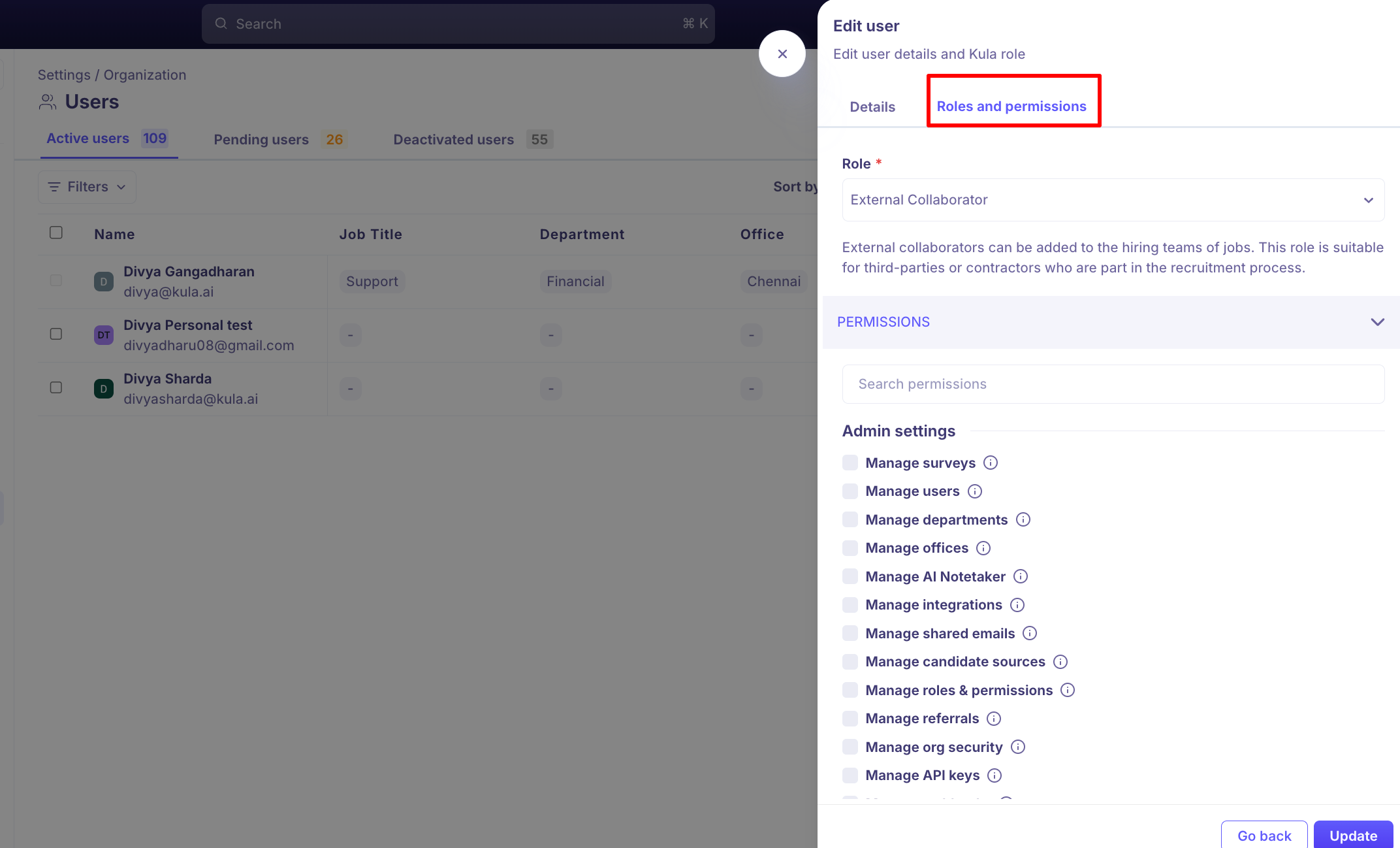
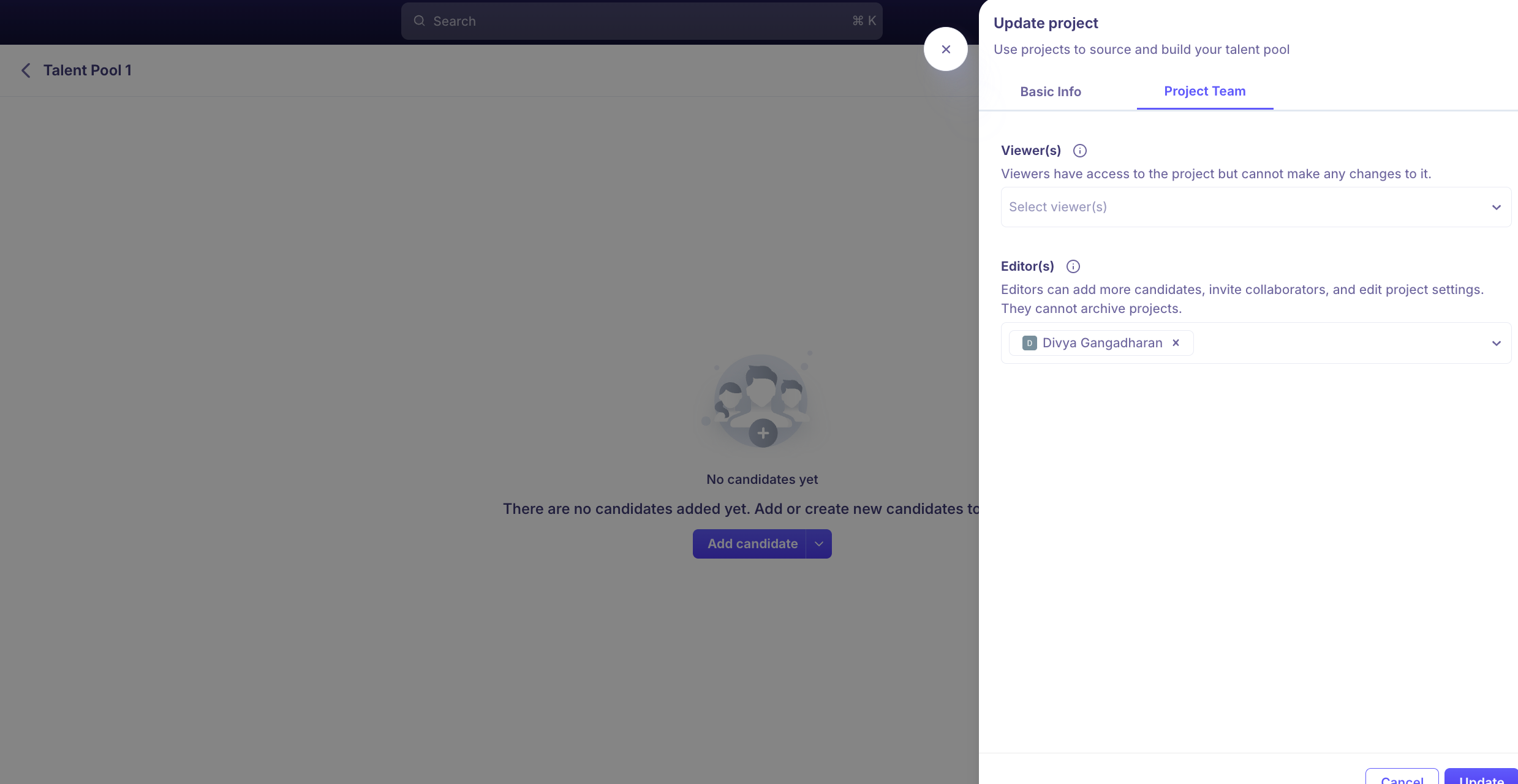
You invite them to a project by email address. Kula creates the account with the External Collaborator role automatically.
What the role allows
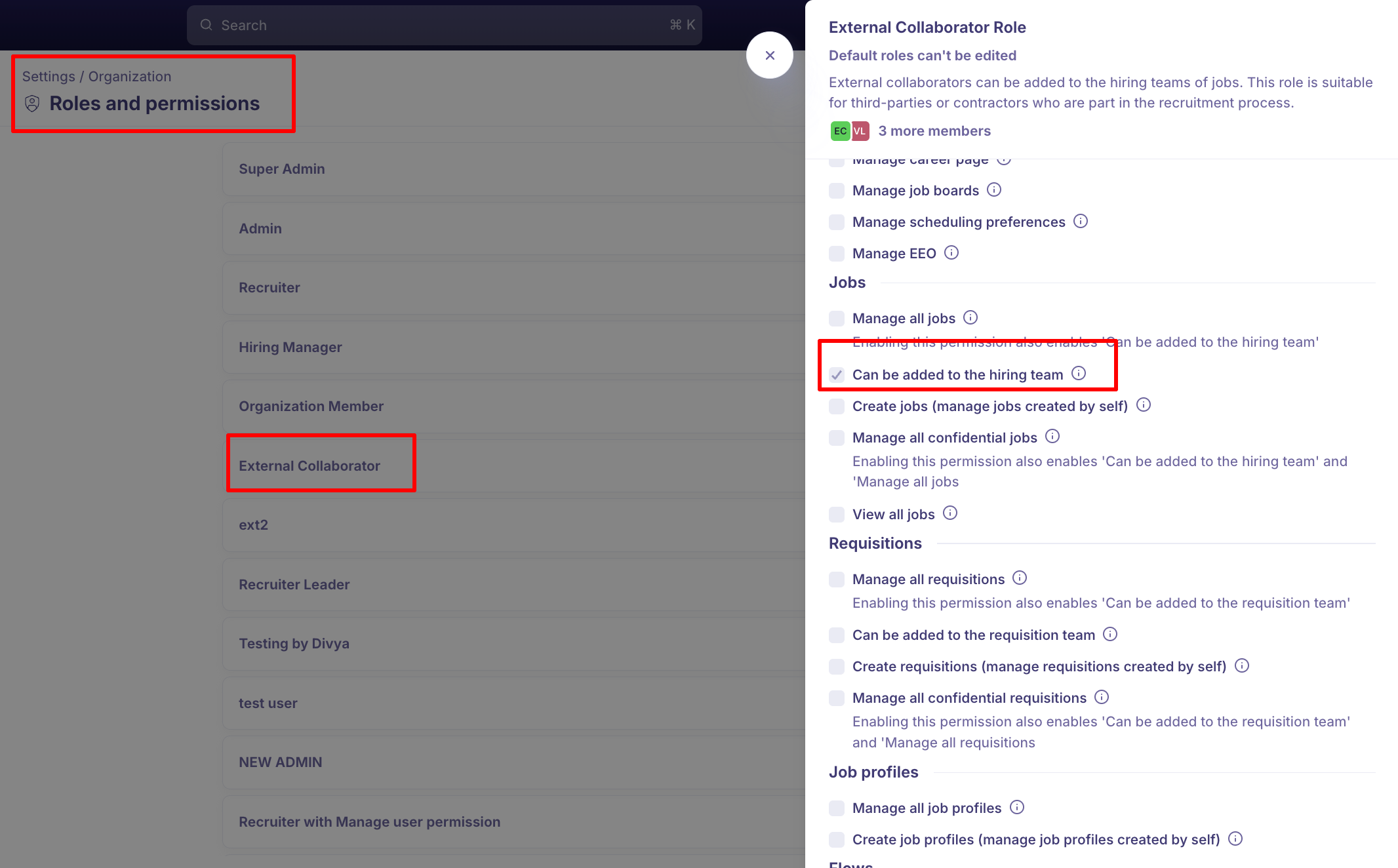
Open Settings → Users & Access → Roles and permissions and select External Collaborator. Four permissions are ticked. Everything else on that page is not.
Permission | What it means |
|---|---|
Can be added to the hiring team | They can be put on a job's hiring team. This is how they reach any job at all. |
Can be added to Flows | They can be added to a Flow someone else built. |
Can be shared a project | They can be added to a project as an editor or a viewer. |
Create new candidates (and manage created candidates) | They can add candidates and manage the ones they added. |
What is not ticked answers most of the questions people ask about this role:
Your candidate database. View all candidates, Manage all candidates and Delete candidates are all off, so they only ever see candidates on a job they are on.
Private notes. View private notes is off, so your team's private notes stay internal.
Your other jobs. Manage all jobs, View all jobs and Create jobs are all off.
Requisitions, including being added to a requisition team.
Reports, analytics and data exports, including downloading underlying data.
Job profiles, Circles and EEO settings.
You cannot change these. External Collaborator is a default role, and default roles cannot be edited. If you need a third party with a different shape of access, build a custom role instead.
What an external user sees when they sign in
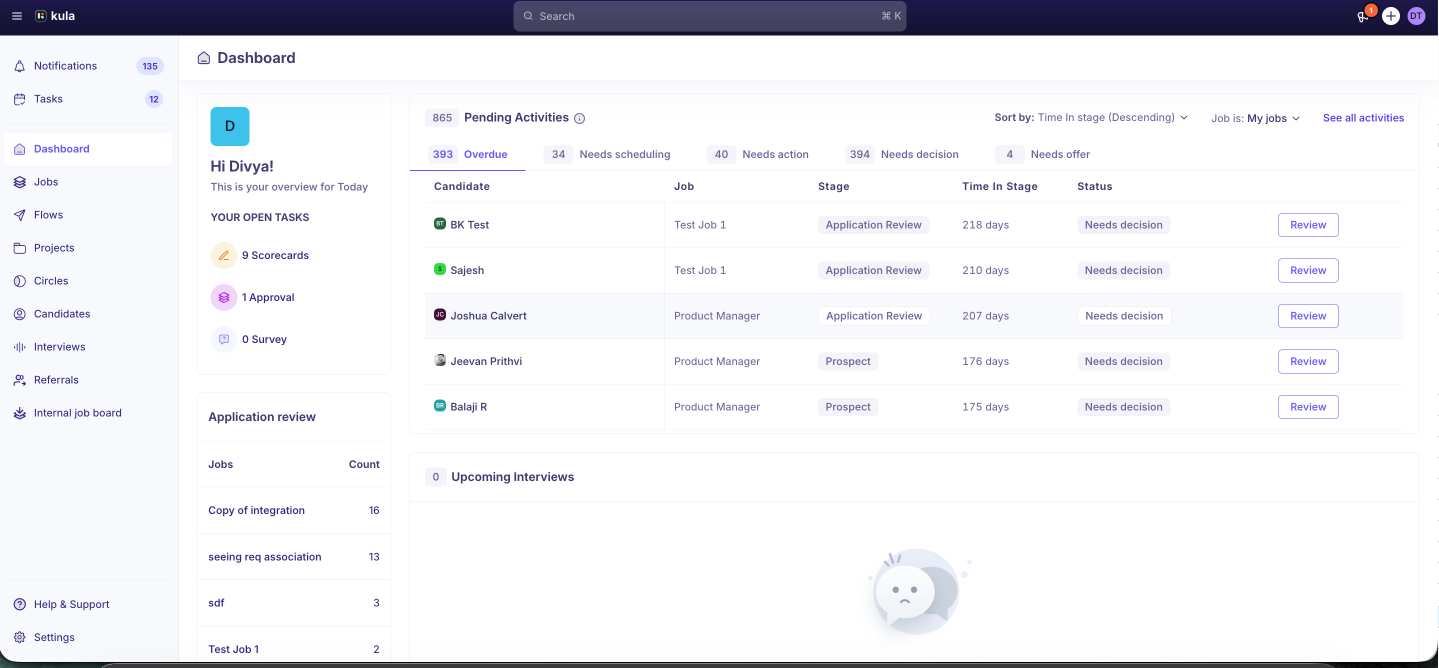
An external user may see menu items that look like the rest of Kula — Jobs, Candidates, Interviews and so on. A menu item is not access. What sits behind it is still governed by their role.
Their access comes from two things only:
The jobs they have been added to, and their position on each hiring team
The four permissions above, which you cannot widen
If they open a section their role does not cover, it comes up empty, or the action does not go through. Nothing in it is shared with them.
So when you want to change what an external user can reach, change their hiring team position or hide the field — both are below. Their menu is not the control.
What they see on a job
Being on the job's hiring team is the whole of their access. What they see there depends on which position you give them.
Position on the job's hiring team | Candidates they can see on that job |
|---|---|
Recruiter | Every candidate on the job |
Hiring Manager | Every candidate on the job |
Coordinator | Every candidate on the job |
External Recruiter | Only candidates credited to them |
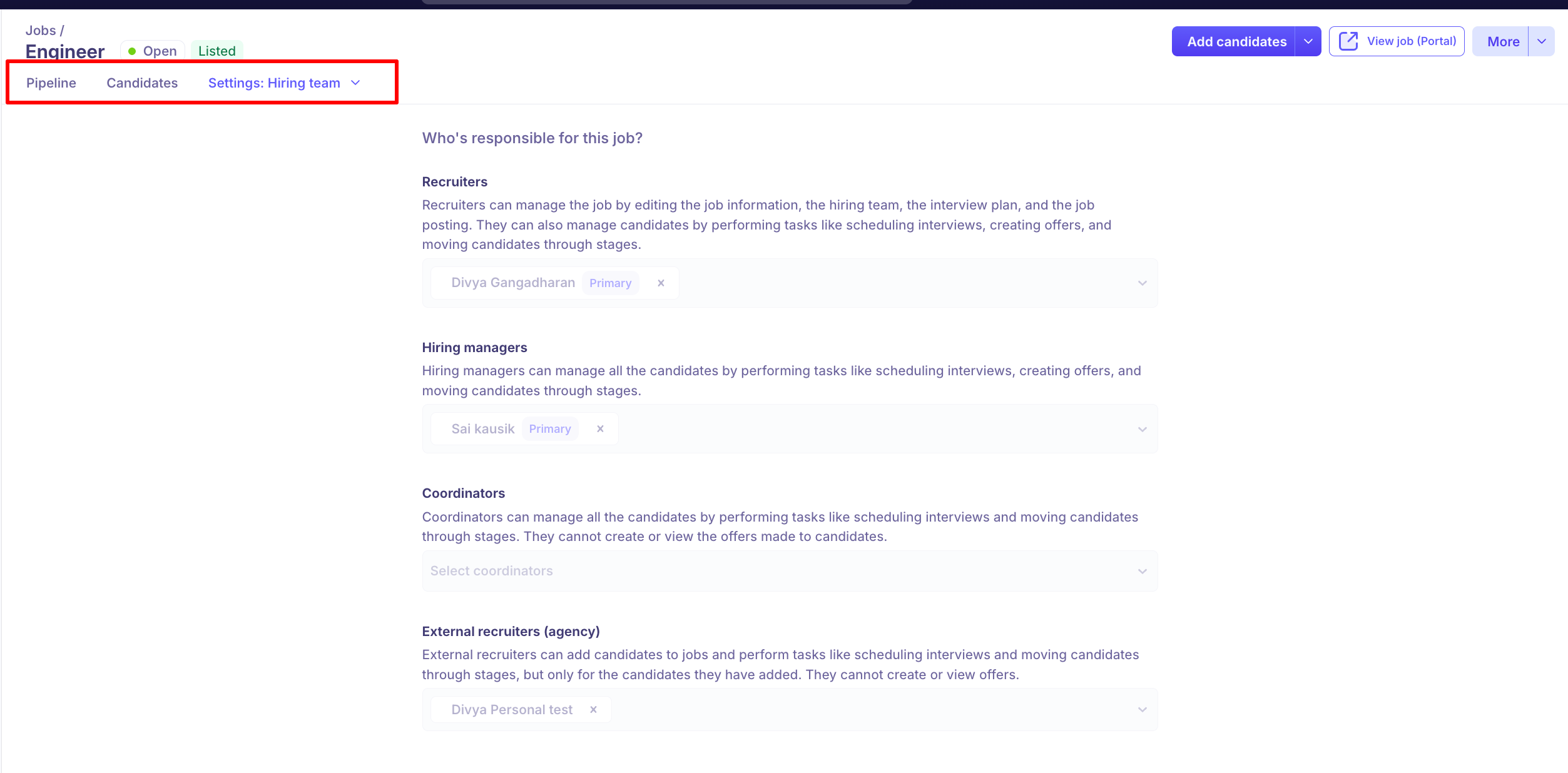
This is the single most useful control you have. Add an agency as External Recruiter and they see their own submissions and nothing else on that job. Add them as Recruiter, Hiring Manager or Coordinator and they see the whole pipeline — including candidates from your other agencies.
These are positions on one job, not organization roles. Someone can be an External Recruiter on one job and a Coordinator on another.
What they can do with a candidate
On a job they are on, and for a candidate they can see, an external user can:
Add a candidate and upload a resume
Set the Source and Credited to so the submission is attributed to them
Open the candidate's profile and follow their progress through your stages
Join an interview they are invited to, and submit a scorecard if one is attached
Watch an interview recording
They cannot download a recording. Downloading is limited to people who can edit the job, which on a hiring team means the Recruiter position only.
In a project, they get a shortened candidate profile. Clicking a candidate's name in a project opens a limited panel — name, skills, experience and education — without the link through to the full candidate record that internal users get.
Good to know
Global search is filtered to what they already have. For an external user it returns only candidates and interviews they can already reach — it isn't a route into the rest of your data.
An empty screen is working as intended. If an external user opens a section their role doesn't cover, it comes up empty. Nothing has failed to load.
A custom role is not the same as an external role. You can copy the same four permissions into a custom role, but that person is no longer treated as an external user. Use External Collaborator unless you have a specific reason not to.
Job-level notifications go to the whole hiring team. An external user on a job hears about activity on that job, not only about their own candidates.
They can see your team's email addresses. There's no setting to hide these today.
An action that returns an error is an action their role doesn't allow. Nothing has changed about their access — that's the limit of the role.
Enforcing SSO locks external users out. They sign in with an email address and password, so switching that off leaves them no way in. Plan for it before you enforce SSO.
"External Collaborator" and "External Recruiter" are two different things. The first is their role across your whole account. The second is their position on one job.
FAQ
Our agency partner can see Jobs, Candidates and Settings in their menu. Have we given them too much access?
No. A menu item isn't access — what sits behind it is still limited to the four permissions their role holds and the jobs they're on, so those screens come up empty. To check what they can reach, look at which jobs they're on and their position on each.
Why doesn't my agency contact see all the candidates on the job I added them to?
Because you added them as External Recruiter, which limits them to candidates credited to them. If they should see the whole pipeline, change their position on the job's Hiring team tab to Recruiter, Hiring Manager or Coordinator. Can our external recruiters see our other open roles?
No. They only see jobs you've added them to. Add them to any role you want them working.
Can we give External Collaborators a bit more access — say, reports?
Not on that role. It's a default role and its permissions are fixed. You'd need a custom role, which is a different thing from an external user. For more, see User roles in Kula.
Can an agency see the private notes our team leaves on candidates?
No. View private notes isn't one of the role's permissions, so private notes stay internal.
Need help? If you have questions or need assistance, reach out to us at support@kula.ai or use the in-app chat.