User roles in Kula
Last updated: September 17, 2026
A user's role controls what they can see and do across your account. Kula comes with seven default roles, and you can create custom roles when the defaults don't fit. This article explains each default role and how roles work.
Who can do this: Who can do this: Super Admin, or anyone on a custom role with the manage roles and permissions permission
Where to find it: Settings → Roles & Permissions (assign roles to people under Settings → Users)
The seven default roles
Every role is a bundle of permissions. These are the defaults Kula ships with, from most access to least.
Role | What they can do | Suitable for |
Super Admin | Manage the organization's settings, plus all jobs, flows, projects, and users. Only Super Admins can add or delete other Super Admins. | CHROs, heads of HR, heads of recruitment |
Admin | Manage all jobs, flows, projects, and settings — everything except the organisation's settings. Add and delete all users except Super Admins. | Recruitment leaders, lead recruiters, senior recruiters |
Recruiter | Create new jobs, flows, and projects, and be added to the hiring teams of jobs, to flows, and to projects. View and manage all contacts in the system. | Junior to mid-level recruiters |
Hiring Manager | Be added to the hiring teams of jobs, to flows, and to projects. View all contacts in the system. | Managers hiring for their own team |
Department Head / Site Head | A scoped variant of Hiring Manager: assign one or more departments and/or offices, and the person is automatically added as an invisible Hiring Manager to every job and requisition in that scope — current and future, without being added job by job. Can also create and manage their own requisitions, be added to Flows, be shared a project, and create contacts — with contacts access extending to every contact in the organisation, not just their scope. | Department heads or office/site leads who need visibility across everything in their remit without a recruiter wiring up access job by job |
Organization Member | Be added to jobs as an interviewer, refer candidates, and apply on the internal job board. | The rest of the organisation |
External Collaborator | Be added to the hiring teams of jobs. | Third parties or contractors who take part in recruitment |
Org roles and job roles are different
Two layers control access, and it helps to keep them separate:
Org role — the account-level role above (Super Admin, Admin, Recruiter, and so on). It sets what a person can do across Kula.
Job role — the role a person holds on a specific job when you add them to its hiring team: Recruiter, Hiring Manager, Coordinator, or External Recruiter.
Creating a custom role
When no default role fits, create a custom role.
Go to Settings → Users and Access → Roles & Permissions → Add Role
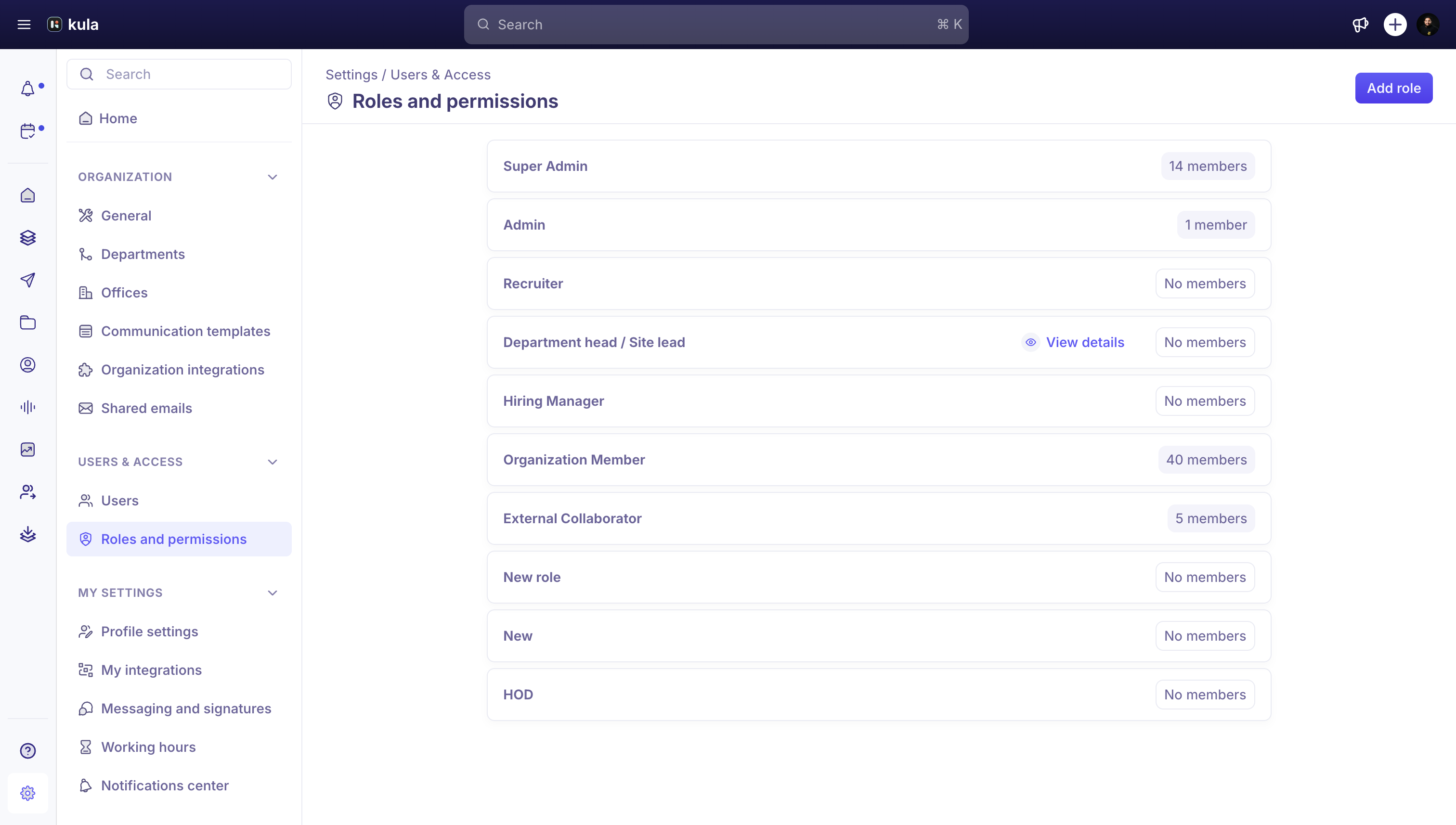
Clone an existing role that's close to what you need.
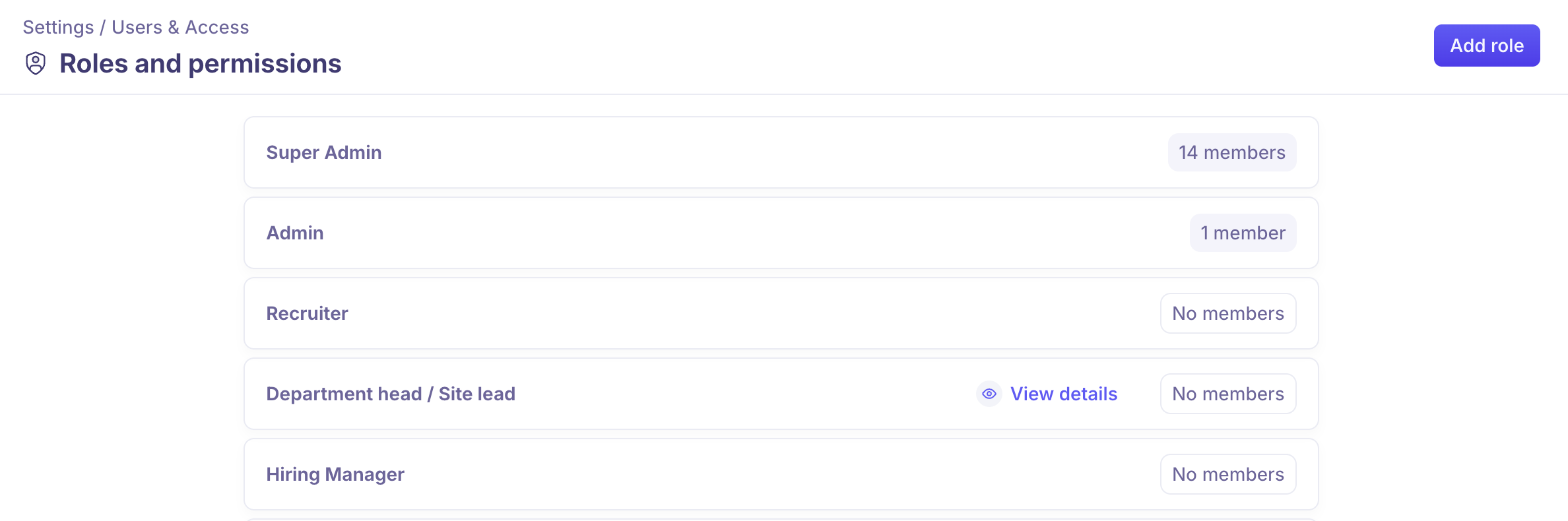
Adjust the permissions.
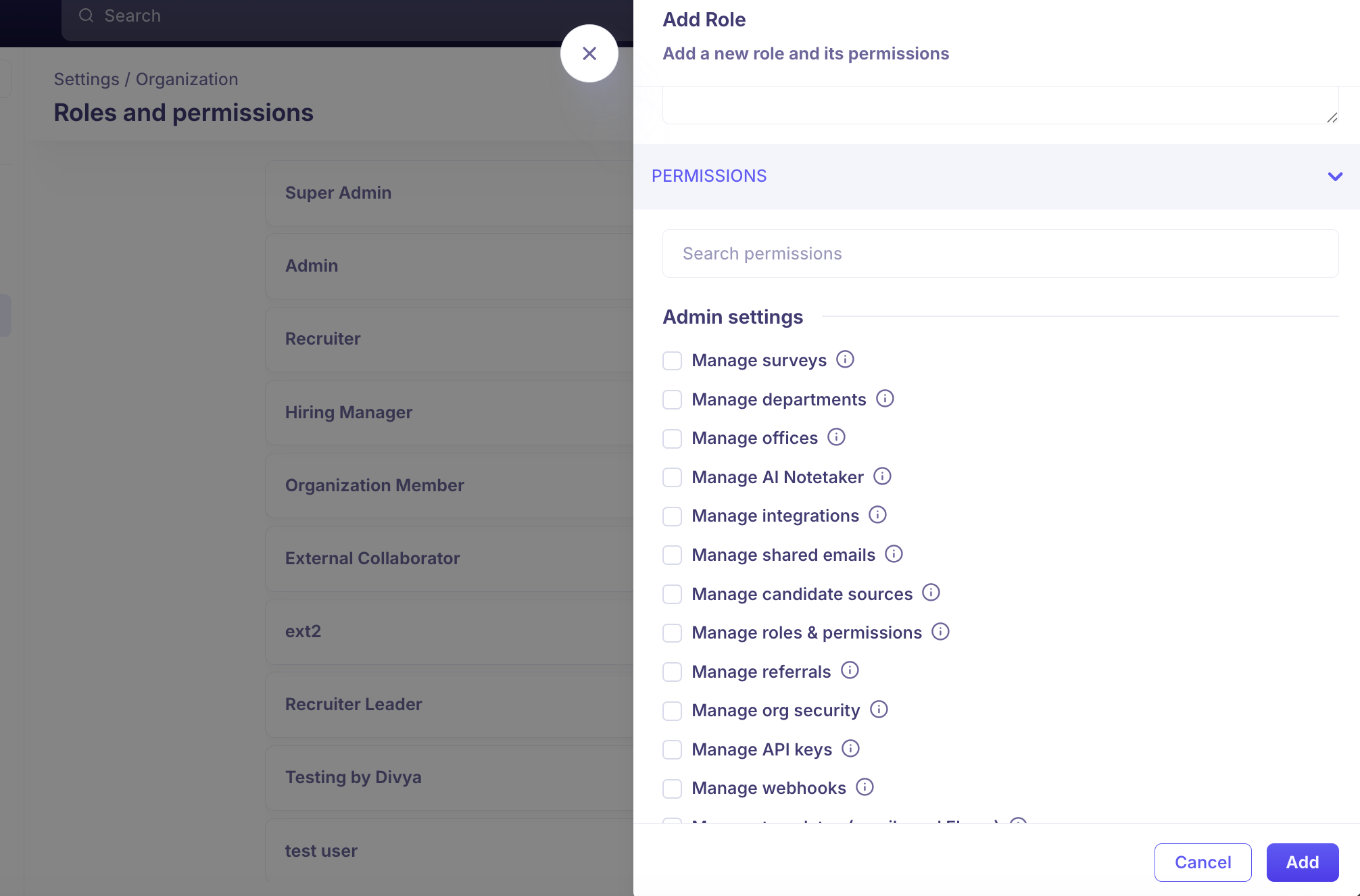
Save, then assign the new role to users under Settings → Users.
You can't edit the seven default roles directly — clone one into a custom role and adjust that instead.
Good to know
Default roles can't be edited, even by Super Admins. To change what a role can do, clone it into a custom role and adjust that.
Private notes are visible to Super Admins by default. Other roles only see a private note if they're tagged in it — unless you grant the private-notes permission through a custom role.
Reports & Analytics is available to Admins and Super Admins by default. Recruiters and Hiring Managers don't get reporting unless you grant it through a custom role.
Hiring Managers see all candidates on the jobs they're on, including everyone in the raw Application Review stage. Restricting a Hiring Manager to specific stages isn't available yet.
Department Head / Site Head is a scoped variant of Hiring Manager rather than a fully independent permission set — cloning it into a custom role keeps the department/office scoping. It's not auto-added to confidential jobs or requisitions in its scope (add it by hand if needed), and it doesn't generate the usual hiring-team notifications, since it can be added to many jobs at once invisibly.
Ready to add people? To invite users, assign these roles, or bring in a whole team from a spreadsheet, see Invite your team and plan their roles.
FAQ
Can I change what a default role can do?
No. Default roles can't be edited, even by Super Admins. Clone the closest one into a custom role and adjust that.
Can a Recruiter or Hiring Manager see reports?
Not by default — reports come with Super Admin and Admin. To give someone else reporting, use a custom role with the View all default reports permission. What's the difference between Hiring Manager and Department head / Site lead?
A Hiring Manager only sees the jobs they've been added to. A Department head / Site lead is automatically given Hiring Manager access to every job and requisition in the departments and offices you assign them, including new ones.
Does a Department head / Site lead see confidential jobs in their department?
No. Confidential jobs and requisitions aren't included. Add them to the job's hiring team by hand if they need it.
Who can create custom roles?
Super Admins, by default. Anyone else needs a custom role with the manage roles and permissions permission.
Someone is a Hiring Manager, but I want them to run one job as the recruiter. Do I change their role?
No. Add them to that job's hiring team as Recruiter. Their org role stays the same — the job role is what applies on that job.
Need help?
If you have questions or need assistance with setup, reach out to us at support@kula.ai or use the in-app chat.