Job details: title, department, office, employment type
Last updated: August 7, 2026
These four fields identify a job at a glance — what it's called, which team owns it, where it's based, and how it's staffed. Title is typed directly on the job; Department, Office, and Employment Type (Work Type) are selected from lists that admins manage centrally in Settings, not created on the fly while building a job.
Who can do this: Any Super Admin, Admin, or Recruiter can select these values on a job they're creating or editing. Managing the underlying Department and Office lists — adding, renaming, or removing entries — requires Settings access (typically Admin or Super Admin).
Where to find it: Set per-job under Jobs → [job] → Job information. The underlying lists live under Settings → Departments and Settings → Offices.
Title: two separate fields, not one
Kula actually has two title fields, and it's easy to conflate them:
Internal job name — set when you first create the job. This is what your team sees inside Kula and doesn't need to match anything external.
Job post title — set later, on the Job posting tab. This is what candidates see on your career page and any job boards, and it can differ from the internal name (for example, an internal name like "BE-2026-Q3-Senior" versus a public title like "Senior Backend Engineer").
Department
Departments support a nested hierarchy — a department can have sub departments, and Kula's department search matches all levels, including deeply nested ones, so searching a parent department surfaces its children too.
Departments are managed under Settings → Departments, not from inside job creation — there's currently no way to add or edit a department while you're in the middle of creating a job, even with full admin permissions. If the department you need doesn't exist yet, set it up in Settings first.
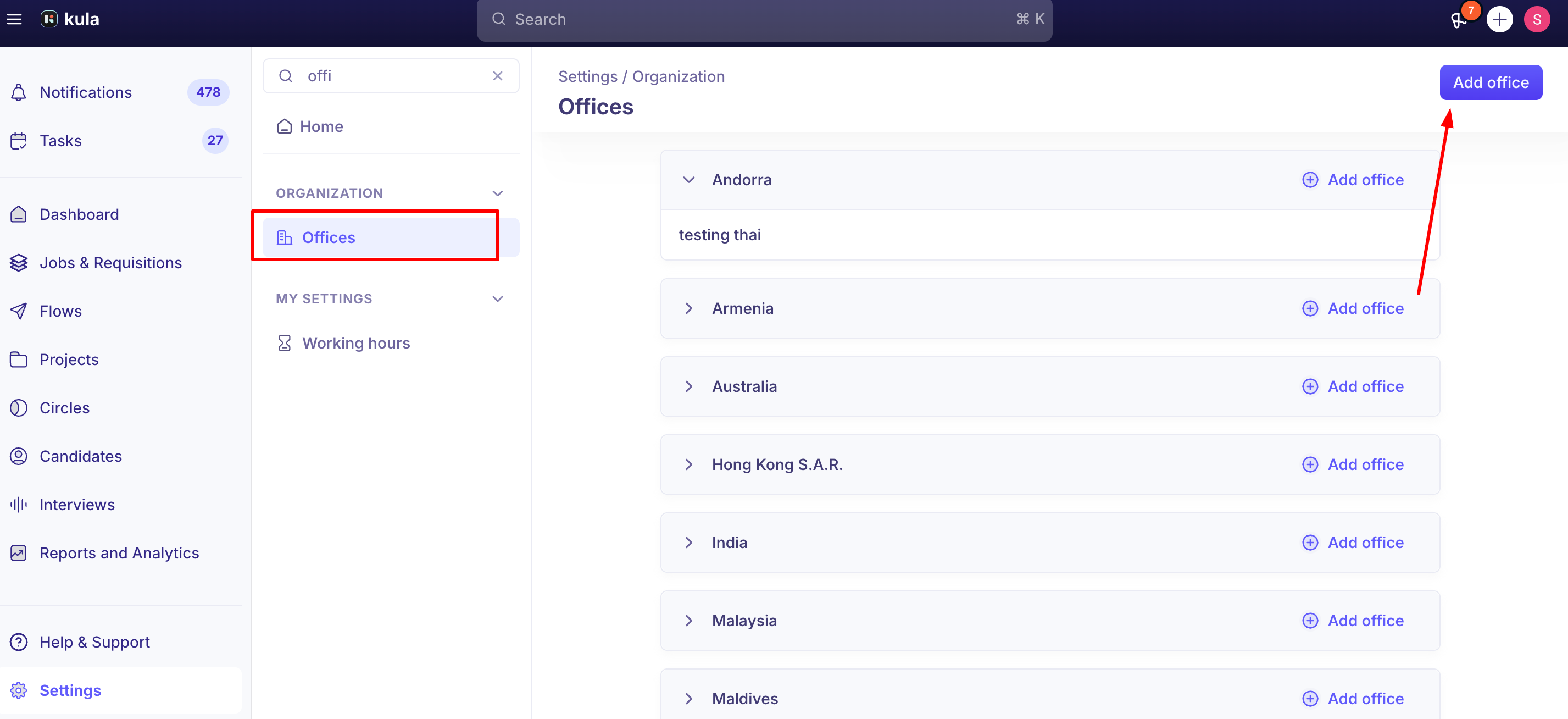
Office
An office needs city, state, and country populated to be compatible with most external job boards — an office created with only a country can cause posting issues downstream.
Offices are managed under Settings → Offices.
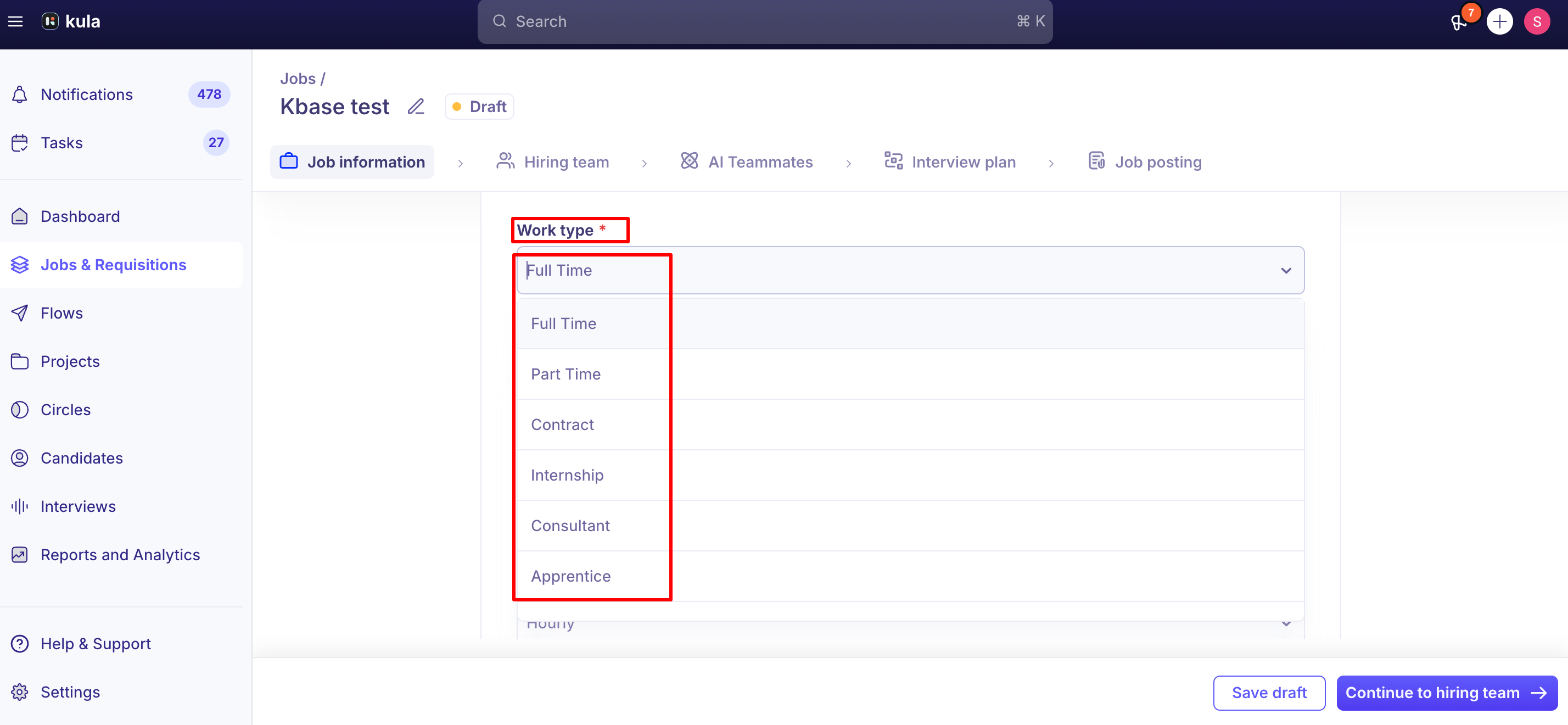
Employment type (Work Type)
Work Type is currently a fixed list rather than something each account can freely customize — as of this writing it is not self-service manageable under Settings, which is why you won't find an "add/edit Work Type" option there.
If your team needs a Work Type that isn't on the default list, the current path is to raise it with Kula support as a request rather than adding it yourself; self-service customization (add/remove your own Work Type values) is actively being built.
Good to know
Department and Office can't be created inline while building a job. Both must already exist in Settings before you start creating the job — there's no "add new" shortcut from the job-creation screen itself.
A deeply nested department structure is searchable, not just browsable. Typing a parent department name in the search will also surface matching subdepartments, even several levels deep.
An office missing city, state, or country can cause job board posting problems later, even though Kula may let you save it with just a country. Fill in all three if you plan to post the job externally.
Employment Type customization isn't self-service yet. If you need a Work Type that isn't on the default list, contact support rather than looking for a Settings option — and expect this to change to self-service in the near future.
Deleting an office currently used by a job carries risk. Some traces of it can persist on the live job posting and in API responses even after it's removed from Settings — check for jobs still referencing it before deleting.
FAQ
Why does my job have two different titles? The Internal job name (set when you create the job) is what your team sees inside Kula. The Job post title (set on the Job posting tab) is what candidates and job boards see, and can be worded differently.
Where do I add a new department or office? Settings → Departments or Settings → Offices. You can't create either one from inside the job-creation screen — they need to exist first.
Can I add a custom Employment Type / Work Type option? Not yet self-service. Contact support with the option you need — this is expected to become self-service soon, but isn't available today.
Does my office need a full address? At minimum, city, state, and country — an office saved with just a country can run into compatibility issues when posting to external job boards.
I deleted an office that was used on an old job — is that safe? Not entirely. There's a known gap where a deleted office can still show up on the live job posting and in API data even after removal from Settings, so check for jobs still using it first.
Does the currency on an offer or requisition automatically match the job's office? Not currently — currency defaults are account-level (typically USD) rather than derived from the office. Office-based currency is planned but not live yet.
Need help?
If you have questions or need assistance, reach out to us at support@kula.ai or use the in-app chat.