Offer statuses in Kula
Last updated: September 25, 2026
Every job's pipeline has an Offer stage that shows where a candidate is once you're ready to make an offer. Separately, each offer has a status that changes as it's created, approved, sent and answered. This article covers both.
Who can do this: Super Admin and Admin can edit a job's interview plan. Recruiters and Hiring Managers can move candidates and work with offers.
Where to find it: the Offer stage: the job → Settings → Interview Plan. Offer statuses: Candidates → open a candidate's application → Current job tab → Offer.
How the Offer stage fits in your pipeline
Kula groups every stage in a job's interview plan under one of five milestones. Every new job has a stage called Offer under the Offer milestone.
Milestone | What it covers |
|---|---|
Prospect | Sourced candidates, before they apply |
Application review | The candidate has applied and is being screened |
Interview | Your interview stages |
Offer | An offer is being prepared or has been made |
Hired | The candidate has accepted and been hired |
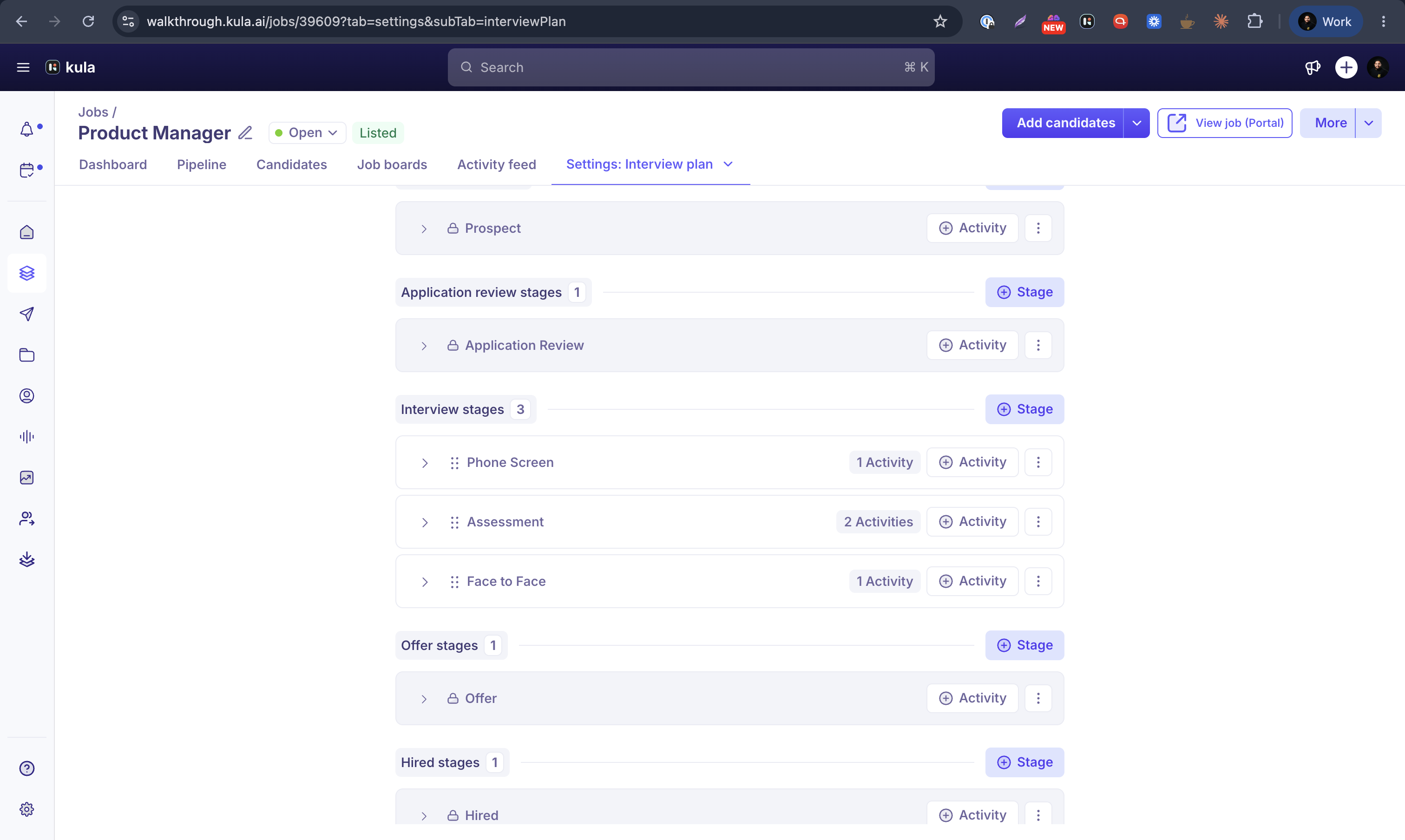
The five milestones can't be removed. You can add your own stages under any milestone, and remove stages you added. See What is an interview plan?
Moving a candidate into the Offer stage doesn't create or send an offer. You still create the offer yourself. See Creating an offer.
What each status means
Status you'll see | What it means |
|---|---|
Draft | The offer has been created but not sent for approval or to the candidate. |
Pending approval | The offer has been submitted and is waiting on one or more reviewers. |
Approved | Reviewers have approved the offer — it's ready to generate a document and send. |
Rejected internally | A reviewer rejected the offer during approval. |
Generating document / Document generated | Kula is filling in your offer letter template, or has finished generating it. |
Document generation failed | Something went wrong generating the offer letter — check your template's tokens. |
Sending… (email, DocuSign, PandaDoc, Adobe Sign, or SpotDraft in progress) | Kula, or your e-signature provider, is in the process of sending the offer. |
Send failed | The email or e-signature send didn't go through — try again. |
Offer sent (awaiting candidate) | The offer has reached the candidate, and Kula is waiting on their response. |
Awaiting company co-signer | An internal co-signer still needs to sign before the candidate does. |
Accepted | The candidate has accepted the offer. |
Declined by candidate | The candidate turned the offer down. |
Declined by company signer | Your internal co-signer declined to sign. |
Voided | The e-signature envelope was voided — usually because the offer was cancelled, regenerated, or updated. |
Cancelled | The offer was cancelled. |
Awaiting e-sign preparation | SpotDraft only: the document has been uploaded but signature fields haven't been placed yet, so the candidate hasn't been notified. |
Preview | DocuSign only: you're previewing the offer inside DocuSign before sending it. |
How an offer is marked accepted or declined
If you sent the offer by Kula email, there's no page for the candidate to answer on. Record the outcome yourself with Mark as Accepted or Mark as Rejected. If you sent it for e-signature, the candidate's signature or decline updates the status automatically. See Creating an offer and Setting up e-signature.
Good to know
There's no automatic "Expired" status. An expiration date appears on the offer letter and approval emails, but the status doesn't change when it passes. Follow up or cancel the offer yourself.
Requisitions update automatically. Accepting an offer linked to a requisition fills it; declining or cancelling reopens it.
Moving a candidate to the Offer stage doesn't send anything. Create and send the offer separately.
FAQ
Why doesn't my offer show as "Expired" after the date passed? Kula doesn't have an Expired status. Follow up with the candidate or cancel the offer.
How do I mark an offer accepted if I sent it by email? Open the offer and use Mark as Accepted (or Mark as Rejected).
Can I delete the Offer stage from my interview plan? No. The Offer milestone can't be removed.
Does moving a candidate to the Offer stage send them an offer? No. It only shows where they are in your pipeline.
Need help?
If you have questions or need assistance, reach out to us at support@kula.ai or use the in-app chat.