The candidate-facing application experience
Last updated: September 26, 2026
The application form is one of the first real interactions a candidate has with your company. This article covers what candidates actually see and experience when they apply through Kula, and how the choices you make in the form builder shape that experience.
Who this is for: anyone setting up application forms who wants to see them from the candidate's side
Where to find it: to see the form as a candidate would, use Preview while setting up the job
What candidates see
They click Apply on a job and land on your application form.
They fill in Personal Info (such as name, email, phone and location), then Profile (such as resume, LinkedIn and portfolio), then any sections you added.
They submit and see an on-screen confirmation.
Fields set to Hide never appear. Mandatory fields are marked, and the form won't submit until they're filled in.
How each question looks
Field type | Candidates see |
|---|---|
Short text / Long text | A one-line / multi-line text box |
Yes/No | Two buttons |
Single select | A dropdown or radio buttons |
Multi select | Checkboxes |
Number / Date | A number box / a date picker |
URL | A text box that checks it's a web address |
File upload | An upload button. PDF, DOCX, JPG or PNG |
Resume upload and autofill
Candidates can upload their resume and let Kula fill in parts of the form from it, or fill it in themselves. Autofill works from PDF and DOCX resumes. It fills in what it can, and candidates should check the rest.
Required vs. optional indicators
Mandatory fields are clearly marked, and Kula blocks submission with a highlighted prompt if any are left empty. Optional fields are visible and skippable with no effect on submission. See "Required vs. optional fields" for how these states are configured and their edge cases.
Submission and confirmation
Once required fields are complete, the candidate submits and sees an on-screen confirmation.
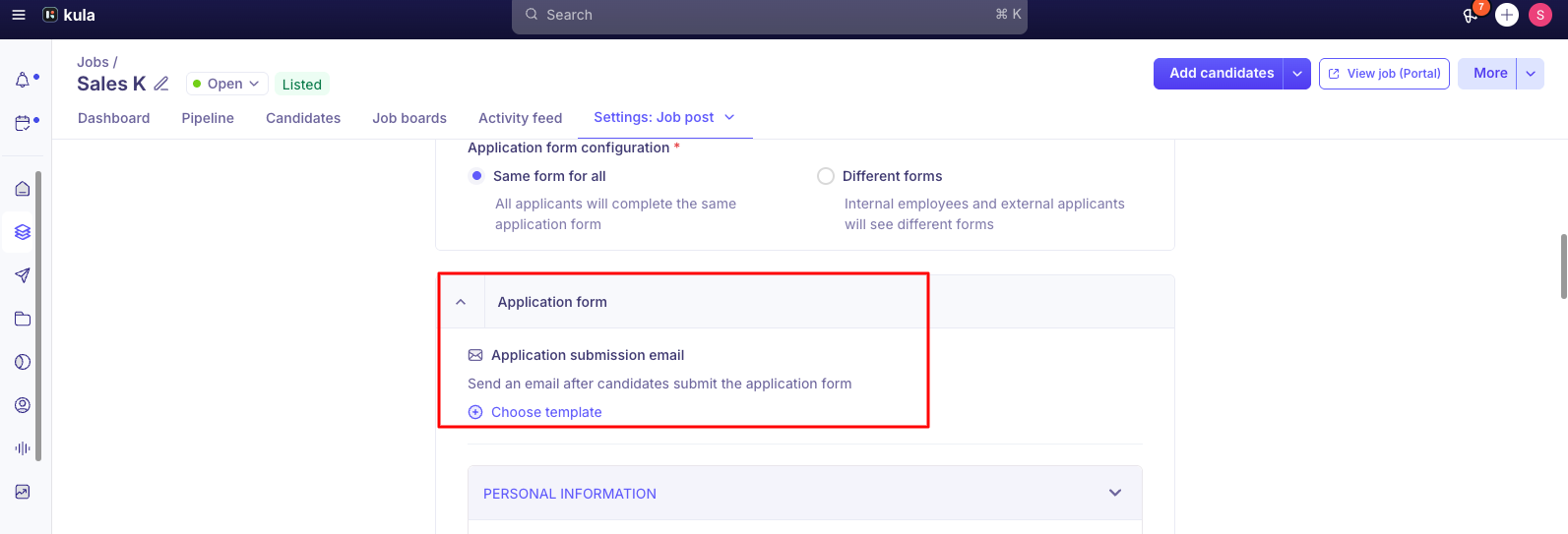
A confirmation email is not automatic — it only goes out if a confirmation email template has been chosen for that specific job (Job → Settings → Job Post → Application form section → Application submission email).
This is a per-job setting, not an account-wide default, so a candidate not receiving a confirmation email is often simply because that particular job's template was never set.
How your configuration choices affect candidates
Form length and completion. Every additional mandatory field adds friction and measurably reduces completion, especially for passive or competitive candidates. Keep required fields to what's genuinely necessary at the application stage.
Section organization. Grouping related questions under clear labels ("About Your Experience," "Compensation & Availability") reads as intentional rather than a flat list of questions.
Field labels. Write from the candidate's perspective — "How many days' notice do you need to give your current employer?" lands better than "Notice period (days)."
Mobile. The form is responsive, but Short Text, Yes/No, and Single Select fields give the smoothest mobile experience; Long Text and Multi-Select ask more of a small screen. Favor simpler field types if you expect a lot of mobile applicants (field, logistics, frontline roles).
If your careers page is built on Kula's Job Boards API, your team is responsible for showing dropdown and select fields correctly on your site.
Make it easy to apply
Keep mandatory fields few. Each one makes candidates less likely to finish.
Group questions under clear section names, such as "About your experience".
Write questions the way you'd ask them: "How much notice do you need to give?" rather than "Notice period (days)".
Think about phones. The form works on mobile, but short text, yes/no and single select are easiest on a small screen.
Good to know
There's no confirmed candidate-facing save-and-resume-later feature. Candidates should expect to complete the form in one sitting. If you need this for a long or complex form, consider shortening it rather than assuming candidates can pick up where they left off.
Confirmation emails are configured per job, not account-wide. If candidates report not receiving one, check that job's Application submission email setting before assuming something is broken.
Resume autofill works best from PDF or DOCX, and currently only reliably captures work experience, location, and social URLs — other fields a resume contains (designation, phone, education, skills, current employer) may still come through blank and need the candidate to fill them manually.
A required Short Text field caps a candidate's answer at 255 characters, and a required Attachment field only accepts PDF, DOCX, JPG, and PNG — both can silently block submission if a candidate's answer or file doesn't fit.
If you build your own application form with the Job Boards API, check that dropdown and select fields show correctly.
FAQ
Can candidates save and return to a partially completed application? Not as a confirmed, generally available feature — candidates should plan to complete the form in one session.
Do candidates get a confirmation after submitting? They always see an on-screen confirmation. A confirmation email only sends if one has been configured for that specific job.
Can candidates edit their application after submitting? No, not directly. If something needs to change, your team can update it from the candidate's profile in Kula.
What happens if a candidate leaves a required field blank and tries to submit? The form won't submit — Kula highlights the missing required field(s) and prompts the candidate to complete them.
Can candidates apply without uploading a resume? Yes, if the resume/CV field is set to Optional rather than Required on that job's form.
Does resume autofill capture everything from the candidate's resume? Not yet — it reliably fills work experience, location, and social URLs today. Other fields like designation, phone, education, and skills may still need to be entered manually even if the resume contains them.
Can the application form be embedded on our own careers page? Yes, via Kula's Job Boards API
Need help?
If you have questions about the candidate application experience, reach out to us at support@kula.ai or use the in-app chat.