Recruiter performance
Last updated: December 12, 2025
As a recruitment leader, you need visibility into your team's daily performance. This helps you spot bottlenecks and inefficiencies early. The recruiter performance default report solves this by giving you visibility into your talent team’s daily work.
The recruiter performance report is an action-oriented report that aggregates the actions (screenings, interview schedules, offers, hires, rejections, etc) performed by your team across jobs. You will be able to filter by individual team members or jobs to dive deeper into the data.
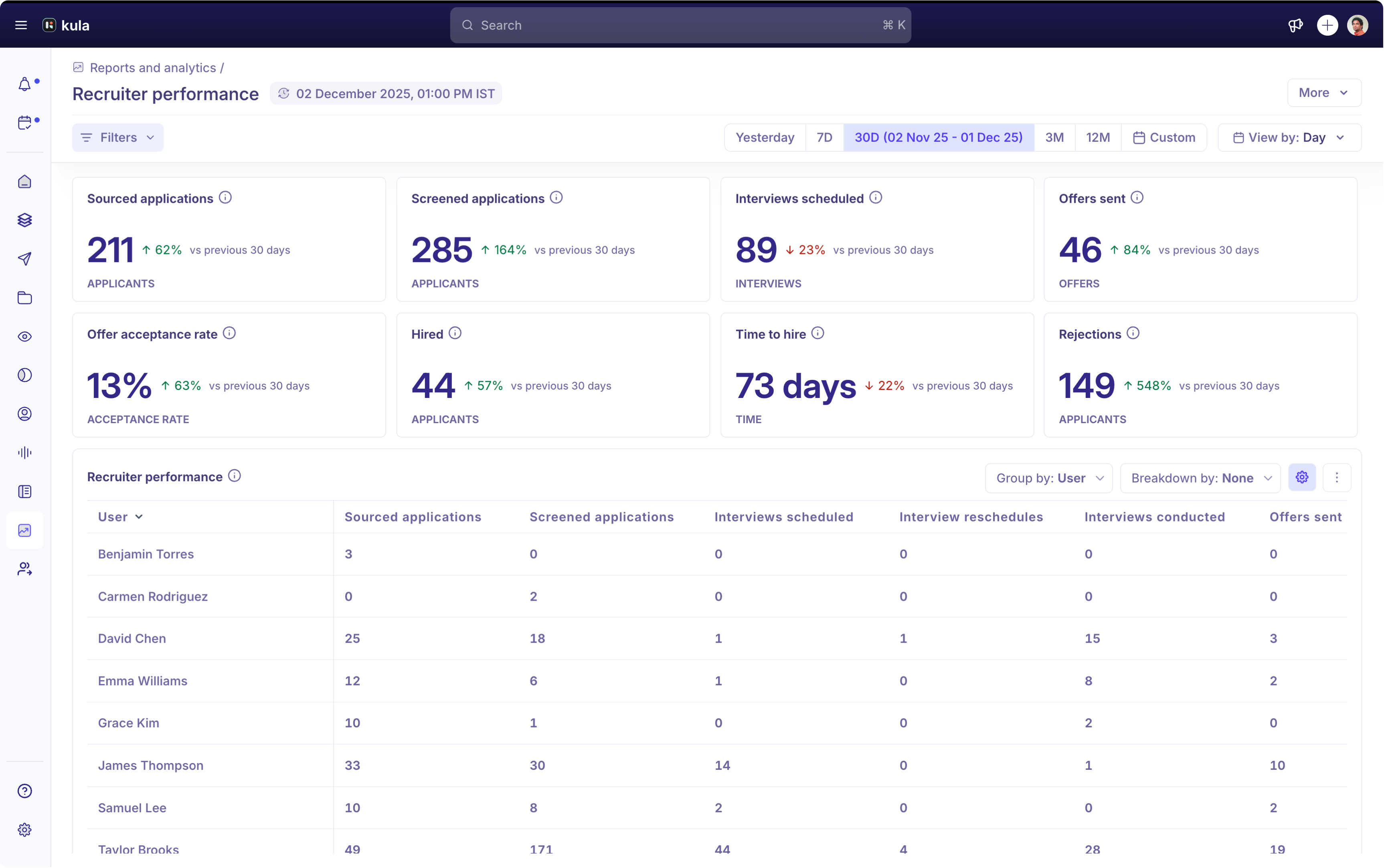
Key metrics overview
The recruiter performance report has a few key metrics that capture a high-level overview of your team’s performance.
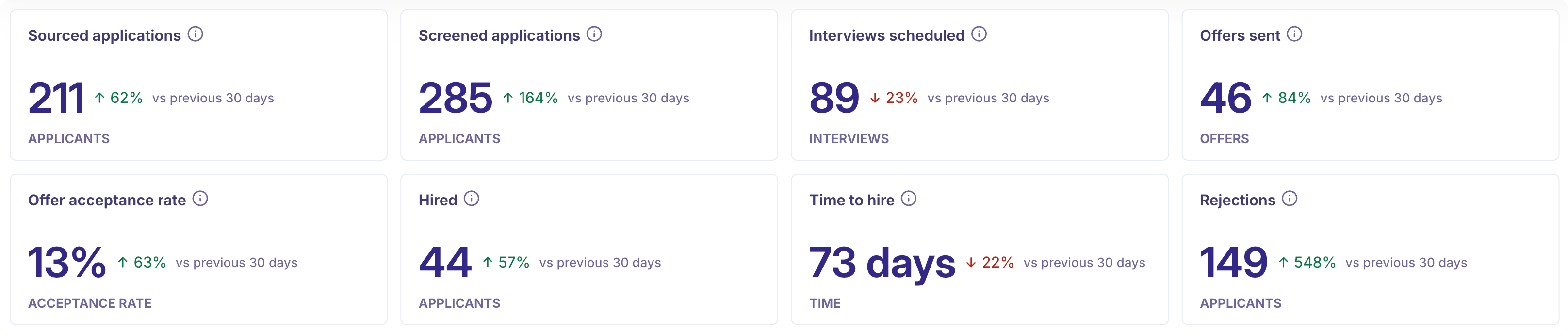
Sourced applications: The number of applications that have been added to jobs by your team members.
Screened applications: The number of applications that were screened by moving them from the application review stages to later stages or rejections.
Interviews scheduled: The number of interviews scheduled by team members across jobs.
Interview reschedules: The number of reschedules done on scheduled interviews.
Note: An interview can be scheduled only once, but it can be rescheduled multiple times.
Offers sent: The number of offers sent by team members to candidates across jobs.
Offer acceptance rate: The percentage of offers accepted to the total number of offers sent by team members across jobs.
Hired: The number of applications hired by team members across jobs.
Time to hire: The average time taken from the date of application creation to the date the application was hired.
Rejections: The number of applications rejected by team members across jobs.
Recruiter performance breakdown table overview
The breakdown table helps you analyze data using various group-by and breakdown options. It covers a comprehensive list of metrics, group by and breakdown options.
Metrics
Sourced applications: The number of applications that have been added to jobs by your team members.
Screened applications: The number of applications that were screened by moving them from the application review stages to later stages or rejections.
Interviews scheduled: The number of interviews scheduled by team members across jobs.
Interview reschedules: The number of reschedules done on scheduled interviews. Please note reschedules are captured only from 1 September, 2025.
Note: An interview can be scheduled only once, but it can be rescheduled multiple times.
Interviews conducted: The number of interviews where the team member was an interviewer.
Offers sent: The number of offers sent by team members to candidates across jobs.
Offer revisions done: The number of updates or revisions made to offers that are sent to candidates across jobs.
Avg. time to offer: The average time taken from the date of application creation to the date the offer was created.
Offer acceptance rate: The percentage of offers accepted to the total number of offers sent by team members across jobs.
Hired: The number of applications hired by team members across jobs.
Avg. time to hire: The average time taken from the date of application creation to the date the application was hired.
Rejected: The number of applications rejected by team members across jobs.
Group by
The following options can be used to group the metric data in the breakdown table.
User: Group the data by team members or users in Kula. Only team members who have performed at least one of the actions available in the breakdown table will be listed here.
Job role: Group the data by job roles in Kula. Super admins, admins and any custom roles with the ‘Manage job access‘ permission are categorized under Users with manage job access’.
Breakdown by
The following options can be used in addition to the group by options to slice and dice metric data in the breakdown table.
Job name: Break the data down by jobs
User: Break the data down by team members or users in Kula.
Source (On application): Break the data down by sources from which applications come.
Department: Break the data down by department in Kula.
Office: Break the data down by office in Kula.
Table customization & additional options
The recruiter performance breakdown table also allows you to configure the metrics that are important to you and hide the ones that don’t require regular review. You can also reorder the columns for quick consumption.
You can also download the table as a CSV for further analysis.
Filters supported
Use filters to narrow down the data in your report. The recruiter performance report supports the following filters:
Time filter: Filter data by selecting the required time period. The data can also be segmented by days, months, quarters, or years based on the time filter selected.
User: Filter the data by team members.
Job role: Filter the data by team members' job roles.
Job name: Filter the data by the jobs where the actions were performed.
Job status: Filter the data by the status of the jobs where the actions were performed.
Primary recruiter: Filter the data by the primary recruiter on the jobs where the actions were performed.
Primary hiring manager: Filter the data by the primary hiring manager on the jobs where the actions were performed.
Source (on application): Filter the data by the application sources.
Department: Filter the data by the department of the jobs where the actions were performed.
Office: Filter the data by the offices of the jobs where the actions were performed.
Download and schedule the report
Download PDF
The recruiter performance report can be downloaded as a PDF by selecting More > Download PDF from the top right.
Schedule email
The recruiter performance can also be scheduled to be delivered to recipients at pre-configured intervals. The report can be scheduled daily, weekly, or monthly at a specific time. For a weekly schedule, choose which day of the week to send it. For example, you can schedule the report for every Monday at 9 AM, and in the case of a monthly schedule, it can be scheduled to go on a particular day of the month.