Job Status
Last updated: September 26, 2026
Every job has a status that shows where it is in its life, from draft to live to finished. This article explains each status and how to close, reopen, archive or clone a job.
Who can do this: Recruiters, Hiring Managers, Admins and Super Admins with edit access to the job. Approval settings may apply.
Where to find it: open the job and click its status, or use the … menu on the job's row in Jobs
Job Status Explained: What each status means
Status | What it means |
|---|---|
Draft | Being set up. Not visible to candidates, and candidates can't be added. |
Pending approval | Launched and waiting for its approvers. |
Not approved | An approver rejected it. Edit it and launch again to start a new approval. |
Scheduled | Set to launch at a future date and time. |
Open | Live. The job post is published (if listed), candidates can apply or be added, and flows and automations run. |
Closed | Hiring is finished. Applications stop, but all candidate data and history stay for reporting. Can be reopened. |
Archived | Permanently put away and read-only. Can't be reopened. |
Archive a job
Only Draft and Closed jobs can be archived. Close an Open job first.
Open the job and click its status, or use the … menu on its row in Jobs.
Choose Archive job.
Type ARCHIVE to confirm, then click Archive.
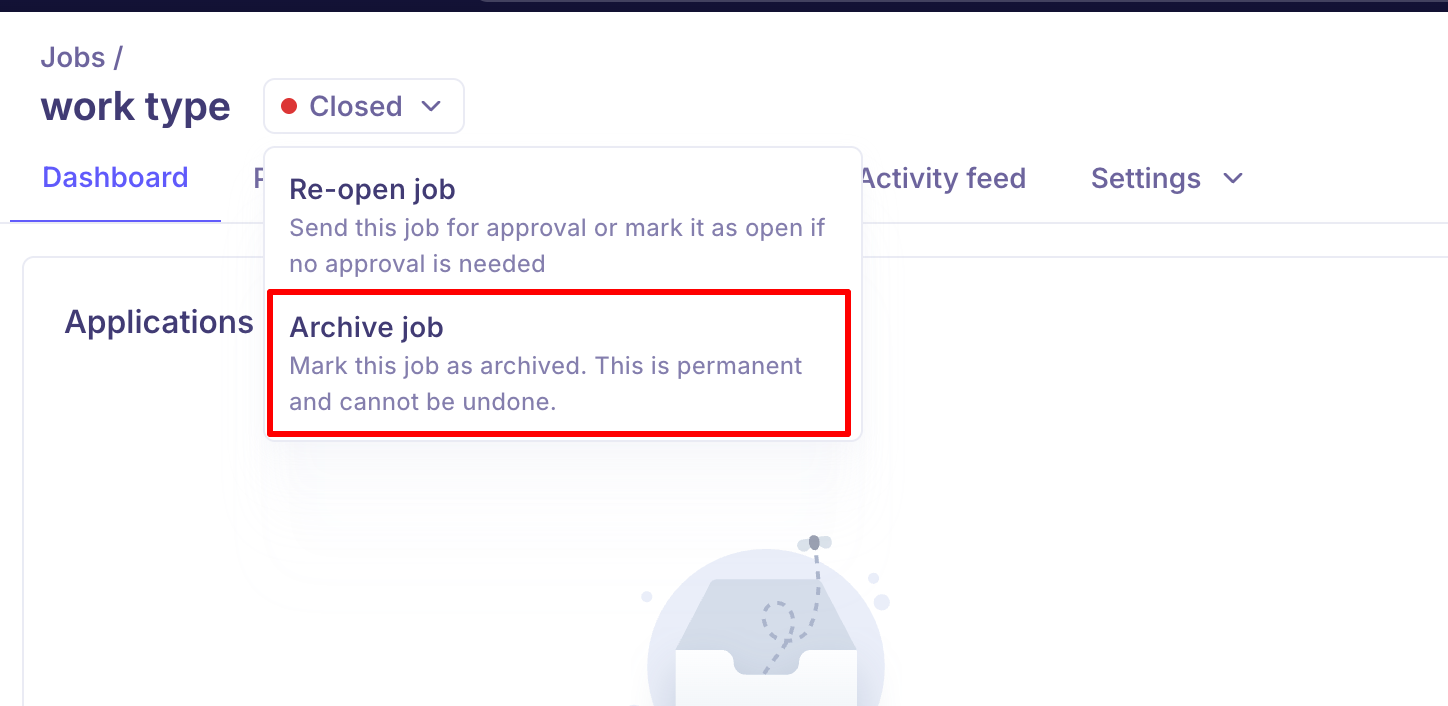
Archiving is permanent and can't be undone. Once a job is archived:
Area | What happens |
|---|---|
Job settings and job description | Read-only |
Adding candidates | Not allowed |
AI scoring | Restricted |
Career page listing | Taken down automatically |
Downloading files (resumes, attachments) | Still works |
Transferring a candidate to another job | Still works |
Finding the job | Filter Jobs by Archived |
What changes once a job is archived
Area | What happens |
Job settings | Read-only — can't be updated |
Adding candidates | Not allowed |
Job description | Read-only |
AI scoring | Restricted |
Career portal listing | Automatically taken down |
Downloading files (resumes, attachments) | Still works |
Transferring a candidate to another job | Still works |
Un-archiving | Not supported from the UI |
Close a job
You can close any job that isn't already closed or archived.
Open the job and click its status, or use the … menu on its row in Jobs.
Choose Close job.
Pick a closing reason (required) and confirm. To change the list of reasons, see Managing job closure reasons.
Closing takes the job off your career page and unpublishes it from connected job boards where the integration supports it. Candidates aren't told automatically, so send rejection emails to anyone still in the pipeline if needed.
Clone a job
Go to Jobs (or the archived jobs, if you're copying an archived job).
Click the … menu on the job's row and choose Clone job, then confirm.
Step through the setup screens, changing what the new role needs.
Check the job title and job post, then launch.
Item | On the clone |
|---|---|
Job details (department, office, work type, compensation) | Copied, and editable |
Pipeline and interview stages | Copied |
Application form | Copied and locked. You can't switch templates on a clone |
Field visibility rules | Copied exactly |
Scorecards and AI scoring setup | Copied |
Auto-reject rules and other flow links | Copied. Review them before launching |
Hiring team | Shown in setup for you to confirm |
Candidates | Not copied. The clone starts empty |
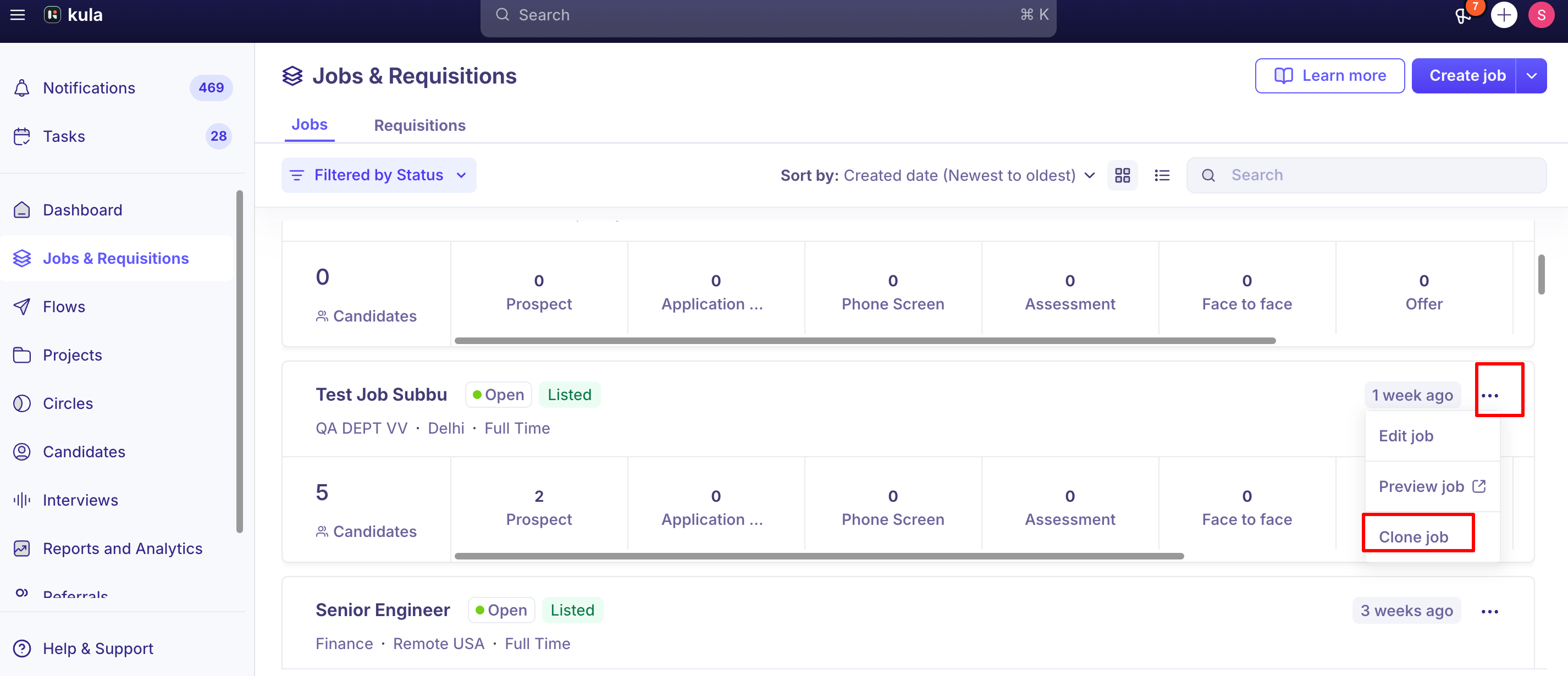
Double-check the job title and job post before you publish the clone — review the details step rather than assuming everything is ready to go live as-is.
Good to know
Kula doesn't support permanently deleting a job — archiving is the closest equivalent. Jobs carry candidate data and history, so they're archived rather than deleted, and stay available if you ever need to look back at them.
Un-archiving isn't a gap — it's a deliberate design choice. If you need to reuse an archived job's setup, clone it instead — cloning works from the Archived Jobs list.
Downloads and candidate transfers are the exceptions to the read-only rule. Everything else on an archived job — settings, adding candidates, the job description, AI scoring — is locked, but you can still download files and transfer a candidate out to another job.
Archiving from Pending Approval is a newer capability. Earlier, only Draft and Closed jobs could be archived directly; Pending Approval was added later. If you're on an older setup and don't see the option, this is worth checking with support.
FAQ
How do I delete a job I don't need anymore? Kula doesn't support deleting jobs — only archiving. Archiving removes it from your active list while keeping the data. For more, see Jobs List View Explained
Can I un-archive a job? No, not from the UI — this was a deliberate product decision, not a missing feature. If you need the same setup again, clone the archived job instead; if you're genuinely stuck, contact support.
I archived a job by mistake and now need to move a candidate to Hired — what do I do? You can't reopen the job itself from the UI, but you can still transfer that candidate out to another job, or contact support to check what's possible on your account.
Can I still see or download files from a candidate on an archived job? Yes — download-related actions stay available on archived jobs even though editing is locked. For more, see What is a Job in Kula?
Can I move a candidate from an archived job to a different one? Yes — transferring a candidate out of a closed or archived job to another job is supported, even though other edits aren't. For more, see What is a Job in Kula?
Need help?
If you have questions or need assistance, reach out to us at support@kula.ai or use the in-app chat.