Candidate profile
Last updated: September 17, 2026
The candidate profile gives you a complete view of a candidate — their contact details, experience, job application history, resume, notes, conversations, and activity. This article covers how the profile is laid out and what each part does.
Who can do this: Recruiter, Hiring Manager, Admin, Super Admin, Organisation Member
Where to find it: Open a candidate from the Candidates tab inside a job, or from the Contacts page
How the profile is laid out
The candidate profile is split into two panels:
Left panel — the candidate's personal information, source, experience, education, skills, tags, and any additional fields configured for your account.
Right panel — tabs for Overview, Resume(s), Notes, Conversations, and Activity feed.
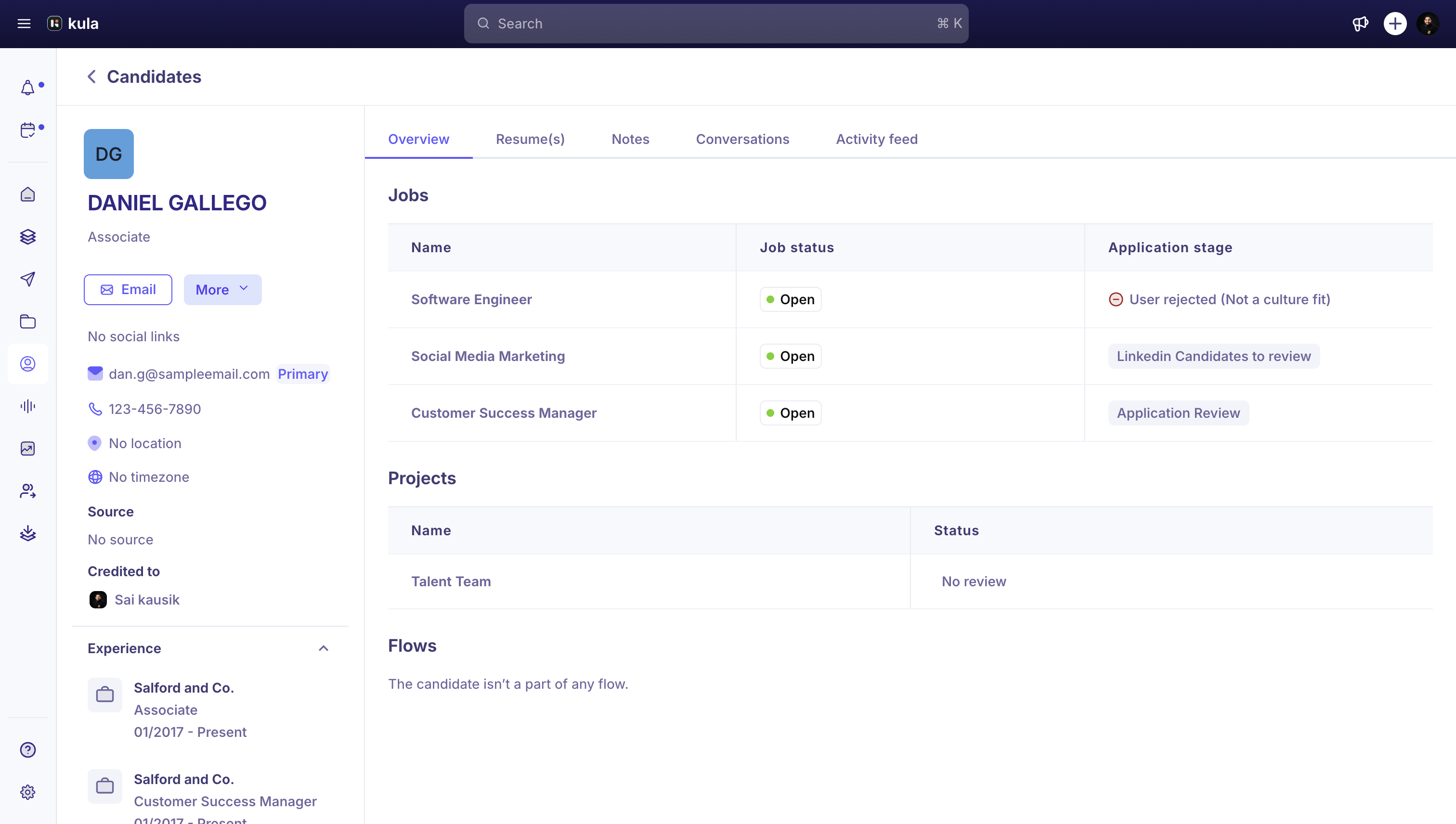
Left panel: personal information
The top of the left panel shows the candidate's name, current role, social links, mutual connections, primary email address, phone number, location, and timezone.
You can:
Click Email to send an email directly to the candidate.
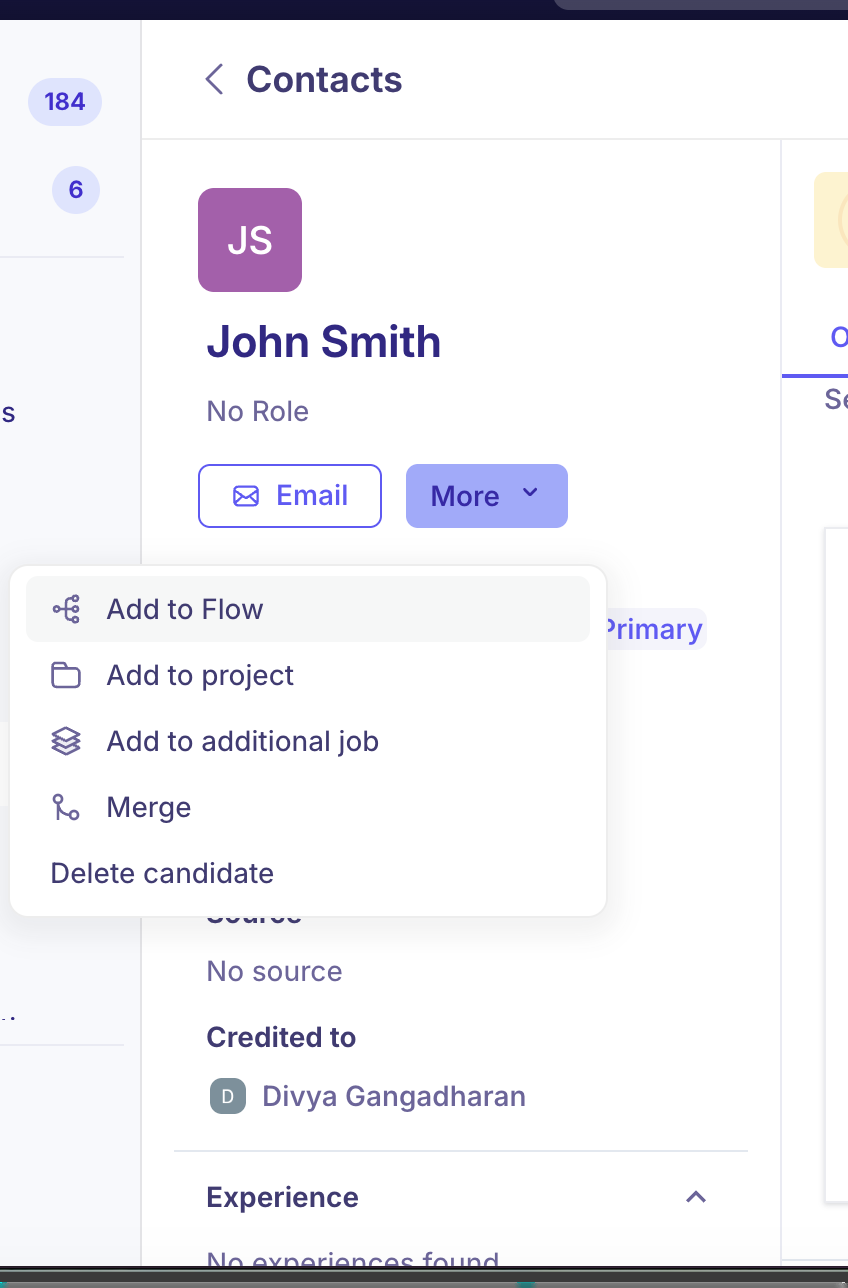
Click More to access further actions.
Action | What it does |
|---|---|
Add to Flow | Enrol the candidate into an outreach flow. |
Add to project | Add the candidate to a project for further review or tracking. |
Add to job / Add to additional job | Add the candidate to a job. This reads "Add to additional job" once they already have at least one job application, and "Add to job" if they don't. |
Merge | Merge this candidate profile with a duplicate contact in Kula. |
Anonymize candidate | Strip personal details from the candidate's profile for compliance, while keeping a record for tracking. Only shown if your organisation has consent management turned on. |
Delete candidate | Remove the candidate — see Deleting a candidate below. Only shown to users with permission to delete candidates. |
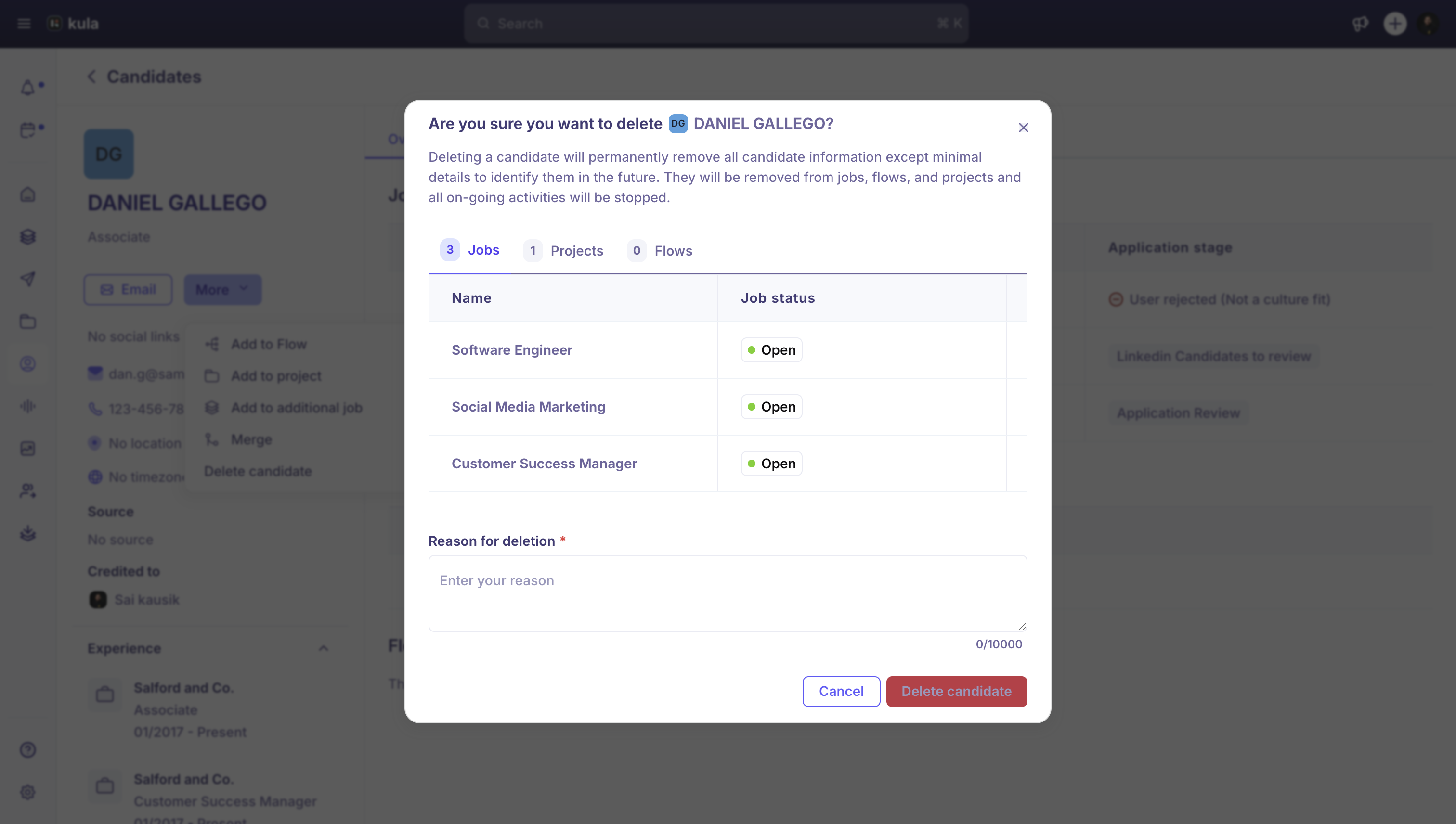
Deleting a candidate
Deleting a candidate permanently removes their information — except a minimal record kept to identify them if they're added again — and removes them from any jobs, flows, and projects they were part of, stopping any ongoing activity. You must type a reason before Kula lets you confirm.
Source and credited to
Below the contact details, you can see how the candidate was sourced (for example Email Import, LinkedIn, or Career page) and which team member is credited for bringing them into the pipeline.
Experience
The Experience section lists the candidate's work history — company name, job title, and employment dates. Add, edit, or delete entries directly from this panel using the icons on each entry.
Education
The Education section shows the candidate's academic background. If none was found, add it manually using Add Education.
Skills
Skills are shown as tags. Add or remove them directly from the candidate profile using Add another.
Tags
Tags help with categorising and filtering candidates. Use Add another to apply more.
Additional fields
If your team has configured custom contact fields — such as Work authorisation or Current CTC — they appear here under Additional fields. Values can be filled in or edited directly from this section.
Right panel: Overview
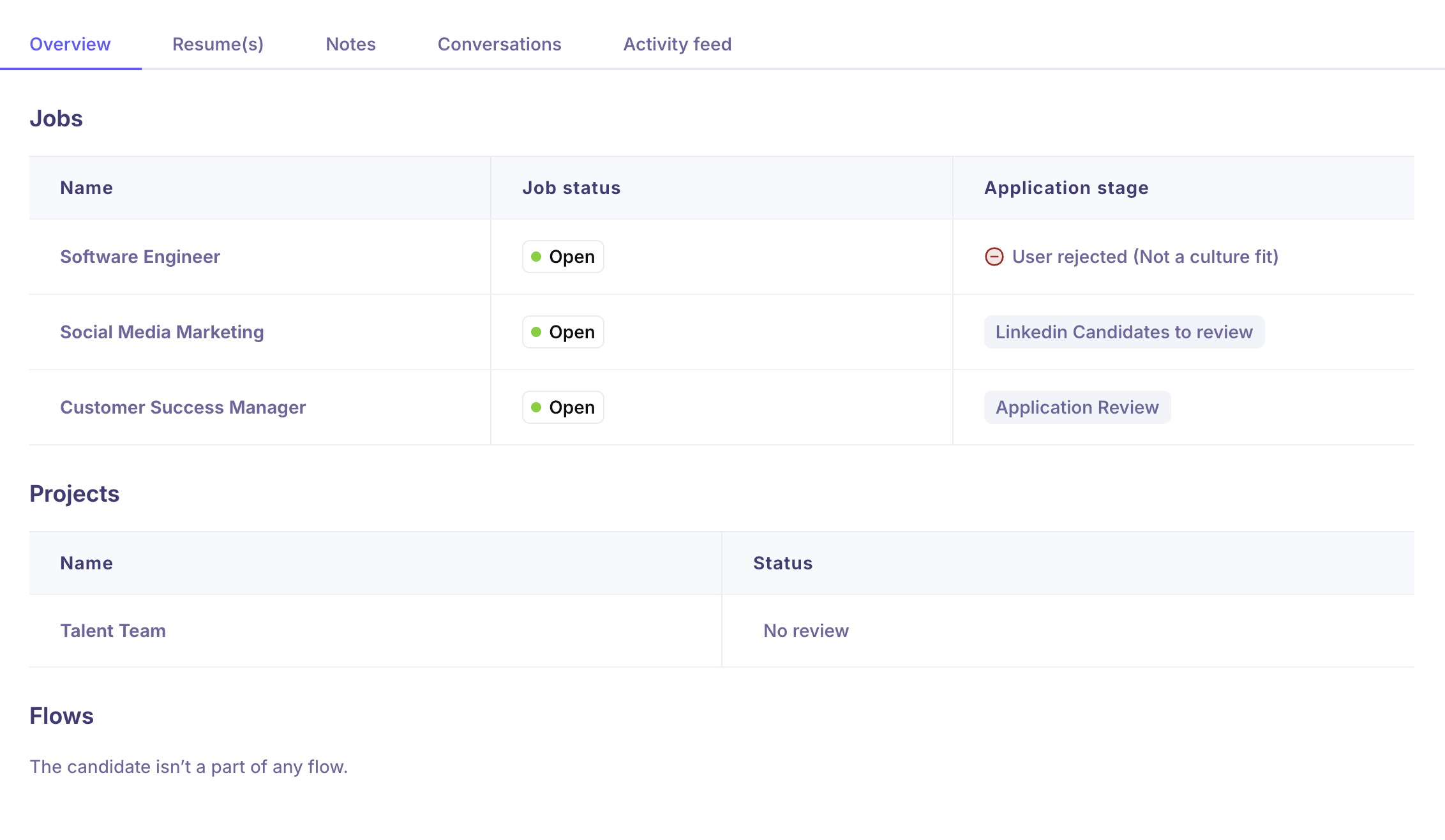
The Overview tab gives a snapshot of the candidate's activity across the platform, organised into three sections:
Section | What it shows |
|---|---|
Jobs | Every job the candidate is associated with, showing the job name, job status, and their current application stage. |
Projects | Any projects the candidate has been added to, along with the review status. |
Flows | Any outreach flows the candidate is enrolled in, including the flow name, current flow stage, and associated job stage. A Flow Preview section below lets you select and preview the steps of a flow. |
Right panel: Resume(s)
The Resume(s) tab displays every resume attached to the candidate. A dropdown at the top lists all uploaded resumes — click any name to switch to it in the viewer.
The most recently uploaded resume is tagged Latest and is shown by default. Once you mark a resume as Primary, that one becomes the default shown instead.
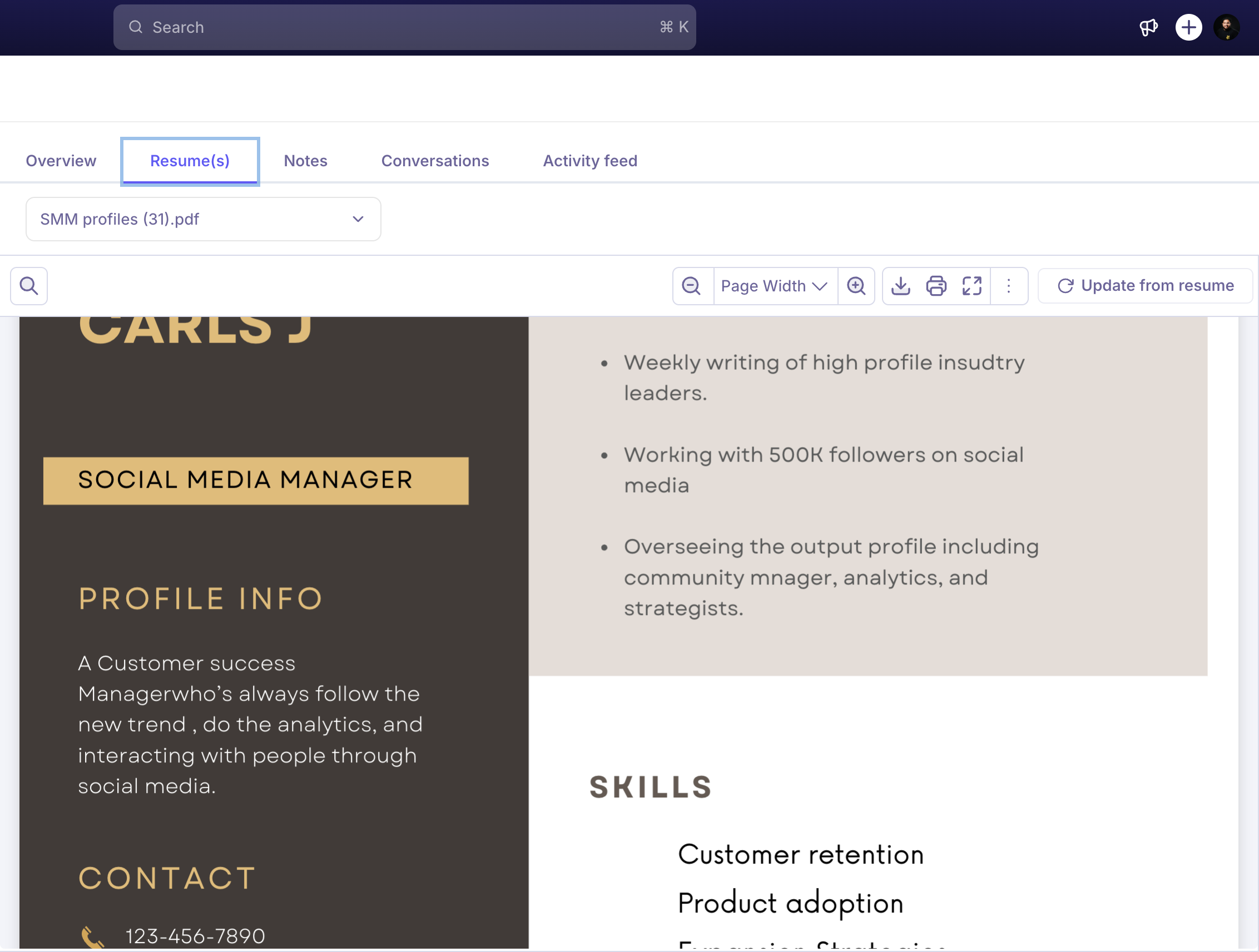
Uploading a resume
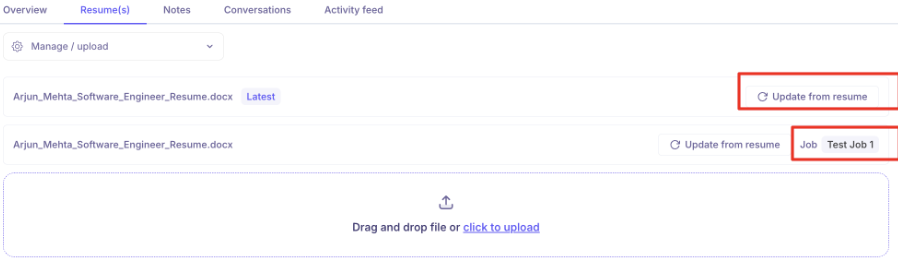
To add a new resume, open the dropdown and choose Manage / upload, or use the drag-and-drop area at the bottom of the tab. You can also click to browse and select a file from your device.
Update from resume
Each resume row has an Update from resume button. Clicking it re-parses the resume and updates the candidate's profile data — experience, education, and skills — based on that resume's content.
If the resume contains information that differs from the candidate's current profile (for example, a different email address), a confirmation dialog shows the current information alongside what was found in the resume. Click Confirm to apply the changes, or Cancel to leave the profile unchanged.
The Job column next to each resume shows which job it's associated with. If a resume is linked to multiple jobs, the count is shown as a number (for example, +8).
Right panel: Notes
The Notes tab lets you add internal notes about the candidate. Type your note and press Enter to submit.
Notes have two visibility settings:
Public — visible to all team members who have access to this candidate.
Private — visible to you, anyone you tag & Super Admin
Use the visibility toggle at the bottom right of the notes input box to set this before submitting.
Right panel: Conversations
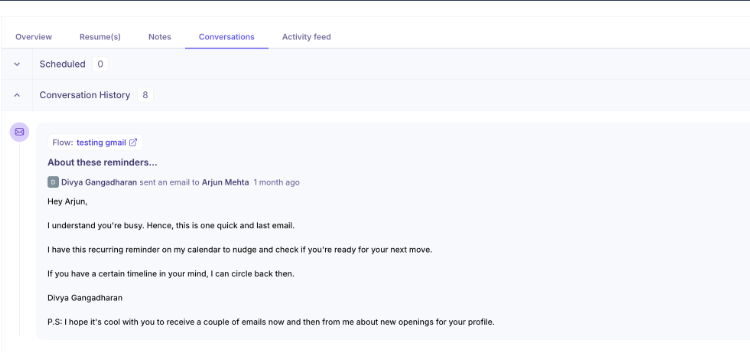
The Conversations tab shows all email communication with the candidate, organised into two sections:
Scheduled — emails queued to be sent to the candidate.
Conversation History — a log of every email sent, including the subject, sender, recipient, and full body. Each conversation is linked to the relevant job.
Right panel: Activity feed
The Activity feed tab shows a chronological log of every action taken on this candidate across all jobs — stage moves, interviews scheduled, emails sent, and more. Each entry shows who performed the action, a description of what happened, and a timestamp.
Deleted candidate banner
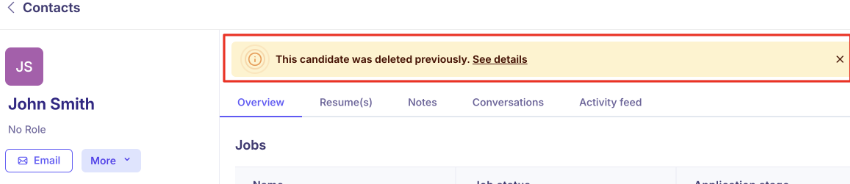
If a candidate was previously deleted and is added to Kula again, a banner appears at the top of their profile: "This candidate was deleted previously." Click See details to see the reason for deletion and who deleted them.
Good to know
A deleted (or anonymized) candidate's profile is stripped down to just the Overview and Activity feed tabs — Resume(s), Notes, and Conversations are no longer available.
Deleting a candidate keeps a minimal record of them, so if they're added to Kula again later, whoever adds them sees a warning with the original deletion reason and who deleted them.
The Delete candidate option only appears for users with permission to delete candidates — if you don't see it in the More menu, you don't have that permission.
Anonymize candidate only appears if your organisation has consent management turned on.
FAQ
Does deleting a candidate erase them completely, with no trace left in Kula?No — deleting removes their information and takes them out of any jobs, flows, and projects, but Kula keeps a minimal record so it can warn you if that person is ever added again. You'll need to type a reason before you can confirm a deletion.
What's the difference between deleting a candidate and anonymizing them?Delete candidate removes their information (keeping only a minimal record) and takes them out of any jobs, flows, and projects. Anonymize candidate strips personal details while keeping the record for compliance tracking, and only appears if your organisation has consent management turned on.
Why can I only see the Overview and Activity feed tabs for this candidate?This happens when a candidate has been deleted or anonymized — their Resume(s), Notes, and Conversations tabs are no longer available.
Need Help?
If you have questions or need assistance, reach out to us at support@kula.ai or use the in-app chat.