Sending an assessment to a candidate
Last updated: August 18, 2026
An assessment asks a candidate to complete a task and send back their answer. Kula has its own built-in assessment, and can also send tests from HackerRank, HackerEarth, Criteria Corp and Hireflix. This article covers the built-in one — writing it, sending it, and what the candidate sees.
Who can do this: Anyone on the job's hiring team as a recruiter, hiring manager or coordinator
Where to find it: your job → the candidate → the assessment activity on a stage, or the candidate's actions menu
Add it to the interview plan
Assessments are normally part of a job's interview plan: you add an assessment activity to a stage, and it's then waiting for every candidate who reaches that stage. That keeps the task identical for everyone you're comparing.
Adding activities to a stage is covered in [Creating an interview plan]
You can also send an assessment to one candidate without touching the plan — see Send a one-off assessment below. Either way the assessment is written the same and the candidate's experience is identical.
Write and send the assessment
Open the assessment activity on the candidate's stage, Click "Send Assessment"

On Details, give the assessment a Name. Keep it recognisable — the candidate sees it.
Add one or more reviewers. These are the people who'll be asked to score the answer when it comes back.
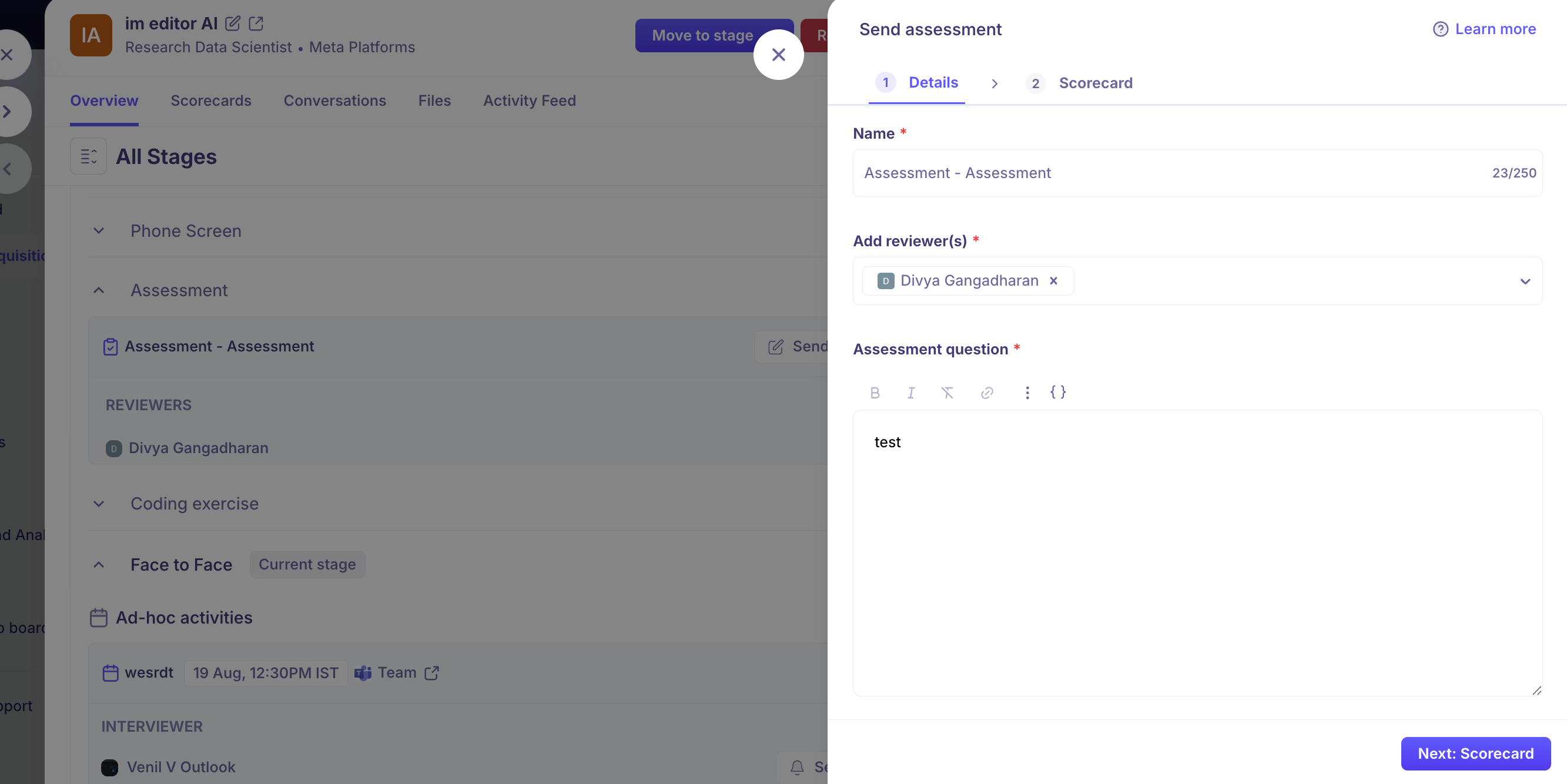
Write the Assessment question. This is the brief the candidate reads, so include everything they need: what to produce, any constraints, and how long you expect it to take.

Attach files if the task needs them — a dataset, a brief, a template.
On Scorecard, choose the scorecard reviewers will fill in.
Click Send assessment
Name, reviewers and the question are all required. The question can run to 10,000 characters, which is far more than most briefs need.
Send a one-off assessment
Sometimes you want to set a task for one person — an extra exercise after an interview raised a question, or a candidate who came in through a different route. An ad-hoc assessment goes to that candidate alone and doesn't change the interview plan or affect anyone else at that stage.
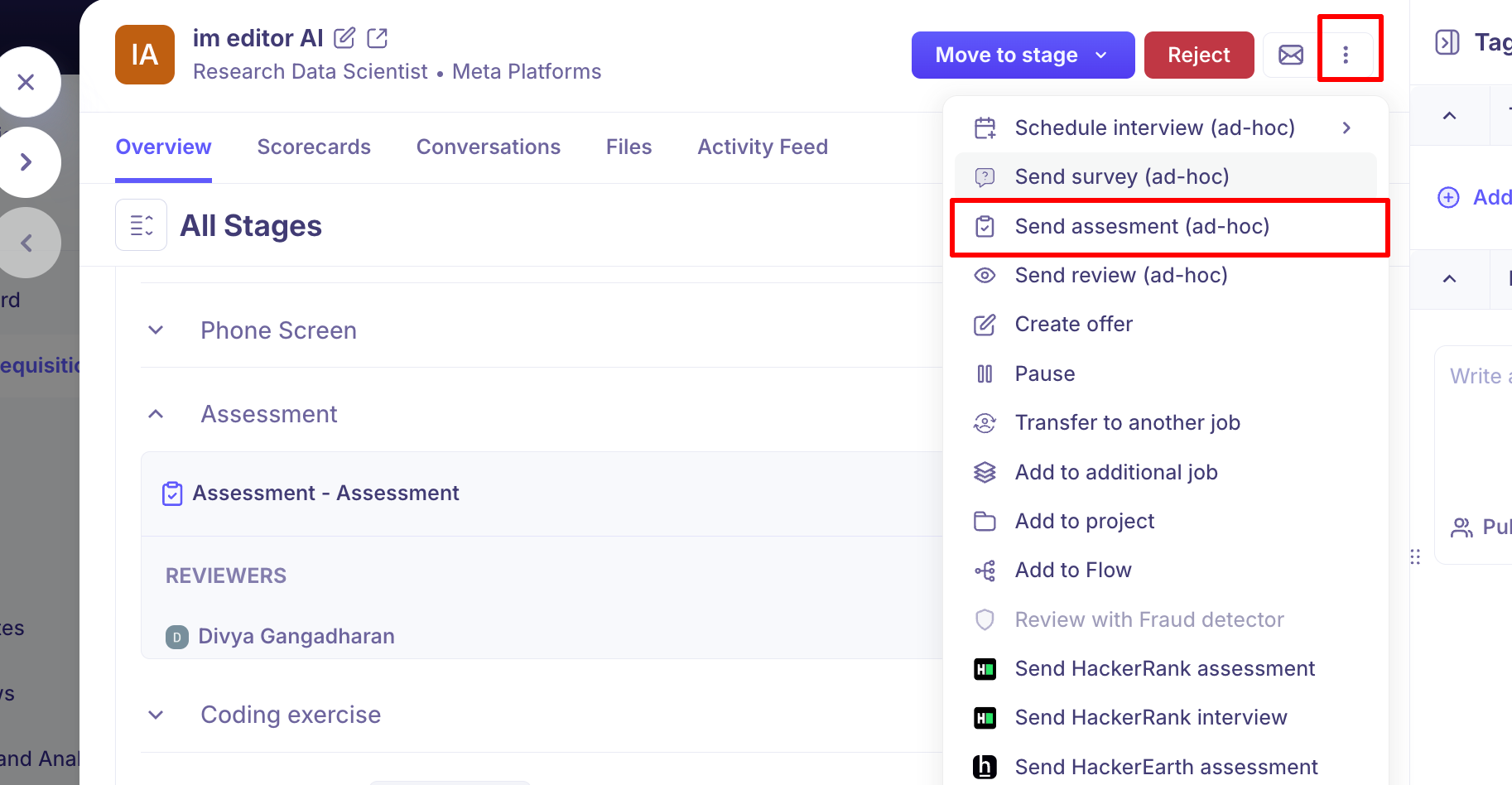
Open the candidate.
From their actions menu, choose Send assesment (ad-hoc).
Fill in the assessment exactly as above — name, reviewers, question, files, scorecard.
Send it.
The result appears on the candidate's profile in the same place as any other assessment, and your reviewers are asked to score it in the same way.
The candidate needs an email address. Without one the action is greyed out, with a tooltip explaining why.
Ad-hoc sending is available for the external providers too — HackerRank, HackerEarth, Criteria Corp and Hireflix each have their own action on the same menu. Hireflix can only be sent this way, as it can't be added to an interview plan.
What the candidate receives
The candidate gets an email with a link to a page on your Kula careers domain. They don't need an account.
On that page they see the assessment name, your question and any files you attached. They write their answer in a text box — up to 10,000 characters — and can upload files alongside it. Documents, images, videos, text and archive files are all accepted, which matters for tasks where the answer is a design, a spreadsheet or a recording rather than prose.
Once they submit, the activity on your side moves to Submitted and the reviewers you named are asked to score it.
Track where it's got to
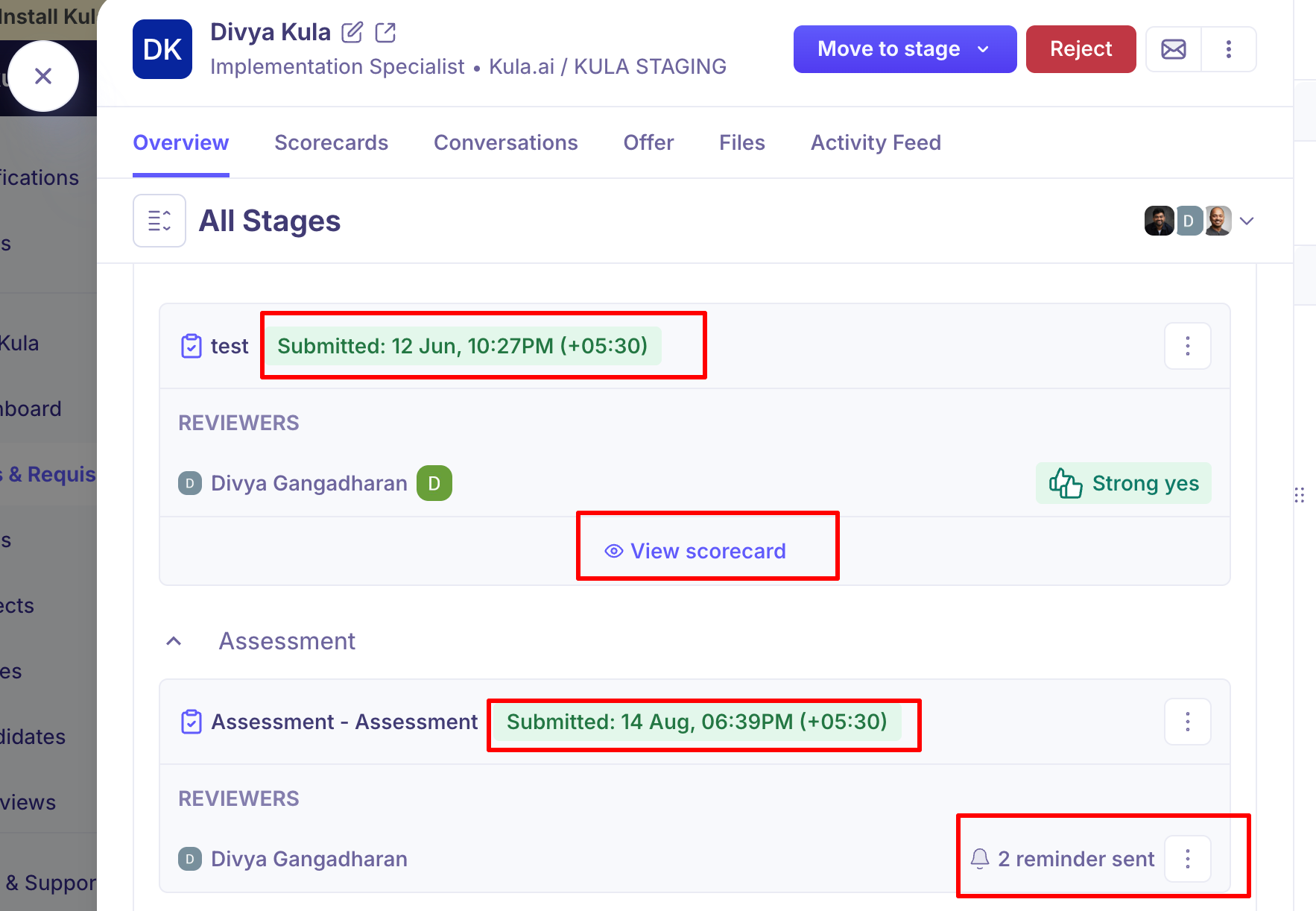
The assessment activity shows its current state:
Status | What it means |
|---|---|
Pending | Created but not sent. |
Scheduled | Set to send at a future time. |
Sent | Delivered to the candidate. |
In progress | The candidate has started. |
Submitted | The answer is in and ready to review. |
Cancelled | Withdrawn before completion. |
If sending fails — usually a bad or missing email address — the activity shows that rather than silently doing nothing.
Good to know
The candidate needs an email address. Without one the send action is disabled, with a tooltip saying so.
Answers are capped at 10,000 characters. Longer responses should go in an attachment; the candidate's page tells them this.
Scorecard reviewers are set when you send. They're the people who'll be reminded until they submit their feedback.
A scorecard isn't compulsory. An assessment can be sent without one if you only want the answer on file.
An ad-hoc assessment doesn't change the interview plan. It applies to that candidate only.
FAQ
Can I send an assessment without adding it to the interview plan? Yes. Open the candidate and choose Send assesment (ad-hoc) from their actions menu. It goes to that person alone and leaves the plan untouched.
Can I send an assessment at a set time rather than now? Yes — use Schedule for later on the Scorecard step and pick a date, time and timezone. It shows as Scheduled until it goes, and you can change or cancel it up to that point.
Can I set a deadline for the candidate? No. Scheduling controls when the assessment is sent, not when it expires — the link stays usable afterwards. If you need a deadline, state it in the assessment question so the candidate sees it.
The candidate says they didn't get the email. Check the activity status. If it shows Sent, resend it and ask them to check spam. If it shows a sending failure, the email address on the candidate's record is likely wrong.
Can the candidate attach files rather than typing an answer? Yes — the submission page accepts documents, images, videos, text and archive files alongside the written answer.
Who gets asked to score the answer? The reviewers you named when sending. They're reminded until they submit.
Need help? If you have questions or need assistance, reach out to us at support@kula.ai or use the in-app chat.