HackerEarth assessments
Last updated: August 19, 2026
Connecting HackerEarth lets you send its coding tests and exercises from inside Kula, with results returning to the candidate's profile automatically.
Who can integrate it: Super Admin, Admin
Who can send tests: Anyone on the job's hiring team as a recruiter, hiring manager or coordinator
Connect HackerEarth
Connect HackerEarth on the integrations page — see [Connecting HackerEarth with Kula] for the steps.
What you'll need: a Client ID and a Client Secret, not a single API key — HackerEarth is the only assessment provider needing two values, and both are required. The account they come from has to be on an enterprise plan with a recruiter licence, and be an activated recruiter-type account with company admin permissions.
Once connected, Kula reads your HackerEarth test library so you can choose tests by name.
Set it up on the job
Add a HackerEarth assessment activity to a stage in the job's interview plan and pick the test from your library. Every candidate reaching that stage then has it waiting on them.
Adding activities to a stage is covered in [Creating an interview plan]
Send it to a candidate
Setting the activity up doesn't invite anyone. The invitation goes out when you send it for a specific candidate.
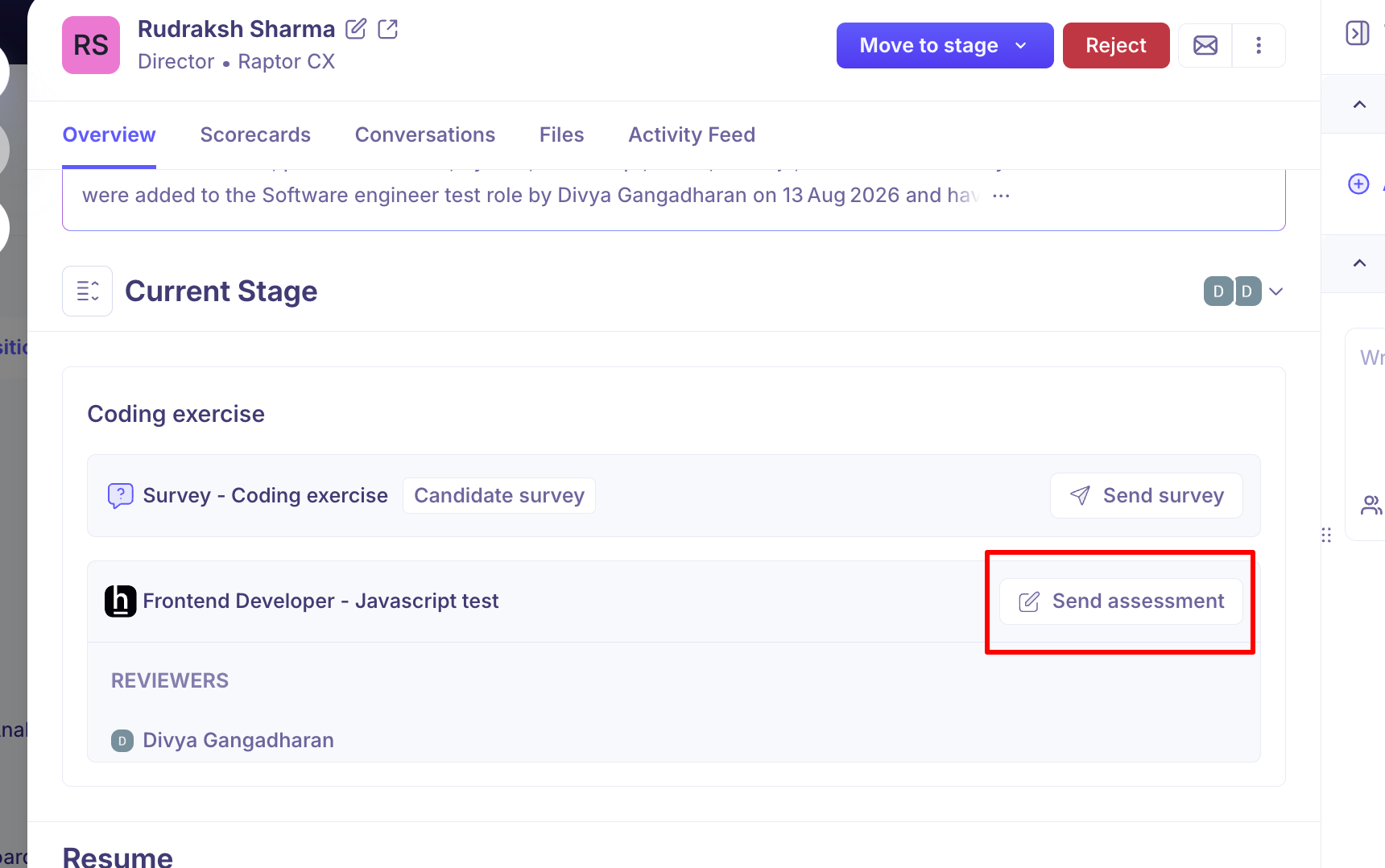
Open the candidate and find the assessment activity on their stage.
Click Send assessment.
On Details, choose the reviewer(s) who'll score the result and confirm the assessment. A View assessment link opens the test in HackerEarth if you want to check what you're sending.
On Scorecard, set the scorecard those reviewers will fill in.
Send.
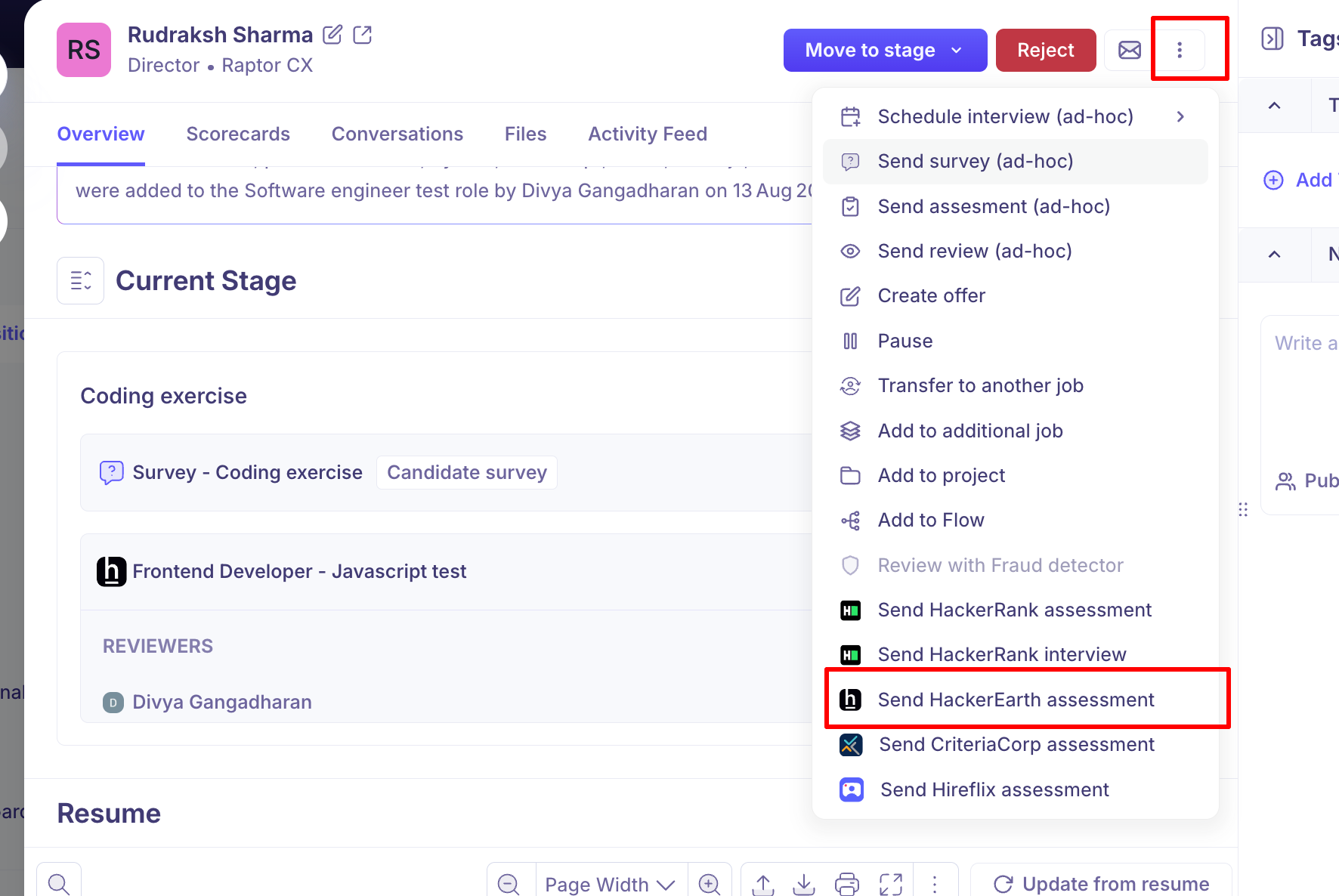
Send it without the interview plan: Ad-Hoc Assessment
To send a test to one candidate without adding it to the plan, use Send HackerEarth assessment from the candidate's actions menu.
After it's sent
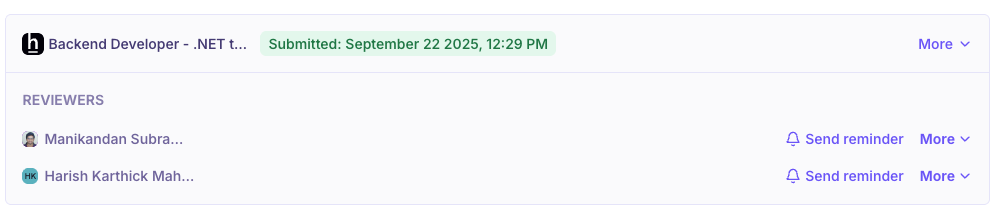
The activity gives you Edit assessment to change it, and Cancel to withdraw it. Cancelling deletes the assessment permanently and can't be undone.
What happens next: Viewing Results
Kula invites the candidate through HackerEarth, which emails them the test. The activity tracks progress:
Once the candidate completes the test, results are automatically synced back to Kula.
You can view the assessment details and scores under the candidate’s Assessments tab.
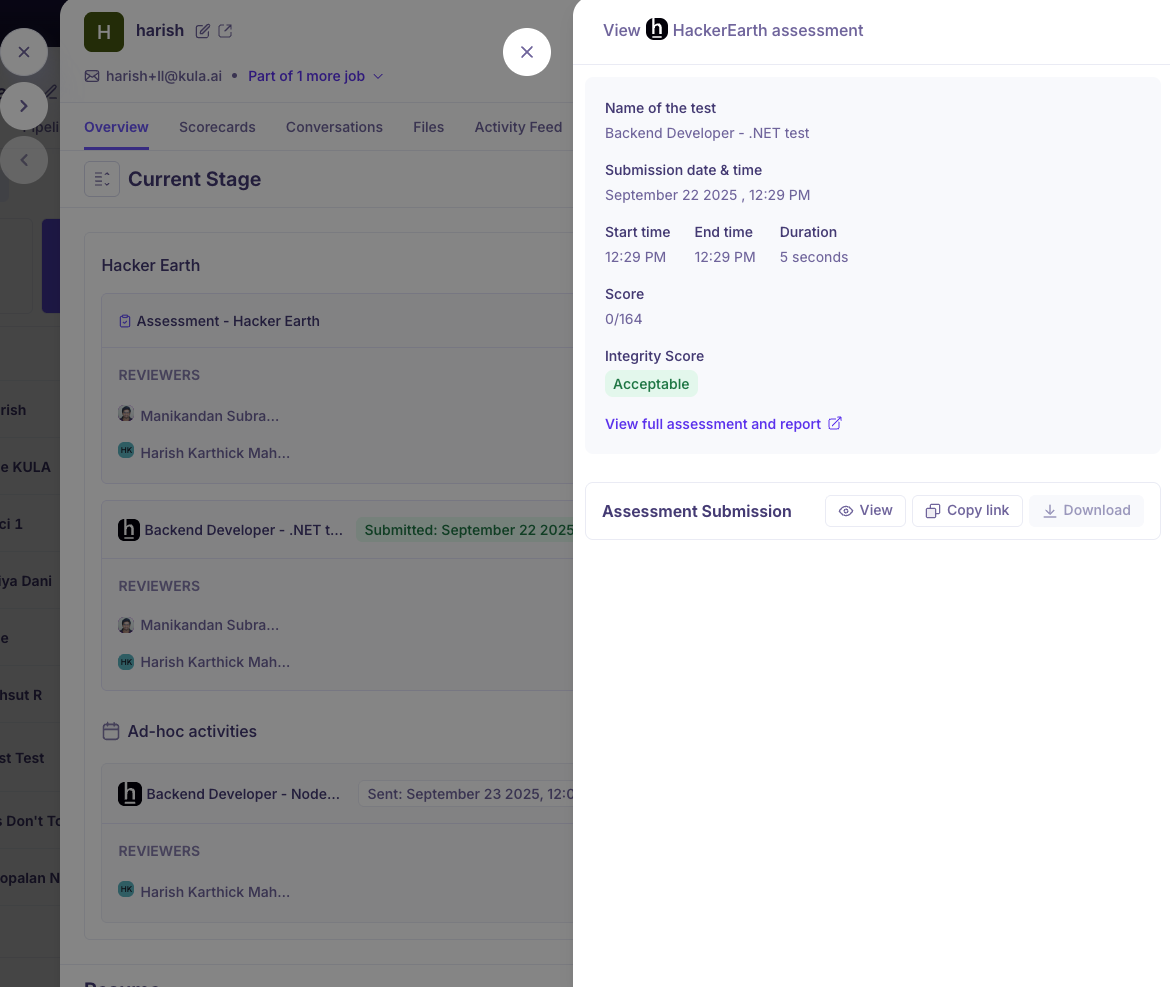
Results include:
Candidate’s score and completion status.
Pass/Fail status (if configured in HackerEarth).
Detailed report (accessible via a link to HackerEarth).
When the test finishes, HackerEarth sends the result back and the activity moves to submitted, with a link to the candidate's report. Your reviewers are then asked to score it. See [Viewing assessment results on the profile]
Good to know
The candidate needs an email address, or the send action is disabled.
Tests are built in HackerEarth, not Kula. Kula reads your library and sends invitations.
The report opens in HackerEarth. Kula links to it rather than keeping a copy.
Inactive tests aren't offered. Kula checks whether a test is active before listing it.
Only Super Admins and Admins can connect or disconnect the integration.
FAQ
Where do I get the client ID and secret? From your HackerEarth account, which needs to be an enterprise plan with a recruiter licence, on a recruiter-type account with company admin permissions.
My credentials were rejected. Check both values, and confirm the account meets those requirements. Both the ID and the secret are required — a valid ID with the wrong secret fails the same way.
I can't see my test in the list. Kula lists active tests from the connected account. If a test is missing, check it exists there and is active.
Does HackerEarth need a different setup from HackerRank? Yes — HackerEarth uses a client ID and secret, HackerRank uses a single API key. Otherwise they behave the same way in Kula.
Where do I see the candidate's results? On their profile, in the stage the assessment belongs to, with a link to the report in HackerEarth. For more, see [Viewing assessment results on the profile]
Need help? If you have questions or need assistance, reach out to us at support@kula.ai or use the in-app chat.